Overview
HEIG Quiz is a platform for running evaluations in class and grading them. You write questions once, in pools that belong to you; you assemble them into an evaluation for a classroom; you open the evaluation from a dashboard while the students answer from their own browser; the server closes it at the deadline, grades what can be graded automatically, and you validate the rest before releasing the results. Multiple-choice, short-answer, fill-in-the-blanks and code questions are built in, and code is compiled and run in a sandbox on the server.
It is built for one thing: a teacher who wants to run a test, an exercise or a quick poll without leaving the room, with a clock that nobody can argue with. Everything the students see comes from what you published, nothing more.
Three roles
Everyone signs in with Sign in with Switch edu-ID; there is no local password.
- Teacher
- Creates courses, classrooms, pools and evaluations, and grades. You are a teacher when an administrator has granted your e-mail address, when a colleague has added you to the staff of a course, or when edu-ID reports you as staff. See Administration.
- Student
- Sees the classrooms whose roster carries their e-mail address, and the evaluations their teachers open there. A seat is claimed when the student opens Quiz with a matching address; there is no code to enter. See For students.
- Administrator
- One e-mail address named in the server configuration. The administrator grants and revokes the teacher role and reaches every course.
The vocabulary
| Term | What it means here |
|---|---|
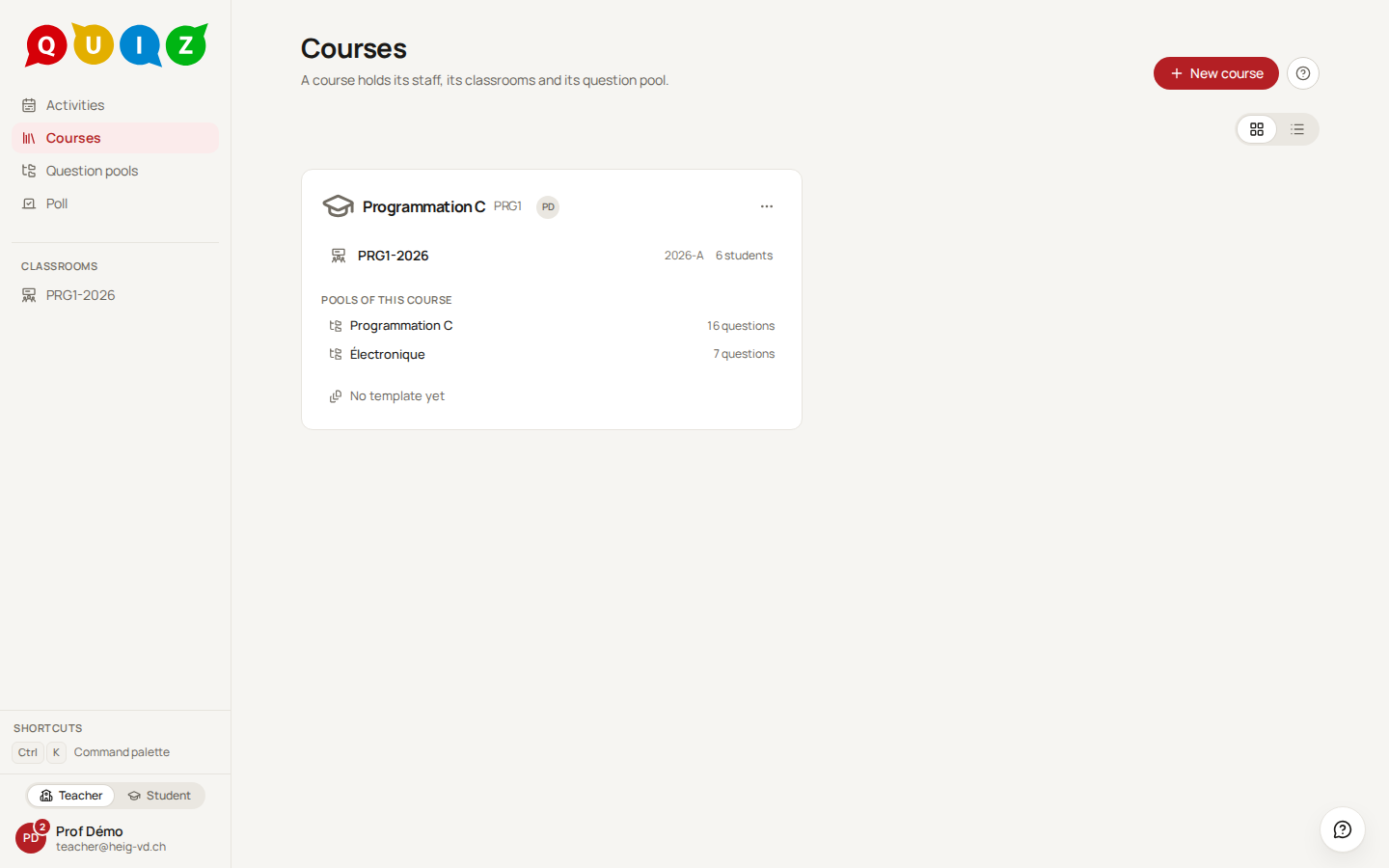
| Course | The lasting unit you teach, with a name and a short code, for example "Programmation C" and PRG1. It holds the staff, the classrooms and the linked pools. |
| Classroom | One group following a course for one period. Rosters, evaluations and results live in a classroom. |
| Roster and seat | The class list. Each row is a seat with a name, an e-mail address and an extra-time percentage; a seat is pending until the student claims it. |
| Pool | A collection of questions, with categories; each question is classified by the concepts it exercises. A pool belongs to you, not to a course; a course draws on the pools linked to it. |
| Question and published version | A question is the stable entry in a pool. Its content lives in numbered versions; only a published version can be used in an evaluation, and a published version never changes. |
| Evaluation | An ordered set of published question versions, run in a classroom with a timing, a feedback policy and a grade scale. |
| Mode | Exam: starts Live, timed per student, opened from a waiting room. Exercise: starts Live without a waiting room, open until you close it; choose Automatic to give it a window that opens and closes by itself once scheduled. Poll: one question on the wall, answered by whoever is in the room. |
| Attempt | One student's participation in one evaluation, with its start, its deadline and its state. |
| Grading | The points given to an answer. Automatic gradings arrive already validated for deterministic types; you validate or adjust the rest. |
| Release | The moment the grades, and whatever the feedback policy allows, become visible to the students. |
The life of an evaluation
- Write and publish questions in a pool, and link the pool to the course: Question pools and Question types.
- In a classroom, create an evaluation, add questions, choose the timing and the mode: Evaluations.
- Open the waiting room, start, watch the grid, pause or extend if needed, and let the server close it: Running an evaluation.
- Validate the proposed gradings, publish the results, export the CSV: Grading and results.
For what to do with these in a course — peer instruction with a poll, an exercise before the lesson, the drill, programming question patterns and how to write a good question — see Teaching recipes.
flowchart LR
  A[Draft] --> B[Questions added]
  B --> C[Waiting room]
  C --> D[Running]
  D --> E[Closed]
  E --> F[Graded]
  F --> G[Released]
  G --> H[Feedback]
An exercise skips the waiting room and closes by itself at its deadline. A poll starts running the moment you launch it and ends when you end it: it is never graded or released.
Where to find things
- Activities, the first entry of the sidebar, gathers every exam, exercise and poll of your classrooms in one place.
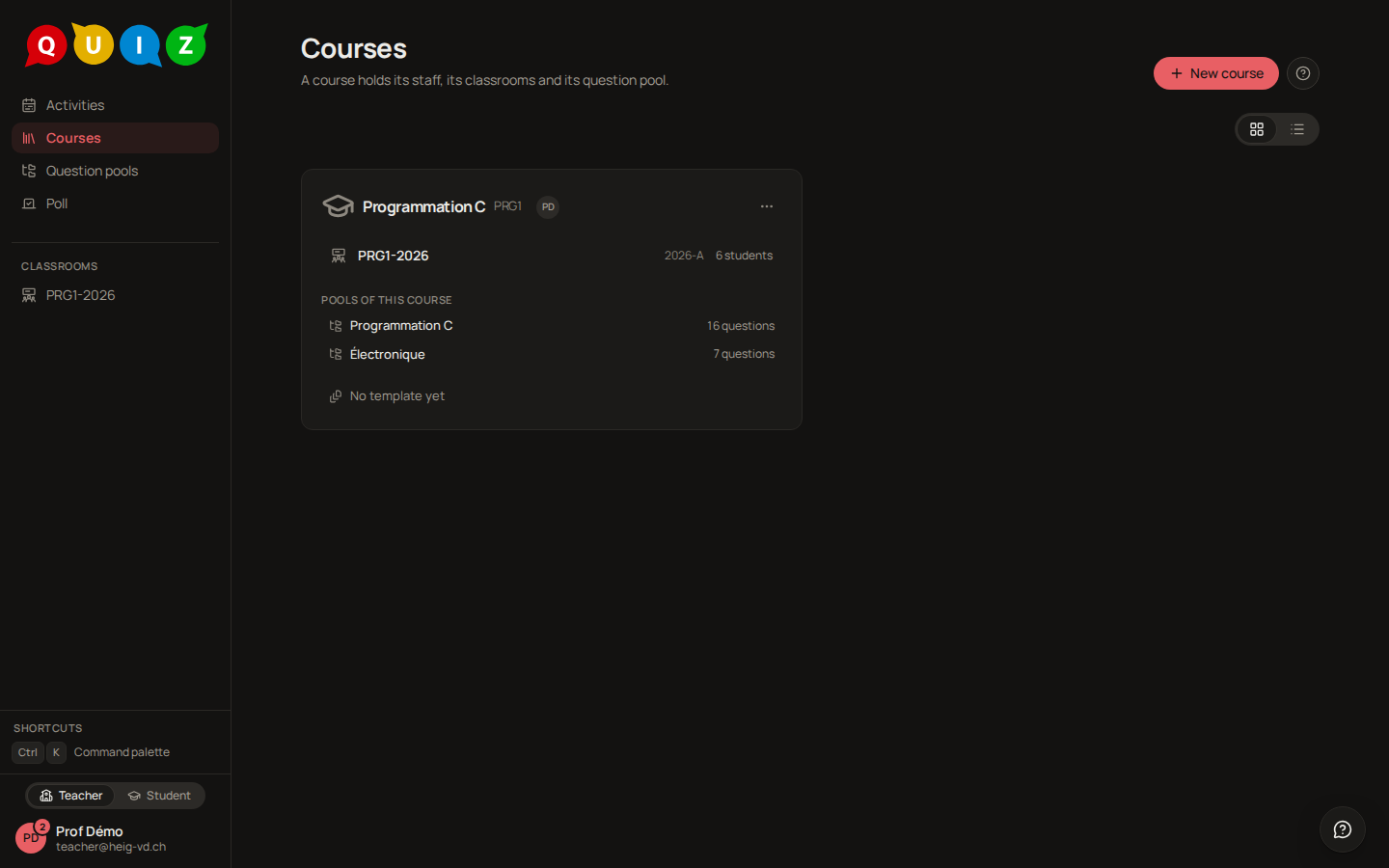
- Courses, just below it, is the home page: your courses, their classrooms, their staff and their pools. Courses and classrooms.
- Question pools lists your pools and opens their questions. Question pools.
- Poll starts a one-question poll on the projector. Live polls.
- Settings › API tokens connects an AI assistant (Claude, ChatGPT) that writes questions and evaluations for you. AI assistants (MCP).
- The Classrooms section of the sidebar lists your classrooms, one row each. A classroom holds the roster and the evaluations; from an evaluation row you reach its setup, its dashboard, its grading and its results. Courses and classrooms, Evaluations.
- Administration appears only for the administrator. Administration.
- The account row at the bottom of the sidebar opens Settings and the theme, and lets a teacher switch to the student view. Getting started.