Getting started
This chapter takes you from the sign-in screen to a working knowledge of the frame around every page: the sidebar, the command palette, the help drawer, the notifications and your settings.
Signing in
Open the platform's address and click Sign in with Switch edu-ID. You are sent to the identity provider, you authenticate there, and you come back signed in. Your account is created at the first sign-in, with the name and the e-mail addresses that edu-ID reveals; whether you land on the teacher home or on the student home depends on your role (see Overview).
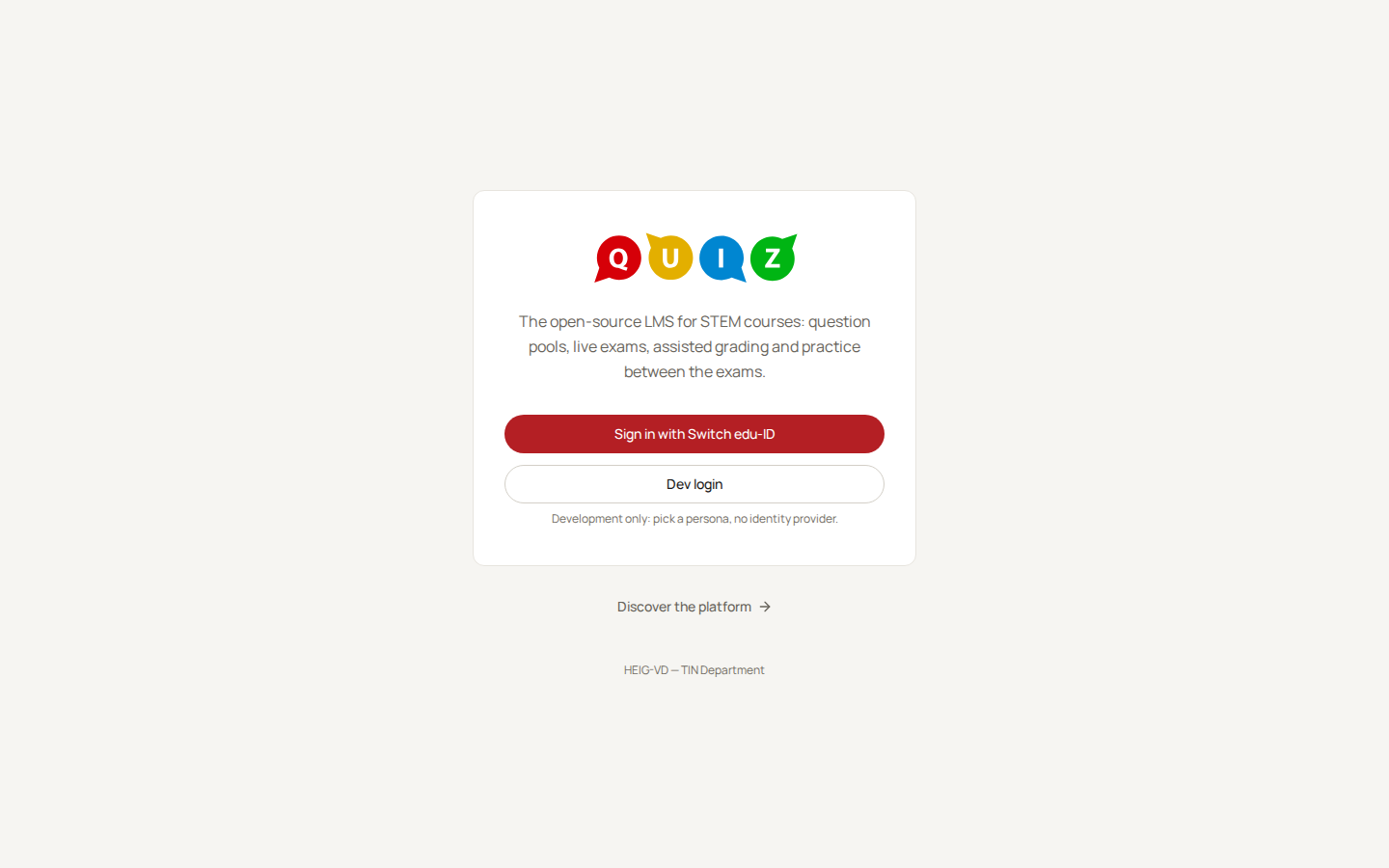
The Dev login button, with its "Development only" hint, is only present on a developer's machine: a production server refuses to start with it enabled, so you will never see it in class.
The session lasts thirty days. Sign out, in the account menu described below, ends it explicitly.
The home page and the sidebar
A teacher lands on Courses: one card per course, with its classrooms, its staff and the pools linked to it. An empty home also offers the training course, a course of your own with two quizzes in it, to learn the platform by doing: see The training course. The sidebar on the left is the same on every page:
- Activities: every exam, exercise and poll of your classrooms, in one place.
- Courses: the home page.
- Question pools: your pools and their questions. While a pool is open, its categories unfold under this entry.
- Poll: the launcher of a live poll.
- Administration: only for the administrator.
- Classrooms: one row per classroom you teach, with the code of its course. Click one to open it.
Above the account row, the Shortcuts strip lists the keyboard shortcuts that work on the current page. It always starts with the palette; a screen adds its own while it is open.
The account row at the bottom shows your name and address. Click it to open the account menu:
- Settings, described below.
- Switch to student view shows the portal the way a student sees it, with a banner at the top and Back to teacher view to return. It is how you check what a class will find after you release results.
- Dark theme or Light theme flips the theme for this browser.
- Documentation and Project sources open outside the app.
- Sign out.
On a phone the sidebar becomes a drawer behind the menu icon of the top bar, and the search icon opens the palette.
The command palette
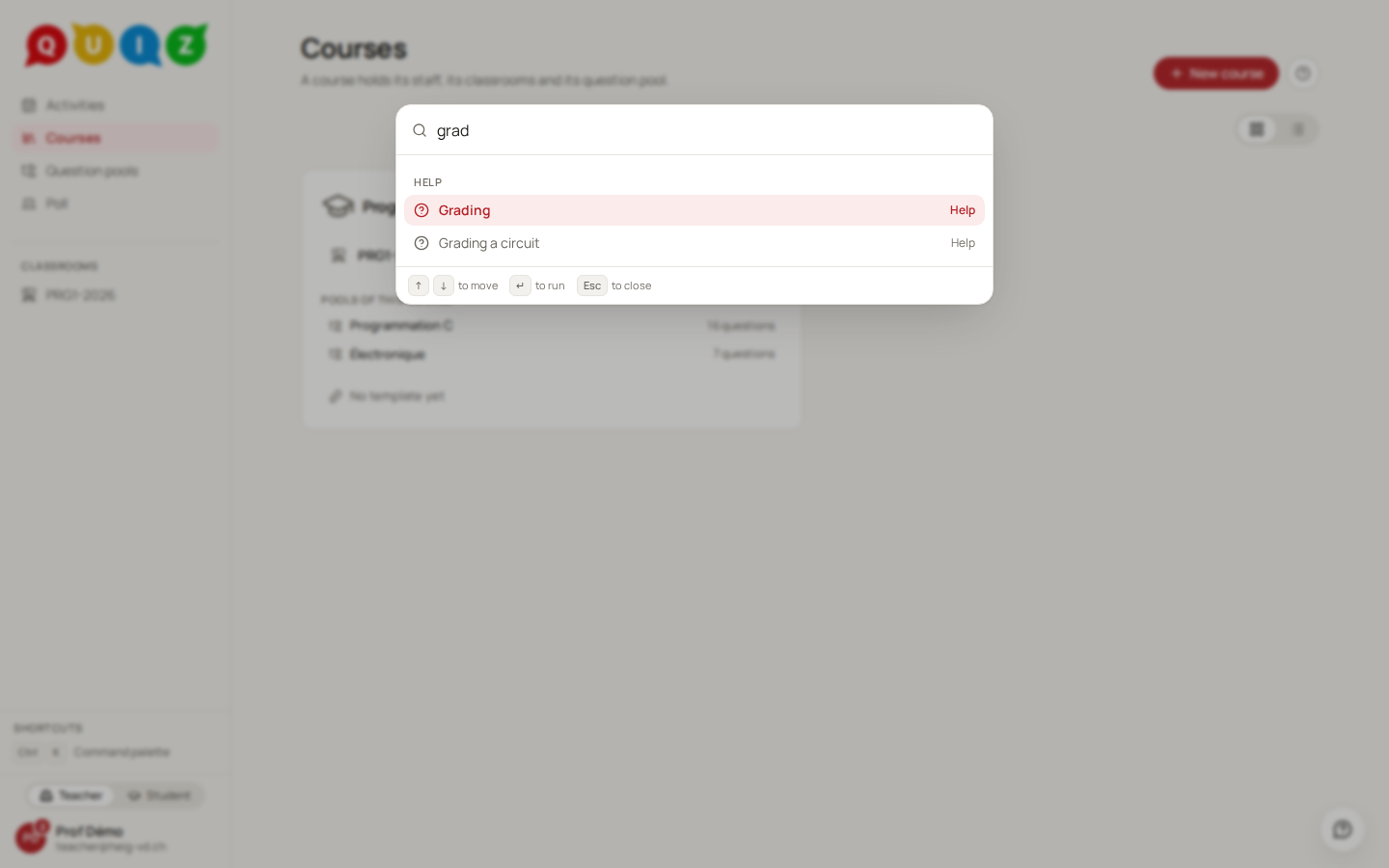
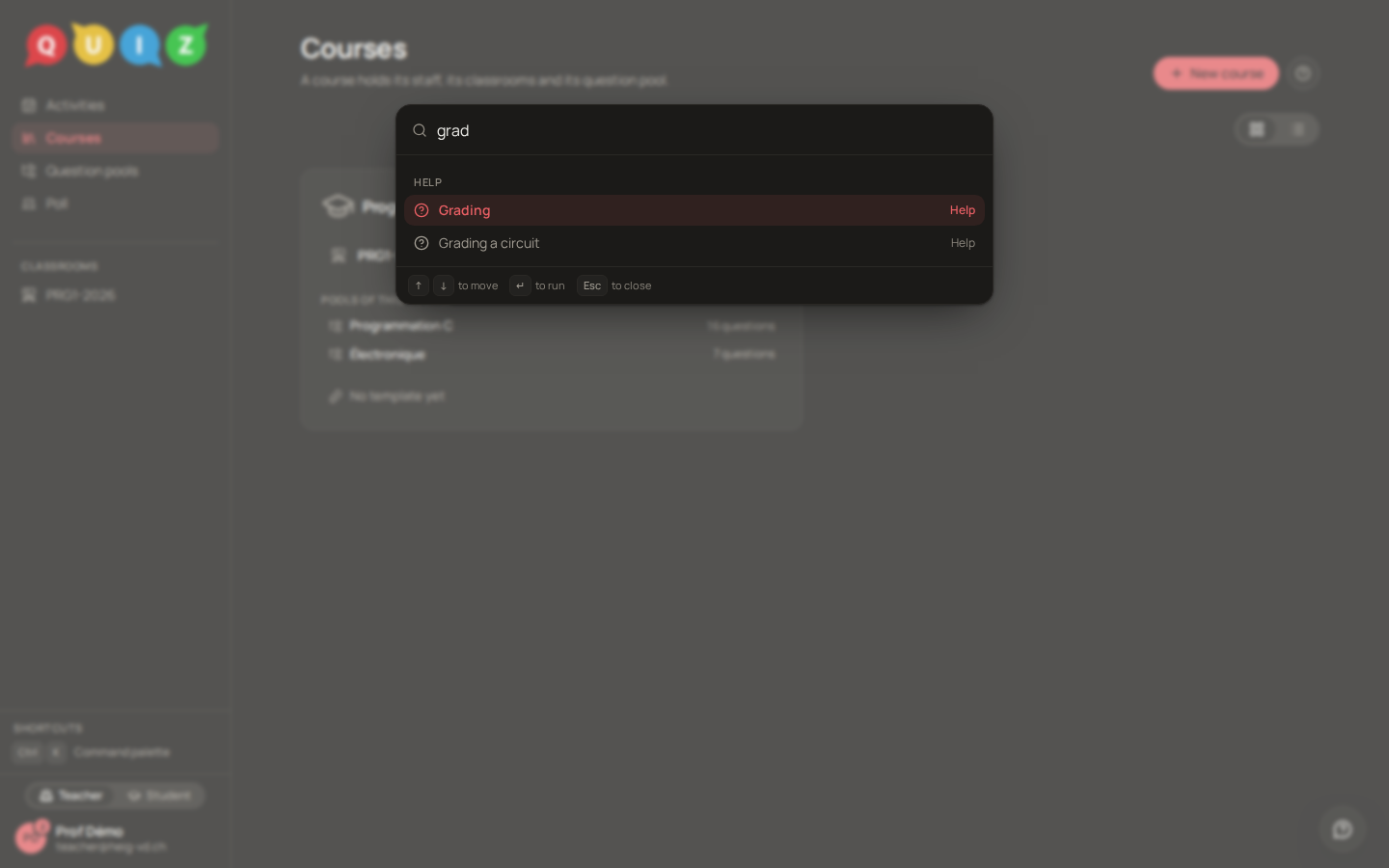
Press Ctrl+K anywhere (or click the search icon on a phone) and the palette opens over the page. It has three groups:
- Navigation: Courses, Settings, Question pools, then one entry per pool and per classroom, such as "Open the pool Programmation C" or "Open classroom PRG1-2026".
- Actions: Start a poll, the theme entries, Switch to Français (or to English), Switch to student view, Sign out. A screen that is open adds its own actions here: the question editor adds Publish this question and Show the student preview, a closed evaluation adds Open the grading panel and Open the results.
- Help: the documentation, the project sources, and every help topic of the product.
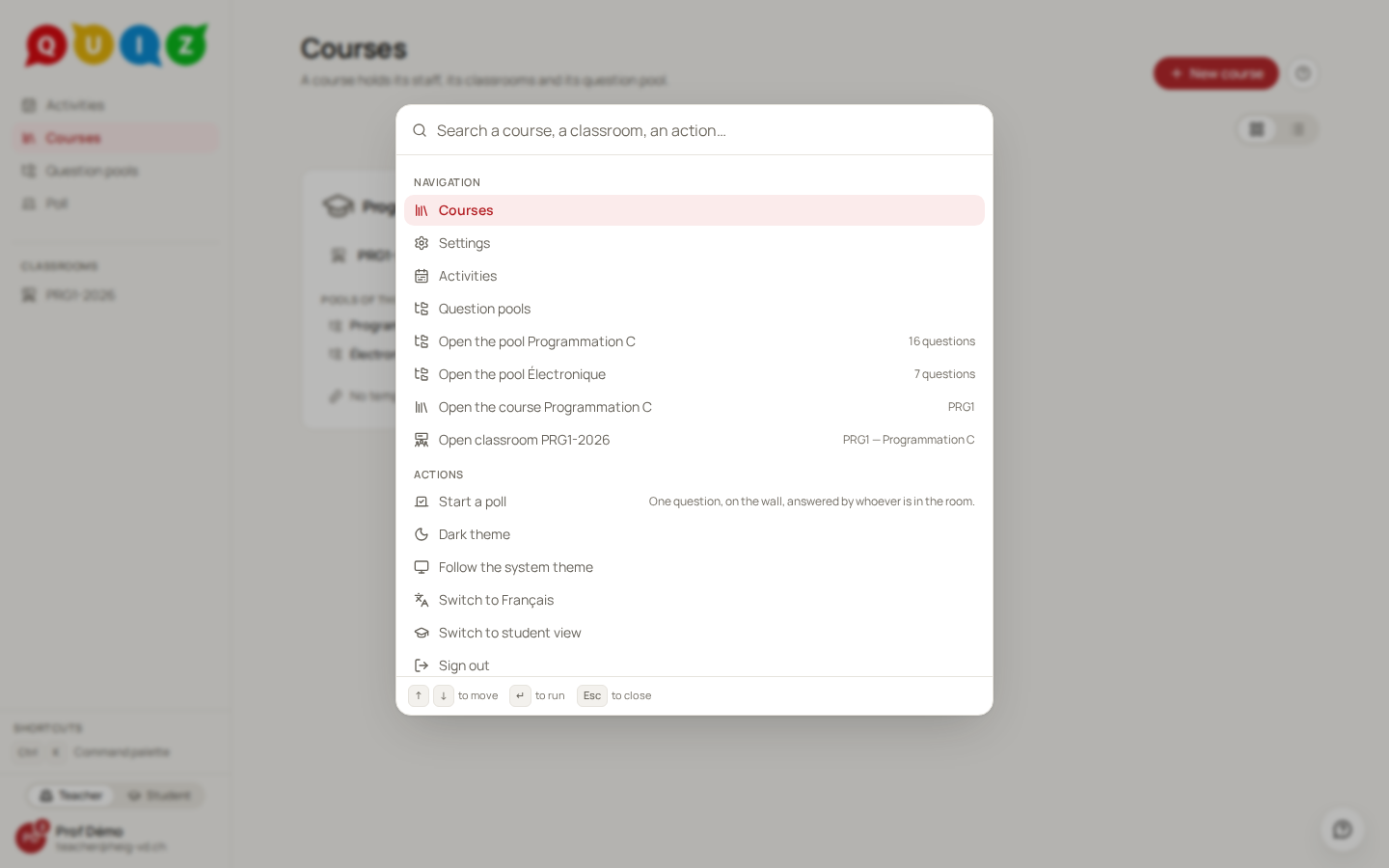
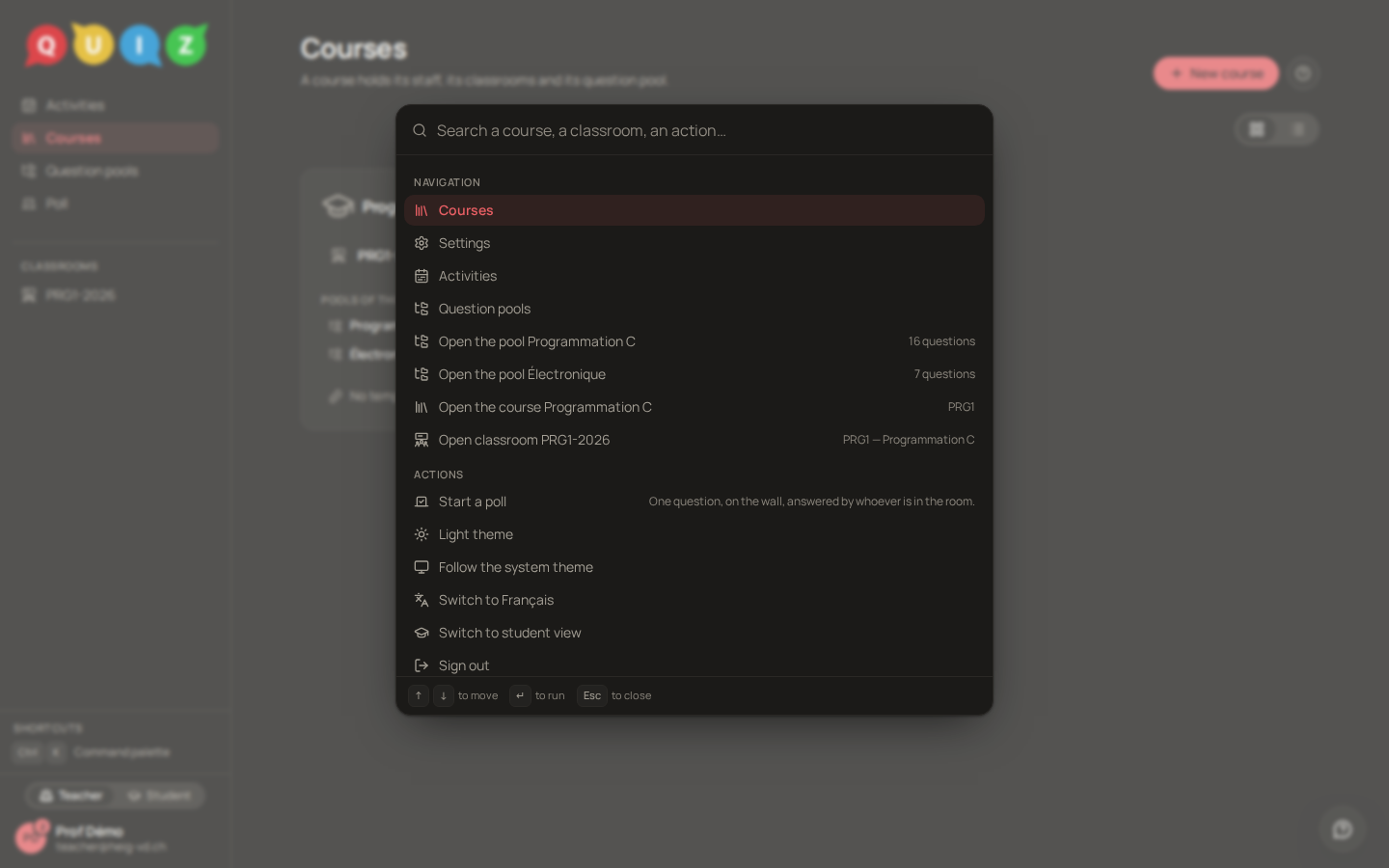
Type to filter. The list narrows to what matches, across the three groups at once; the arrow keys move, Enter runs the highlighted entry and Esc closes.
Tip
The palette is the fastest way to reach a help topic: type a word of its title and press Enter, whatever page you are on.
The help drawer
Every main screen carries a round question-mark button at the top right, in the row of its actions. Click it and a drawer slides in from the right with the help topic of that screen: what the screen is, what each control does, what a destructive action takes with it. The page stays visible behind it. Close it with the cross, with Esc, or by clicking outside.
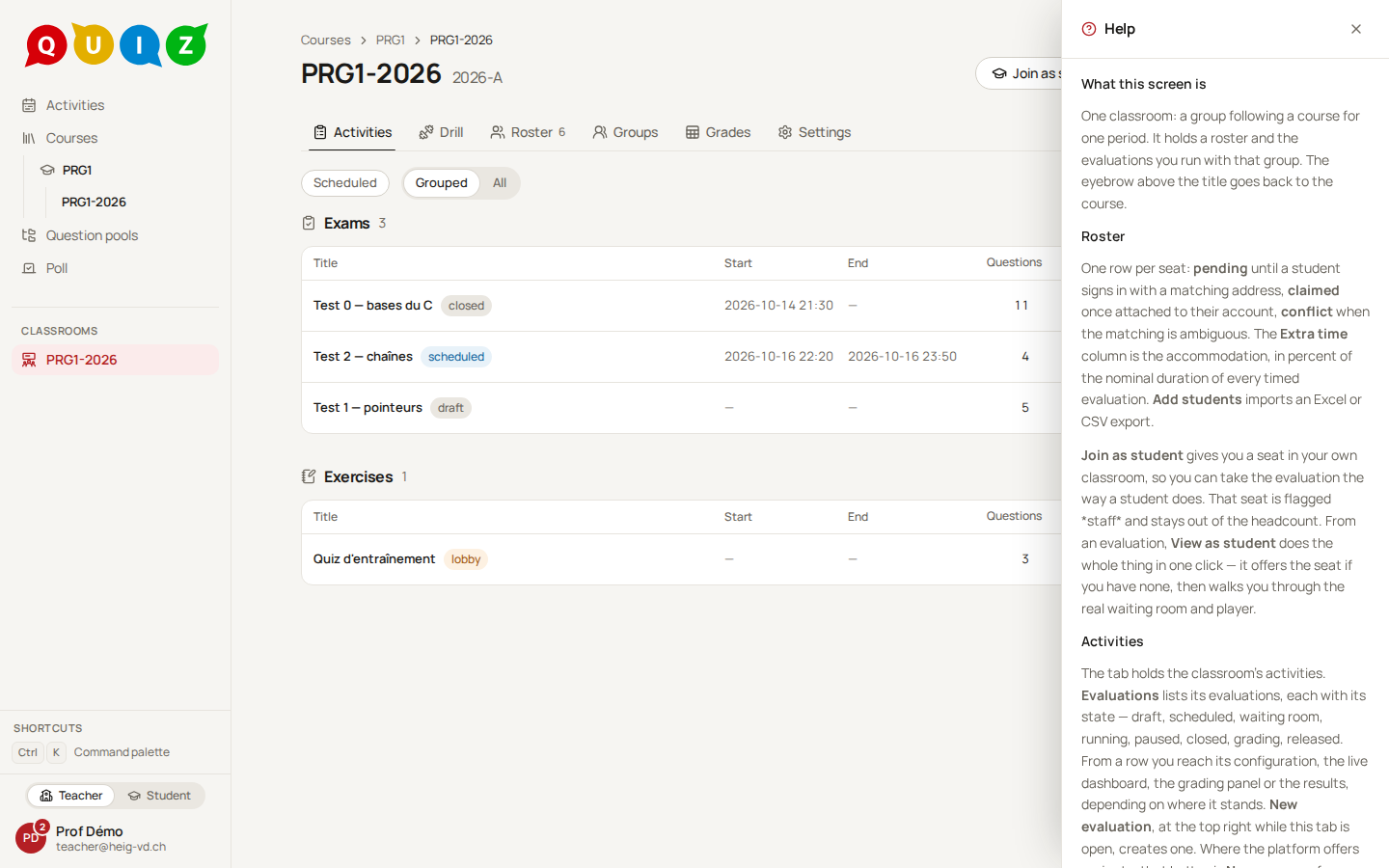
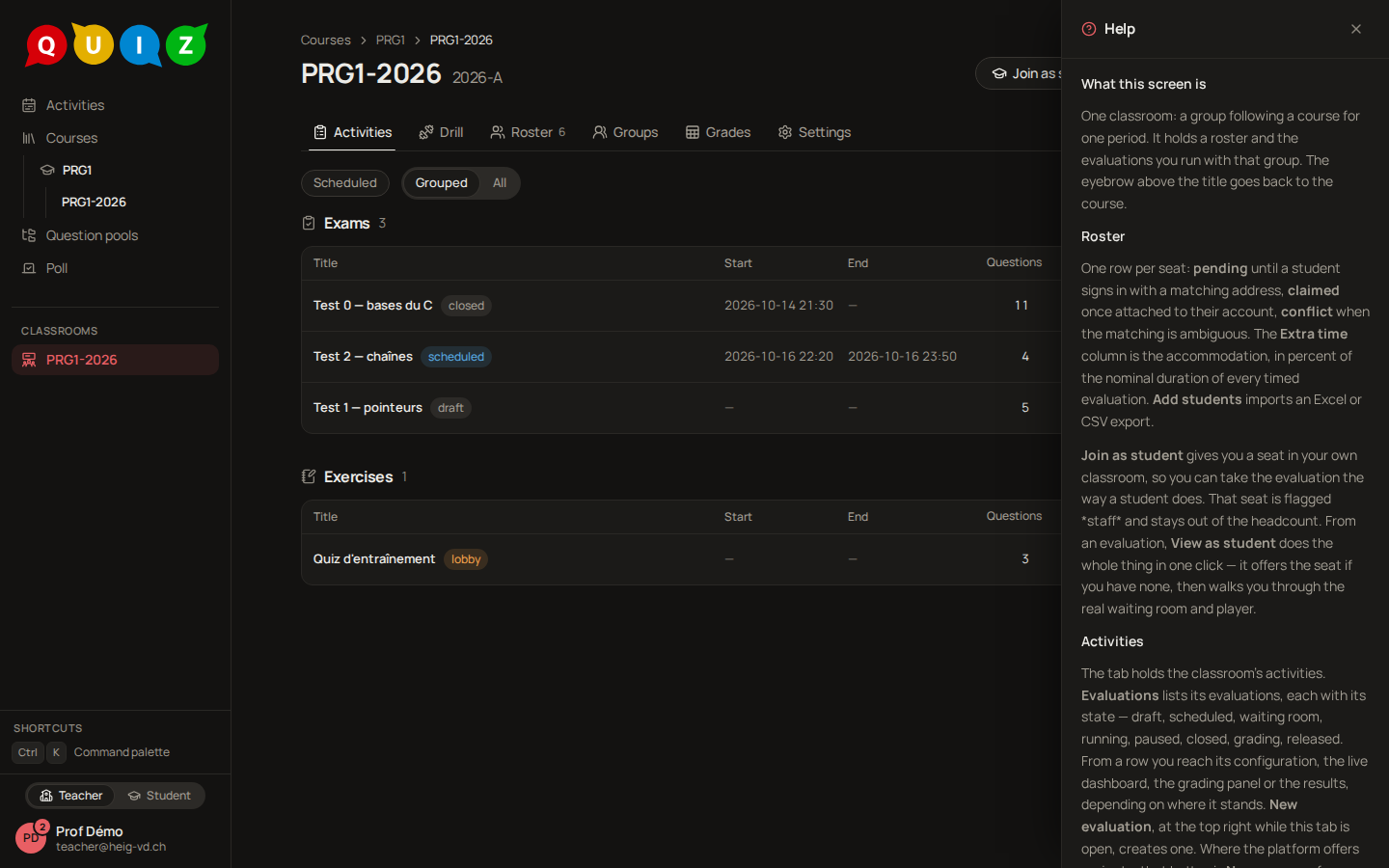
The topics are short and describe one screen each. This guide is the longer version: it walks through the tasks that cross several screens.
The help assistant
When the platform has an AI model, every teacher screen carries a round button at the bottom right, with a speech bubble and a question mark. It opens the Help assistant, a small chat that stays beside the page: ask in French or in English how to do something on the screen you are on, and it answers from this guide and the help topics, naming the buttons as the screen labels them. It can also answer about your own data: your courses and classrooms, your pools and questions, your evaluations and templates, and the final results of your classrooms ("what is the mean of this class?"). It reads them as you would, with your own seats only, and knows which course, classroom, pool, question, evaluation or template is on the screen; it never reads the scores of an evaluation that is running or not released yet.
It can also show you things rather than list them: ask "show me the questions of the Sandbox pool, only the printf ones" and it opens that pool with #printf in its search box, which finds the questions classified under the concept printf; ask for "the roster of PRG1-2026" and it opens the classroom on its Roster tab. The panel stays open, says Opened: and the screen's name under the answer, and the browser's Back button takes you back; if you have unsaved work, you are asked first, as when you leave it yourself. On the screen you are on, it can also run a command of the command palette that changes nothing; one that opens a new tab, such as the question editor's preview, is offered as a button you click.
It can prepare changes, which you confirm one by one; nothing changes until you do:
- In the question editor, ask it to rewrite the statement in proper French, to add five choices or to write the explanation: what you typed is saved first, and it shows each field before and after, with Apply to the draft. Applying changes the draft in one step — Undo puts it back —; the draft is saved as usual and never published, so you still read it, try it and publish it yourself. It rewrites your texts only (the statement, the choices, the explanation): never a setting, which choice is correct, the scoring, the variables or their
[[…]]expressions, nor an image. If you change the draft before applying, the proposal no longer applies: ask again. - A few writes: create a question (always as a draft: it looks for similar questions first), a category, a template (empty, or with published questions only: publish a draft in its editor first, then ask again), add published questions to a template, link a pool to a course. Each comes as a card that says what will be written, read back by the platform — the pool, the course, the questions; for a link, everyone on the course's staff, who all become contributors of the pool. Confirm writes it and links to the result; Cancel forgets it. A card waits ten minutes, and a new version of the platform forgets it: ask again.
- A command of the screen that changes something — publish, start, pause, add time, close, grade, release: a card names it, and it runs only when you confirm, as if you had chosen it in the command palette; its own confirmation, if it has one, still asks.
It never publishes, deletes, or changes an evaluation, a classroom or a course for you, nor a question outside its own editor; asked to, it tells you how. Writes you confirm are recorded in the platform's log as made by the assistant on your behalf.
It answers questions about the platform and your data only, and declines anything else. A link in its answer is clickable only when it leads into the platform. The clock icon lists your past conversations and the pen starts a new one. Your questions, and what it reads to answer them, students' names and results included, are sent to an AI model (Anthropic); the questions and answers are kept 30 days, and an administrator can read them (see Data protection); delete a conversation from the list whenever you like.
The assistant is absent from the student view, from a session acting as a student and from the screens meant for a projector.
Notifications
Notifications, in the account menu (your name, at the bottom of the sidebar), collects what happened to you while you were elsewhere: a colleague shared a pool with you, naming the role they gave you; the ownership of a pool was transferred to you; students joined one of your classrooms; roster entries need your decision. Events of one classroom are counted in one entry ("3 students joined PRG1-2026") until you read it. An unread count sits on your avatar and on the menu entry, Mark all as read clears it, and a notification is a link to the pool or the roster it talks about.
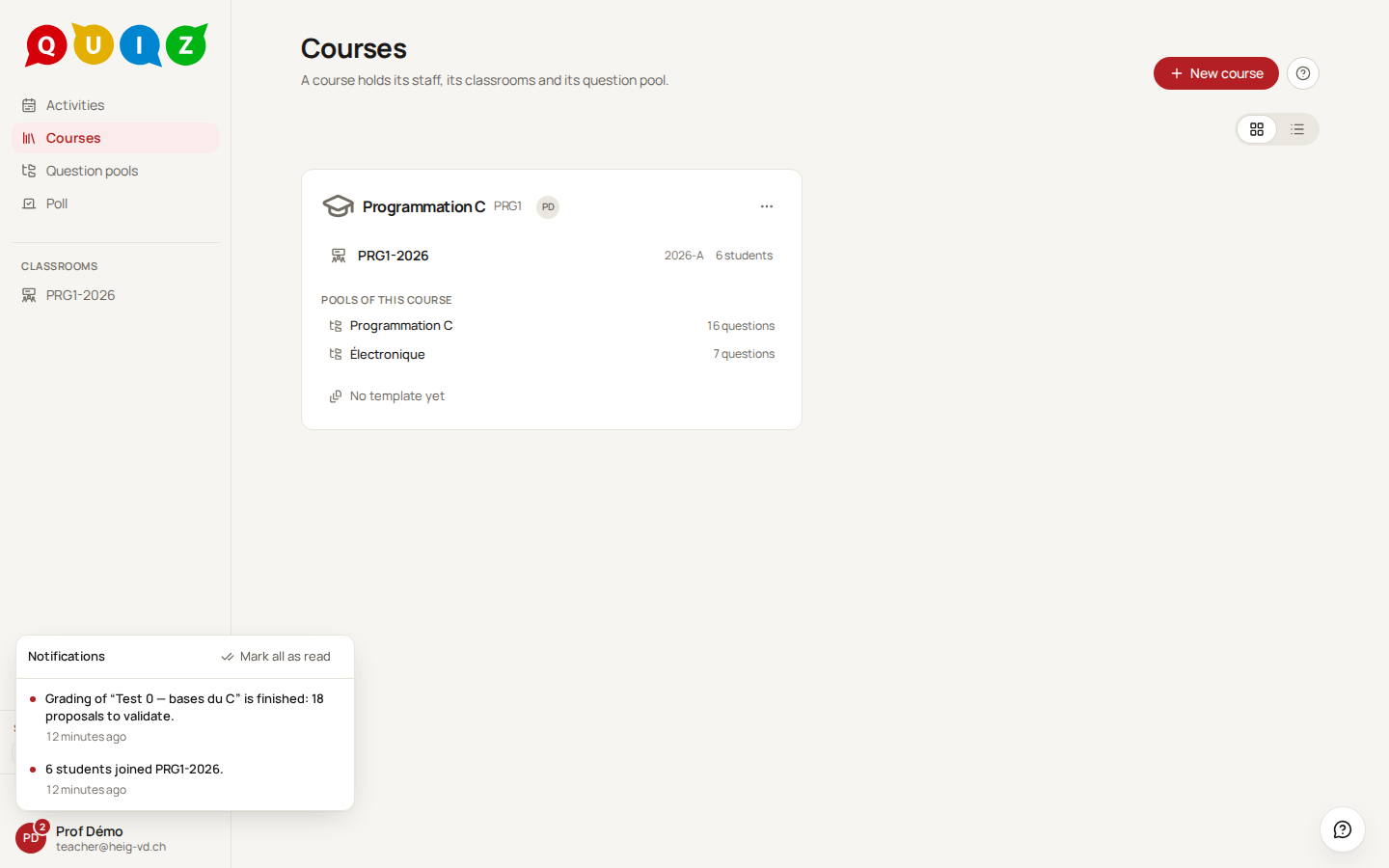
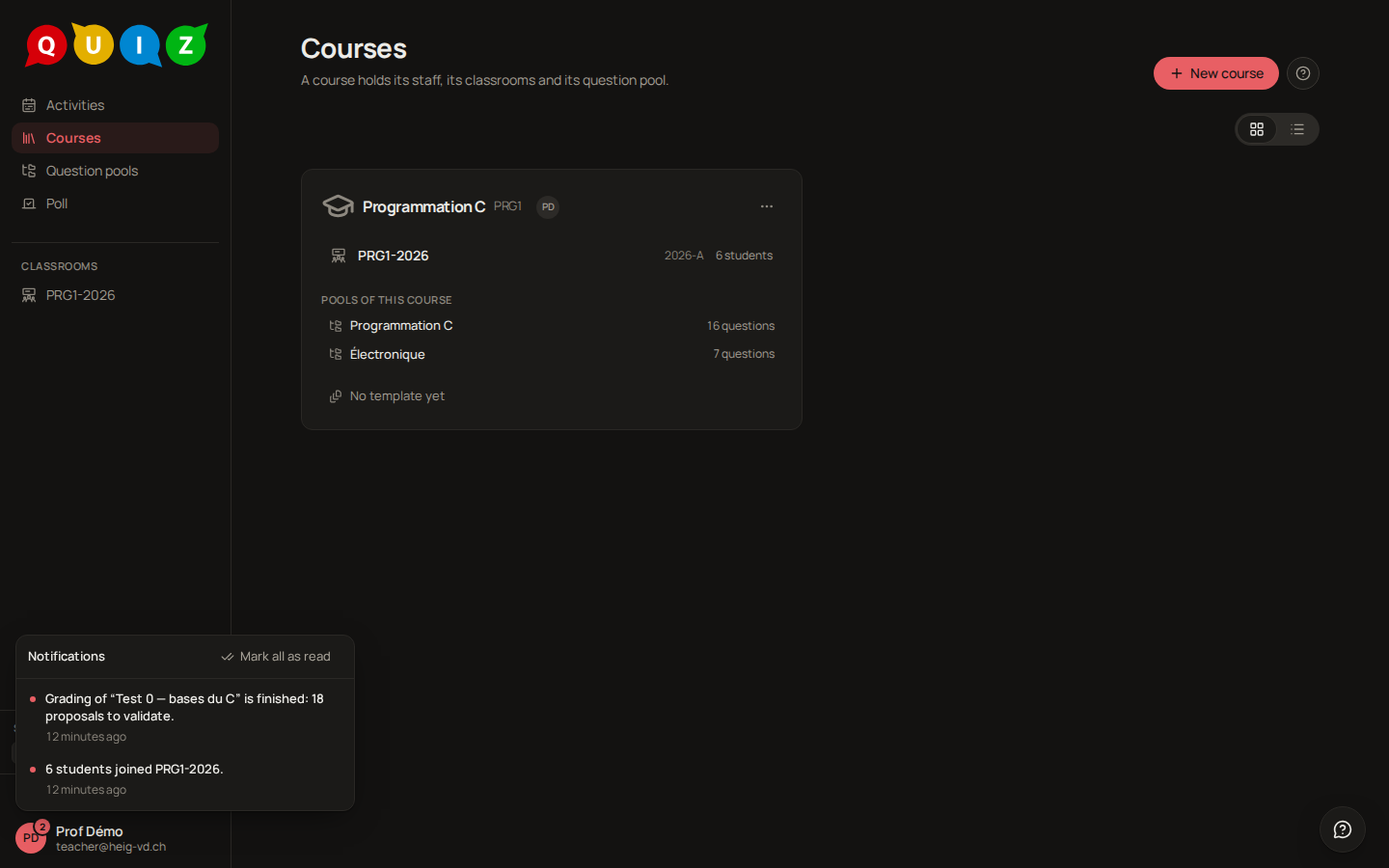
A notification that arrives while the platform is open also shows as a brief toast in the corner, except on a full-screen page (an exam, a projection) and on the live dashboard, which may be on a beamer. The bell still counts it.
Settings
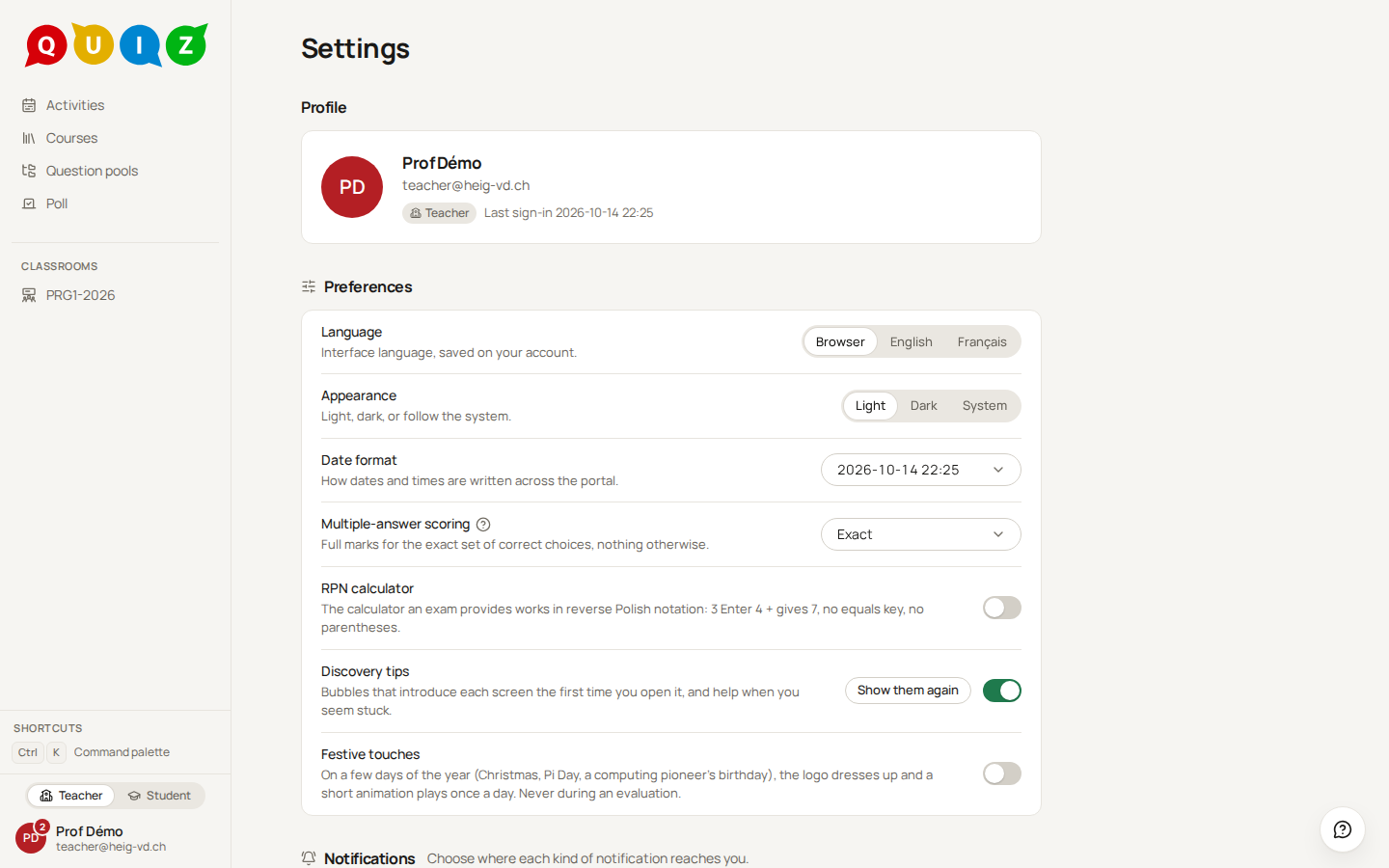
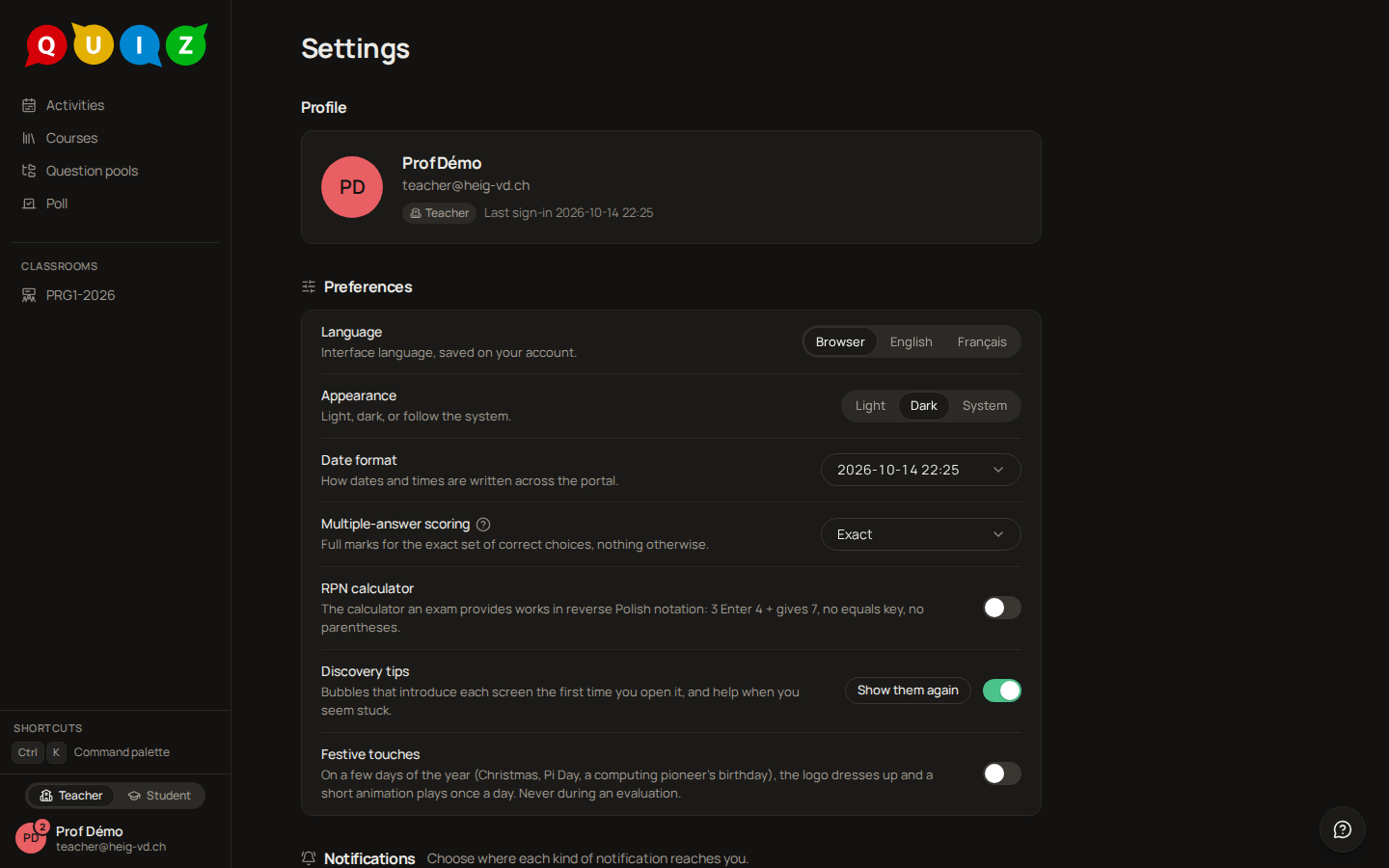
Settings opens from the account menu or from the palette. The Profile card shows your picture, which you can change, your role and your last sign-in. Under Preferences:
- Language: English or Français. The choice is saved on your account, so it follows you to another browser. The palette's Switch to Français entry is the same setting.
- Appearance: Light, Dark or System, which follows the operating system.
- Date format: how dates and times are written across the portal.
- Multiple-answer scoring: the policy that seeds the evaluations you create, for multiple-choice questions with several correct answers. Changing it never moves an evaluation that already exists, and each evaluation keeps its own. The five policies are explained in Question pools.
The Notifications card is a grid of the kinds you receive against three channels: App (the bell and its toast), Email and Teams. The switches are stored on your account. A student joining is in the app only by default; a roster entry to decide also goes by e-mail and Teams.
Keyboard shortcuts
The strip at the bottom of the sidebar always shows what applies to the page you are on. The full list, verified against the current version:
| Where | Keys | What it does |
|---|---|---|
| Everywhere | Ctrl+K |
Open the command palette |
| Question editor | Ctrl+S |
Save the draft (it saves itself already) |
| Question editor | Ctrl+Enter |
Try the question |
| Question editor | Ctrl+Shift+P |
Publish |
| Question editor | Ctrl+Shift+M |
Toggle the student preview |
| Live dashboard | N, R, S |
Hide or show names, answers, results |
| Live dashboard | Space |
Pause or resume |
| Live dashboard | F |
Full screen |
| Live dashboard | Esc |
Close the inspect panel |
| Grading | V |
Validate and move on |
| Grading | O |
Adjust the points |
| Grading | ←, → |
Previous or next answer |
| Student player | Alt+←, Alt+→ |
Previous or next question |
| Student player | Ctrl+Enter |
Mark the question as done, or run the code |
On a Mac, Cmd replaces Ctrl and the strip spells it that way.