Running an evaluation
The live dashboard is the screen you keep open while the class takes an evaluation. It shows who is in, how far each student has got, and it holds every control that acts on a running evaluation: start, pause, extend, close. This page assumes the evaluation is configured and its waiting room open (see Evaluations).
Reaching the dashboard
From the classroom's Activities tab, a row in lobby, running or paused opens the dashboard on a click; the row's menu also offers Live dashboard for any evaluation past draft. From the configuration screen, the Launch tab of a live evaluation shows Go to the dashboard.
The Configure link above the title leads back to the three configuration steps, where nothing structural can change any more.
The waiting room
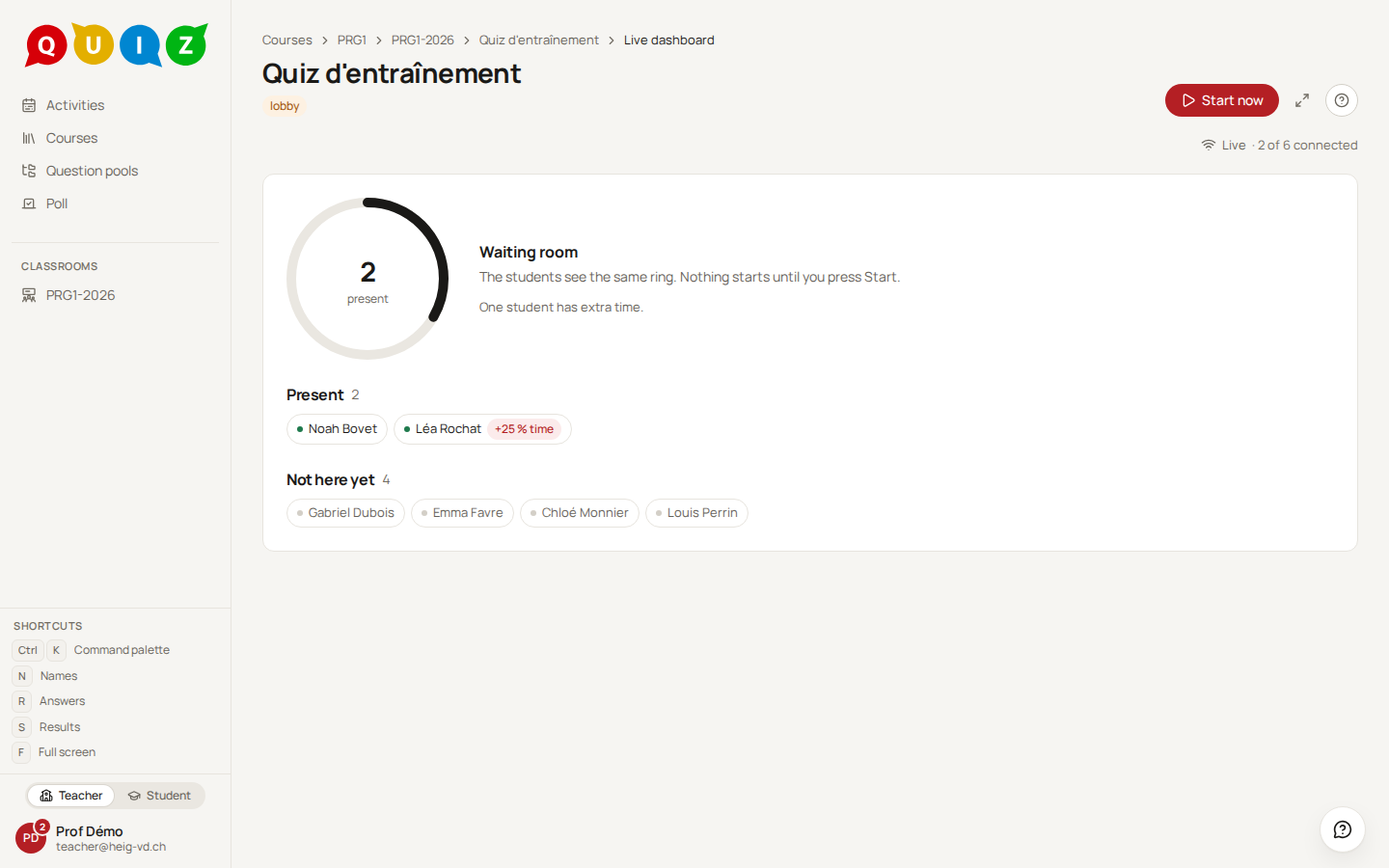
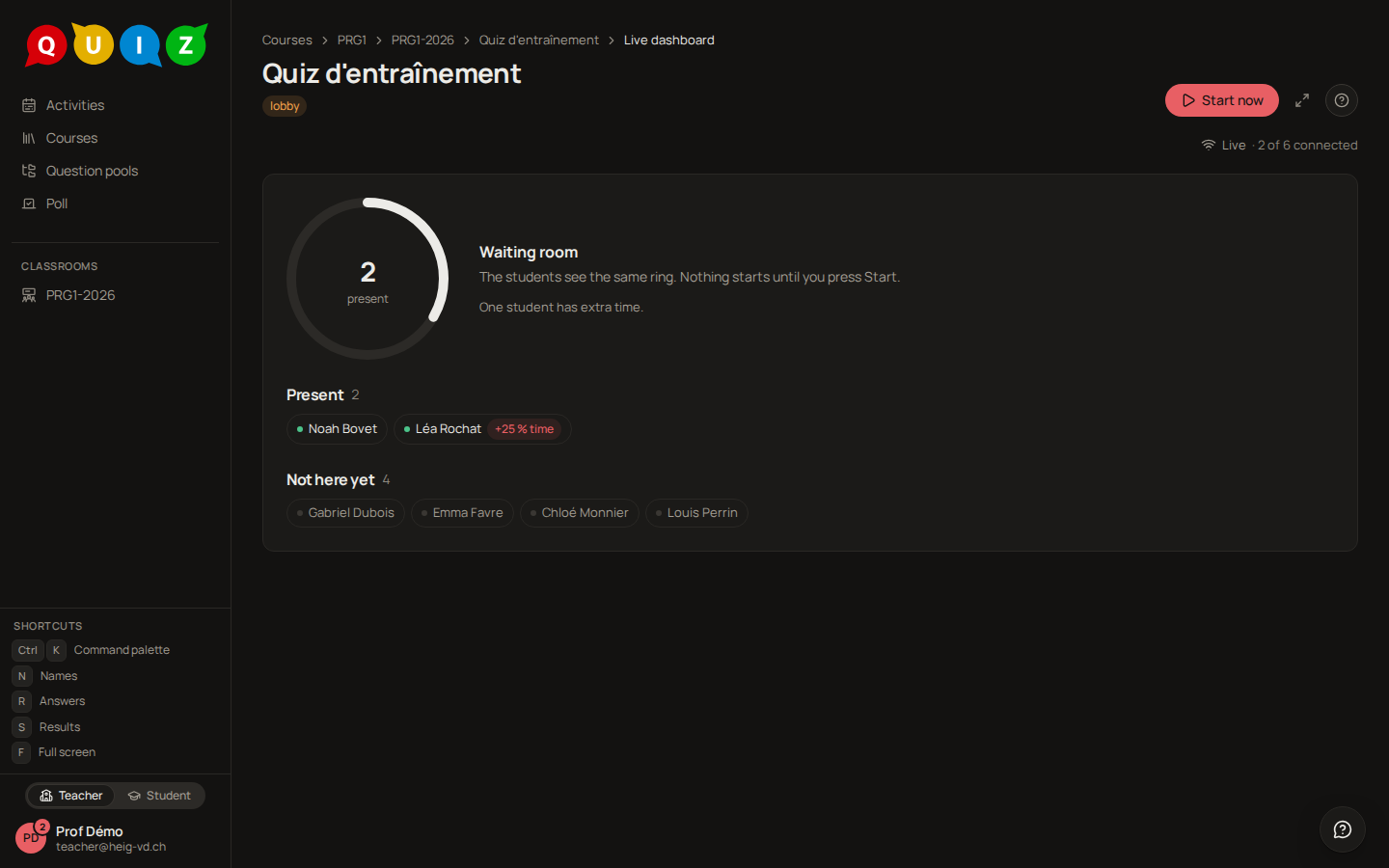
While the evaluation is in lobby, the dashboard shows a ring: how many students are present, filling up towards the number enrolled. The students see the same ring on their side, with the announced duration. Two lists name them: Present, with a green dot, and Not here yet. A student with extra time on the roster wears a +25 % time chip, and the panel counts them (One student has extra time.), so you know before starting who will run longer than the others.
The status line under the title, Live · 2 of 6 connected, says the page is receiving events from the server. Nothing starts until you press Start now; a confirmation asks Start for the 2 students in the waiting room? From that instant every present student's countdown begins, and a late student who enters afterwards starts with the full duration.
With the waiting room set to Automatic, the evaluation starts by itself once everybody on the roster is present. With None, there is no lobby at all: each student starts when they open it.
The grid
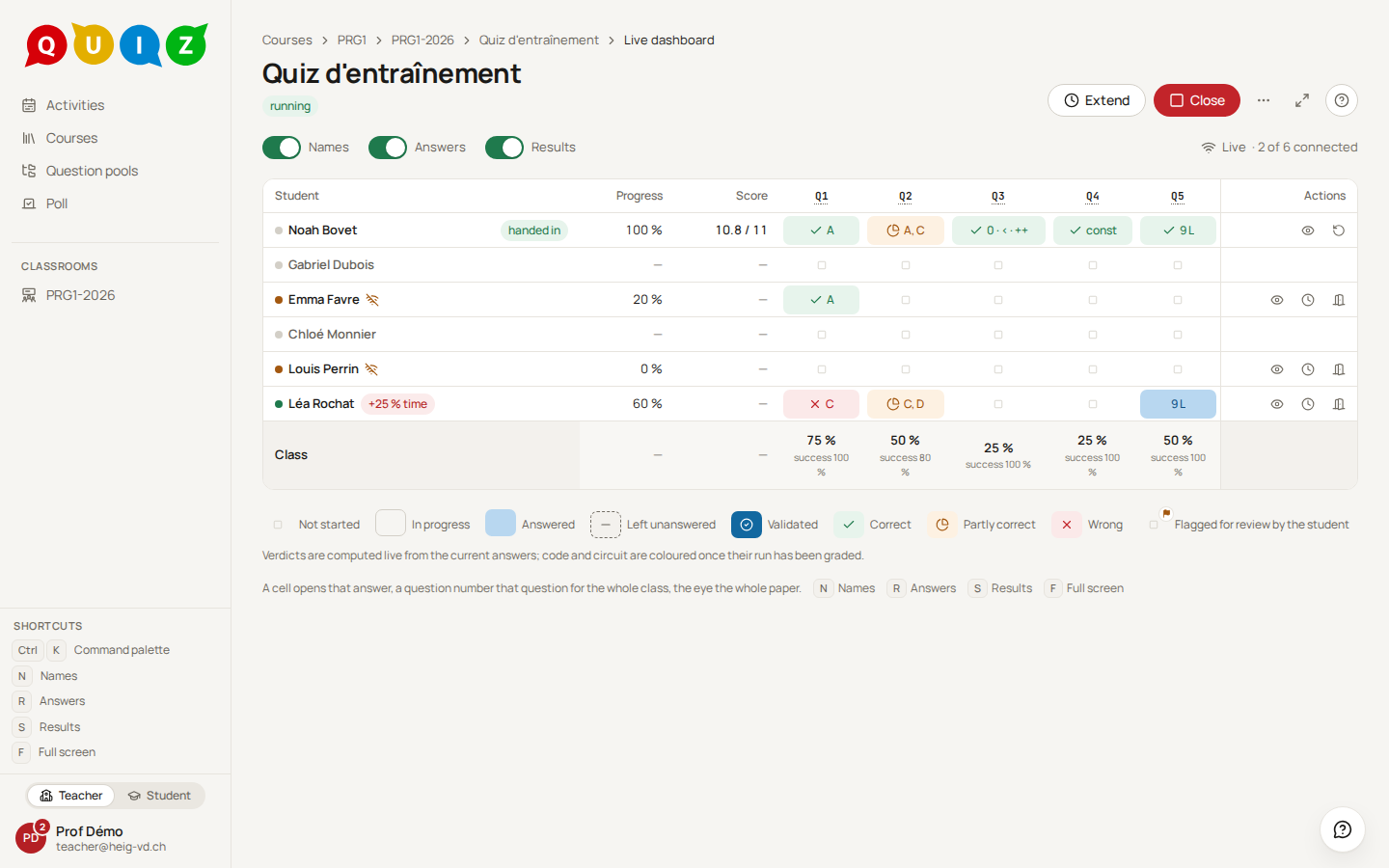
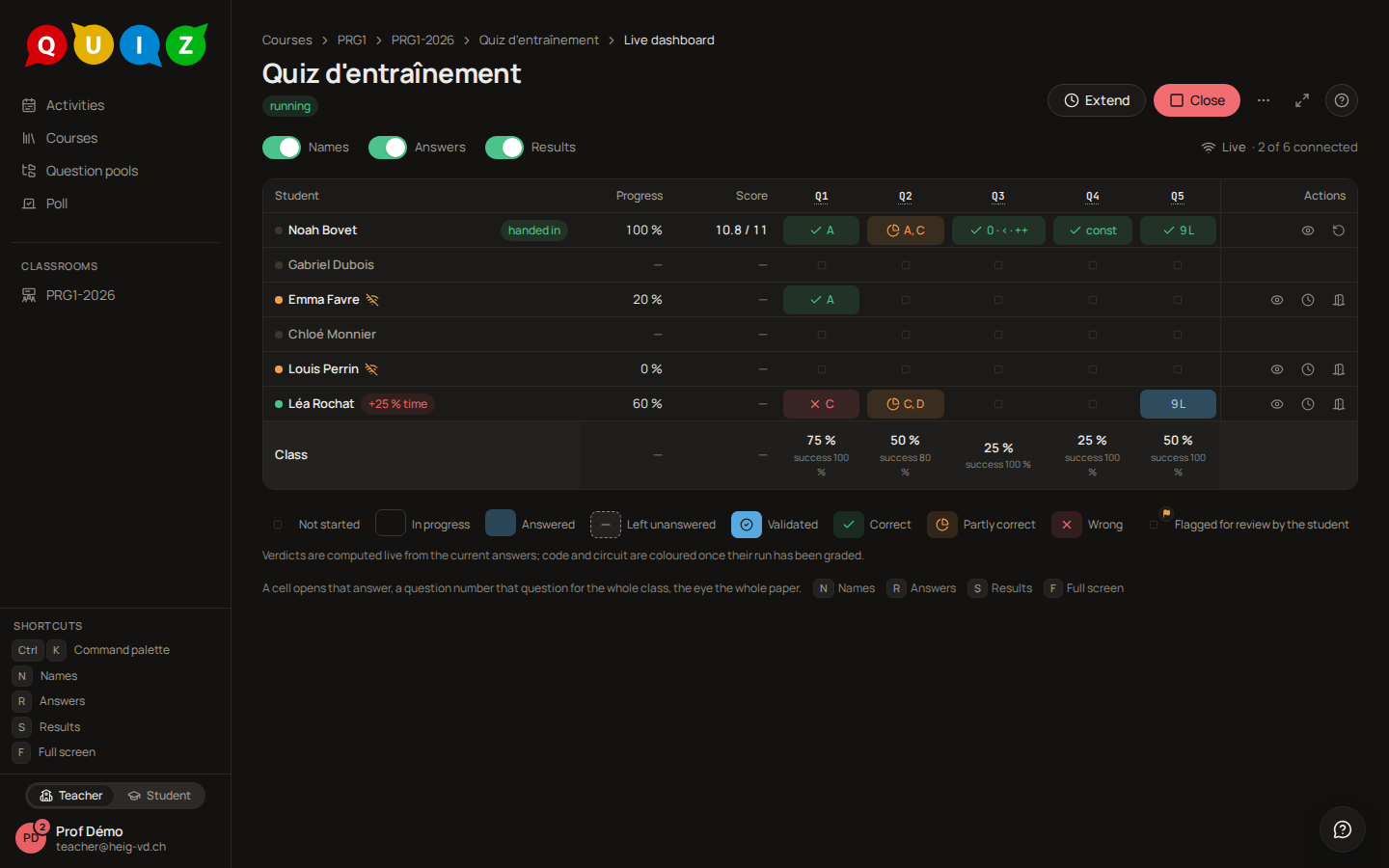
Once the evaluation runs, the ring becomes a grid: one row per student on the roster, one column per question, headed Q1, Q2... (hover a header for the question's type). The Student column stays fixed while the questions scroll. Each row is one line: the presence dot, the name, and the student's state (handed in, closed, the extra-time chip). The dot is green when connected; a Wi-Fi-off icon beside the name means the page dropped, and a greyed name a student who has not opened the evaluation (hover the dot for the word). Progress gives how far each student has got, 3/5 and 60 %. Score appears once there is a score to show. The Class row at the bottom gives the completion rate of each question, then its success rate once the grading exists.
The time left is the big countdown in the header, beside Pause. A row shows its own countdown, at the end of the name, only when its deadline is not everybody's: an extension given to that student, extra time, or a late start with a time limit per student.
The rows shrink to fit the whole class on the screen, down to a readable minimum; past that the page scrolls.
Cell states
Each cell says where one student stands on one question. The legend under the grid names them:
| Cell | Meaning |
|---|---|
| Not started (a faint small square) | The student has not opened this question |
| In progress (an empty box) | The question is open, nothing is written yet |
| Answered (a light blue box) | Something is written and saved |
| Left unanswered (a dash, dashed edge) | The student chose to leave the question |
| Validated (a dark blue box with a check) | The student validated the question (Validate and continue, a checkpoint) |
| Correct, Partly correct, Wrong | The verdict, once the evaluation is closed and graded |
A column darkening downward is the class moving through the quiz. With Answers on, the cell also carries a glyph of the answer itself: the letters ticked on a multiple choice, the word typed in a short answer, 9L for nine lines of code.
The three switches and the projector
Three switches sit above the grid: Names, Answers and Results. They exist for the projector, and they are all off the first time you open a dashboard; your browser then remembers how you left them. On an exam, Answers and Results start off on every new exam whatever you chose before, so an exercise left with its answers on never puts them on the projector during an exam; switch them on for that exam and they stay on across a reload of the same tab. Turn Names off and each row becomes Student 1, Student 2..., in an order that is shuffled per evaluation and stable across reloads, so the number says nothing about the roster's alphabetical order. Turn Answers off and the glyphs disappear; the cells keep only their state. Results is what turns a progress cell into a verdict cell once grading exists.
The arrows icon at the top right, or the F key, puts the dashboard in full screen for projection.
The controls
Three buttons live in the header while the evaluation runs.
Pause freezes every countdown at once and moves the evaluation to paused; the students see their clock stop. The same button becomes Resume.
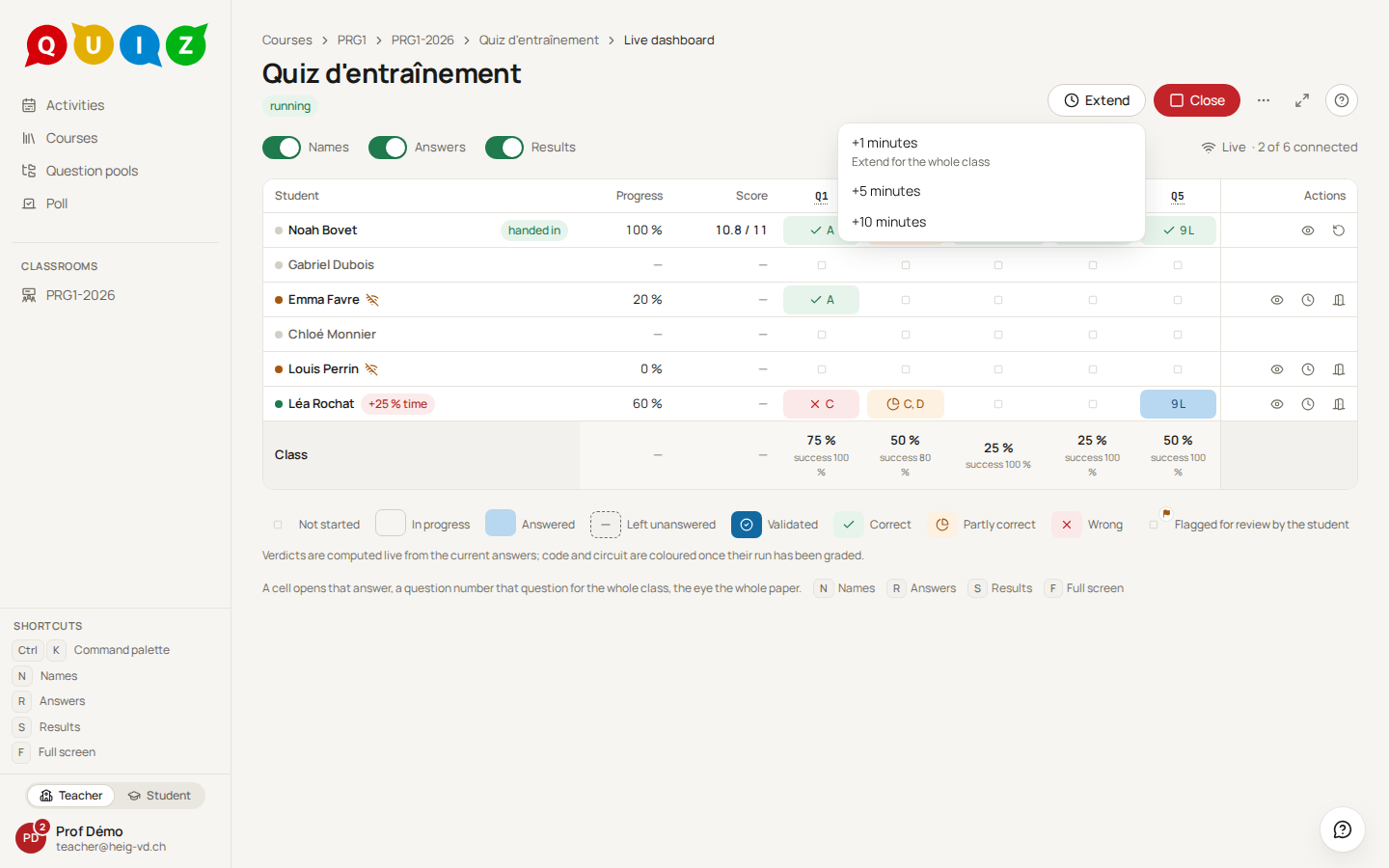
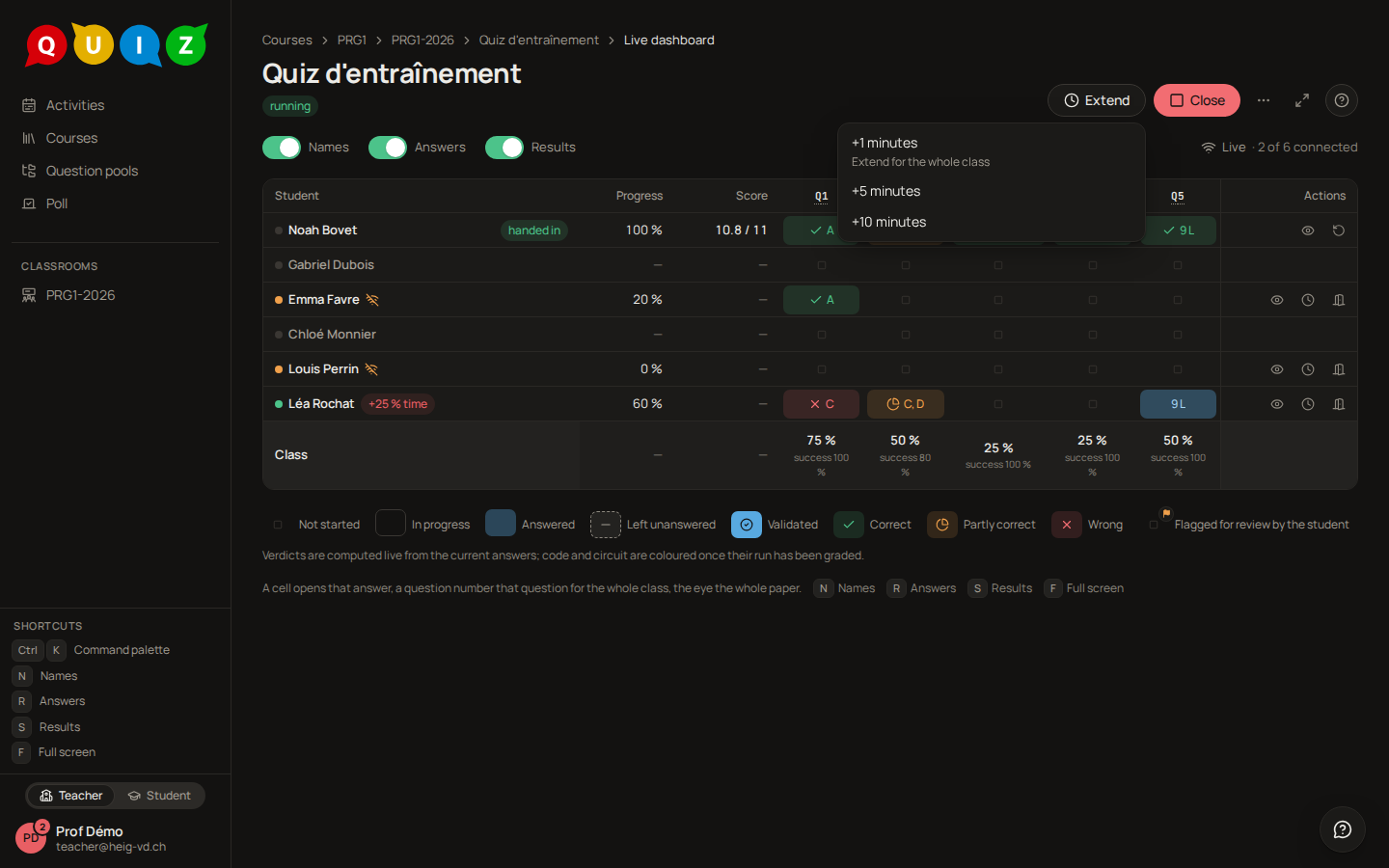
Extend opens a menu with +1 minutes, +5 minutes and +10 minutes, each labelled Extend for the whole class. It pushes the deadline of every open attempt by that much, and a toast confirms 4 attempts extended by 5 minutes.
Each row has its own actions at the right: Open the answers, +5 minutes for this student, and Close this attempt, which asks Close the attempt of Emma Favre? They stop being able to write. A closed attempt shows Reopen this attempt instead, which hands the student back an open attempt with their answers intact; the confirmation reminds you that the deadline is recomputed from their original start, not from now, so pair it with +5 minutes for this student when they need time. When the feedback shows the solution as soon as a paper is handed in, the student has already seen it: only a teacher of the course (not an assistant) can then reopen the attempt, and that reopening is recorded.
Close ends the evaluation for everybody, after the confirmation Close the evaluation for everybody? Open attempts are handed in as they are. Every action here is propagated to the students within a second and logged.
Publishing the correction of an exercise
An exercise is practice, and you may want to go through its correction in class without stopping the students. The ⋯ menu of the header, on a running exercise, holds Publish the correction. It asks first, and the confirmation says what will happen with this exercise's settings:
- the exercise stays open: the students keep working, hand in later, and retake it if Several attempts is on;
- the correction projection becomes available, counting the papers handed in so far;
- on their results page, each student who has handed in sees their correction as if you had published the results — with the answer key only if the feedback shows it, and nothing at all if the feedback is None;
- it cannot be undone.
From then on each paper is graded as soon as it is handed in, and an attempt can no longer be reopened (the row stops offering Reopen this attempt). The header shows Correction published beside the state, and the same menu now offers Present the correction, which opens the projection (see Grading and results); its header reads Handed in so far with the count, taken when you open it — open it again to count the later ones. Each question's own "out of n papers" counts only the papers whose answer to it is graded: an answer waiting for you in the grading panel is in the first count and not yet in the second. A student who retakes the exercise can read the correction of their previous attempt: this is practice, and the grade of such an exercise means little. If you later set the feedback to None, the students stop seeing their correction; the projection stays available. An exam never offers this: its correction waits for the close.
Inspecting a cell
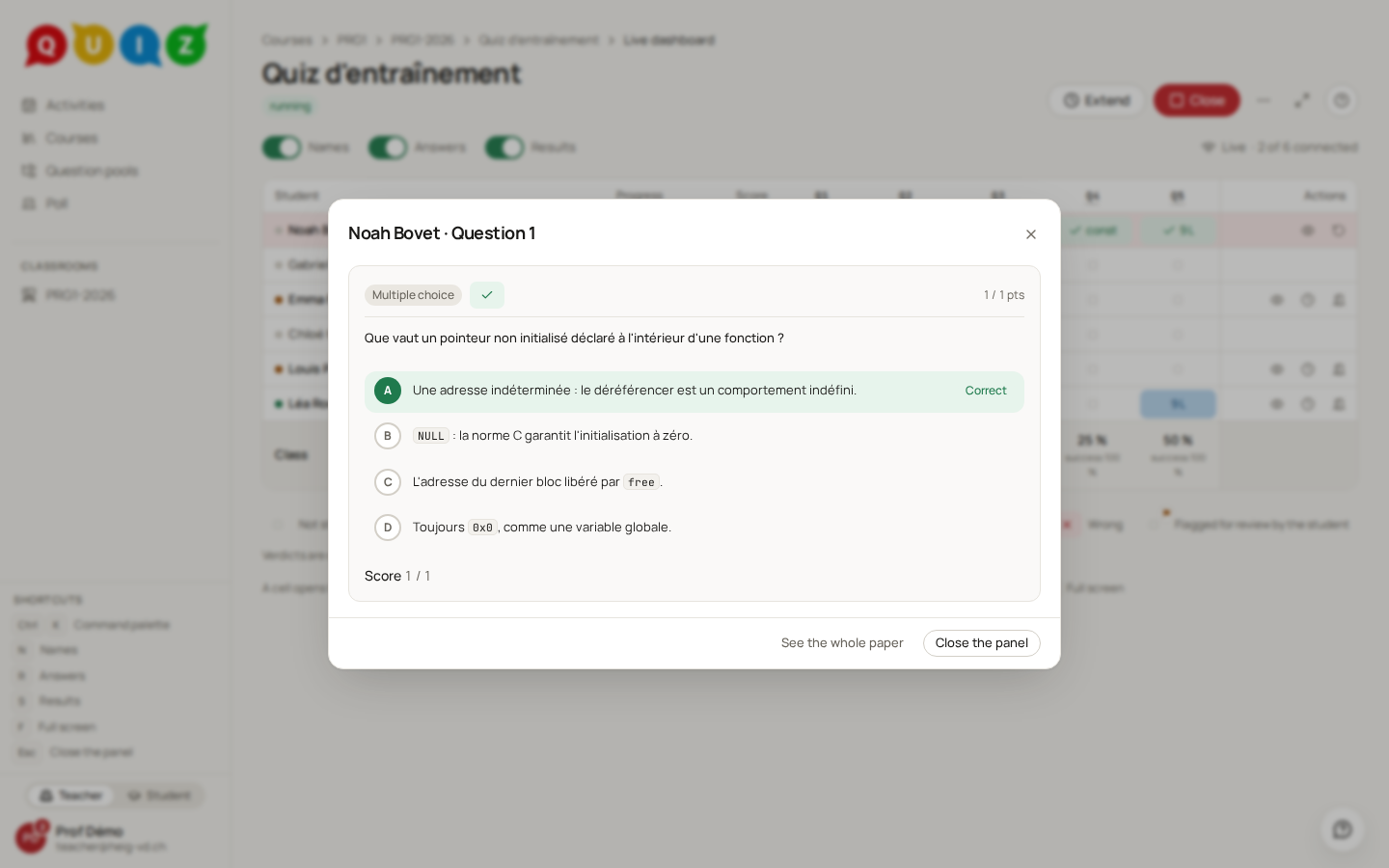
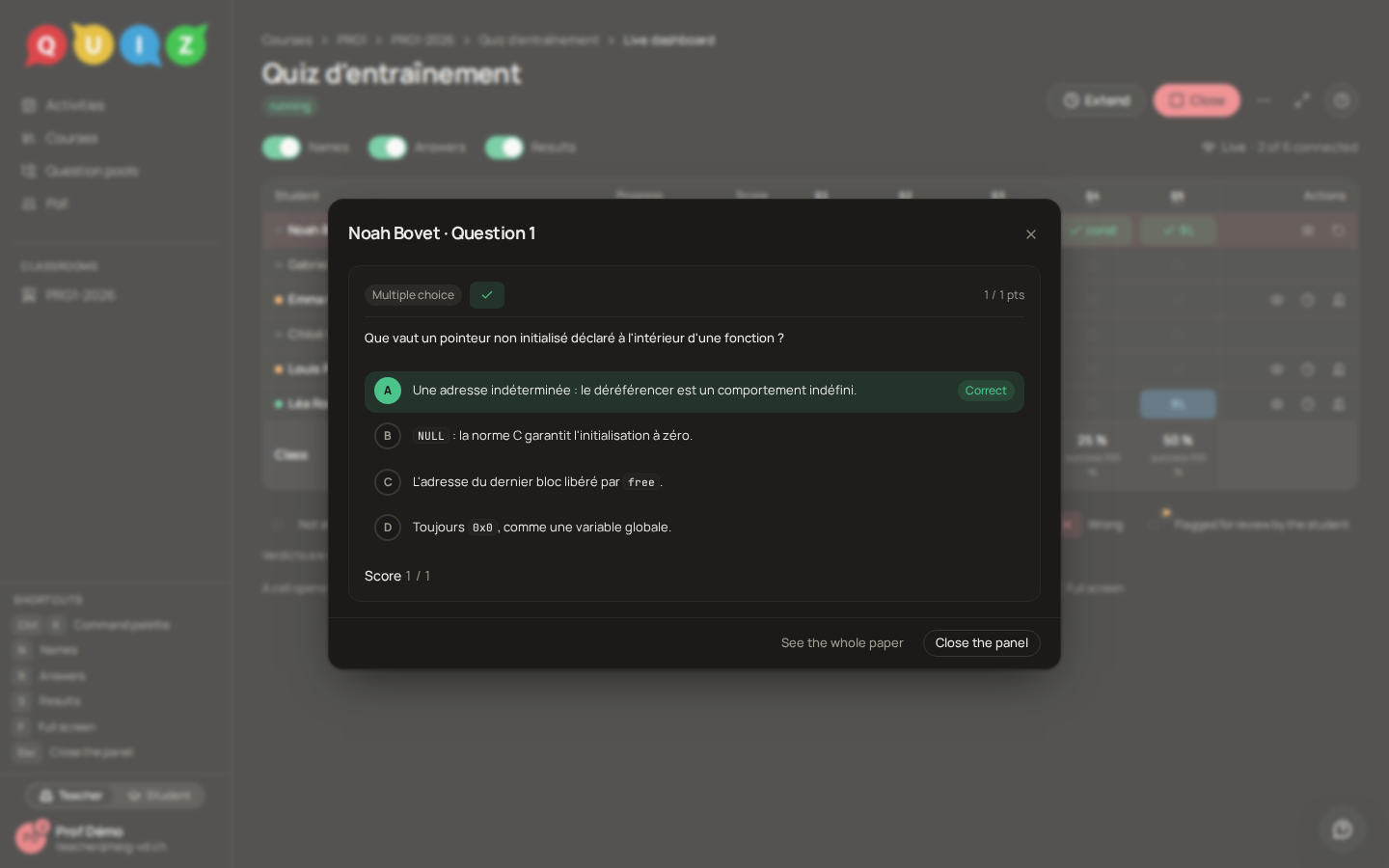
Click a cell to open the panel Answers of Noah Bovet: every question in order, with the choice ticked, the text typed or the code written, updated live as the student works. Before grading the panel shows the choices only; with Results on, after the close, each choice wears Correct or Missed and each question its score. The counter at the bottom, 1 / 4, and the arrows move to the previous or next student; Esc closes the panel. Nothing here is editable: the panel is read-only.
The clock belongs to the server
The countdown on the dashboard and on every student's screen is computed on the server's clock, not on any laptop's. Each client corrects its own offset on every tick, so a student whose computer runs three minutes fast sees the same remaining time as everybody else. When a deadline passes, it is the server that closes the attempt, whether or not the student's page is open.
A write that reaches the server after the deadline plus three seconds of grace is refused; the three seconds cover the network, not a late click. Extend and Pause act on that server deadline, which is why they take effect for a student whose page is closed as well.
A student who loses the network loses nothing. Answers are sent as they type and acknowledged; the player shows an unsaved or offline state while the link is down, and on reload or reconnection the student finds exactly their answers and their position. The row's presence dot goes offline in the meantime, which is your signal, not theirs.
Note
A student who never connected has no attempt and no countdown. If they arrive late with a time limit per student, they start with the full limit from their own start (cut at Closes at in a scheduled evaluation); without one they stop with everybody else, and +5 minutes for this student is how you make it up to them.
After the close
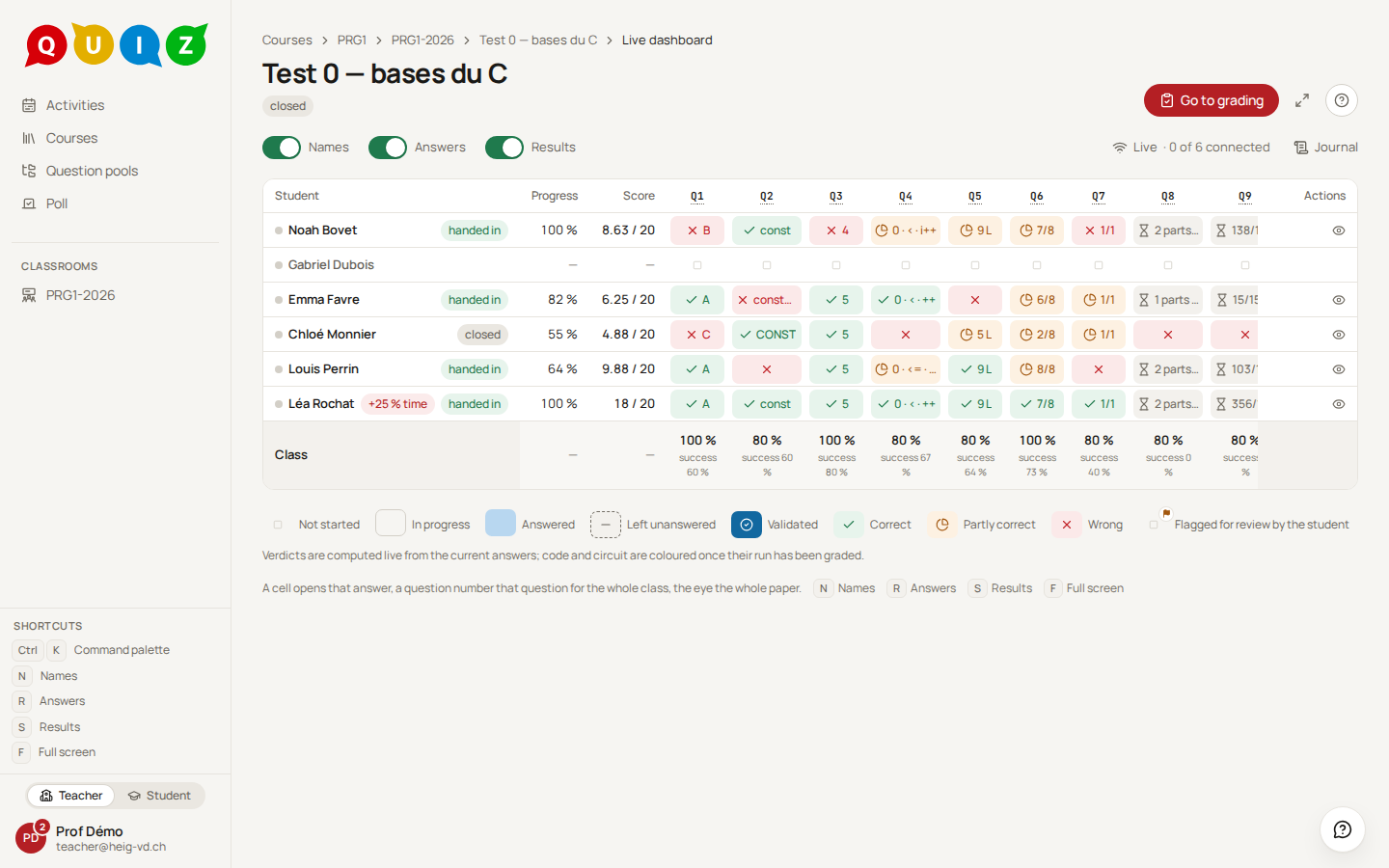
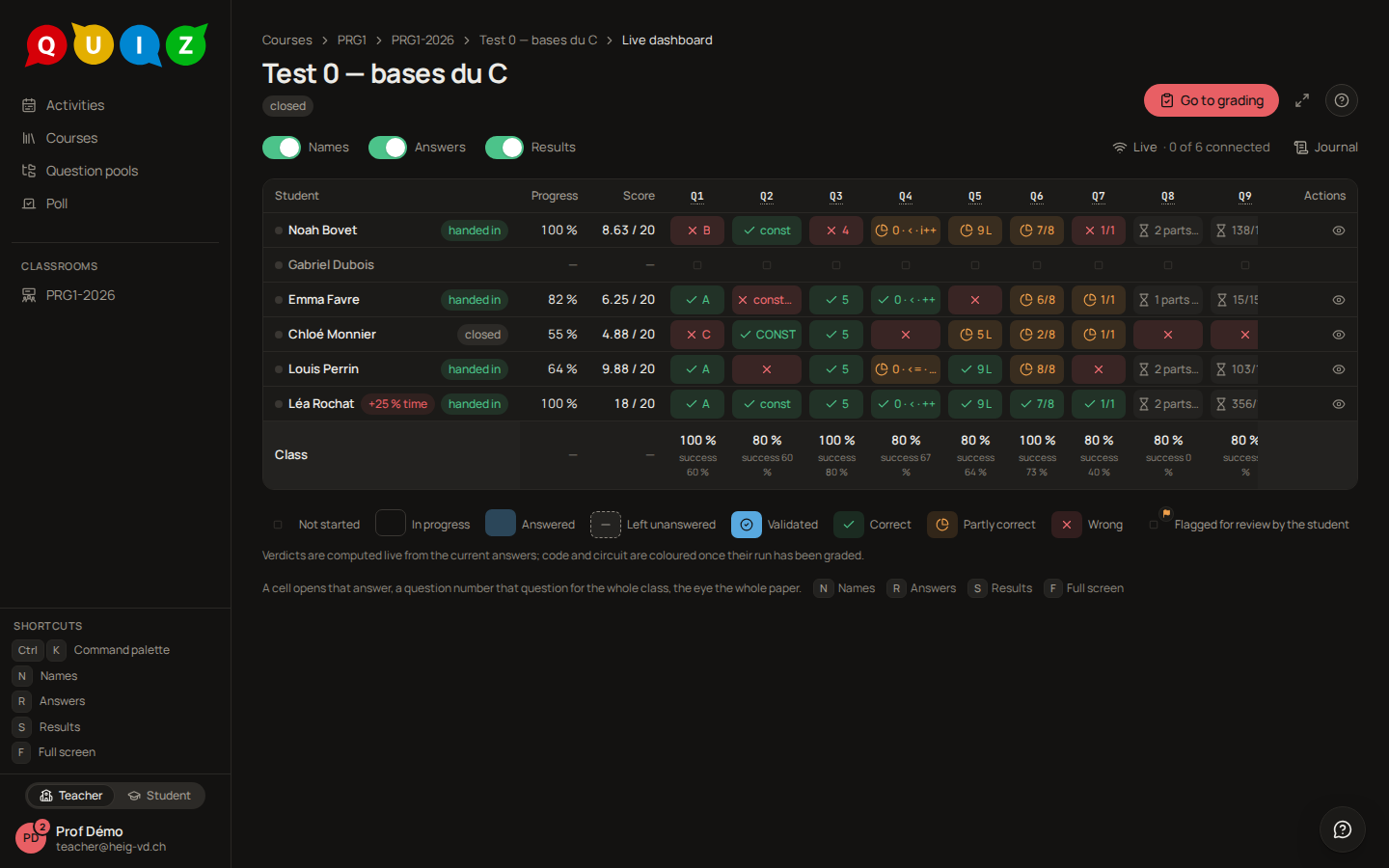
When the evaluation is closed, the automatic grading runs and the grid turns into a results grid: each cell is Correct, Partly correct or Wrong, the Score column fills in (7 / 11), and the Class row gives the success rate of each question. Nothing can be extended or paused any more; the header's single action is Go to grading, which opens the panel described in Grading and results. The row actions still let you inspect an attempt or reopen it if you decide a student deserves more time after all.
Keyboard shortcuts
| Key | Action |
|---|---|
N |
Toggle Names |
R |
Toggle Answers |
S |
Toggle Results |
Space |
Pause or Resume |
F |
Full screen |
Esc |
Close the inspect panel |
The shortcuts are listed in the sidebar and under the grid, so a colleague standing in for you finds them without this page.
During the exam
- Before projecting, check that Names and Answers are off (they are, unless you turned them on). The grid still shows who is done and who is stuck, as
Student 7. - Check the
+25 % timechips in the waiting room against your list; extra time comes from the roster, not from this screen. - A laptop that dies mid-exam: the attempt is still open on the server and its answers are saved. Let the student log in on another machine and continue. If they lost several minutes, +5 minutes for this student from the row's actions. If their attempt expired in the meantime, Reopen this attempt, then extend it: a reopened attempt keeps its original deadline.
- Do not close the evaluation from the row of a student by mistake: Close this attempt ends one attempt, the red Close ends everybody's. Both ask first.