Evaluations
An evaluation is an ordered list of questions taken from the pools of a course, played by one classroom under a set of rules: how long, in what order, with what feedback. This page walks through creating one and configuring it. Running it in front of the class is covered in Running an evaluation, and what comes after in Grading and results.
Create an evaluation
Open the classroom and its Activities tab (see Classrooms), then click New evaluation. Give it a Title and pick a Mode:
- Exam: graded, taken in one sitting, no feedback before you release the results.
- Exercise: practice, with feedback as soon as a question is validated; it starts Live, open until you close it, and Automatic gives it a deadline.
The mode is not a lock. It picks the starting settings and decides which feedback timings are offered, and everything else stays yours to change. Click Create evaluation: the new evaluation opens in draft on its first step.
The configuration screen has three tabs, Questions, Format and Launch. They are tabs, not a wizard: you can come back to any of them, and the step is part of the address (?step=timing), so a bookmark or a shared link lands on the right one. The title in the header renames itself: click it, type, press Enter.
Step 1: Questions
Add questions
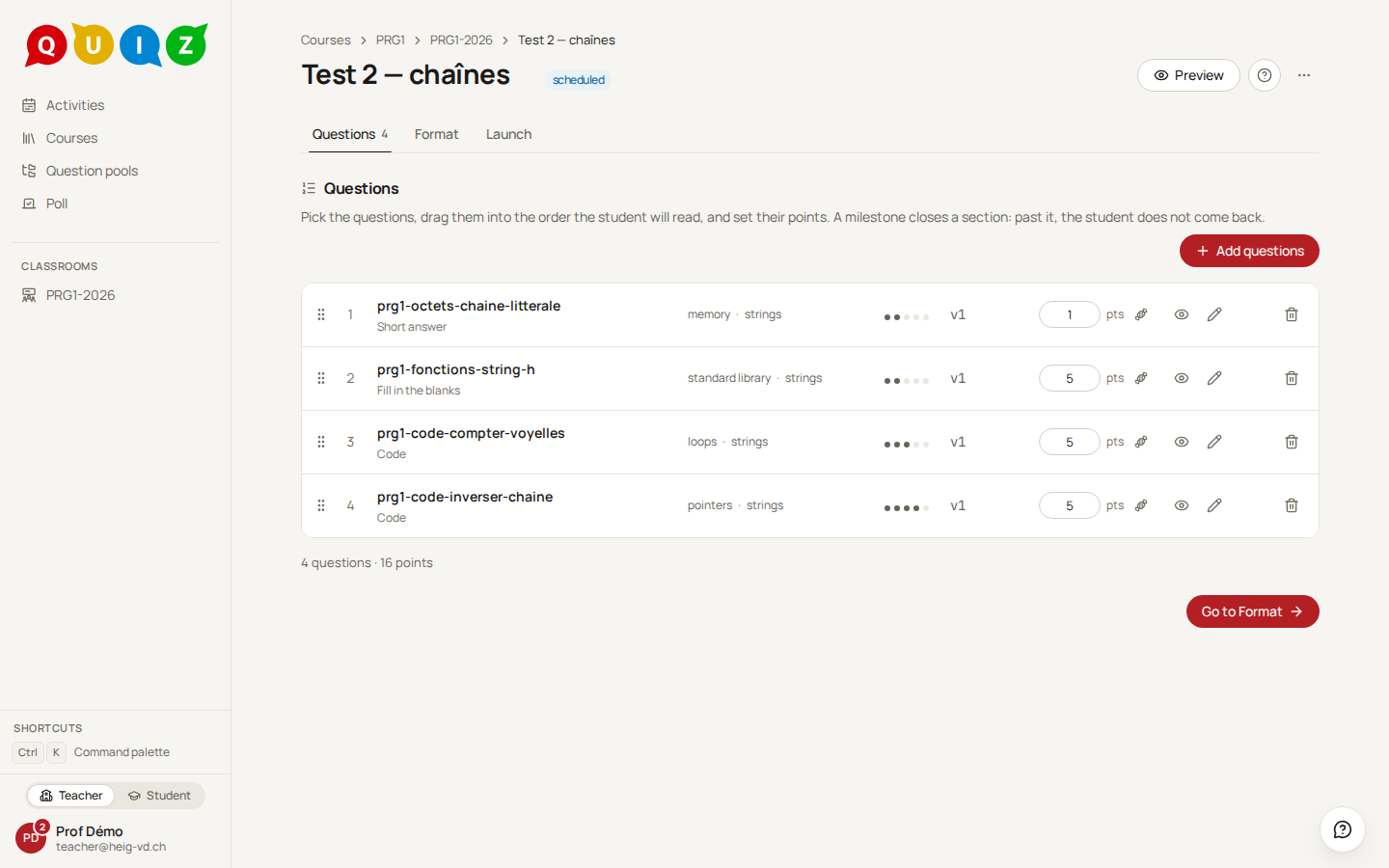
Click Add questions. The sheet lists the published questions of the pools linked to this course (see Pools), with a Pool selector, a type and difficulty filter and a search field. Tick the ones you want, then Add 3 questions: they are appended to the list. Only published questions can be added: a draft in the pool never reaches a student.
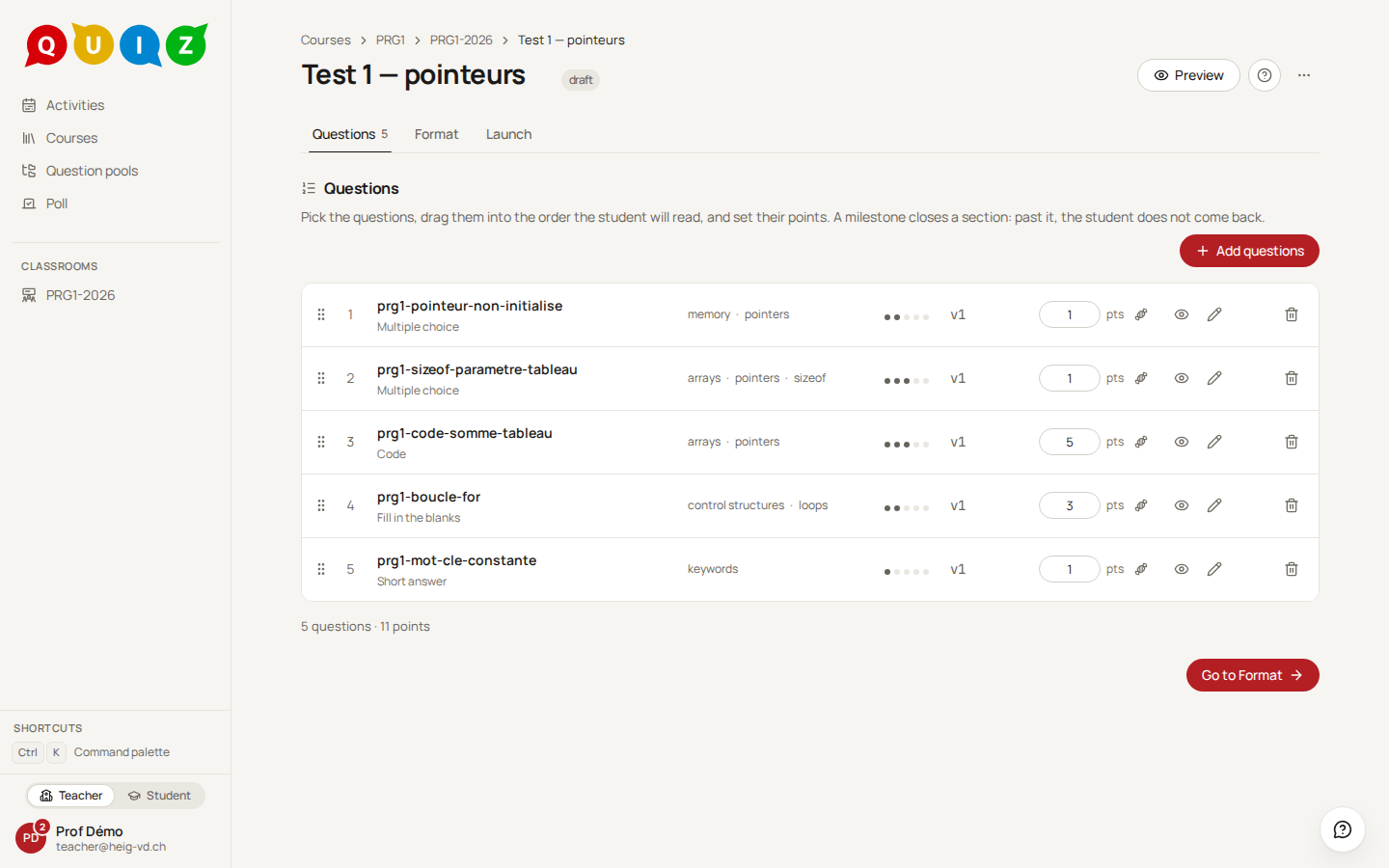
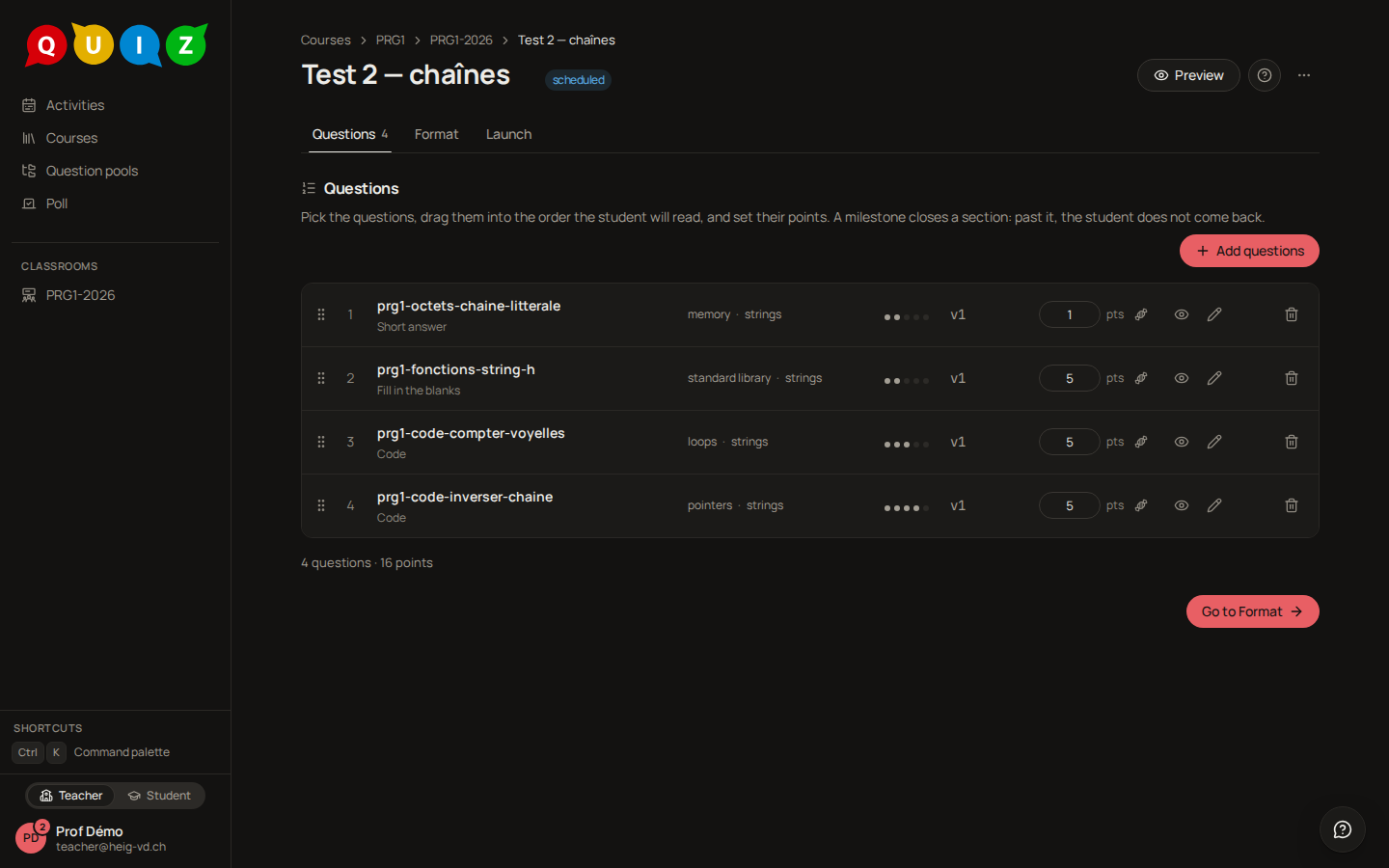
Each row shows the question's internal name, its type and the version it was frozen on (v1, v2...). The footer sums it up: 5 questions · 11 points.
Points
Every item carries a number of points, in the pts field of its row. The default depends on the type: 1 point for a multiple choice or a short answer, one point per blank for a fill-in-the-blanks question, and one point per test case for a code question. In the screenshot the code question is worth 5 and the cloze 3 for that reason. Change the value and it is saved when you leave the field; the total at the bottom follows.
Reorder
Drag the grip at the left of a row to move it. From the keyboard: focus the grip, press Space to pick the row up, move it with the arrow keys, press Space again to drop it.
Milestones
A milestone is a line drawn across the list. For the student, everything above the line closes once they pass it: they confirm, then they cannot go back to those questions. It is the tool for a quiz whose second part gives away the answers of the first.
Hover the space between two rows and click Add a milestone to put one there. A milestone belongs to the row above it and travels with that row when you drag it. The × on the separator removes it. Milestones only act when the navigation is set to Milestones in the advanced options (below); otherwise they are drawn but not enforced.
A text before a question
Some evaluations need words that are not a question: the instructions at the start ("read chapters 8 and 9 of the handout, then answer"), a transition ("end of part 1: the next questions are code"), a passage to memorise. Hover the space between two rows (or the top of the list, for the first question) and click Text to write one in markdown. It is shown to the student as a page of its own just before that question, with a Continue button; it adds no question and no points. The text belongs to the question below it and travels with it when you drag it; its band in the list has a pencil to edit it and a × to remove it.
Under Free navigation the student can read the text again from the question (Read the text again). Under Forward only and Milestones, once they press Continue the text cannot be reopened from the player, which is what a "memorise this, then answer" needs: put a milestone on the question before and the text on the question after. One limit: the player remembers the passage only while the page is open, so a student who reloads before answering that question sees the text again. The text is copied with the questions by a duplicate and a template, frozen with them once the evaluation is opened, and never shown in grading, results or feedback.
Bonus questions
The candy button beside a row's points makes that question a bonus: the row says bonus, and its points no longer count in the evaluation's total. They can only lift a student: someone with every point of an 18-point test plus a 3-point bonus reads 21 / 18, and the grade is still capped at 6. Under negative marking a bonus question is scored like the others — a wrong tick still lowers its score — but its score never goes below 0. The student sees Bonus question on the question, in the player and on the feedback page. Like the points, the flag is fixed once the evaluation is opened or somebody has started, and an evaluation whose every question is a bonus cannot be opened: at least one question must count.
Frozen versions and the update banner
Adding a question freezes it on its current published version. If you publish a newer version of that question later, this evaluation does not change behind your back: the row shows version 2 available and a banner above the list says One question has a newer published version. or 3 questions have a newer published version. Click the refresh button on one row to move that item forward, or Update it / Update 3 questions in the banner to move them all.
This is only offered while nobody has started. Once an attempt exists, the versions are locked and the way to apply a corrected key is Re-grade this question in the grading panel, described in Grading and results.
Remove an item
The bin at the end of a row takes the item out of this evaluation. The question itself stays in its pool.
Tip
Walk the evaluation after assembling the list, with the Teacher / Student switch at the bottom of the sidebar: you get the real thing — the waiting room, the player, the countdown — and it catches a question that reads well in the pool but makes no sense in this order.
Step 2: Format
Who drives the clock?
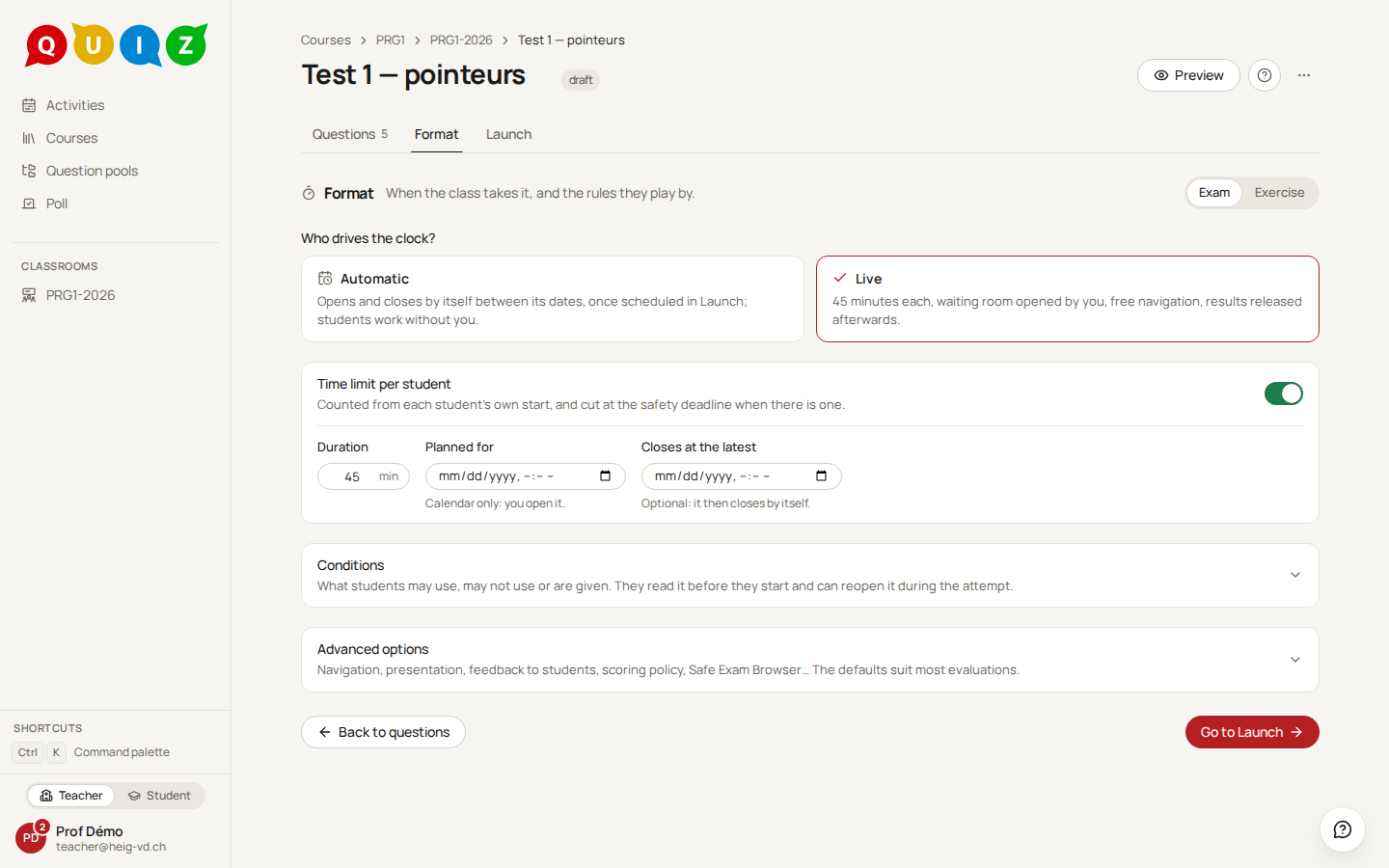
Two cards carry this step (ADR-086). The card in force sums up what is set; the other says what it means.
- Automatic: once you schedule it in Launch, the platform opens the evaluation at Opens at and closes it at Closes at, by itself. Both are picked on one calendar: click the first day, then the last, and set the time of each end; the dates are written when you close the calendar. Students enter and work without you; there is no waiting room. Without a time limit, everybody works until Closes at: an exercise series, homework.
- Live: you open the waiting room and press Start; the evaluation ends when you close it from the dashboard. Planned for only places it in the calendar: nothing opens by itself at that time. Closes at the latest is an optional safety deadline at which the platform closes it whatever happens, with or without a time limit; an exam without a time limit must have one, since an exam must end by itself.
Time limit per student
One switch under the cards. On, each student gets the same Duration, in minutes,, counted from their own start; a late student gets the full limit. The limit is cut at the end — Closes at, or a live safety deadline: a student who starts ten minutes before the end has ten minutes, whatever the limit says.
Extra time granted on the roster (see Students) applies on top of the minutes: a student with +25 % time gets 56 minutes out of 45. Their extra time also goes past the end that cuts the limit, and past a scheduled Closes at; only the safety deadline of a live evaluation without a limit is the same for everybody.
What the two answers store:
| Choice | Stored timing | Waiting room | Fields |
|---|---|---|---|
| Automatic, no limit | common end | none | Opens at, Closes at |
| Automatic, with a limit | per student | none | Opens at, Closes at, Duration |
| Live, no limit | closed by you | You start | Planned for, Closes at the latest |
| Live, with a limit | per student | You start | Planned for, Closes at the latest, Duration |
Picking a mode changes the time and the waiting room only; the feedback falls back to On release when a waiting room appears, since an evaluation sat together never gives feedback right away.
Several attempts (exercises)
An exercise shows a Several attempts switch under the timing; an exam never does, it is one sitting. Switched on:
- once a student has handed in (or run out of time), their home page offers Try again for as long as the exercise is open: until its common end, or until you close it. Each attempt starts blank, with the questions in a new order and the choices shuffled again;
- after each attempt the student sees their score only, whatever the feedback setting says about the correction. The correction follows the feedback setting once the exercise is closed (Right away then shows it at once, On release when you publish), or as soon as you Publish the correction from the live dashboard (Running an evaluation) — the retakes then go on, correction in hand;
- Result kept decides which attempt counts in the grades, the CSV export, the published results and the per-question statistics of the results (the pool's question statistics count exams only): the Best (a tie goes to the latest) or the Last;
- Maximum caps the number of attempts, the first one included; empty means no limit;
- Questions asked again: All, or To review. With To review, the student's results page offers Redo the questions to review (n) first and Redo everything second, and lists each question as Acquired, To review or Awaiting correction — never its points, answer or key. A partial retake is a new attempt that counts against the maximum: the questions at full marks come back read-only with their answer and points, the others are asked again with new values. It needs free navigation (Advanced options); a question awaiting your correction is asked again. Your later override on an earlier attempt is not copied into a retake already started.
Every attempt is graded by the usual pass as soon as it ends; an answer that needs you (an open answer) waits in the grading panel, where each attempt of a student who retook the exercise is listed with its number (· #2). The live dashboard shows each student's latest attempt with an attempt n badge, and offers no Reopen there: the student tries again instead. Like the other rules of the evaluation, the setting is frozen once somebody has started.
Advanced options
Everything else lives behind Advanced options, folded by default. A novice never has to open it to run a first quiz; the settings are, in order:
- Navigation: Free (the student moves between questions as they like), Forward only (a validated question is never reopened) or Milestones (going past a milestone locks everything before it).
- Presentation: One by one (one question per screen), Continuous (a single scrolling page) or Free choice (the student picks). Free choice is only offered with free navigation.
- Waiting room (Live only): You start (everybody waits on the ring until you press Start), Automatic (everybody waits, and it starts by itself once the whole roster is there) or, without a time limit, None (a student who opens the evaluation starts straight away).
- Shuffle the questions: a different order per student, stable across reloads.
- Shuffle the choices: applies to the question types that allow it.
- Show the progress bar: the student sees which questions are done, seen and empty.
- Log leaving the page and pasting and Recommend full screen: nothing is blocked, the journal is yours on the dashboard. The journal records when a student leaves the page and comes back, and when they paste a text of at least 20 characters that was not copied on the page itself — its length only, never its content. It is a hint, never proof: on by default for an exam, off for an exercise, deleted when you release the grades.
- Calculator provided (not on a poll): None, Standard (the four operations, square, square root, percent) or Scientific (trigonometry, logarithms, powers and parentheses, laid out like a scientific calculator, without the percent key). The student opens it from a button at the bottom right of the player; the waiting room says it is there. It provides a calculator and forbids none: a student who must not use their own needs Safe Exam Browser or a kiosk station.
- Feedback: None (the student never sees a correction here), On release (nothing until you publish the results) or Right away (as soon as the student validates a question, exercises only). Two separate switches decide what the feedback carries: Show the expected answer and Show the explanation. Your comment on an adjusted grading is always part of it.
- Multiple-answer scoring: the policy every multiple-choice item of this evaluation uses when the student ticks only some of several correct answers, unless the question names its own. Exact, True/false, Distance, Symmetric or Ripkey; a question with a single correct answer is always all or nothing. The formulas are in Question types.
- Categorize scoring (shown once the evaluation holds a categorize question): the policy of every categorize item set to Inherited, Per card (each card earns its share) or Exact (all the points for a perfect board only). The formulas are in Question types.
- Negative marking (not on a poll): on every multiple-choice and categorize question, a wrong answer costs points and no answer costs nothing; it replaces the two policies above, which then say so. The total never goes below 0, and students are told in the waiting room and on each question concerned.
- Allowed devices (exams only): where the students may sit the exam — Any device, Safe Exam Browser, SEB or kiosk station or Kiosk station only. See Allowed devices below.
Note
A Live evaluation's waiting room and the feedback policy sit under Advanced options, not on the main card. Open the disclosure to change them.
Allowed devices
On an exam, Allowed devices under Advanced options is one choice of four:
| Choice | The exam is sat |
|---|---|
| Any device | in the student's usual browser, from the portal |
| Safe Exam Browser | in Safe Exam Browser only |
| SEB or kiosk station | in Safe Exam Browser or on a kiosk station; either is accepted |
| Kiosk station only | on one of the school's kiosk stations only |
The two kiosk choices are offered only where the platform administrator has set the stations up (Kiosk stations). With any choice but Any device, the portal alone never opens the exam. The choice is frozen once the exam runs.
Safe Exam Browser
An exam can require Safe Exam Browser (SEB), the locked-down browser that keeps the student inside the exam. Choose Safe Exam Browser (or SEB or kiosk station) under Allowed devices.
What changes for the students:
- The card of the exam on their home no longer opens it: its button, Open in Safe Exam Browser, shows the steps (install SEB, download the exam file, open it) and hands out the file.
- The button appears once the exam is open (from its scheduled opening, or when you open it). The file is personal, works once and expires after 5 minutes. Opening it starts SEB straight on the exam, without signing in again: in its waiting room if it has one, until you press Start (or until the whole roster is there, with an automatic waiting room), then on the questions.
- The exam cannot be sat from an ordinary browser, and inside SEB nothing else of the platform is reachable. After handing in, the screen offers one button, Quit Safe Exam Browser, which closes SEB at once, without a password; the line under it gives the keyboard shortcut, Ctrl+Q on Windows and ⌘Q on Mac, which may ask to confirm. SEB's own task bar, and its Quit button, are hidden. The results are read later from the portal.
To try it yourself before the class does, give yourself a seat with Join as student in the classroom (a seat badged as a staff test), switch to the student view and download the file like a student. Plan a first run on a real machine of the room: SEB must be installed there, and its version is what the students will use.
What Safe Exam Browser proves, and what it does not
SEB runs on the student's own laptop, a machine the school does not control. The platform checks what it can from there, and no more:
- Checked. SEB sends a hash of its configuration (the Config Key) with its requests. The platform refuses a launch whose hash does not match the exam file. The same hash is checked on every request that follows (answers, the waiting room, hand-in), and a request whose hash does not match is refused, the audit log recording it: an exam opened with a tampered or substituted configuration stops working. A real SEB was tried through a whole attempt (October 2026) and sends the hash on all of them. The session SEB opens reaches this one exam only, the file works once, and a new launch ends the previous session. Leaving the exam page and pasting from outside it are recorded in the attempt's integrity journal.
- Not checked. That the SEB program itself is genuine. SEB offers two further keys for that: the Browser Exam Key, which differs for every SEB version and platform and would need a list kept up to date by hand, and the App Signature Key, which only an SEB Server can verify. The platform uses neither.
In practice, the Config Key stops the accidental and the casual: the exam file opened in an ordinary browser, or a student without SEB. A determined student who reads the exam file and modifies or imitates SEB can get past it. Nothing on the laptop prevents a second device either, a phone or another computer beside it.
So treat SEB as one layer, not as the guarantee: keep the room supervised, and shuffle the questions and choices or draw parameterized questions, so that answers are not worth sharing. When the stakes call for a device the school vouches for, choose Kiosk station only: a kiosk station is a Chromebook managed by the school, which Google attests before and during the exam.
Kiosk stations
The school keeps Chromebooks locked in kiosk mode as exam stations: a fallback for a student whose laptop fails, or the way a whole room sits an exam. Choose Kiosk station only, or SEB or kiosk station for stations as a fallback beside Safe Exam Browser, under Allowed devices; both choices are offered only where the platform administrator has set the stations up (Kiosk stations).
What the students do:
- A station shows its name (the one on its sticker), a code such as
BCDF-GHJKand a QR code. The student scans the QR code with their phone, where they are signed in to the portal, checks that the phone shows the name of the station in front of them, picks the exam and presses Start on this station. The exam opens on the station within a few seconds, in its waiting room if it has one. - On their home, the card of a stations-only exam says Enter a station's code, for a student who prefers typing the code to scanning it.
- After the hand-in, the station goes back to its start screen by itself. The results are read later from the portal.
A student without a phone reads the station's code to you. On the exam's dashboard, their row has an Assign a station button (a monitor with a check) while the exam is open: type the Code shown on the station and press Assign. The dialog confirms with the station's name, and the station opens the exam for them: the same pairing, approved by you instead of their phone. They still sit as themselves.
On the dashboard, a student on a station is shown with the station's name beside theirs. A red suspended pill (Google refused to vouch for the station, or it stopped checking in) means the answers already saved are kept but new ones are refused until the station passes its next check, which lifts the suspension by itself; you are also told once, "…'s station is suspended: it could not prove its integrity.". The student's screen says This station is suspended. If it does not recover within a minute, move the student to another station. An amber not attested pill means the platform cannot reach Google: nothing is suspended and the exam goes on.
Tip
Rehearse on a station with a seat of your own (Join as student) before the first real exam.
Step 3: Launch
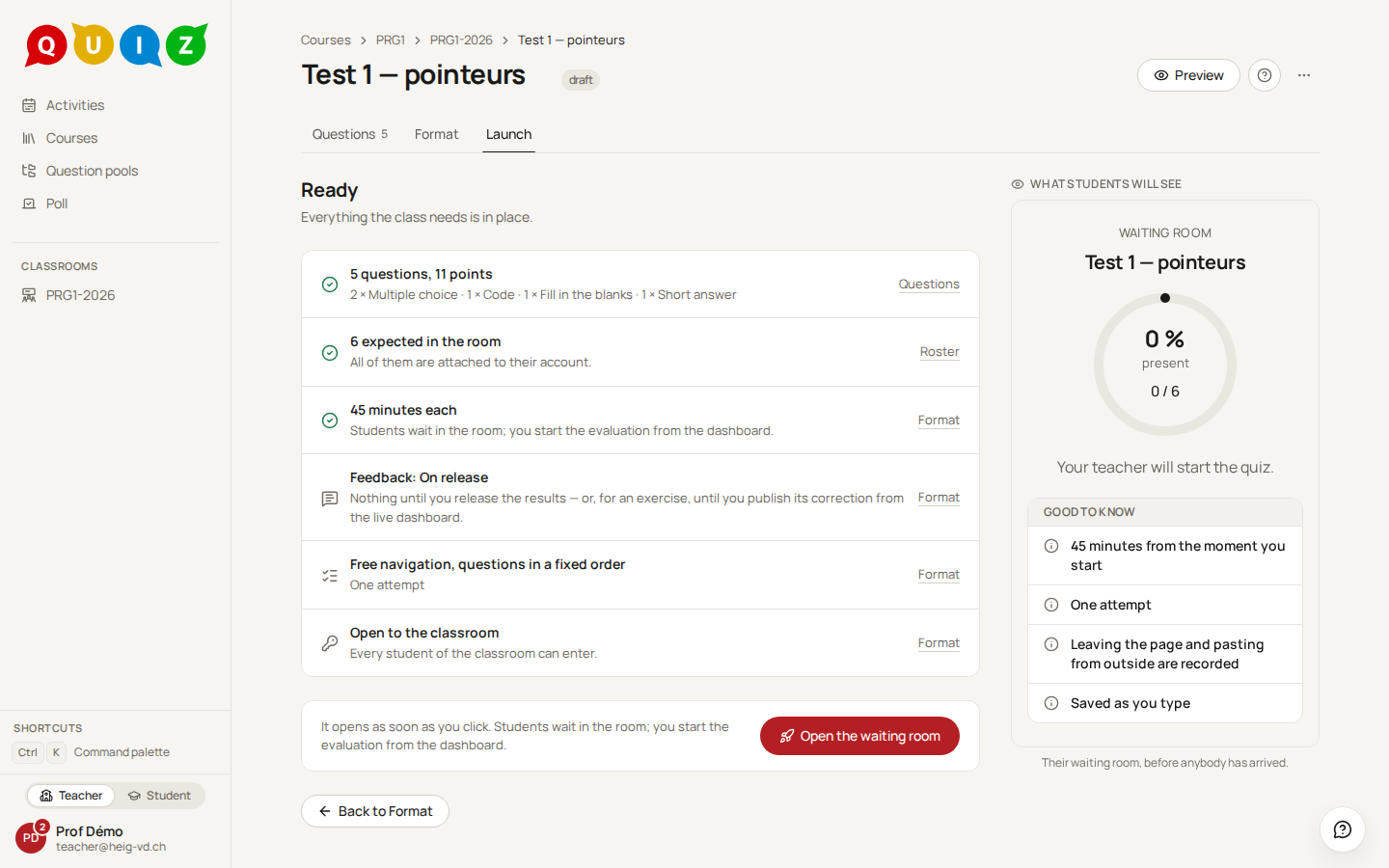
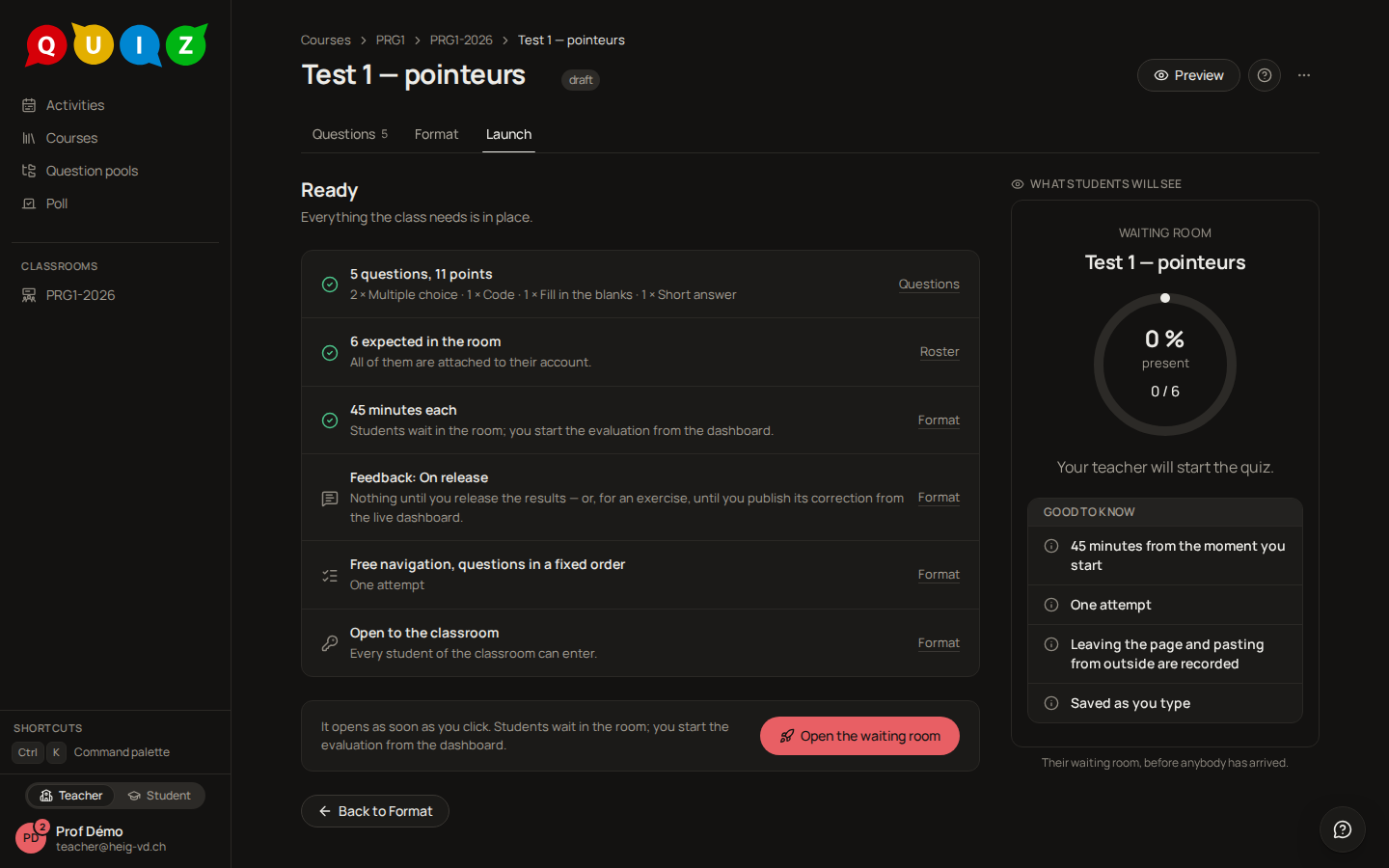
The summary shows four figures: Questions, Points, Time and Feedback. Read them once; if one surprises you, the tab to fix it is one click away. Below, one primary action, which depends on who drives the clock:
- Live: Open the waiting room moves the evaluation to
lobbyright now and takes you to the dashboard. Students see it on their home page and gather on the ring. With the waiting room set to None, the button is Open and they start as soon as they enter. A Live evaluation is never scheduled: its date is for the calendar. - Automatic, while Opens at is still to come: Schedule moves it to
scheduled. Until then it is a draft, and its badge saysdraft · not scheduled: its dates alone open nothing. At that instant the server starts it by itself, without anyone logged in, and closes it at Closes at the same way. Open now beside it opens it at once instead. Once Opens at has passed, the one action is Open. Back to draft unschedules a scheduled evaluation.
An evaluation with no question cannot be opened or scheduled.
Renaming it
The title in the header is the control. Click it — or focus it and press Enter or F2 — and it becomes a field at the same size; Enter or clicking away saves, Escape cancels, and an empty title is refused and the old one comes back. The name is one of the few things you can still change once a student has started.
The states of an evaluation
| State | How it gets there | What students see |
|---|---|---|
draft |
Creation, or Back to draft | Nothing |
scheduled |
Schedule it | Nothing until Opens at |
lobby |
Open the waiting room, or the server at Opens at | The waiting room ring and the announced duration |
running |
Start on the dashboard, an automatic waiting room filling up, or the server when there is no waiting room | The questions and their own countdown |
paused |
Pause on the dashboard | Their countdown frozen; Resume brings it back |
closed |
Close on the dashboard, or the server once every deadline has passed | Their attempt handed in; nothing more until you publish |
released |
Publish results on the results page | Their grade and the feedback the policy allows |
Once an evaluation is running, every control lives on the dashboard: pausing, extending, closing. The Launch tab only offers Go to the dashboard.
What can still change once someone has started
As soon as one attempt exists, the banner A student has already started: the structure is frozen. appears on the first two steps. Frozen: the list of questions, their versions, their points and order, the milestones, the bonus flags, the timing mode and duration, the waiting room, the navigation, the presentation, the shuffling, and the scoring policy. Anything that decides what a student sees or what an answer is worth is fixed, so that every student plays the same evaluation.
Still editable: the feedback policy and its two switches. You can decide after the fact to show the explanation with the results, or to hide the key.
Warning
A student who has started keeps the version of each question they started with. If a key turns out to be wrong, fix the question in its pool, publish it, then use Re-grade this question in the grading panel against the new version. Do not delete and recreate the evaluation: its attempts go with it.