Grading and results
Closing an evaluation starts the grading. Most of it is automatic; your part is to validate what the machine proposes, adjust the cases it cannot judge, then publish. This page follows that order: what happens at the close, the grading panel, the results page, publishing.
What happens at the close
The moment an evaluation is closed, by you or by the server at the last deadline, every answer of a deterministic type is graded: multiple choice, short answer and fill in the blanks are scored on the spot and come back already validated. Code answers are sent to the runner, which compiles and runs each one against the question's test cases in an isolated container; their gradings come back as validated too once the runner has spoken. Code-to-picture and circuit answers go to the runner too, to draw the picture or simulate the schematic. A categorize question is scored on the spot, and so is a blocks question: its program runs on every warehouse on the server, by the same interpreter the player uses, and needs no runner. An essay or a diagram is proposed a grade by the platform's language model when one is configured, else it waits for you as a proposal of 0 points (an empty one, or a diagram's starter handed back untouched, is a validated zero); see Essays, diagrams and AI proposals. A missing answer is worth 0 and the entry says so (No answer, graded zero).
While some answers of the question you are on have not been graded — still at the runner, or left by a grader that could not decide — a banner above the table counts them and offers Run grading, which starts the pass again on that question. The command palette runs it on the whole evaluation.
The grading panel
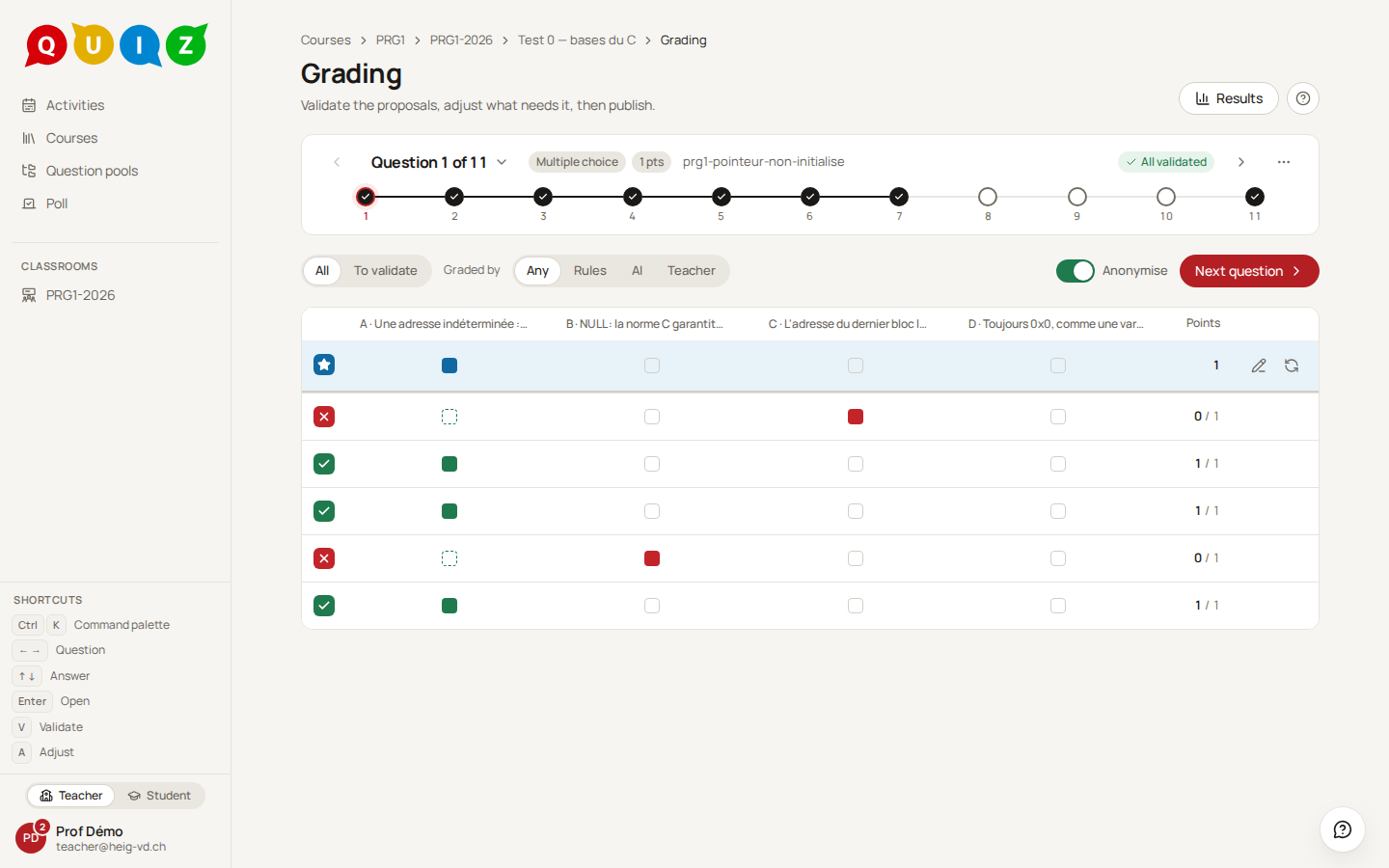
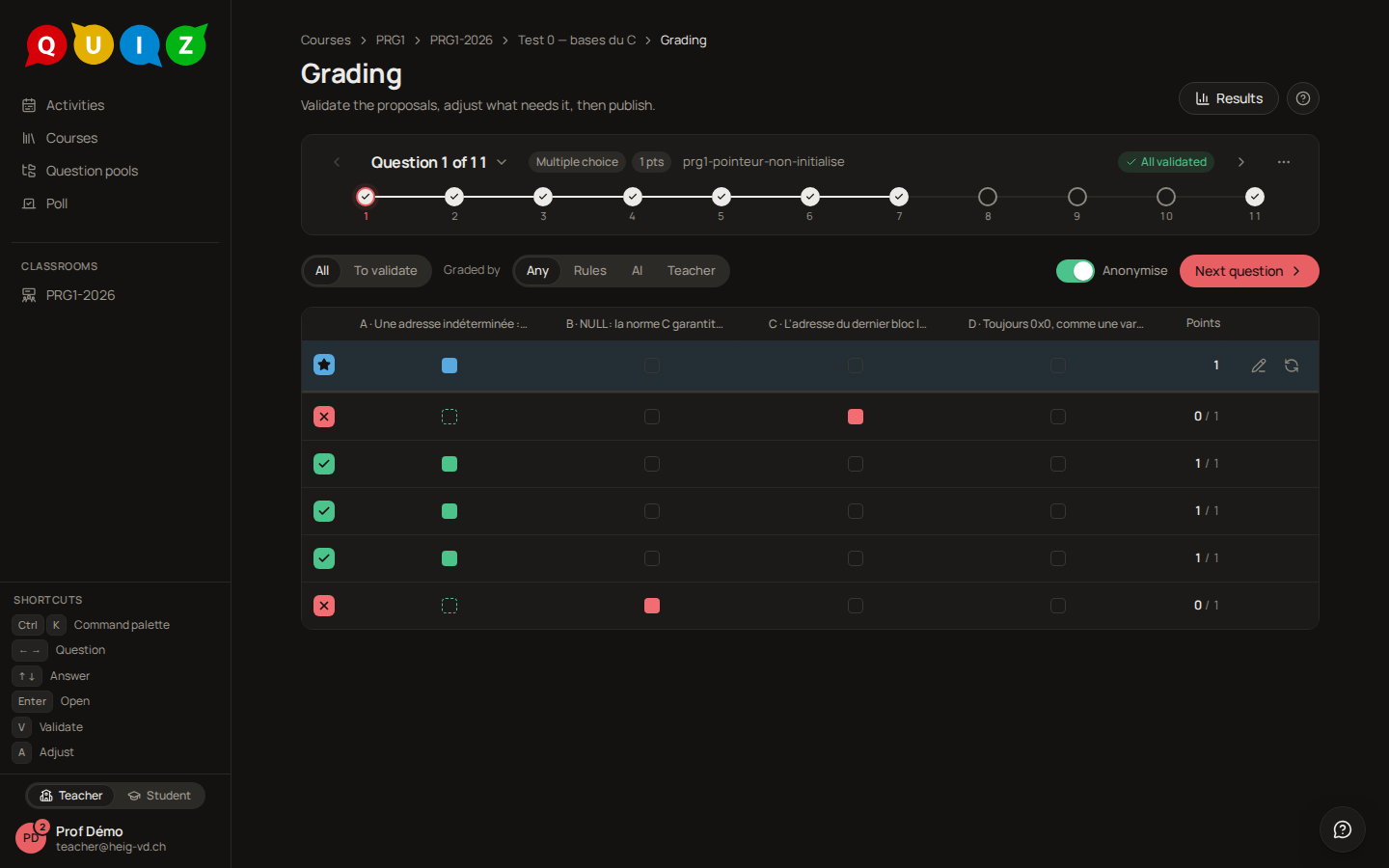
Open it from the classroom row of a closed evaluation, from Go to grading on the dashboard, or from the Grading panel button on the results page. The subtitle states the job: Validate the proposals, adjust what needs it, then publish.
One question at a time
You grade question by question: one item across the whole class. Grading twenty answers to the same question in a row is how you stay consistent, and it is the order in which an odd answer key becomes obvious. To look at one student's whole paper, open the results page.
The card at the top says which question you are on, Question 1 of 9, with its type, its points, its internal name and how many answers are still to validate (or All validated). Question 1 of 9 opens the list of every question with what each one still asks for; the chevrons at the card's edges move to the previous or next question. Under it, a stepper shows every question of the evaluation: a filled circle is a question whose answers are all validated, and a click jumps to it.
The table
Each row is one student's answer. It starts with a verdict square: a solid green check for full marks, a striped green square for partial credit, a red cross for no credit (a missing answer or a negative score included), and a dashed ? for an answer nothing has judged yet — still at the runner, or an essay waiting for a grade by hand; its tooltip says which. Then come the answer's own columns, the Points and the row's actions.
The columns depend on the question type. A multiple choice gets one column per choice, lettered as in the editor: a ticked choice is filled green when it is correct and red when it is not, and a correct choice left out is drawn dashed. A short answer gets one column with the text typed, tinted by its verdict. A fill-in-the-blanks question gets one column per blank.
A categorize question gets one column per card, headed by the card: each cell names the column the student put it in, green where the card belongs there and red where it does not, and a dash for a card left out. With more than eight cards, one column counts the cards placed right instead (7/9 right); open the row to see the board. A code question gets one wide column with the program the student wrote, the parts they could edit, and a chip counting the tests passed (3/4 tests), or runner… while the runner still owes the verdict. A program longer than five lines is folded: click it to unfold it in place, click again to fold it; the row does not open. A code-to-picture question adds the picture the program drew, as a small thumbnail beside the program. A blocks question gets one wide column too: the program spelled as indented text, one block a line, in your language, folded after five lines like code, beside a chip counting the warehouses where the robot reached the dock (4/5 docks). A circuit shows what the schematic holds (3 parts · 4 wires) and how many stimuli it passed; hover the chip for the ones that failed, and open the row for the drawing. An essay shows its first three lines as plain text. A diagram shows its size, 7 elements · 6 links, and no picture: open the row to see the student's diagram above your reference, and the two text forms (the student's and the reference's) in two tabs, where a missing link or a wrong multiplicity reads at a glance.
The first row, on a blue background, is the Expected answer: the correct choices, the accepted answers, the key of each blank, the column of each card, the reference solution of a program (with the target picture) or of a blocks question, what the reference circuit holds, the size of the reference diagram, or the model answer of an essay (else its rubric). Its two buttons Edit question and Re-grade are there for the moment you notice the key is wrong.
Click any column header to sort by it, click again to reverse the order, a third time to go back to the table's own order. Rows with the same value keep their relative order.
Filters and anonymity
The row under the question card narrows the table: All or To validate (with its count); Graded by Any, Rules, AI or Teacher; and, once AI is picked, a Confidence filter. These filters are remembered by your browser from one visit to the next.
Anonymise is on every time you open the panel. The student's name is not even sent to your browser: the Student column is simply absent, and the rows are shuffled in an order drawn for this visit, which stays the same while you work — a validation never makes a row jump. Two things still show on a row, because they are not names: the attempt number of an exercise a student retook (#2, in green for the attempt that counts), and a Teacher badge on a teacher's own test run. Switch Anonymise off to see a Student column, sorted by name.
What each type shows
Clicking a row, or pressing Enter on it, opens the answer on the right: the statement as the student saw it, their answer with the score and how it was computed, the question's explanation (the same one a student reads if the feedback policy allows it), and the history of its gradings. ↑ and ↓ move to the previous or next row without closing it. On a wide screen the answer opens beside the table, which narrows and stays in view: click another row, or use the arrows, to read the next answer. It stays open when you change question (← / →, or the question bar), and then shows the new question's statement and key; only Escape or ✕ closes it. On a narrower screen it opens over the table.
A multiple choice lists the choices with the ticked ones highlighted and the correct ones flagged Correct, then the score with its breakdown: Score 1 / 1 · Correct choices ticked 1/1 · Wrong choices ticked 0/3. A question with several correct answers is scored by the policy of the evaluation or of the question, described in Question types.
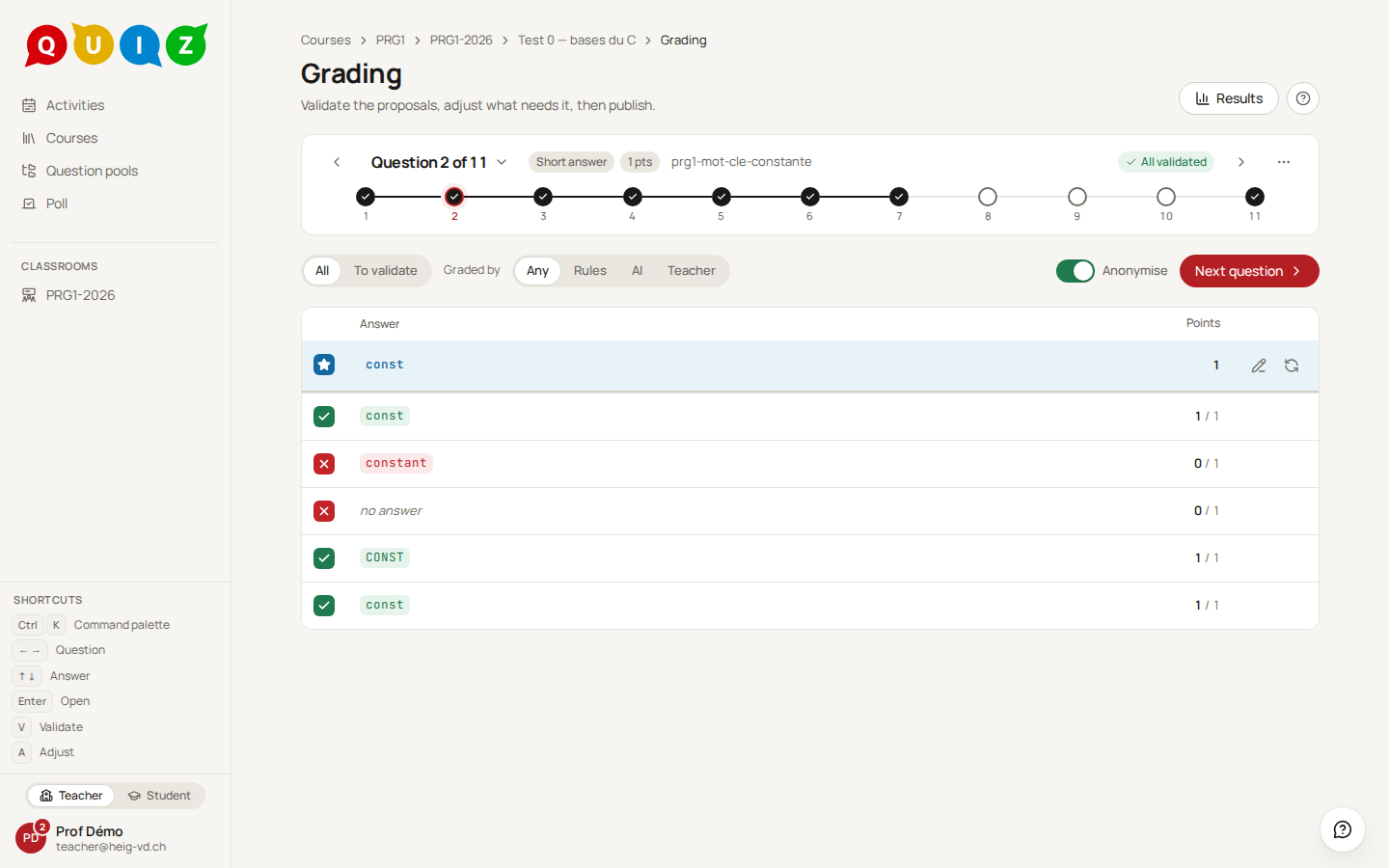
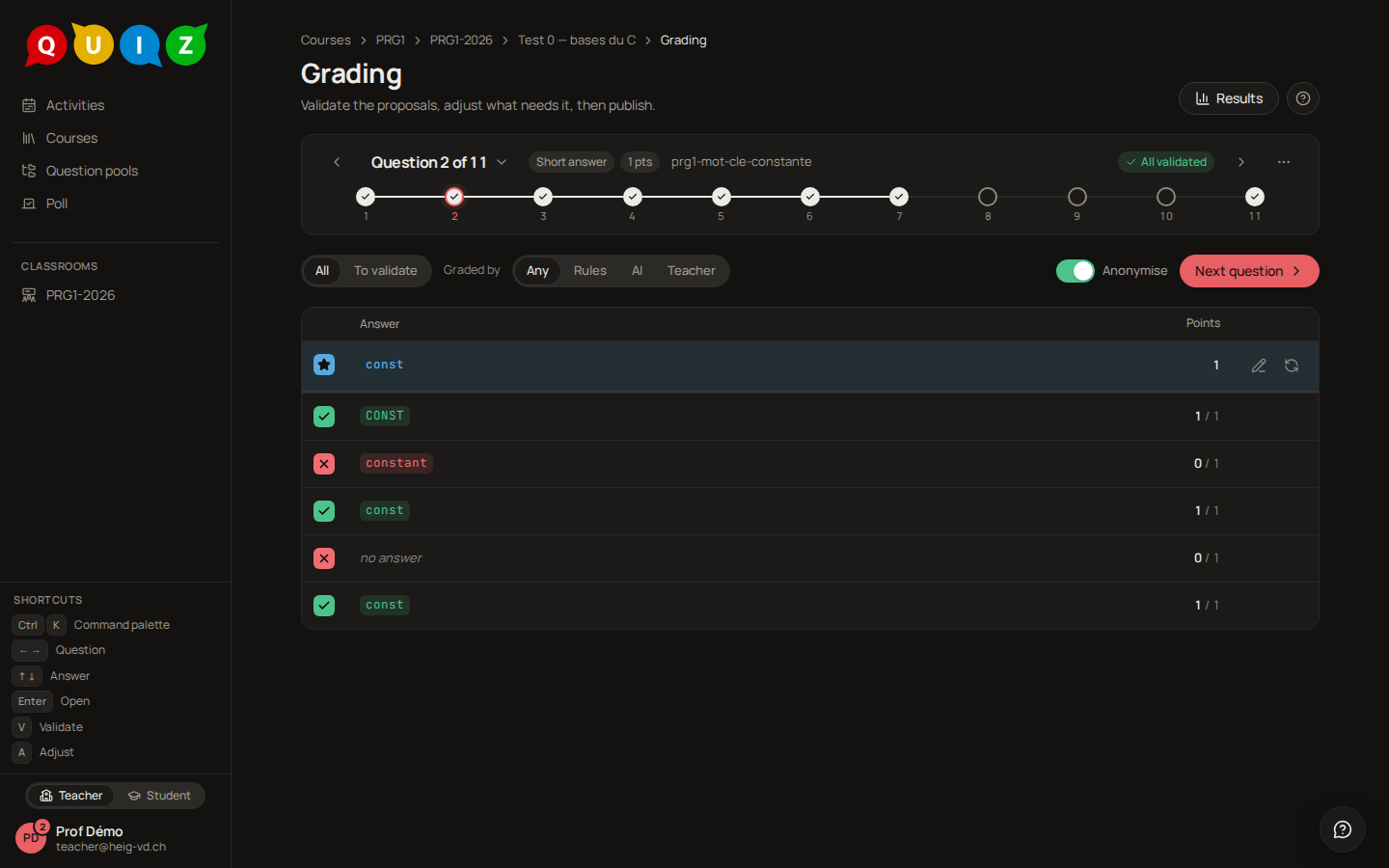
A short answer shows Your answer with an Accepted or rejected flag, which matcher accepted it (Matched by #1 · exact), and the list of Accepted answers. Sort the table by the answer column to bring identical spellings together: when the automatic pass rejected one you would accept, you see all of them at once.
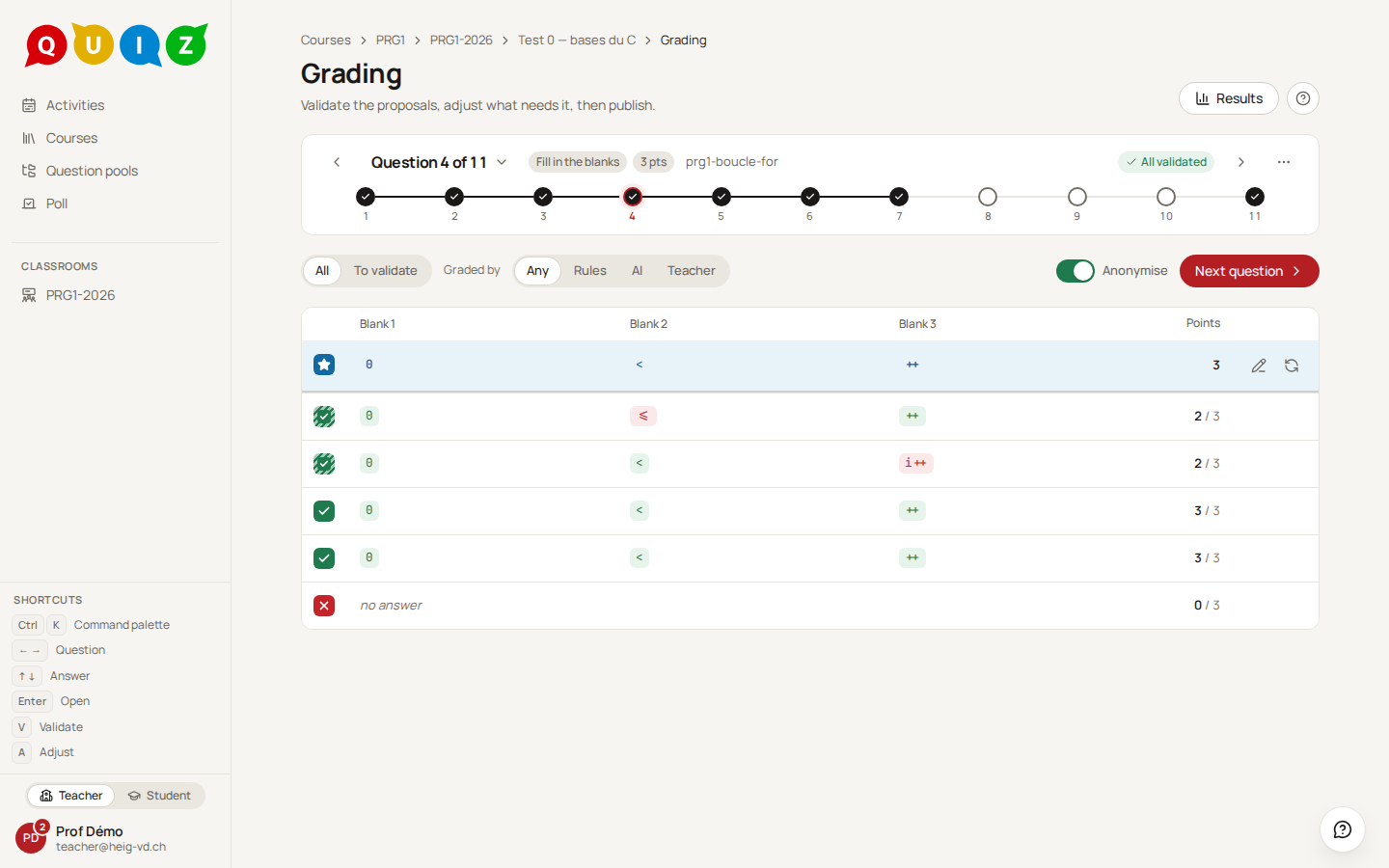
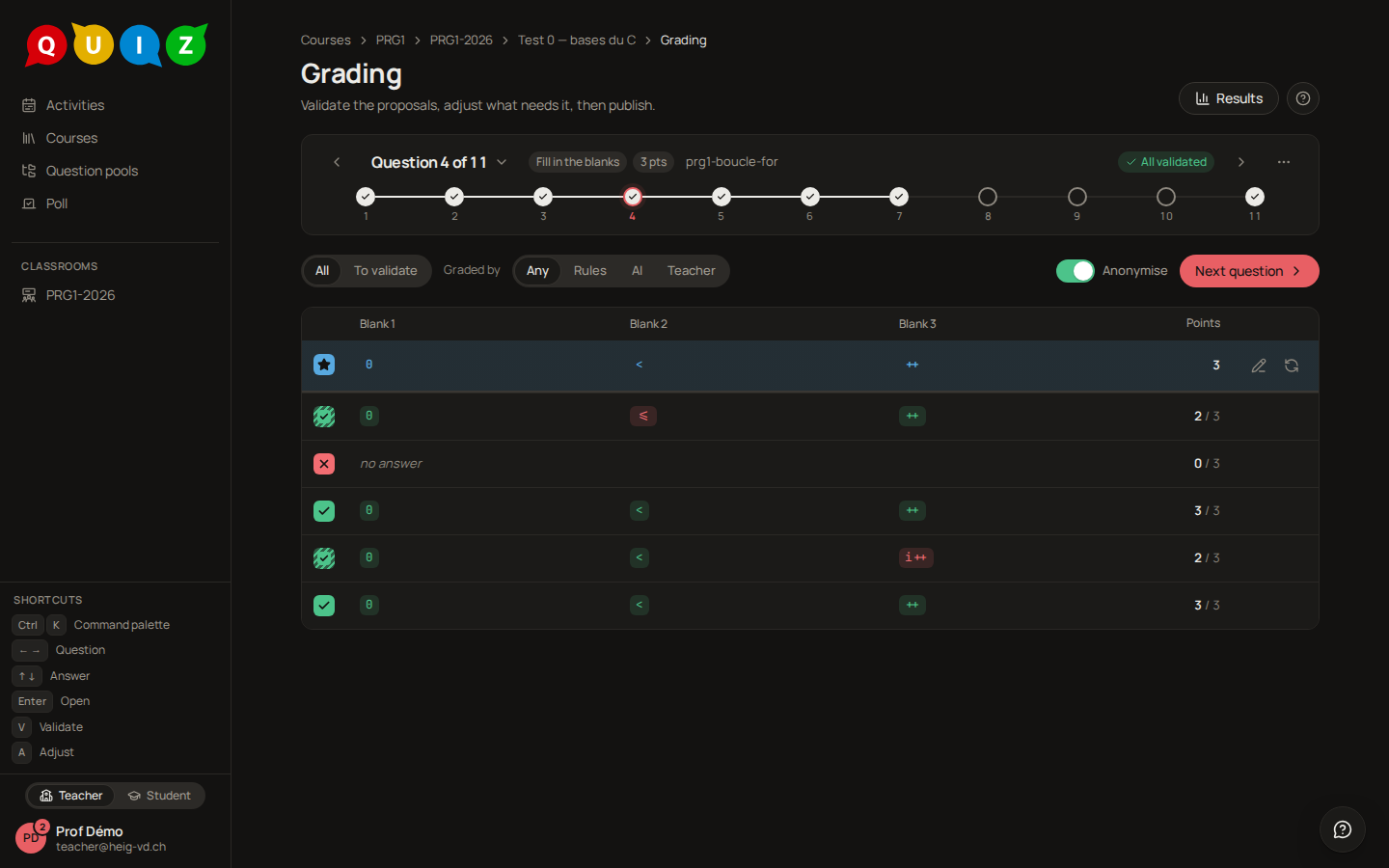
A fill-in-the-blanks question renders the text with the student's words in the blanks, then a table with one row per blank: Blank, Your answer with its verdict, Expected. The score line adds Weighted blanks 3/3, since a blank may weigh more than another.
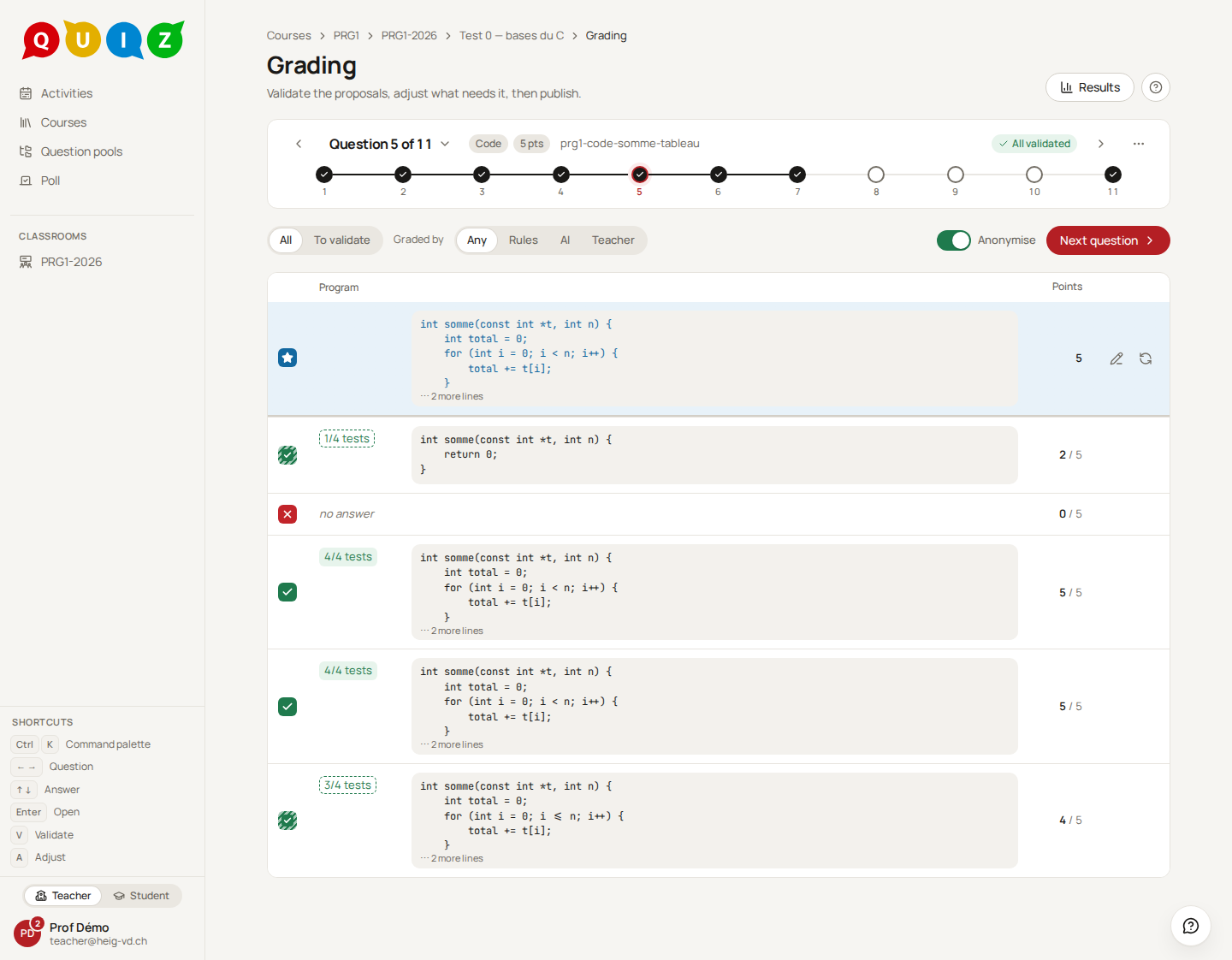
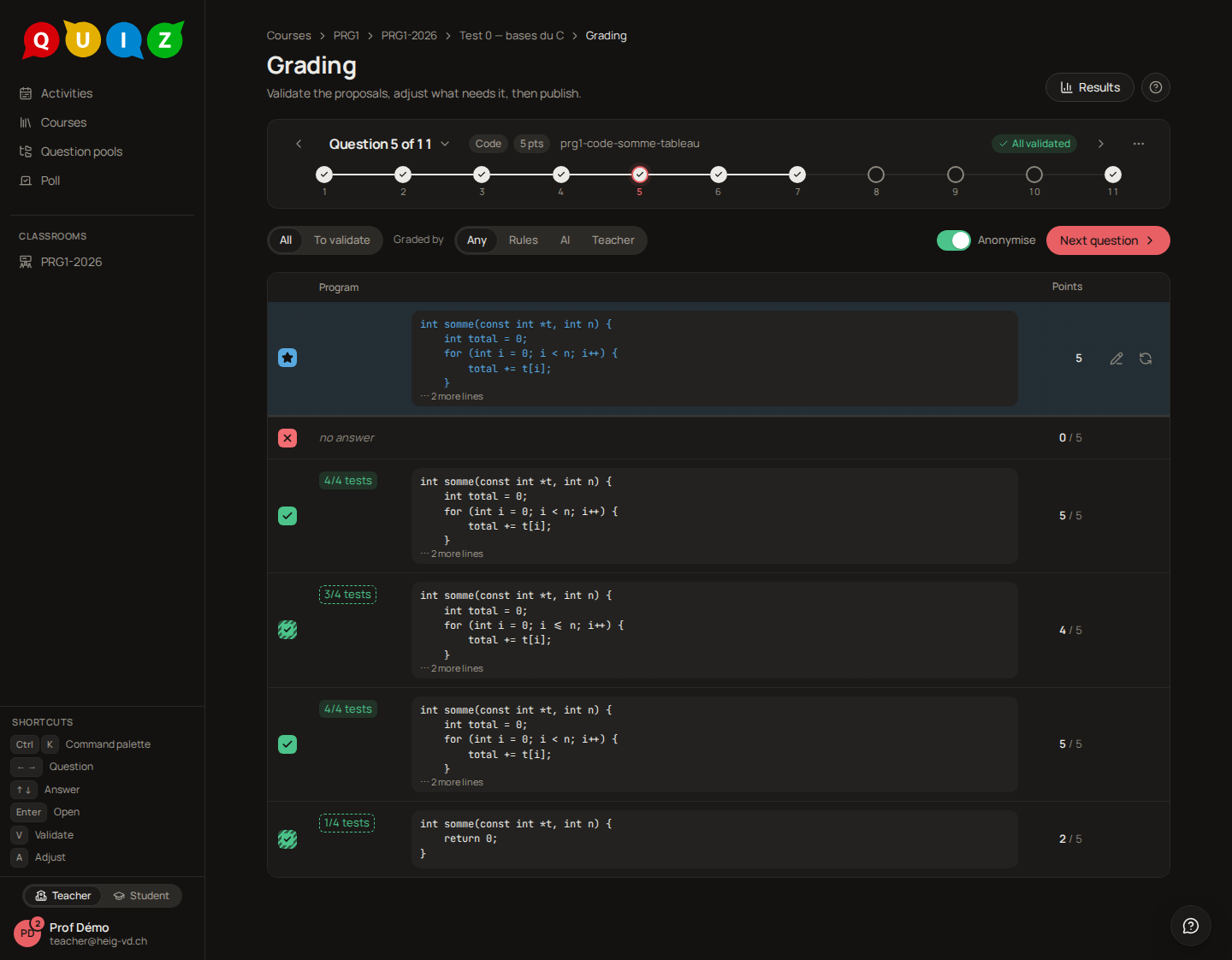
Opened, a code question shows the points earned, then one row per test case: Case, Arguments, Expected, Got, Verdict (Passed or failed) and Points. A case marked Hidden case was never shown to the student. When the source did not compile, the view says Compilation failed and shows the Compiler output instead of the table; a program that died shows Crashed. The Reference solution is displayed underneath so you can compare without opening the question.
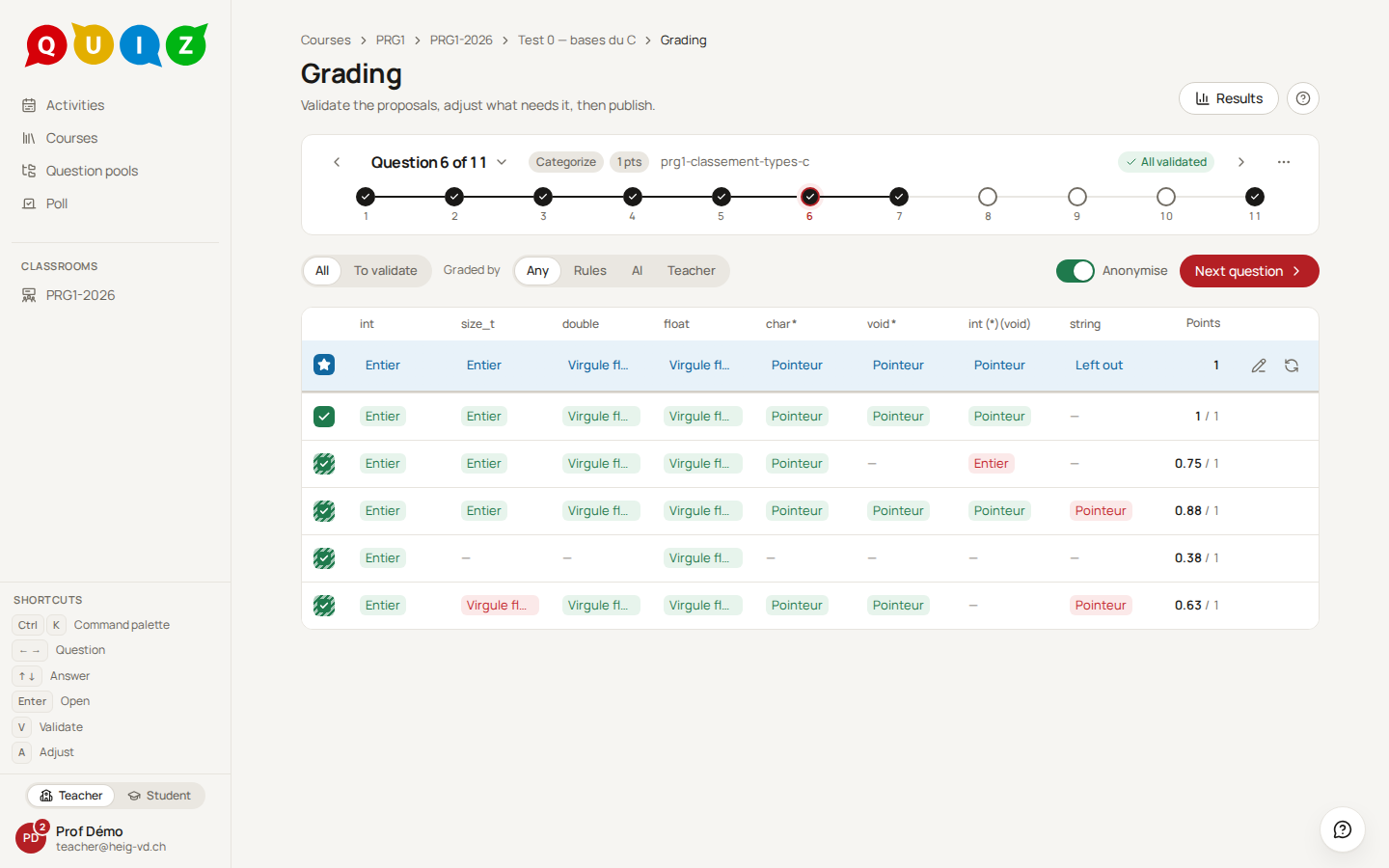
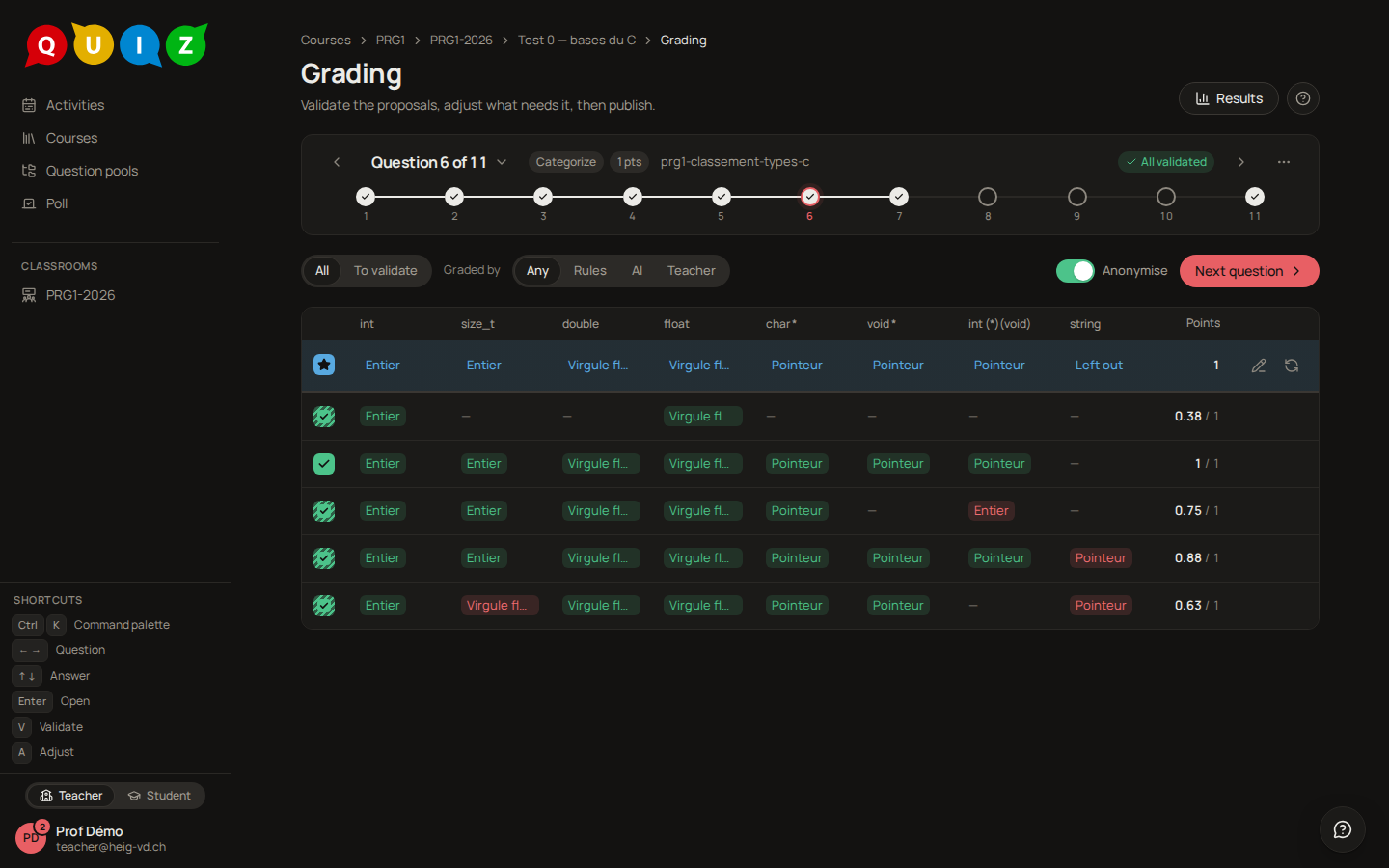
A categorize question is scored on the spot, card by card, and its gradings arrive validated: the striped squares are the partial scores. Opened, it shows the student's board, each card marked right or wrong, and the score line Placed cards right 7/7.
A blocks question arrives validated, warehouse by warehouse. Opened, it shows the student's program on a read-only workspace, the table of warehouses with each verdict (Dock reached, Collision, Battery empty, Endless loop or Stopped short), the selected warehouse drawn with the path the robot took, hidden ones included, and the Reference solution underneath. A student sees a hidden warehouse in full only when the expected answer is shown. Sort the table by the program column to bring identical programs together.
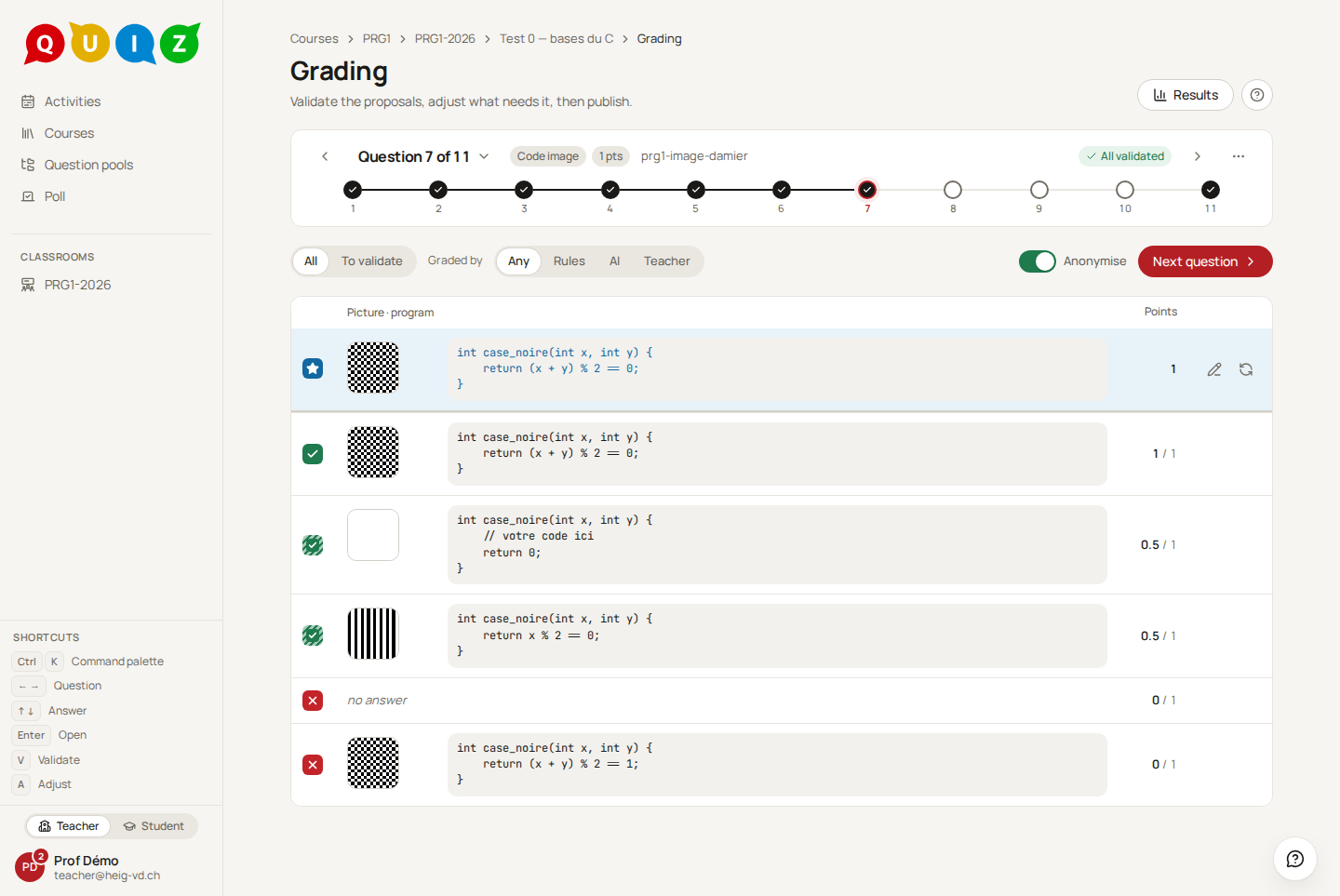
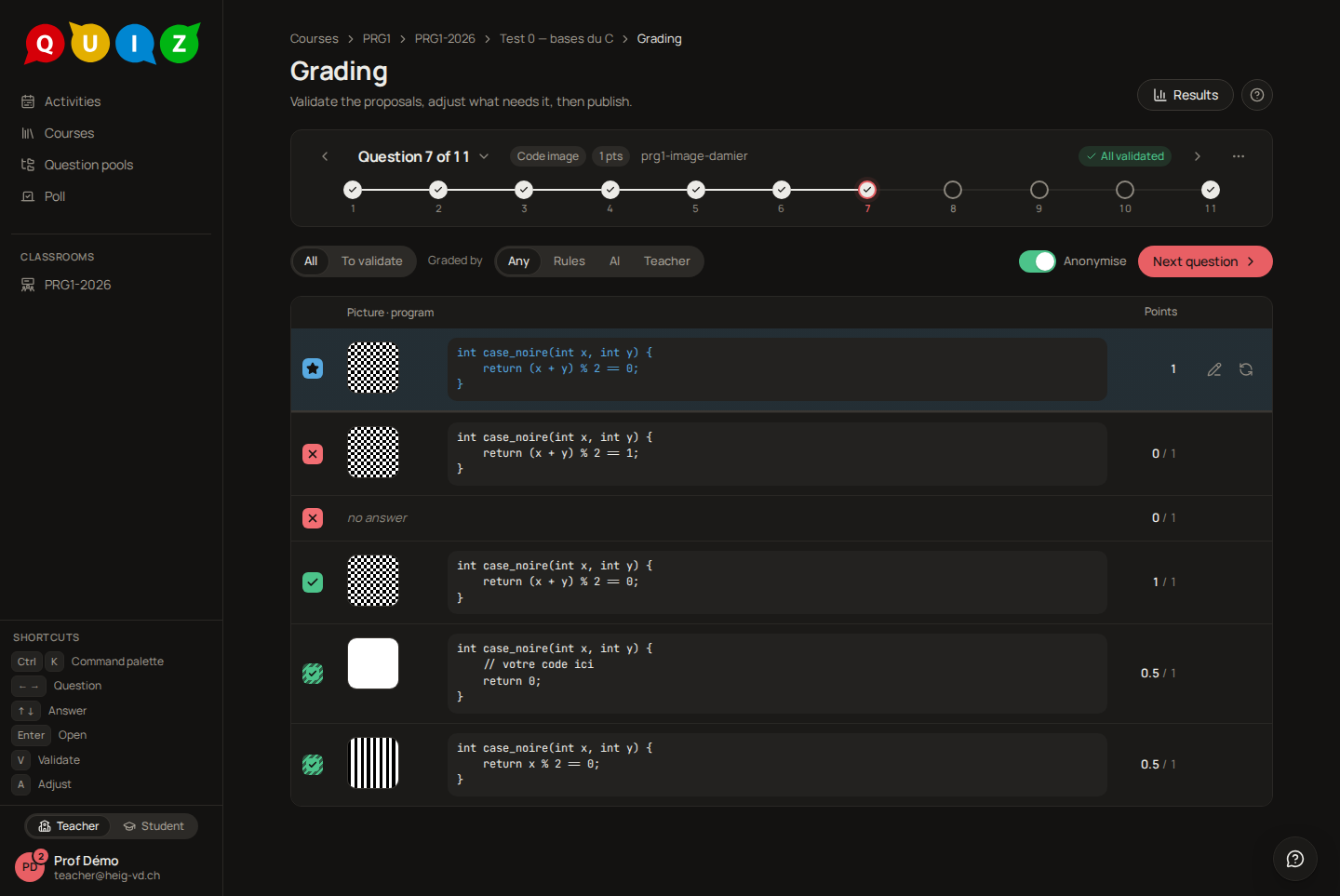
A code-to-picture question draws the picture the program printed beside its source, the target picture on the expected row. Until the runner has run the program, the picture is runner… and the row is a ?.
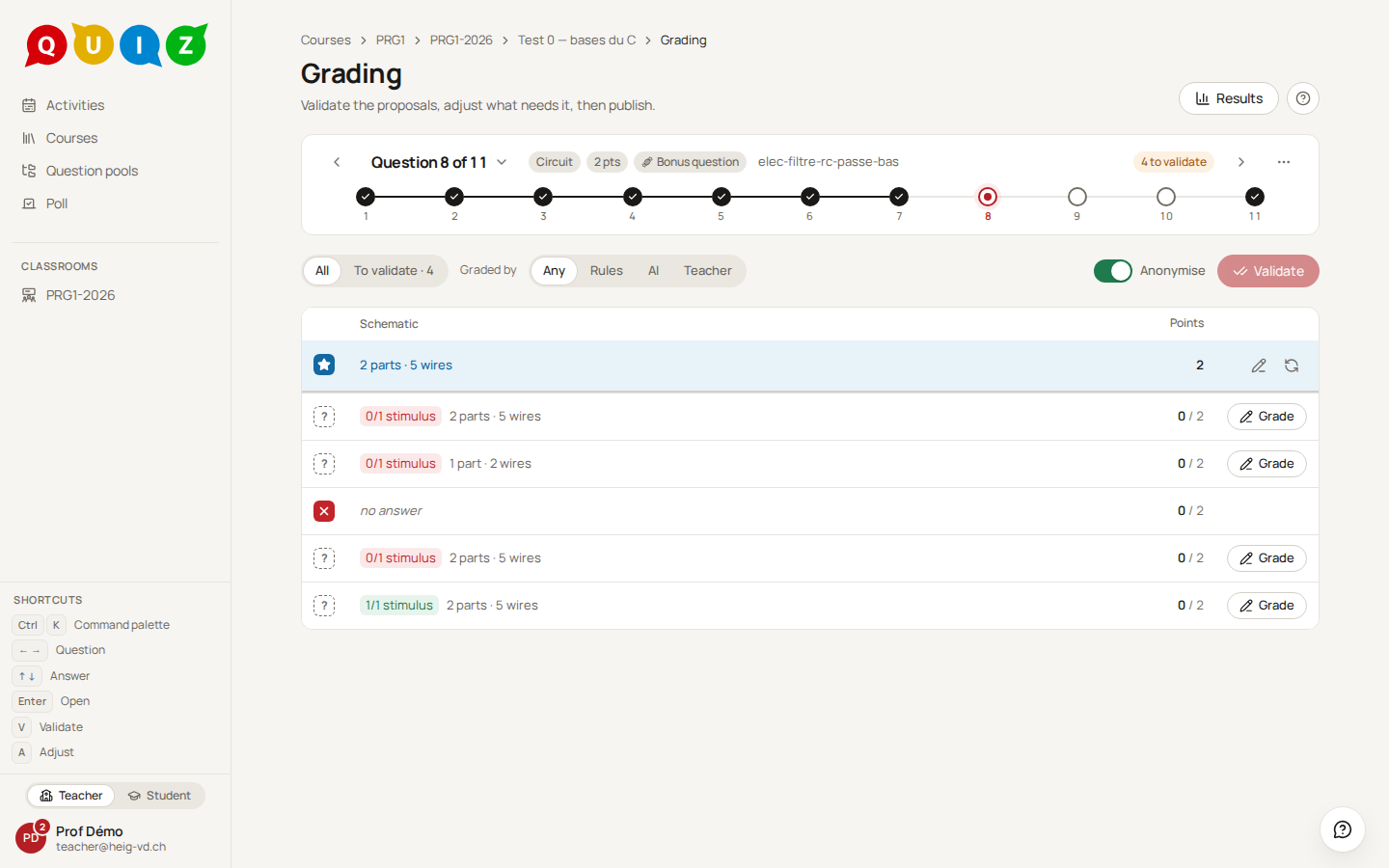
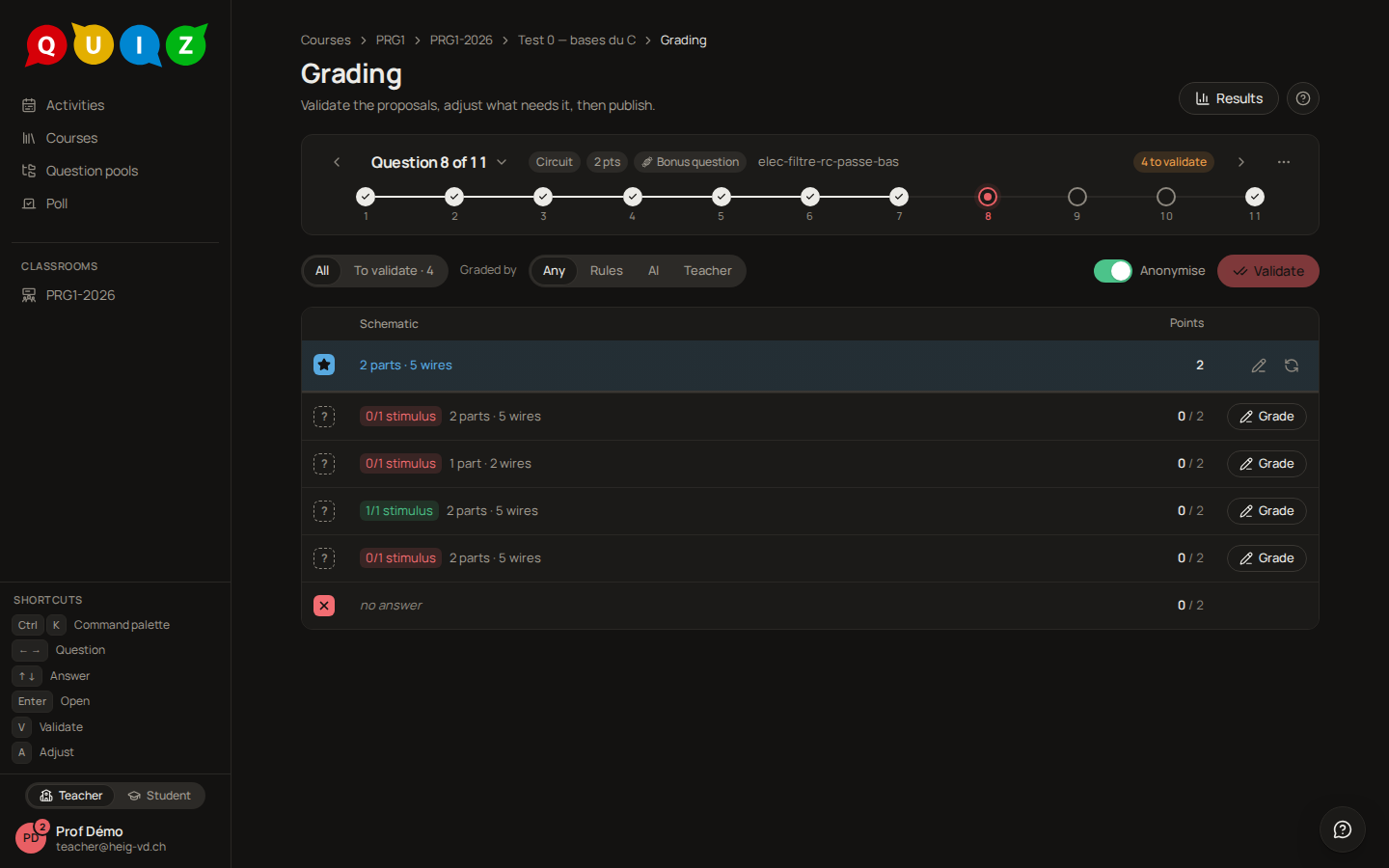
A circuit shows what each schematic holds, and a chip that counts the stimuli it passed once the simulator (the runner's) has run it. Opened, it shows the drawing and, once simulated, the student's and the reference's curves side by side. A circuit graded by hand gets the curves too, for your eyes, and a 0-point proposal for you to settle.
Essays, diagrams and AI proposals
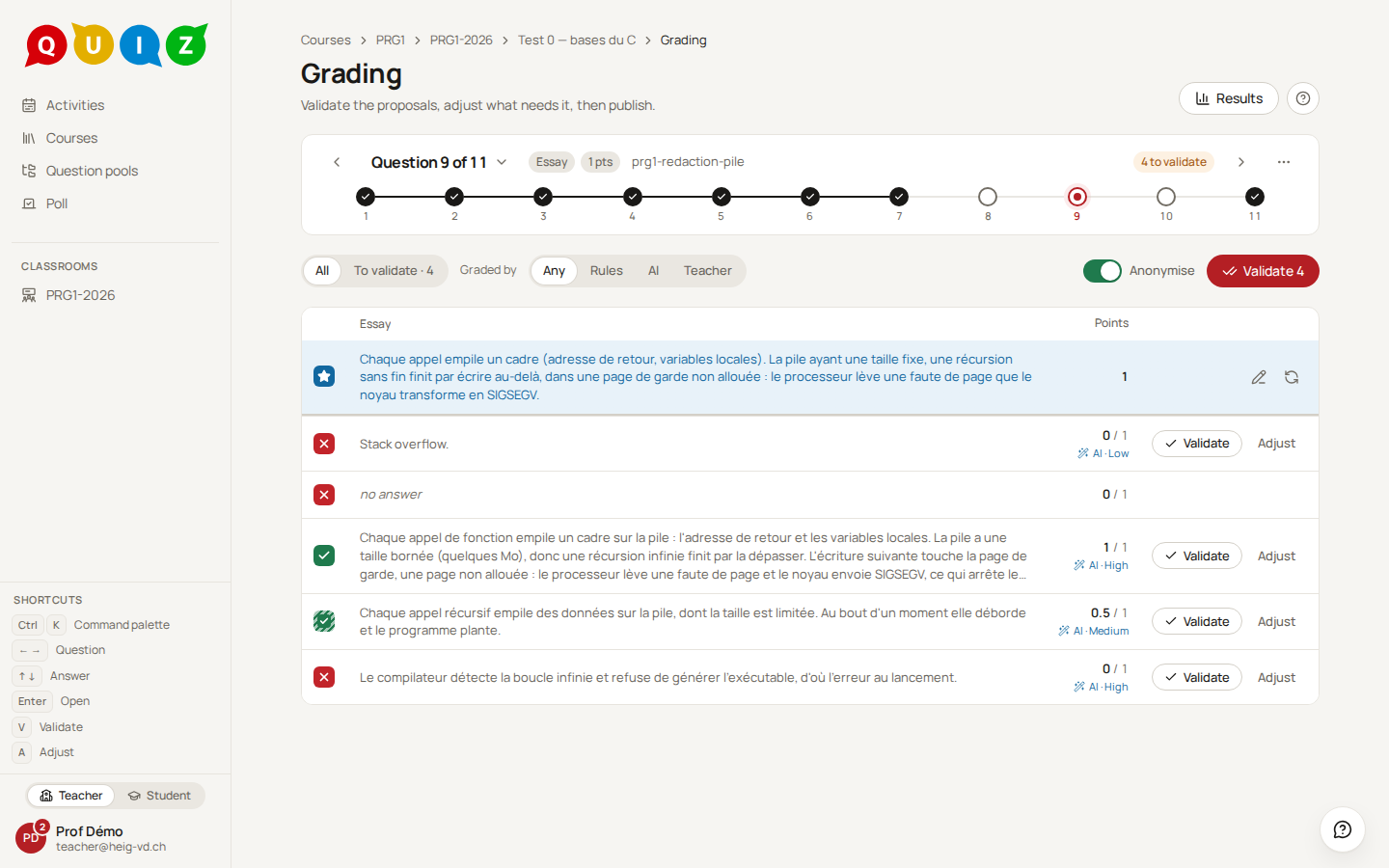
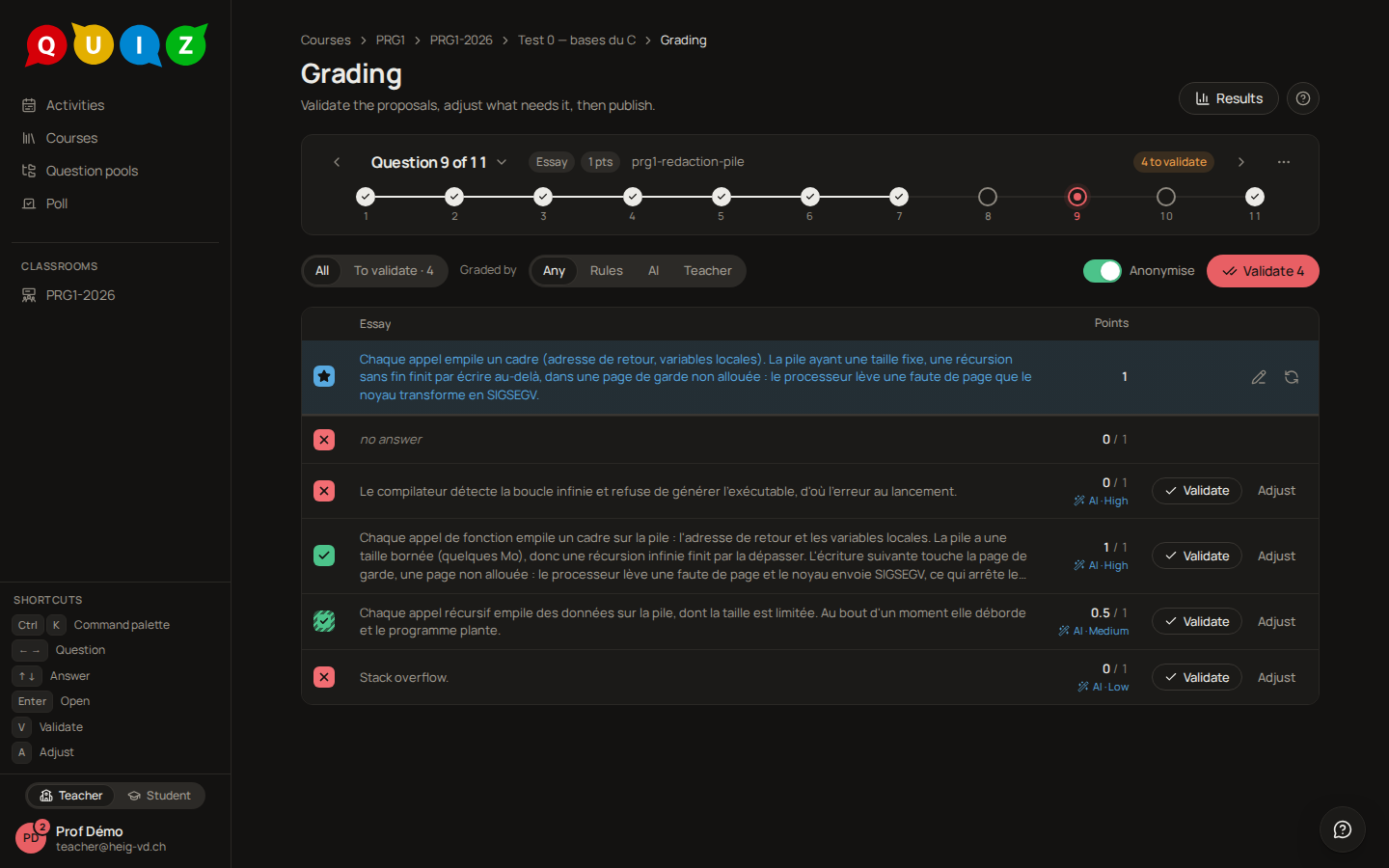
When the platform has a language model configured, every written essay and every drawn diagram is sent to it a few minutes after the close, without you pressing anything: the statement, your rubric, the model answer (for a diagram, the reference and the answer in their text form: PlantUML, Mermaid or DOT) and the answer, with the names of the class masked. It proposes points per criterion, a total, a confidence and a short justification. A free drawing, which has no text form, waits for you; a circuit is never sent, its simulation grades it. Without a model, each essay and diagram arrives as a 0-point proposal to read and grade.
You remain the grader: a proposal is never final until you validate it. The justification and the points per criterion are for you alone: they appear in the open answer as The AI's justification, never shown to the student, with the name of the model under them, and a validation does not turn them into the comment a student reads. To pass the justification on, open Adjust and press Use the AI's justification: it fills the comment, which you edit before saving.
A proposal is asked once: closing again, or a retake, keeps it; a Re-grade asks the model again. When the platform's daily spending cap is reached half-way, the rest of the answers say so and wait for Run grading, the next day or once an administrator has raised the cap.
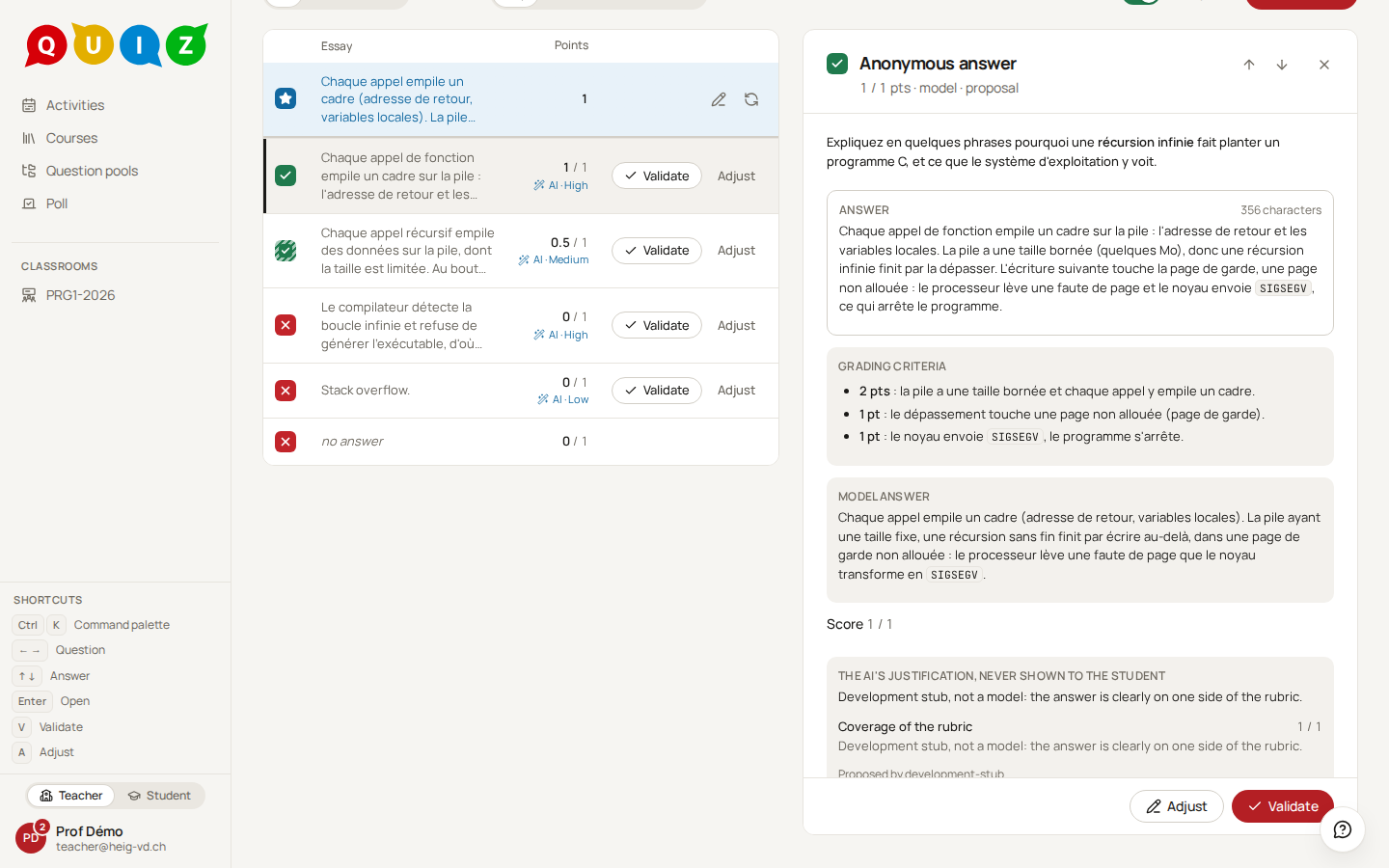
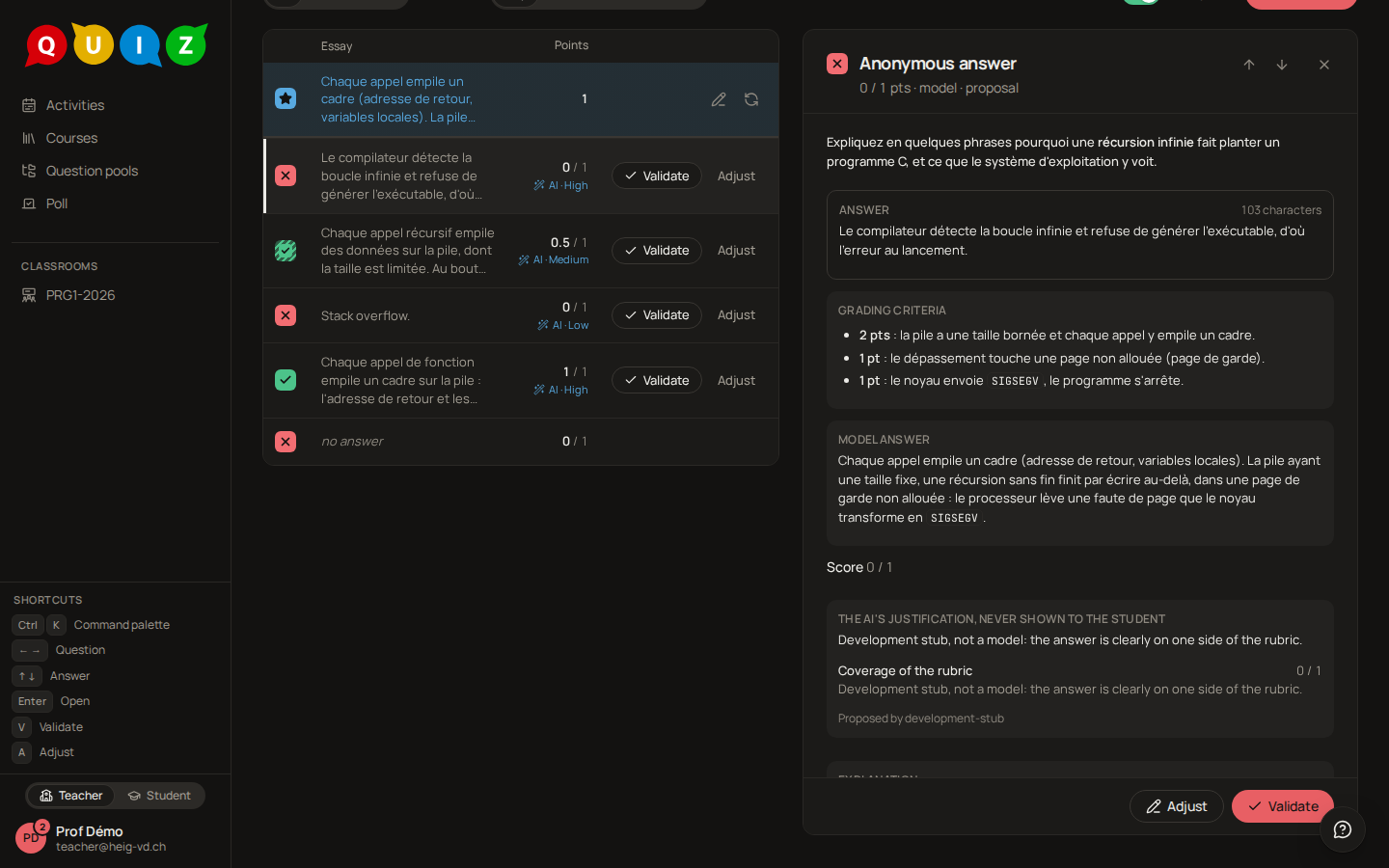
Under the points the row then reads AI · High, AI · Medium or AI · Low, beside a wand that stays once you validate it; the Graded by filter set to AI adds a Confidence filter, so you can validate the confident proposals together and read the others one by one. A proposal is never final until you validate it. No model is called while an evaluation is running.
Note
The screenshots on this page come from the demo world, graded by a development stand-in that proposes a grade from the rubric's words and says so in every justification.
Acting on an answer
Validate takes a proposal as it stands. It appears on the rows still waiting for you, and at the foot of the open answer; automatic gradings are already validated. A proposal worth 0 points that no grader stood behind — an essay waiting to be read, a program the runner never ran — is never validated as it stands: its row offers Grade instead, which opens the answer on the adjustment form, and V leaves it alone.
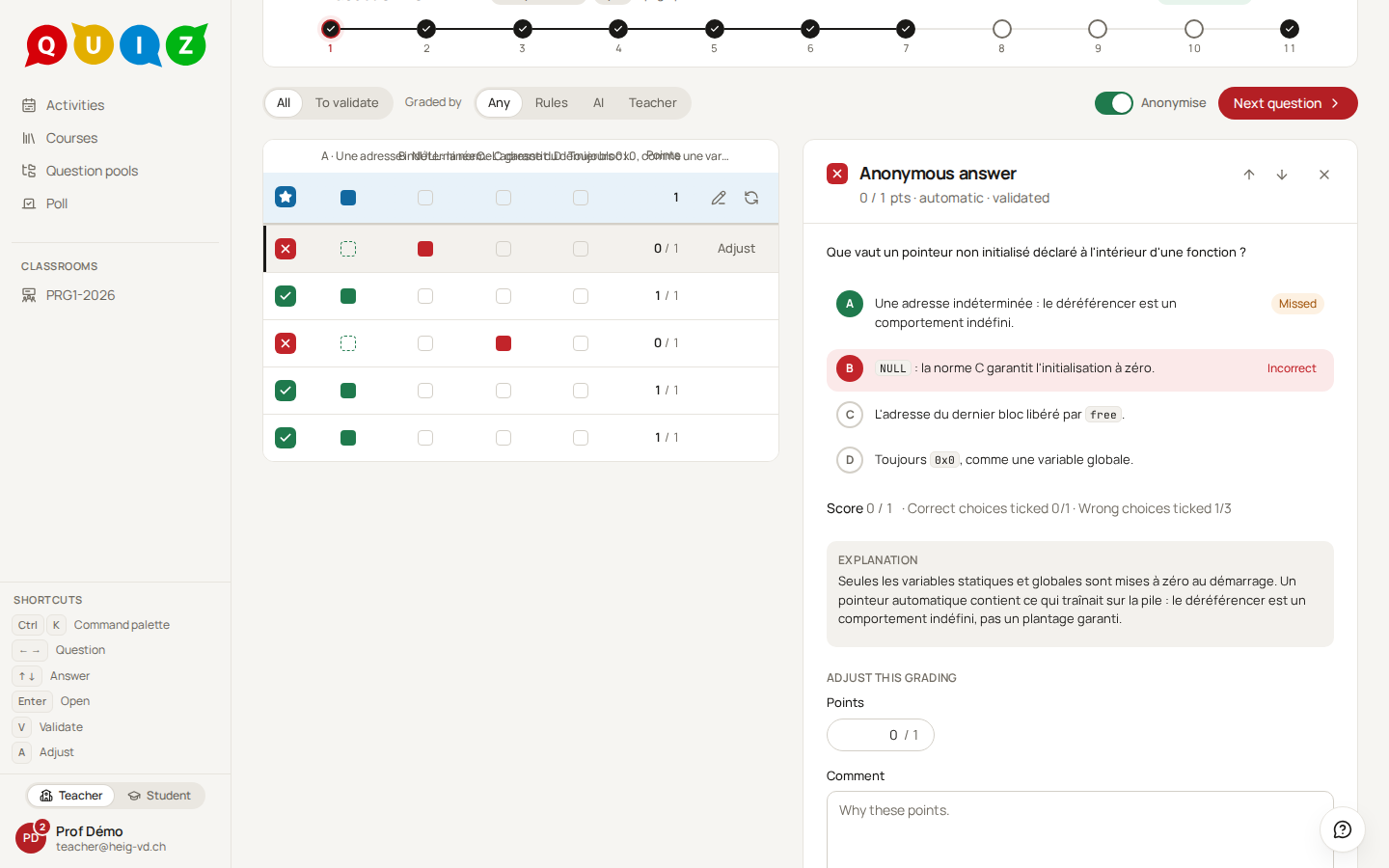
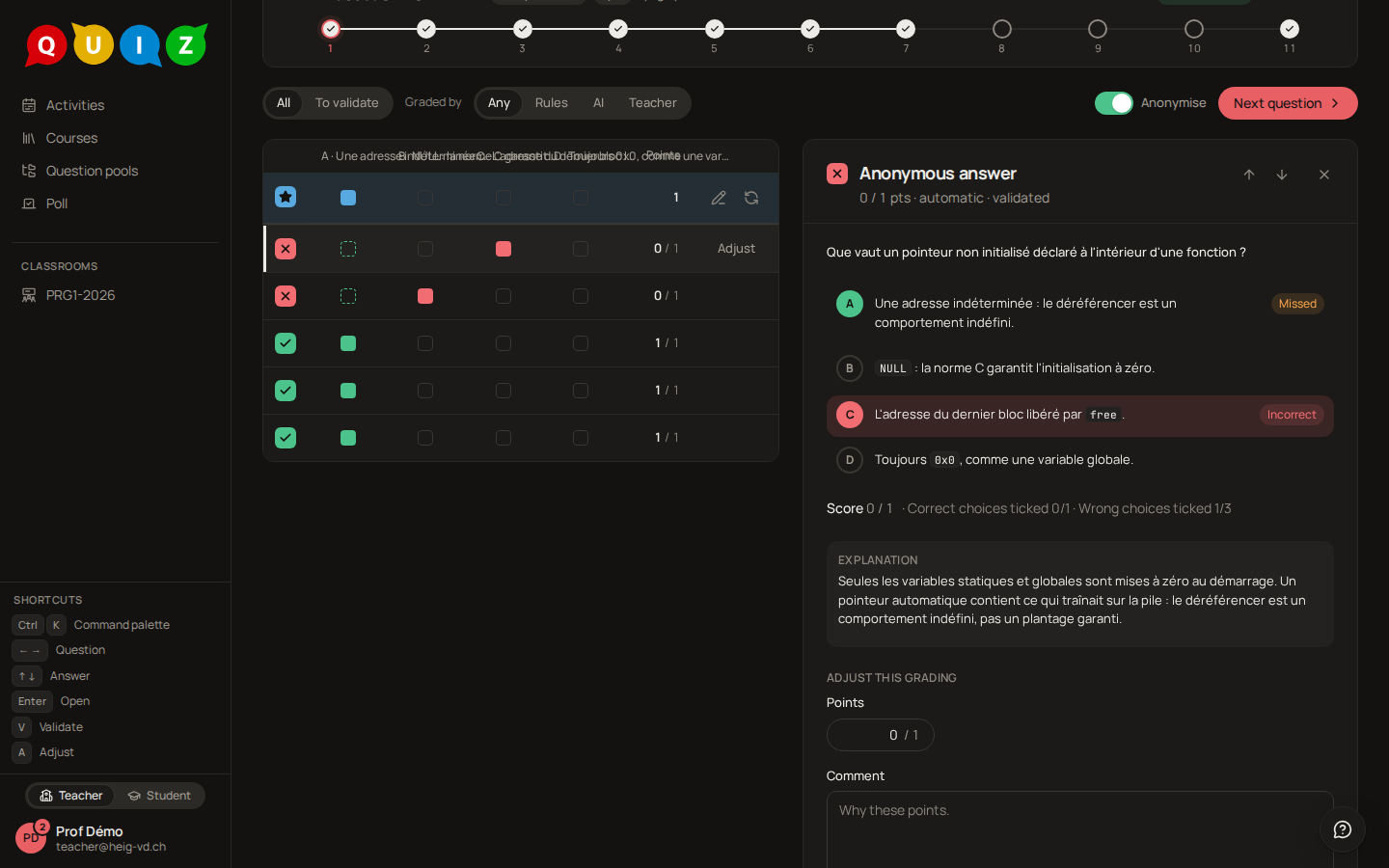
Adjust, on a row or at the foot of the open answer, opens Adjust this grading under the answer. Enter the Points (between 0 and the item's maximum) and a Comment. The comment is mandatory, and it is the one comment the student may read with their result if the feedback policy shows comments: a student who reads a grade different from the machine's deserves to know why. Save and validate stores it as a manual grading and validates it. The grading it replaces is never deleted: it stays in the answer's Grading history.
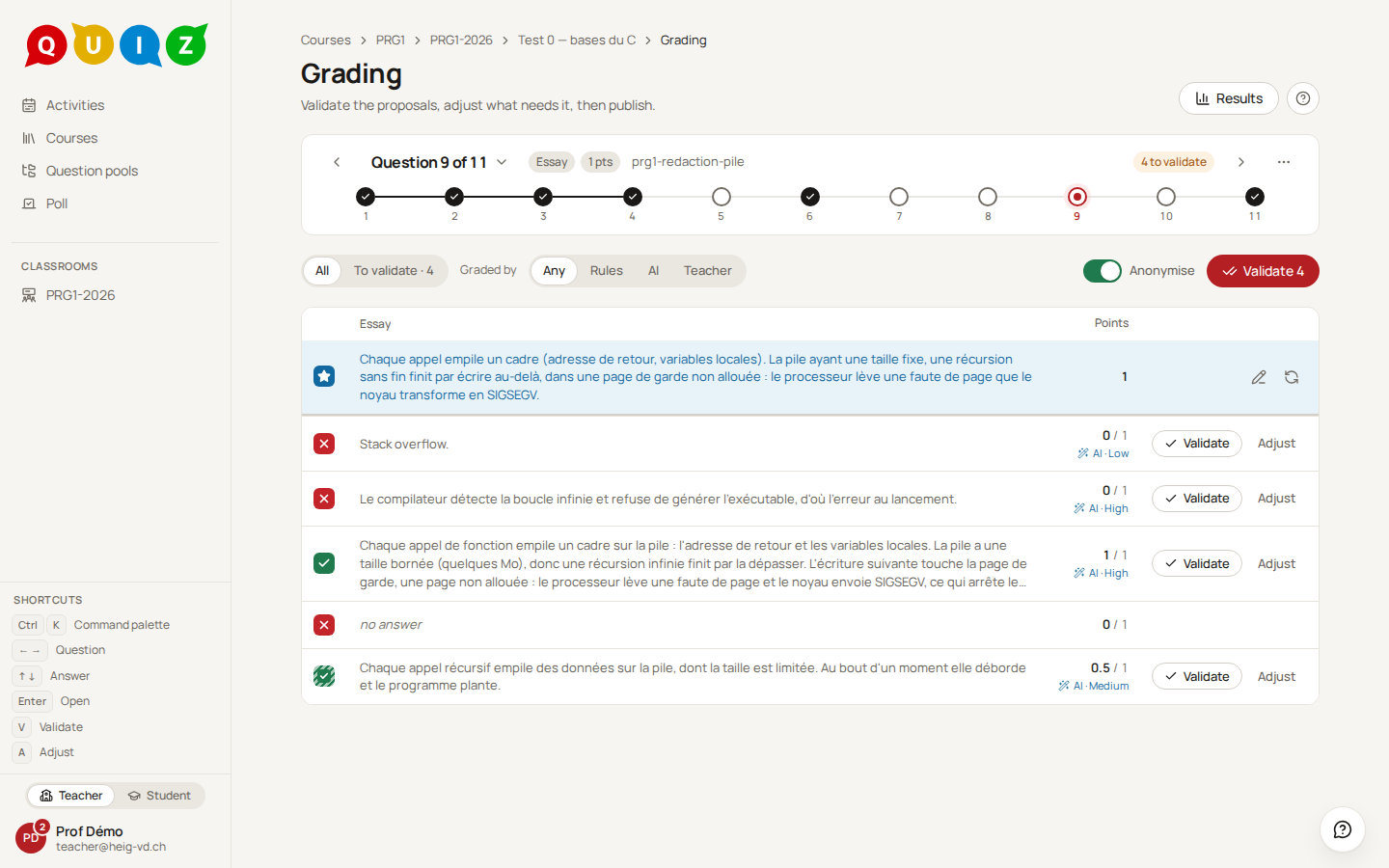
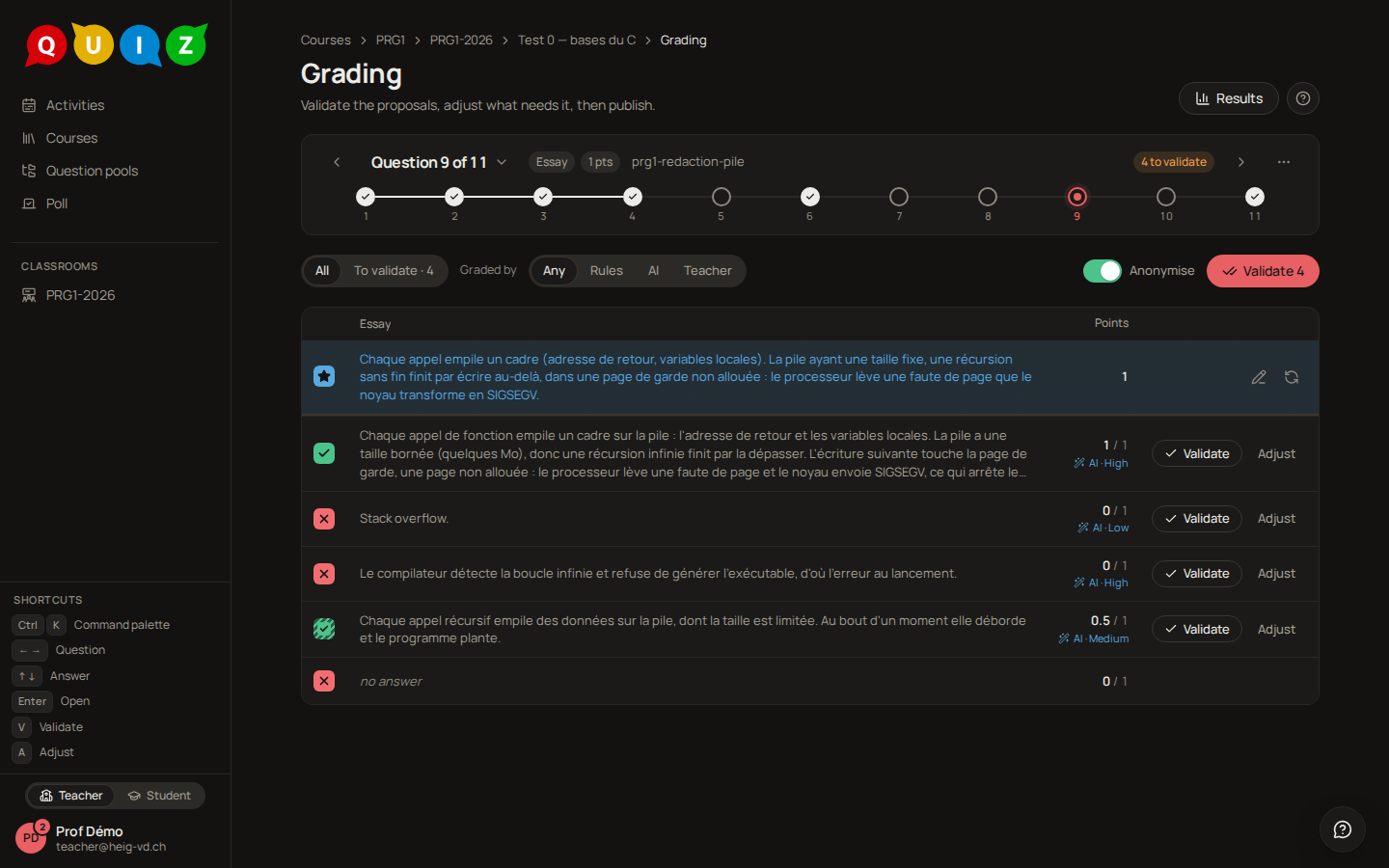
The one red button of the screen, at the end of the filter row, says what comes next. While the table shows proposals it reads Validate 4: it validates the proposals shown, those of the filters you picked included (above ten, it asks first), and a toast counts what was validated; each grading stays editable. An essay or a program proposed at 0 points with nothing behind it (no grader could judge it) is never validated in a batch: read it and grade it. A proposal that states a confidence, an AI's zero included, is. Once every answer of the question is validated, the button becomes Next question, and on the last question Results. While what is left can only be graded by hand, it stays in place, greyed out, and its tooltip says why.
Re-grade a question
Re-grade, on the expected row, runs the automatic grading again on every attempt of this item. The sheet lists the question's published versions, each with its change note, and a Note, kept with every new grading, which is mandatory and travels with each grading it produces. The gradings it replaces stay in the history, marked Re-graded with your note. The results page and, if they were published, the students' grades follow.
When the key itself is wrong, the round trip is short:
- Edit question (the pencil on the expected row) opens the question editor. The header's way back reads Back to grading.
- Fix the question and Publish it. Publishing takes you straight back to the grading table, on the same question.
- The expected row now shows Re-grade as a New version button, with the tooltip A newer version is published — re-grade. Click it: the sheet already has the newest version selected. Write the note and confirm.
Edit question is offered only to someone who may edit the question's pool (a contributor or its owner). A teaching assistant on the course staff who may not write the pool sees Re-grade alone, and asks the pool's owner for the fix.
If the results are already published, the sheet says so before you confirm: re-grading updates the grades the students already see, and marks the results Modified after publication.
When the runner is unavailable
If the runner cannot be reached when the evaluation closes, the code answers are not lost, nor the code-to-picture and circuit ones: each one comes back as a proposal worth 0 / 5 with the message The answer could not be run automatically; it is waiting for a manual grade. and a Grading note that says the runner was unavailable (never a raw code). The banner above the table counts them and offers Run grading. Once the runner is back, Run grading sends them again and the proposals are replaced by real verdicts. If it will not be back in time, open each one and Adjust it by hand (a zero included, with its comment). The same happens, with a note saying so, when the runner was saturated.
Shortcuts
The keys of the grading panel are listed in the sidebar while you are on it.
| Key | Action |
|---|---|
← → |
Previous or next question |
↑ ↓ |
Previous or next row, the expected row first; moves the open answer too |
Enter |
Open the selected row |
V |
Validate the selected row's proposal |
A |
Adjust the selected row |
Esc |
Close the open answer |
The results page
Students
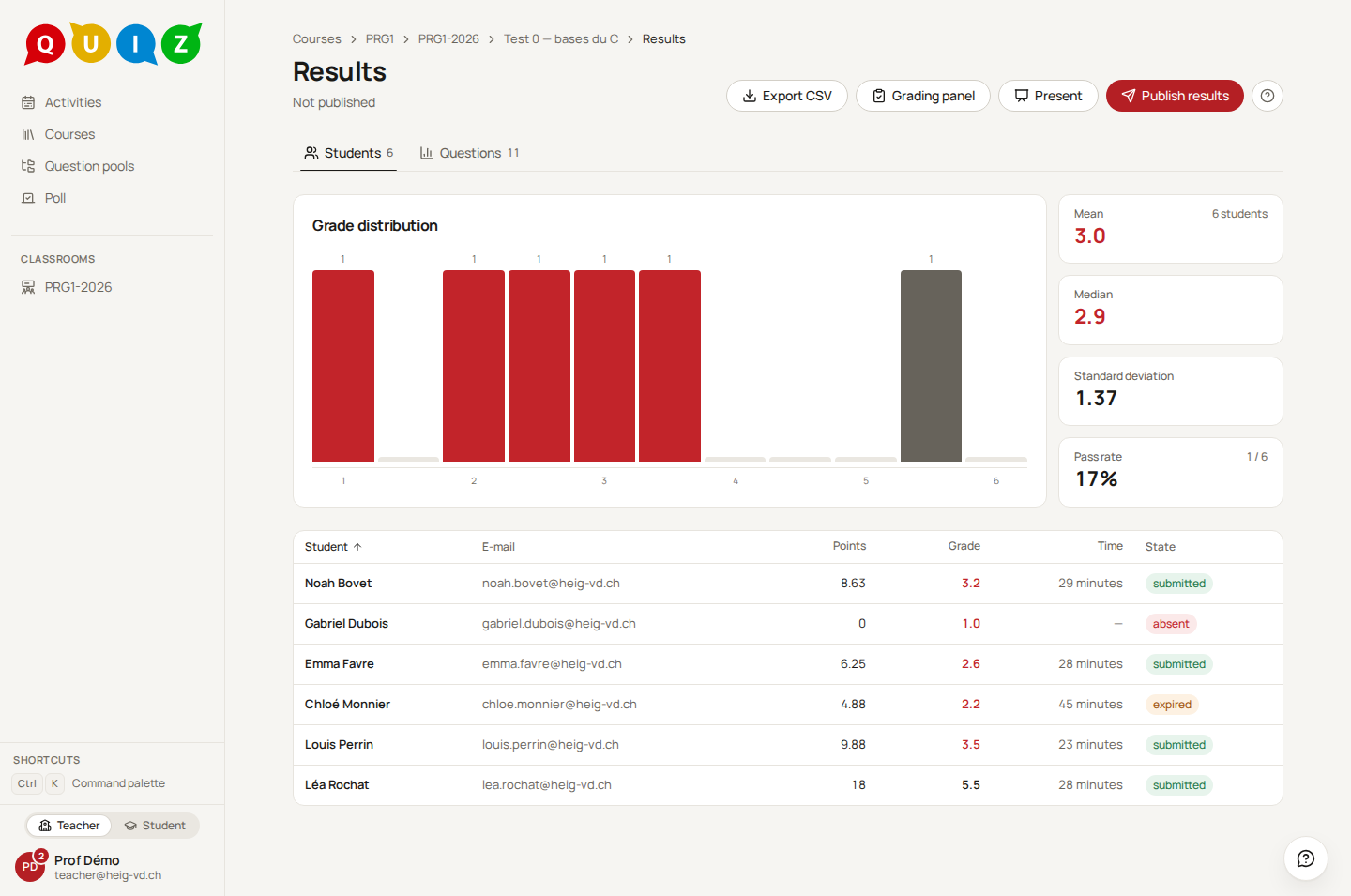
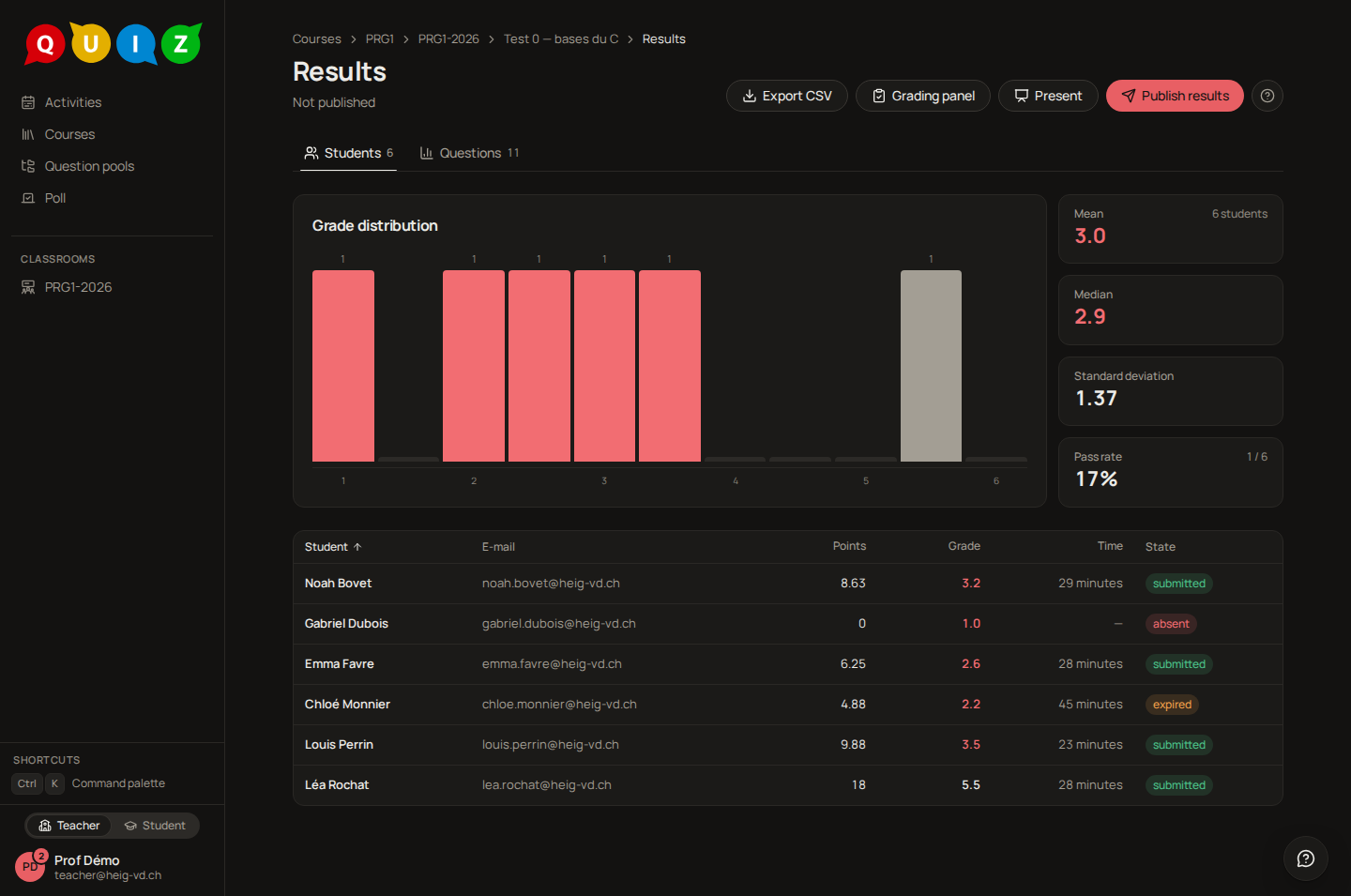
The Students tab opens on four figures: Mean, Median, Standard deviation and Pass rate, the share of students at 4.0 or above, with the count under it (3 / 6). The Grade distribution histogram follows, in half-grade buckets from 1 to 6.
Then one row per student on the roster: Student, E-mail, Points, Grade, Time used, and the State of their attempt: submitted by the student, expired by the server at the deadline, in progress or not started for an attempt the close has not caught up with yet, or absent for a student who never connected. An absent student has 0 points and the grade 1.0, so that the class figures are honest.
The grade
The grade maps the points onto the Swiss scale, 1 + 5 × points / total, capped at 6. The total leaves out the bonus questions (see Evaluations), whose points only lift a student: a score may read 21 / 18 and the grade stays 6.0. The result lies between 1.0 and 6.0 and is rounded to the tenth, to the nearest by default. In the CSV export, a bonus question's column is marked (bonus) and the total includes its points.
It is computed from the validated gradings, never typed in: adjust one grading in the panel and the row moves. A proposal not yet validated does not count.
Questions
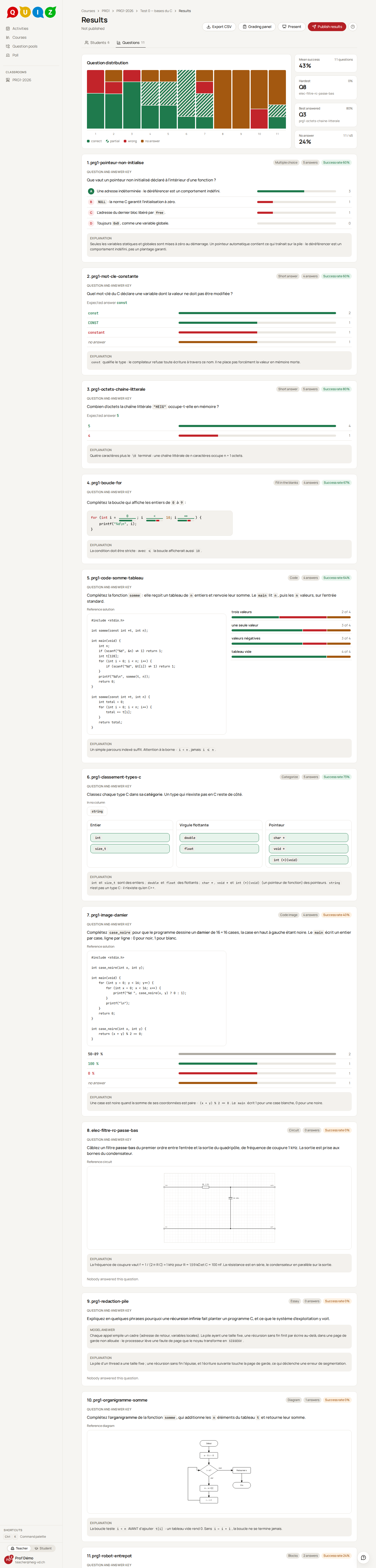
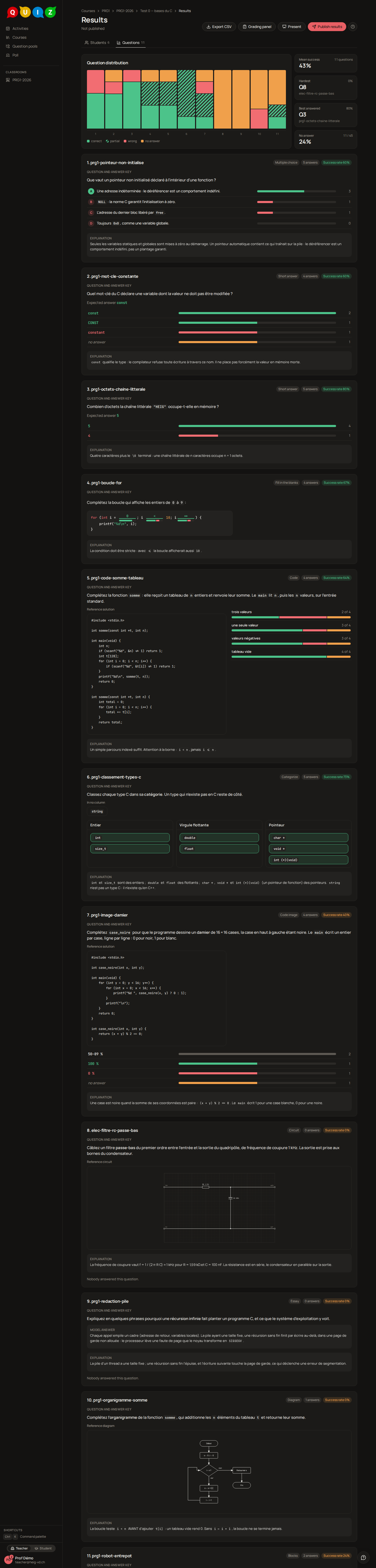
The Questions tab lists one block per item in quiz order, headed by its type, its number of answers and its Success rate. Each block shows Question and answer key drawn as the projection draws it, answers revealed: for a multiple choice every choice with a bar of the papers that ticked it (green on a right choice, red on a wrong one) and their count; for a short answer the values the class typed; for a cloze each blank with its key and a right / wrong bar. Any other type shows the question as the student saw it, followed by what the class answered when the type groups answers (the accuracy of a code image, for instance). A code question adds its reference solution and each test case with the number of papers that passed it; every question adds its explanation.
Present, in the header of the page, opens the same questions full screen, dark, one screen per question, for the beamer. It appears once the evaluation is closed — or, for an exercise, once you have published its correction from the live dashboard; while the exercise is still running it counts only the papers handed in, and its header says how many (Handed in so far). Each question shows how the class fared in one bar — full marks, partial, wrong, no answer — and its success rate; a multiple choice gives a bar per choice with the number of papers that ticked it, a short answer the answers the class wrote, a cloze each blank, a code question each test case. The answers and their colours stay hidden until you press R (or Reveal the answers), so the room can think first — the choices' bars already show, in grey, how the class voted; E shows the explanation, ↓ and ↑ move between questions, F goes full screen. Hover a bar for its exact figures. Only validated gradings count: an answer still waiting for your validation is not on the wall.
Export CSV
Export CSV downloads one row per student: email, last_name, first_name, one column per item named after the question's internal name with the points earned, total and grade. The file uses semicolons and starts with a UTF-8 byte-order mark, so Excel opens it directly with the accents intact and without an import dialog.
Publishing the results
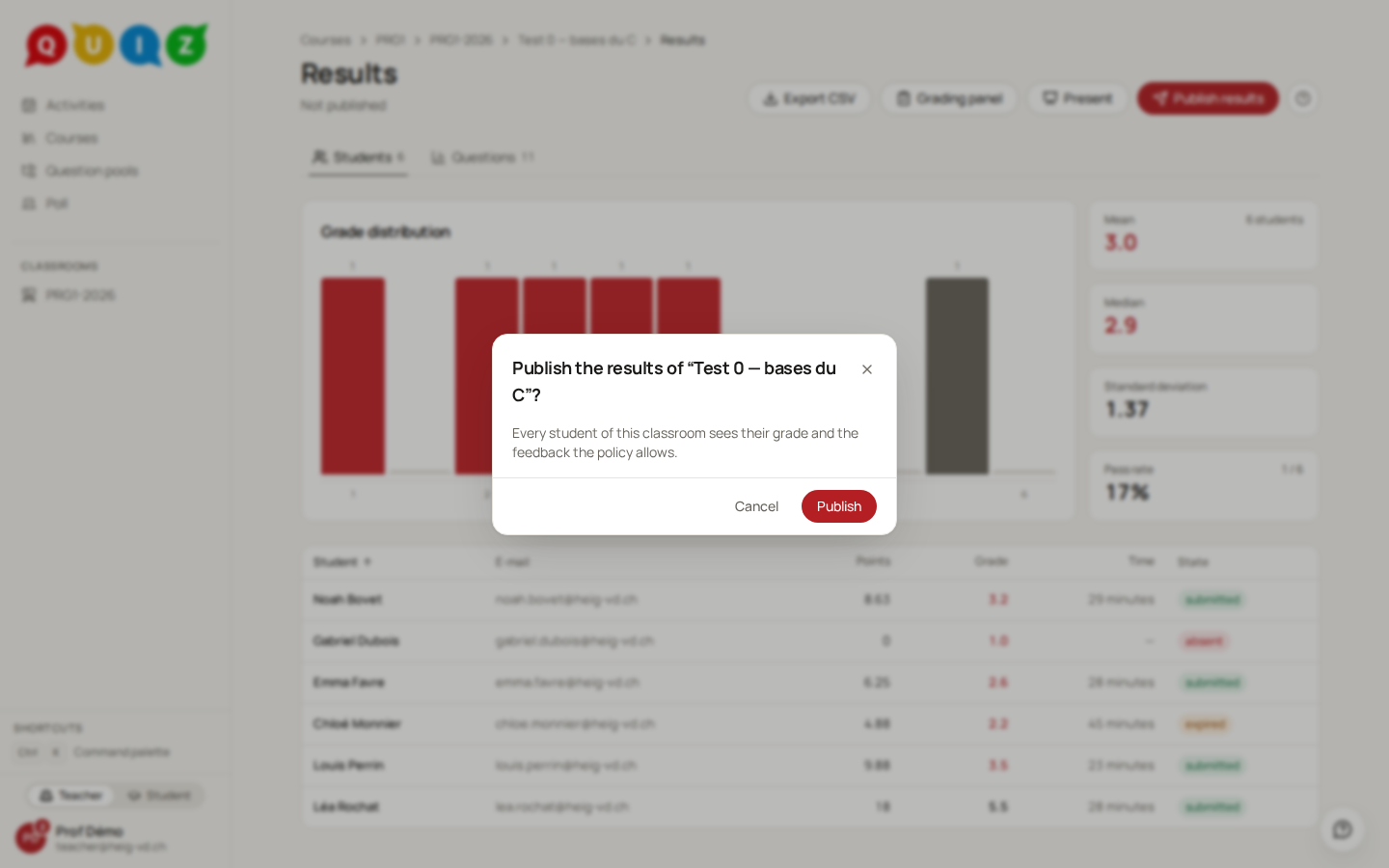
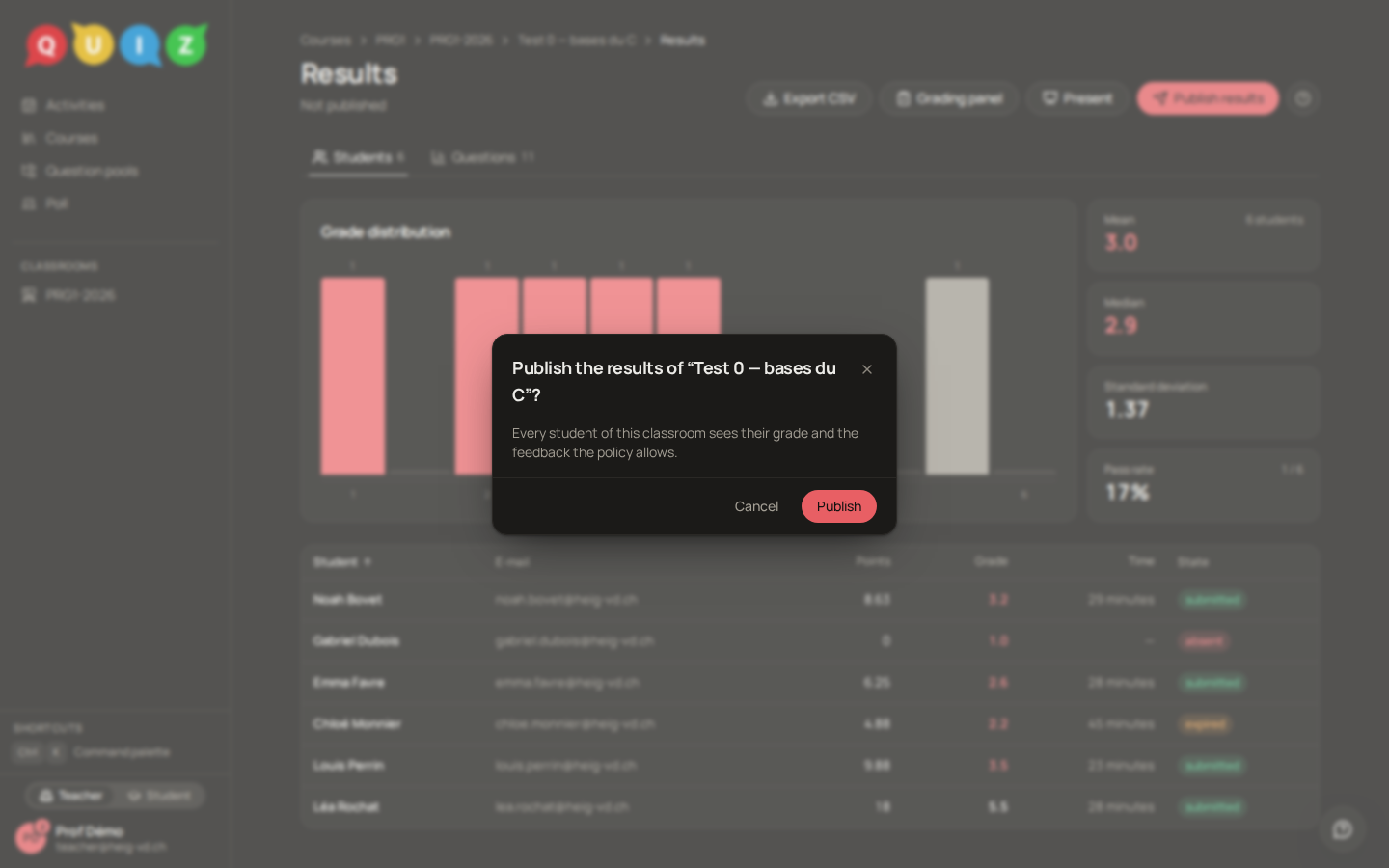
Until you publish, a student who opens their results sees Results not published yet. Publish results asks Publish the results of "Test 0"? and reminds you that Every student of this classroom sees their grade and the feedback the policy allows. Confirm with Publish.
What a student sees then follows the feedback policy of the evaluation: their points per question and their grade always; their own answer, the expected answer if Show the expected answer is on, the explanation if Show the explanation is on, and the comment you wrote on any adjusted grading. With the feedback set to None, they see the grade and nothing else. On an exercise with feedback Right away, they had it question by question while working; publishing adds the grade.
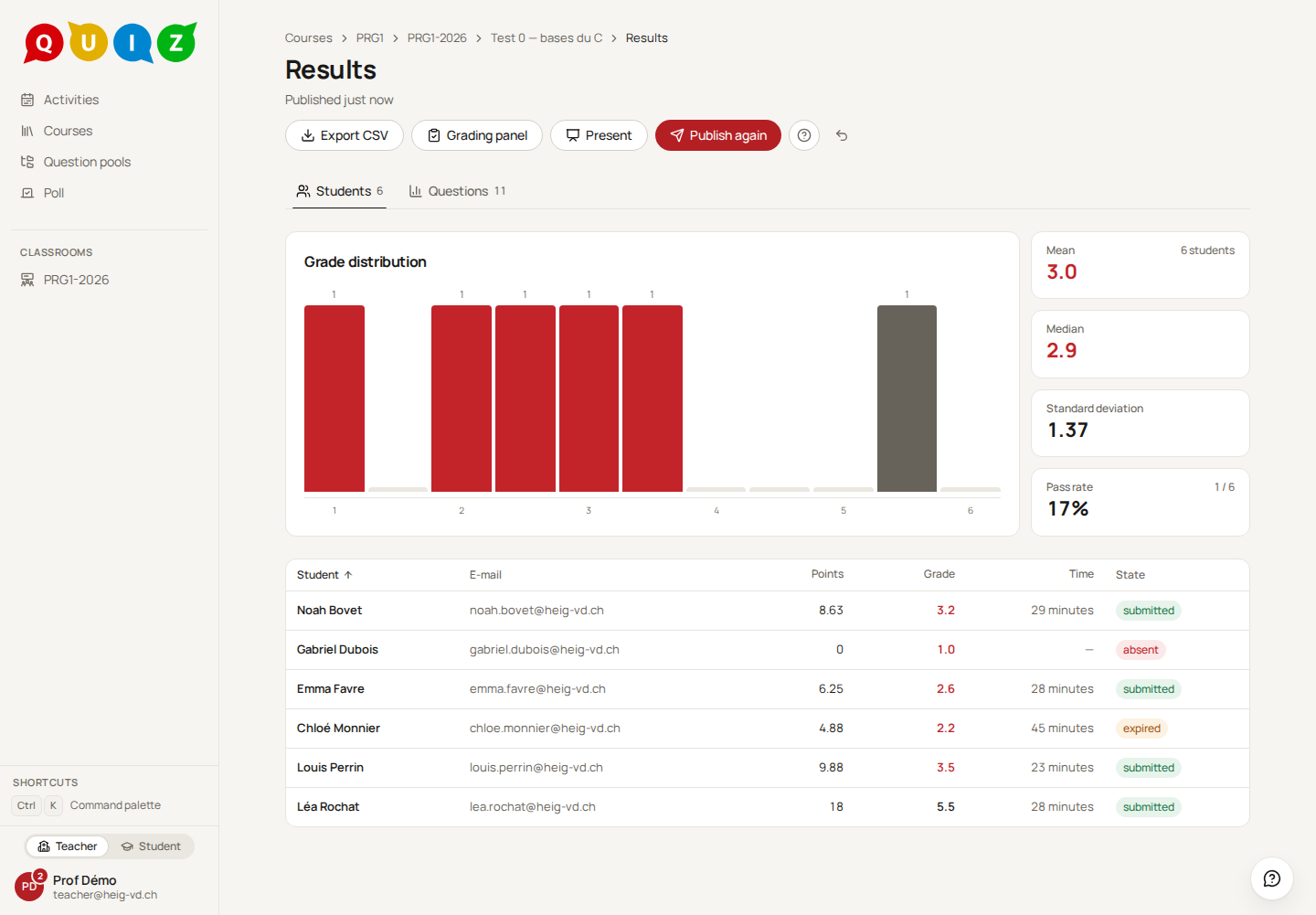
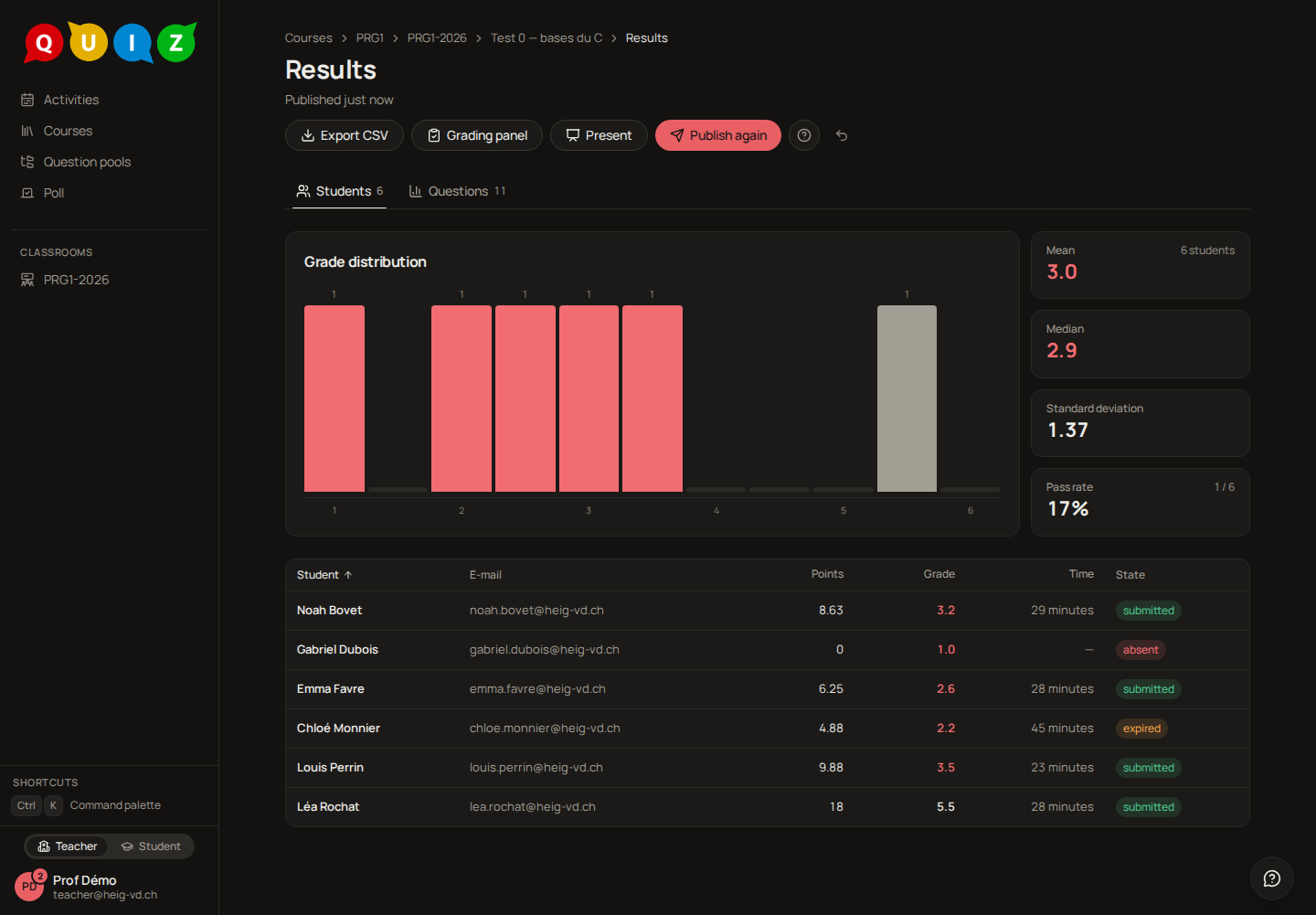
Once published, the subtitle reads Published just now and the primary button becomes Publish again. If a grading changes after that, through Adjust or a re-grade, a banner says Modified after publication: the students already read the recomputed grades (F-GRADE-09), and the banner reminds you that they changed since you published. Publish again takes the new grades as the published ones and removes the banner. The menu beside the button offers Withdraw the publication, which takes the grades back out of sight until you publish again; the gradings themselves are untouched.
A grade in two steps
The grade of an attempt is frozen twice, in plain words: a provisional grade at the close, a final one at the release. When the evaluation closes, the automatic pass produces a grade you can already read on the results page, and every adjustment, validation or re-grade moves it. When you publish, that grade is snapshotted with the instant of publication: what the student reads is that snapshot, not a live computation, and a later change only reaches them through Publish again. The state of the evaluation moves to released and the publication is written to the audit log.
The two-step freeze is inherited from the sibling classroom project, where it settles disputes about deadlines; see ADR-012 for the reasoning. Here the practical rule is simpler: nothing a student reads changes without you pressing Publish once more.
Warning
Publishing is per evaluation, not per student. Check the To validate filter of the grading panel before you publish: an unvalidated proposal counts for nothing in the grade, and a student whose code answers were waiting for the runner would read a grade computed without them.
Tip
Keep the CSV. A grade in the platform can change with a re-grade; the file you exported on the day of the publication is the record you announced to the class.