Connecting GitHub
Projects, and a journal kept in a repository, live in your GitHub organization. Quiz reaches it through its own GitHub App, which an owner of the organization installs once. This page covers the setup, what your students do, and what to check when something does not work. GitHub is optional: a classroom that is never connected stays a plain Quiz classroom, and nothing else of its pages changes.
Coming from heig-classroom
Quiz uses its own GitHub App, not heig-classroom's. Install it on the organization your projects will live in; your existing repositories and your organization stay as they are.
Install the App on the organization
You need to be an owner of the GitHub organization, with your GitHub account linked to Quiz, so that Quiz knows you as its owner. Quiz offers the installation from the classroom itself, so there is nothing to look for on GitHub:
- Open the classroom's Settings tab, GitHub section, and click Connect to GitHub.
- If your organization is not in the list, click Install the App on GitHub under Not in the list?. GitHub opens in the same tab.
- Install the App on the organization and give it access to all repositories. Quiz needs to see every repository to hand out sources, create the students' repositories and read their results; a partial access is reported as blocking.
- When you finish, GitHub brings you back to the same panel in Quiz, with the organization chosen and Installed on shown. Click Connect. (If you are not an owner, GitHub only sends a request to the owners and you come back with nothing chosen.)
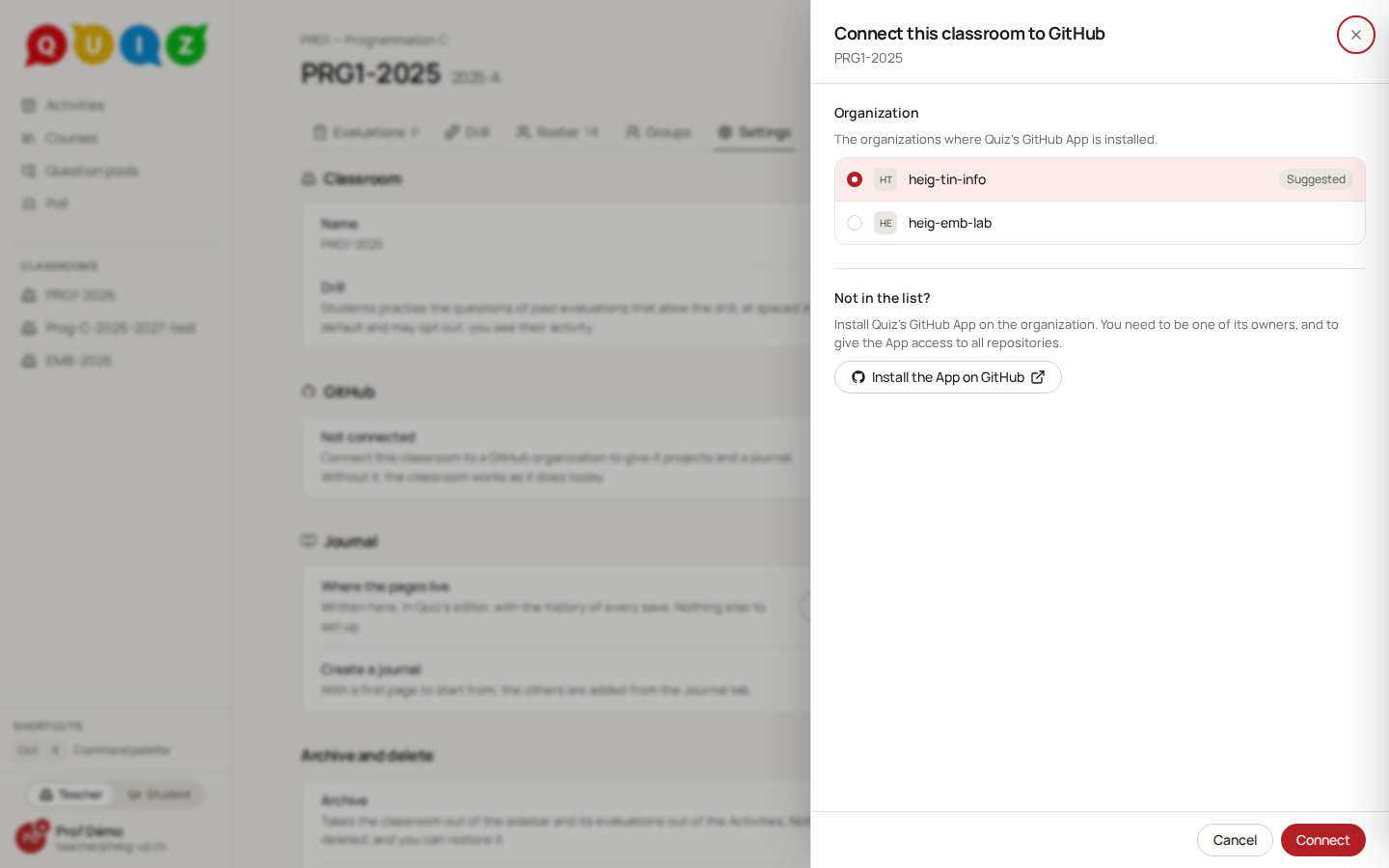
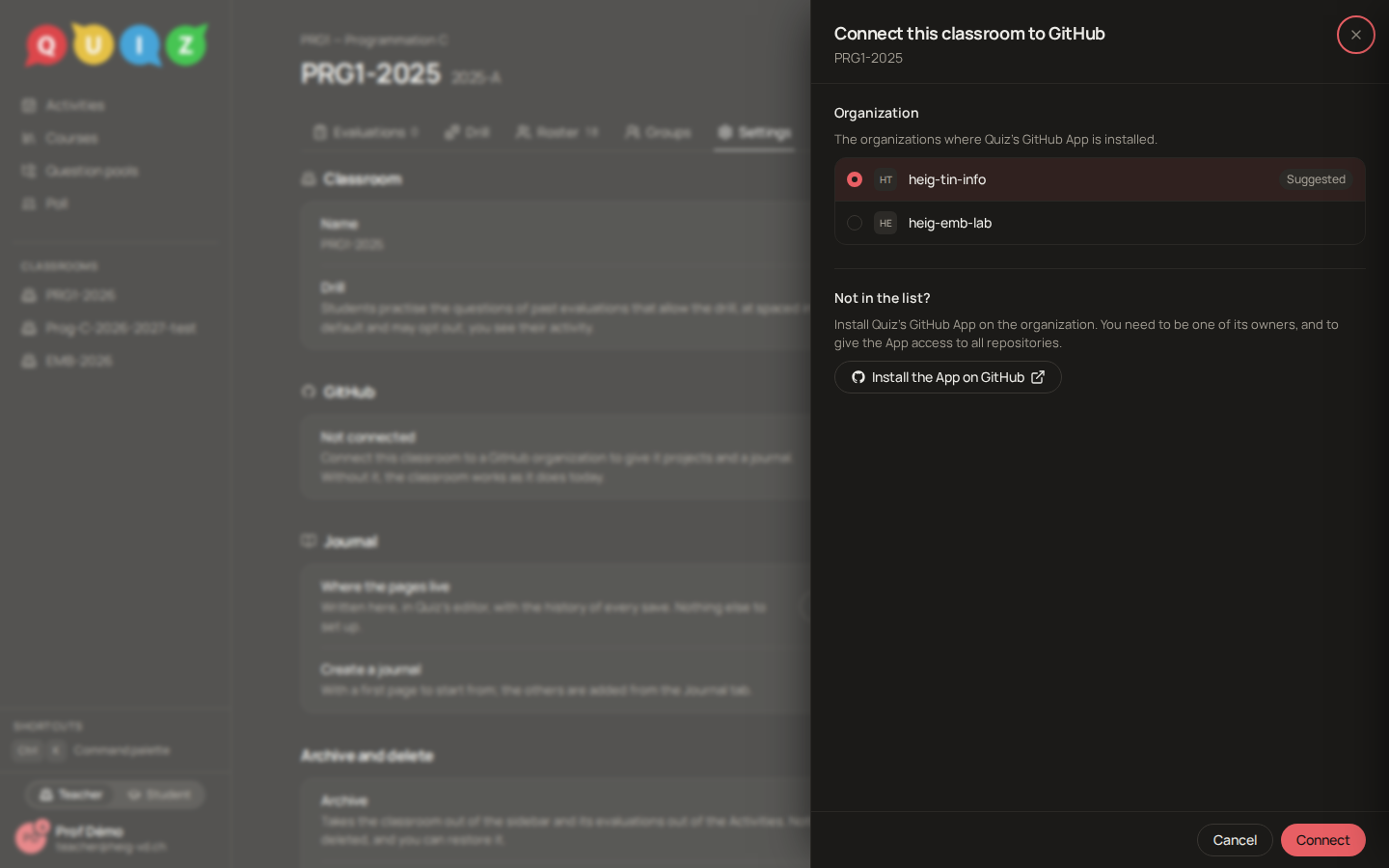
A classroom is connected to one organization; two classrooms of the same course may use different ones. The panel lists only the organizations open to the course, and those you own on GitHub. Connecting a classroom to an organization you own opens it to the whole course: from then on any member of the course's staff connects the course's other classrooms to it, this year and the next, without being an owner. An administrator can also open an organization to a course. If the panel lists none, ask an owner of the organization or an administrator.
Check the connection
Once connected, the GitHub section shows the organization and two checks, each with what to do about it:
| Check | Meaning |
|---|---|
| App installed, with access to all repositories | The only blocking one. Without it no project can be created or accepted. |
| Plan | On GitHub's Free plan an organization has no rulesets and no organization secrets for private repositories. Projects still work, but the deadline lock falls back to archiving the repository, and the LLM review cannot be configured. An Education organization has both. The line links to GitHub Education, where a verified teacher upgrades an academic organization (a teacher not yet verified is offered to apply there). |
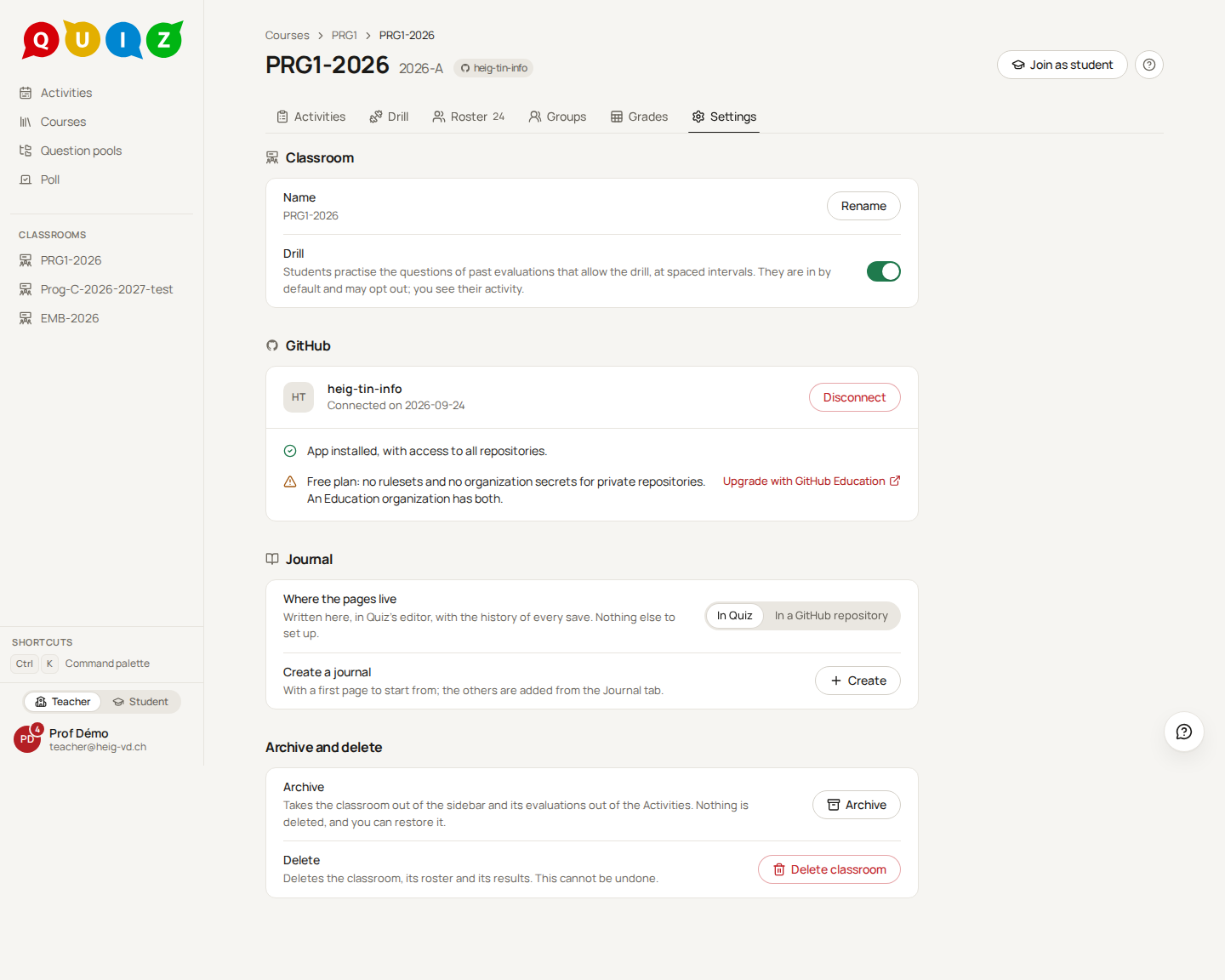
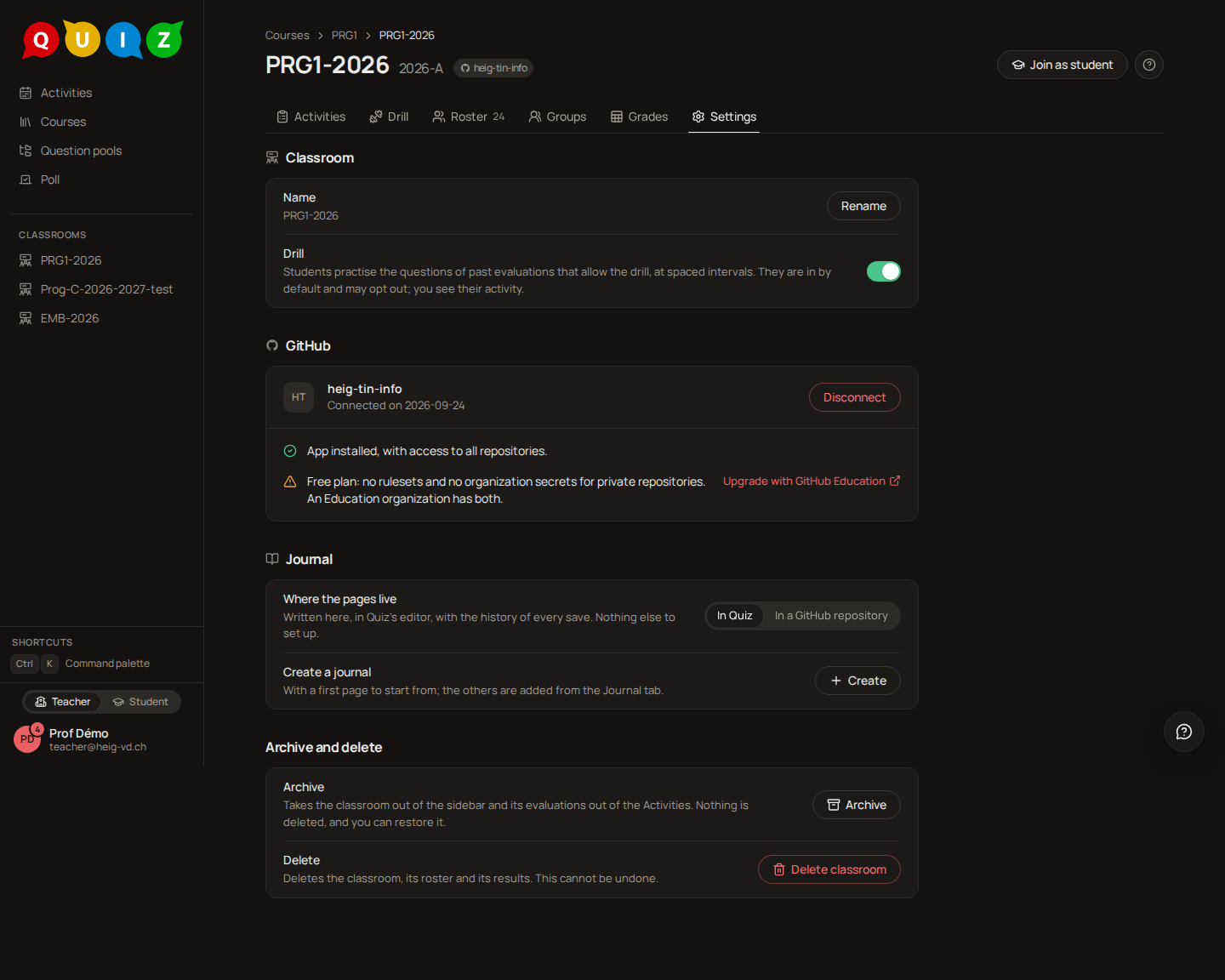
Disconnect removes the link and deletes nothing on GitHub. It is refused while the classroom has a journal kept in a repository: remove that journal first.
Link your own GitHub account
Quiz invites people, so each needs a linked account: you, to be added as a collaborator on a journal repository, and every student, to accept a project. Linking is not a sign-in and gives Quiz no right on your own repositories.
On your Settings page, the GitHub card appears once you are on the staff of a connected classroom, or hold a seat as a student in one. Link GitHub goes through GitHub's authorisation and comes back to the page you started from, with a message saying it is linked, already linked to another Quiz account, or failed. One GitHub account belongs to one Quiz account. Unlink undoes it. Editing a journal kept in Quiz needs no linked account.
What students must do
A student who has not linked a GitHub account still sees the projects of the classroom, and a card that leads to the link; only Accept waits for it. Nothing else urges them, so tell them before the project opens: they link from their Settings, then accept, and GitHub invites them to their repository, which they accept on GitHub. See Projects, groups and the journal.
Troubleshooting
The organization is not in the list. The App is not installed on it, or it is not open to the course and Quiz does not know you as its owner. If you own it, link your GitHub account in your Settings and open the panel again, or use Install the App on GitHub; otherwise ask an owner of the organization or an administrator to connect a classroom of the course, which opens it to the course. Connecting to an organization that is not open to the course is refused with the same message, whatever the reason.
"Quiz's GitHub App is not installed on this organization" on a project. The App was uninstalled or lost access since the classroom was connected. Install it again from the classroom's settings. Nothing is deleted meanwhile, the project's writes are suspended, and the staff are notified.
The App sees only some repositories. Open the App's settings on GitHub and give it access to all repositories.
A student cannot accept. Their account is not linked, or the linked account was deleted or renamed away: they link it again.
A student says they got no access. The invitation may be pending: the repository's row shows invitation pending, and its sheet offers Resend. GitHub lets an invitation expire after seven days without telling anyone; Quiz re-invites a student who still has no access, at most once a day.
The organization or a repository was renamed. Quiz follows it; there is nothing to do.