Projects
A project hands each student, or each group, a private GitHub repository copied from a source repository of yours. The repository's own CI computes the score; Quiz keeps the deadline, the protected files, the scores and the release. A project is an activity of the classroom, beside its evaluations. It needs the classroom connected to GitHub.
Coming from heig-classroom
A project is heig-classroom's assignment. What changes: the groups come from classroom-wide group sets; a push that touches a protected file is answered by a restore commit instead of being rewritten; the source is synchronised through pull requests; and scores become grades only when you release them. Roster extra time never applies to a project's deadline: give one repository its own deadline instead.
Create a project
On the classroom page, New then Project. On a classroom that is not connected, the same entry leads to the connection first.
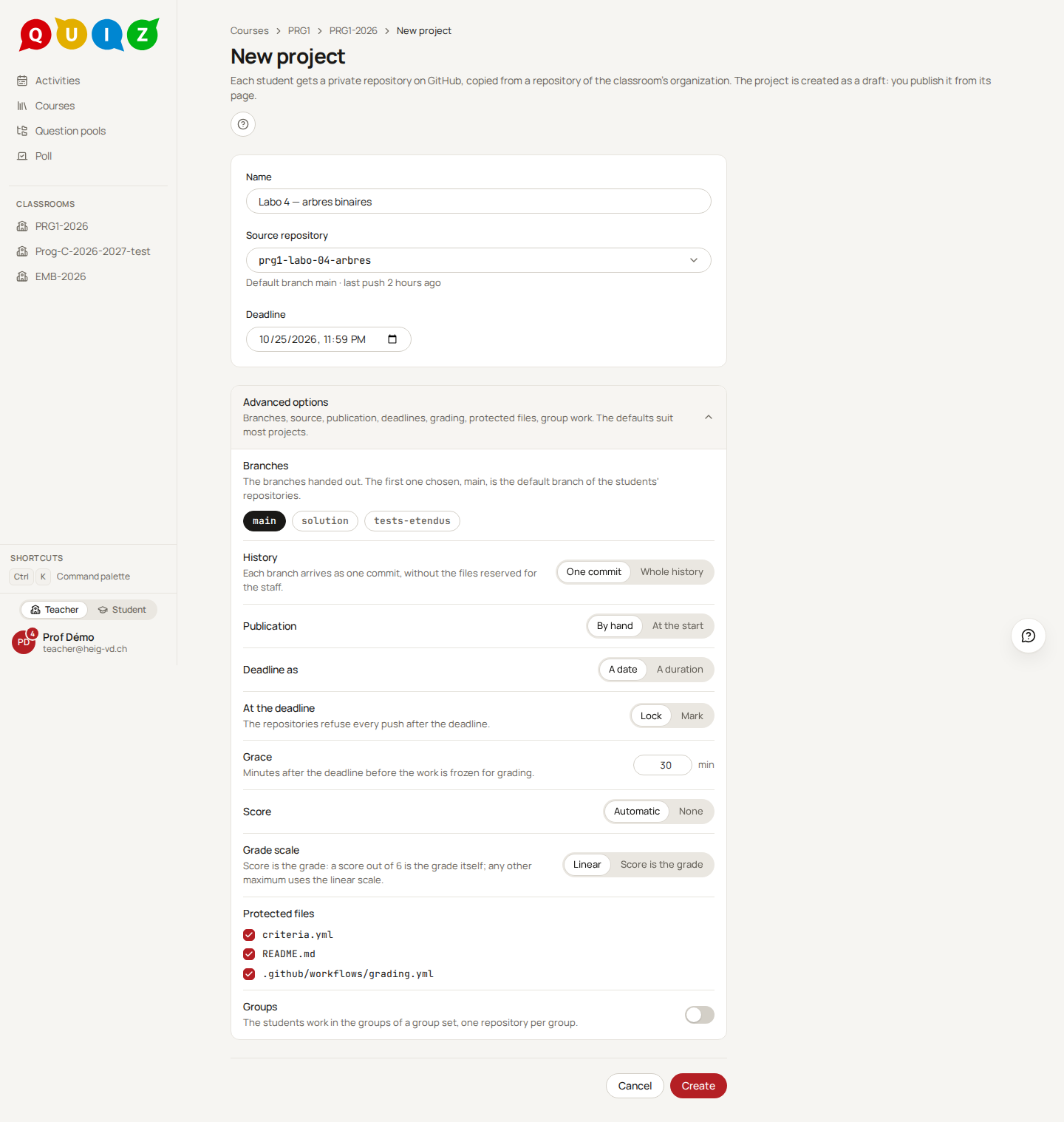
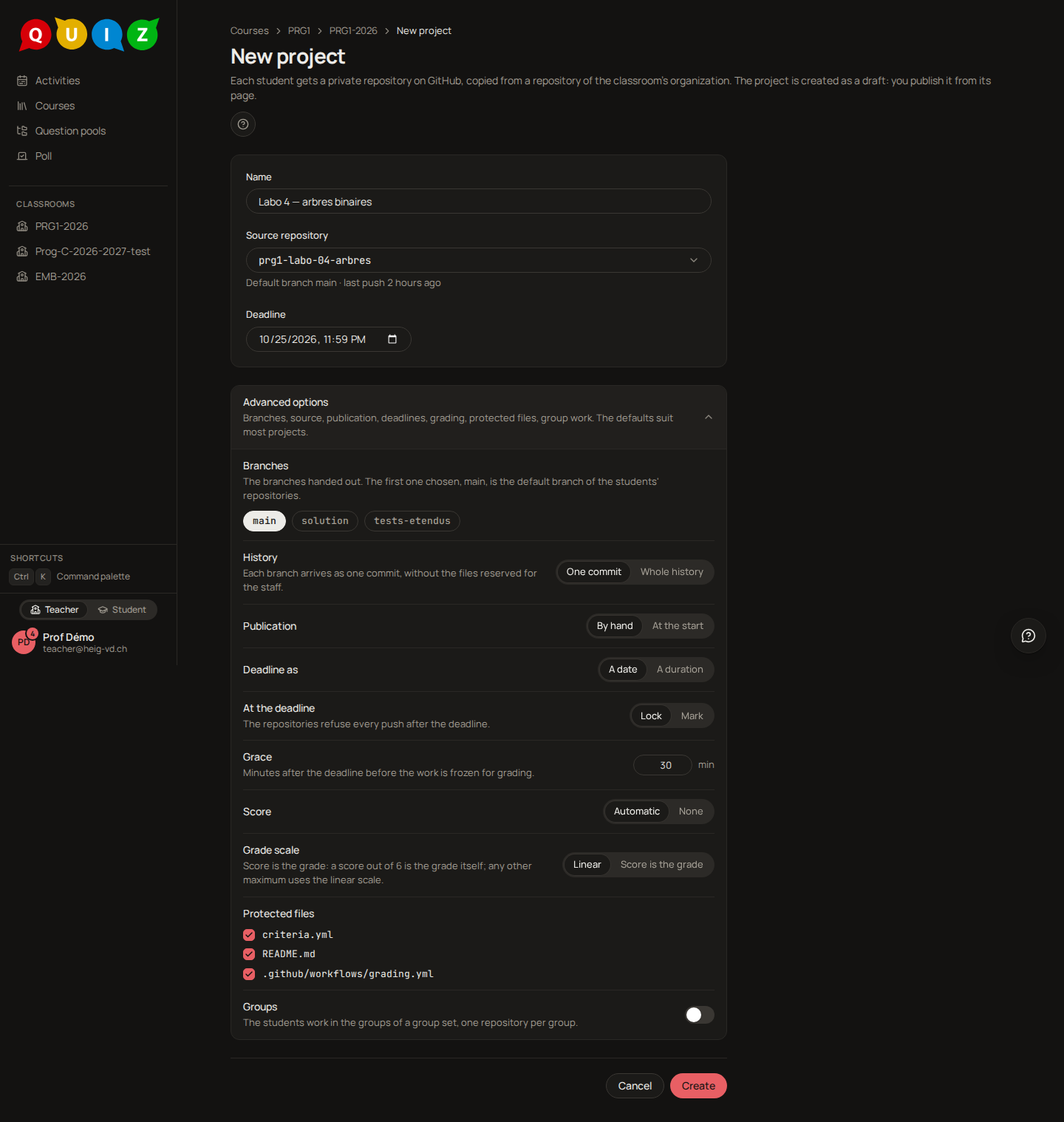
The form asks for a Name, a Source repository (only a repository of the classroom's organization) and a Deadline. The advanced options have working defaults:
- Branches: the branches handed out; the first one chosen is the default branch of the students' repositories.
- History: One commit (default) gives each branch as one commit holding the source's files, without what is reserved for the staff (a
student/overlay and a.studentignoreshape what students get); Whole history keeps the source's history as it is. - Publication: By hand, or At the start, where Quiz publishes at the start date.
- Deadline as: a date, or a duration counted from publication.
- At the deadline: Lock (default) refuses every push after the deadline; Mark leaves the repository open and pushes one empty commit per handed-out branch as a marker.
- Grace: minutes after the deadline during which a run started in time may still finish (30 by default).
- Score: Automatic, or None (no score is shown and no review is dispatched).
- Grade scale: Linear (1 + 5 × points / maximum, capped at 6, rounded to a tenth), or Score is the grade for a score out of 6.
- Protected files and Groups (see below and Groups).
Create builds a private distribution repository in the organization, which only Quiz's App manages. The project is born a draft: students see nothing. The source, the branches and the history are fixed at creation; to change them, delete the draft and create it again.
Protected files
These are the files a student must not change. criteria.yml, README.md and .github/workflows/grading.yml are pre-checked when the source has them. Unchecking grading.yml warns that students could then alter the grading.
When a push by anyone but Quiz (a student, or a workflow's own commit) touches a protected file on a handed-out branch, Quiz answers with a restore commit that puts the distribution repository's current version back. The student's work is never rewritten, only covered, and they are told which files were restored. Beyond five restores in an hour on one repository, Quiz stops restoring and flags the repository protected files in conflict; scores captured meanwhile are marked to verify. You re-enable the protection by hand from the repository's sheet. A new list applies to the next pushes only.
Configure a draft
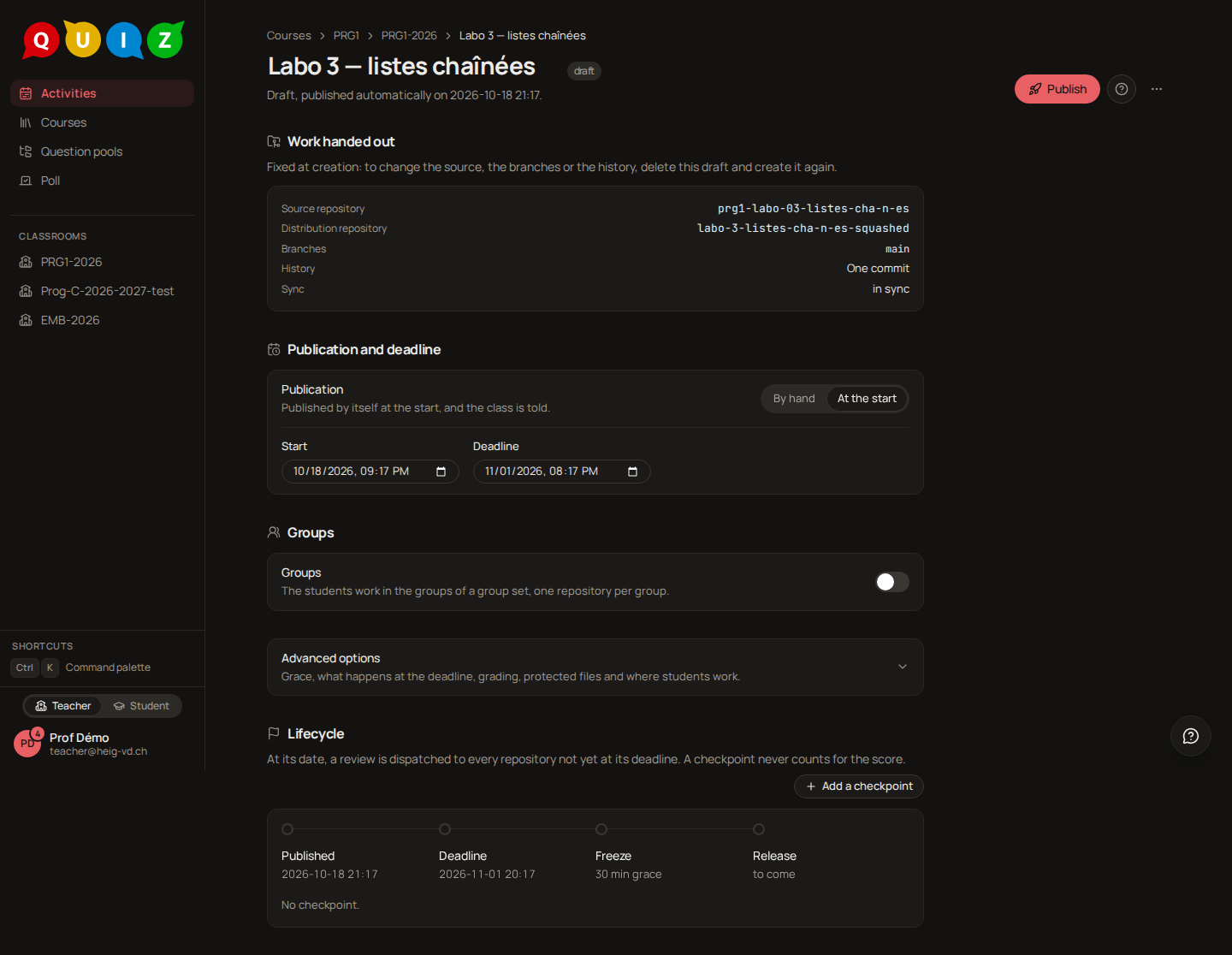
A draft's page is a form, written as you go: there is no Save. Work handed out recalls the source, the branches and the history, which are fixed. Publication and deadline holds the three things most projects need: publish by hand or at a start, and the deadline, either a date or a number of days counted from the publication. A scheduled start must lie ahead; the start and the deadline are saved together once both are filled, and a refusal is said under the field it concerns. Groups turns on group work and chooses the group set. Everything else (grace, what happens at the deadline, grading, protected files, where students work) is folded under Advanced options, and the lifecycle rail below lets you set the review checkpoints before publishing; before a manual publication it shows no date, since none is set yet. Once published, the page becomes the dashboard described below.
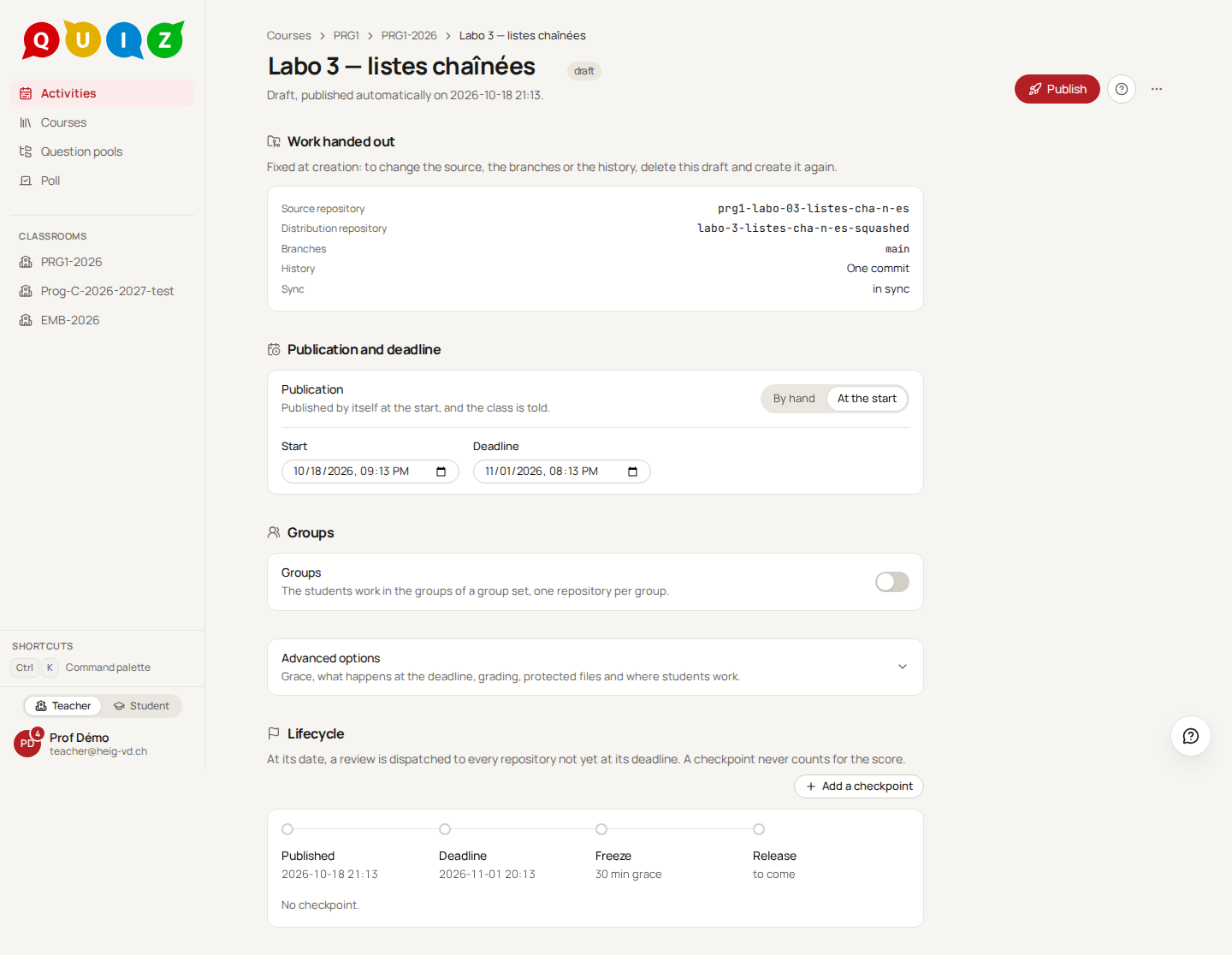
Publish
On the project page, Publish is the primary action of a draft. It starts the project now, or leaves the schedule to do it. A group project cannot be published while a claimed student is in no group.
Once published, only these change: the name, the deadline (never to a past date), what happens at the deadline (until it passes) and the protected files. The deadline is edited in its tile; the strategy and the protected files are in the folded Settings at the bottom of the page. Students then accept the project, and each gets a repository <project>-<login> with push access.
The project page
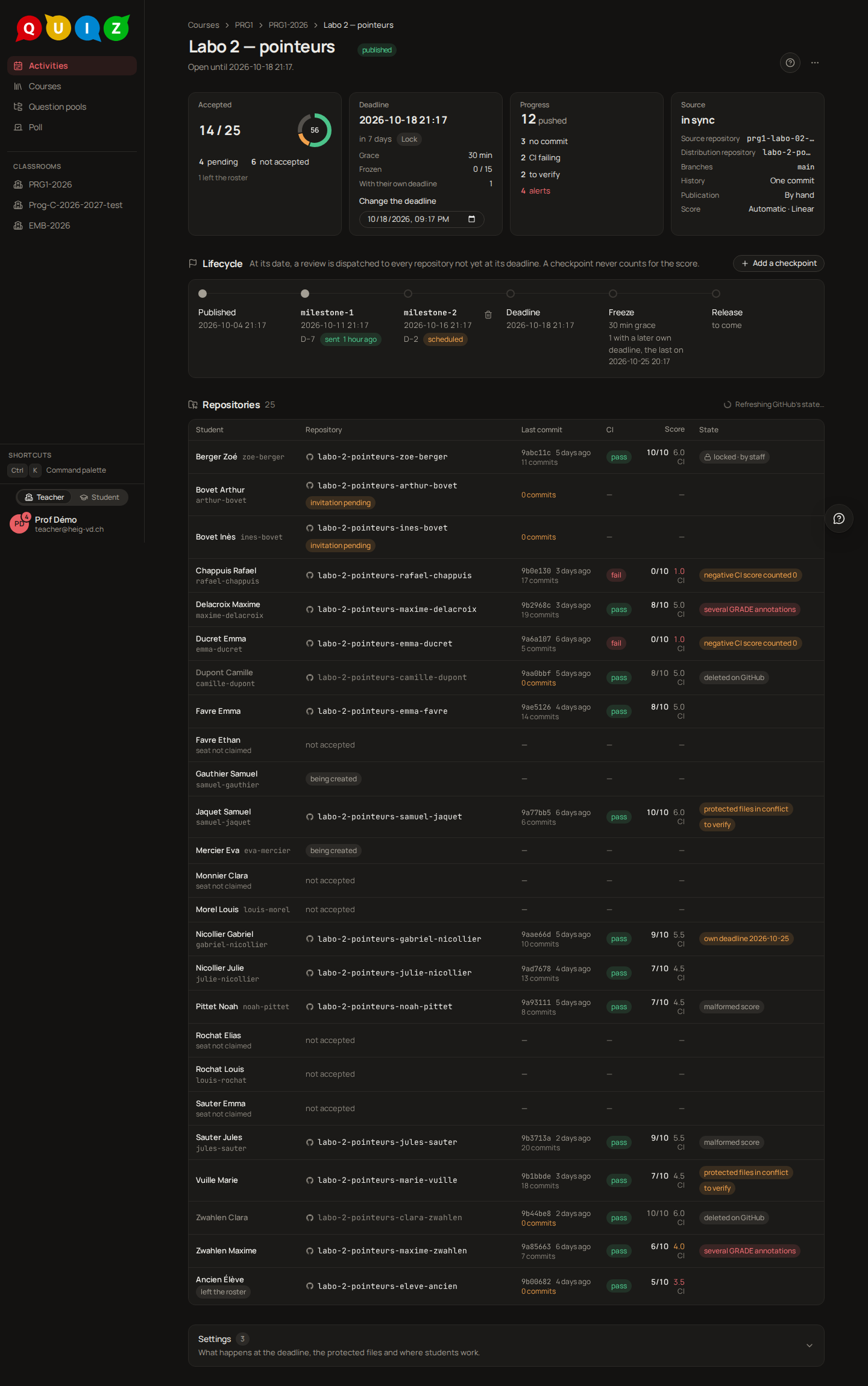
Once published, the page is a dashboard. Four tiles sit under the header: Accepted (a ring and "26 / 30"), Deadline (the date, how long is left, the strategy, the grace, how many repositories are frozen, and the field to move it), Progress (how many students pushed, with the figures to look at: no commit, CI failing, to verify, alerts) and Source (the repositories, the history, the sync). A figure in a tile is a button: it narrows the table below to the repositories it counts, and Show all brings the others back. Under the tiles, the lifecycle rail shows the review checkpoints between the publication and the deadline, then the freeze and the release.
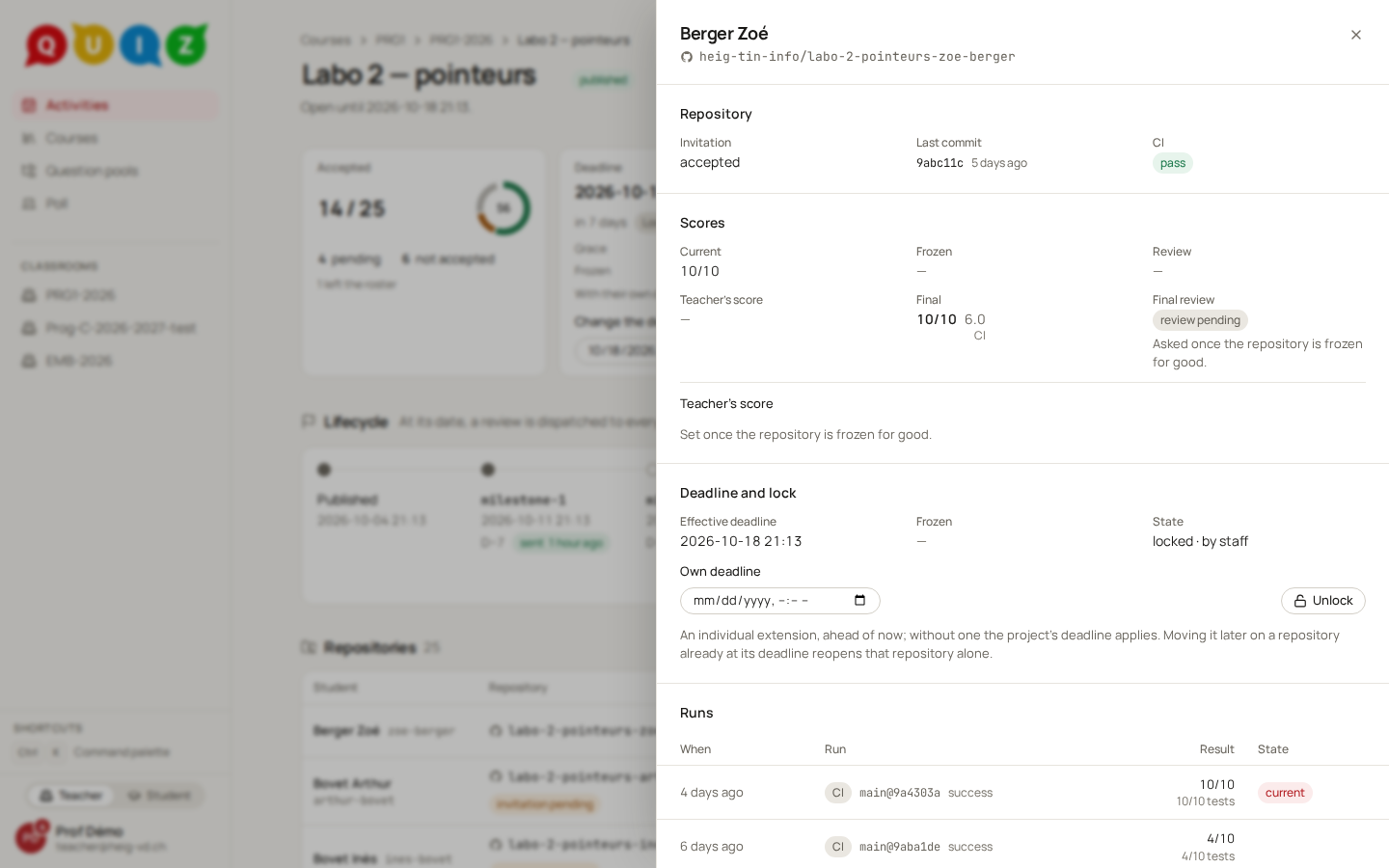
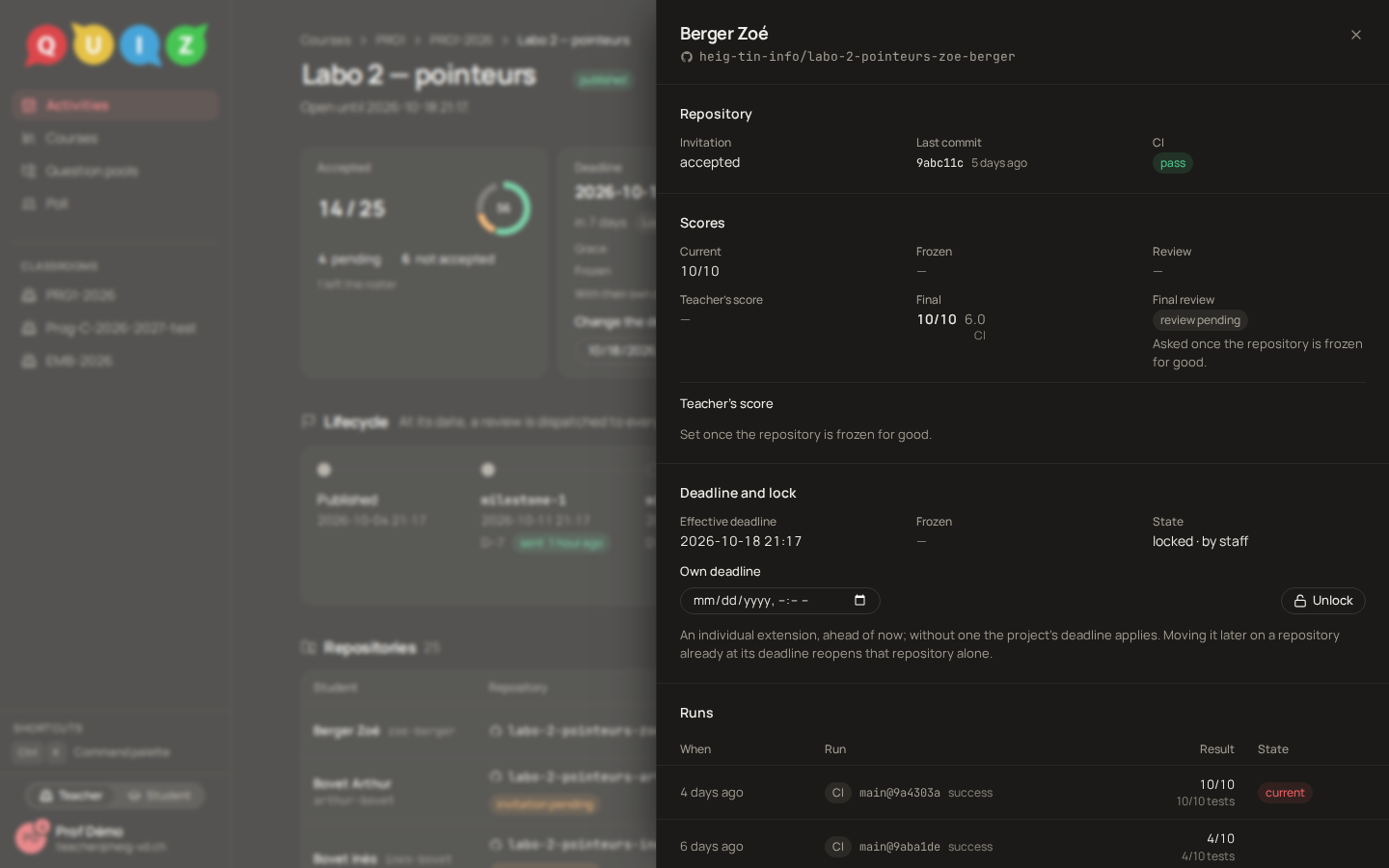
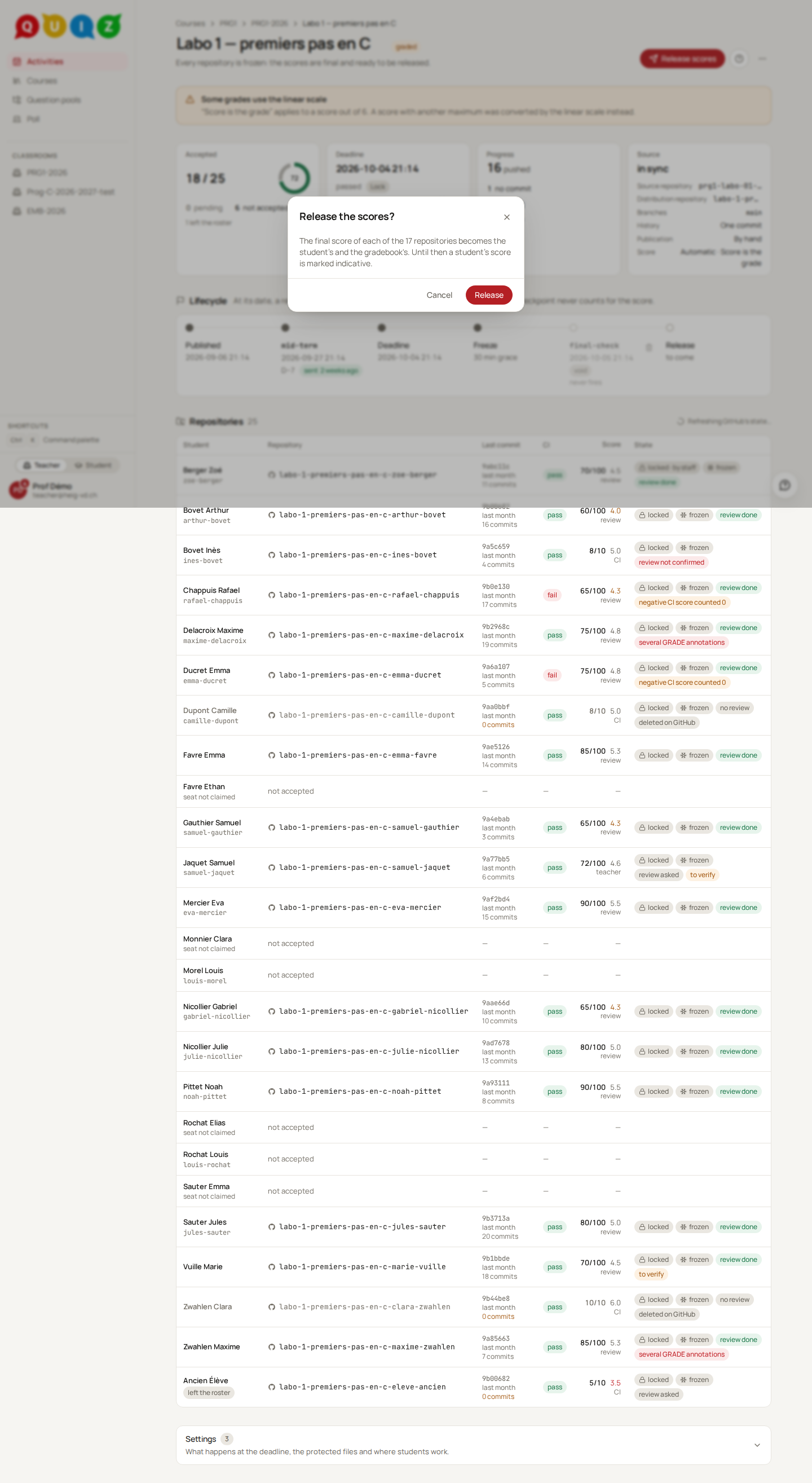
The table has one row per student (or group): the repository, the last commit with its count (0 commits is amber, and red once the deadline has passed with nothing received), the CI status, the score, and flags such as locked, to verify, deleted on GitHub or access to revoke. A repository with its own deadline says so in its State cell. A row opens a sheet with the runs, the invitation (with Resend) and the repository's own deadline. The page refreshes by itself and never waits for GitHub: the live state is cached and shown as stale when GitHub is slow.
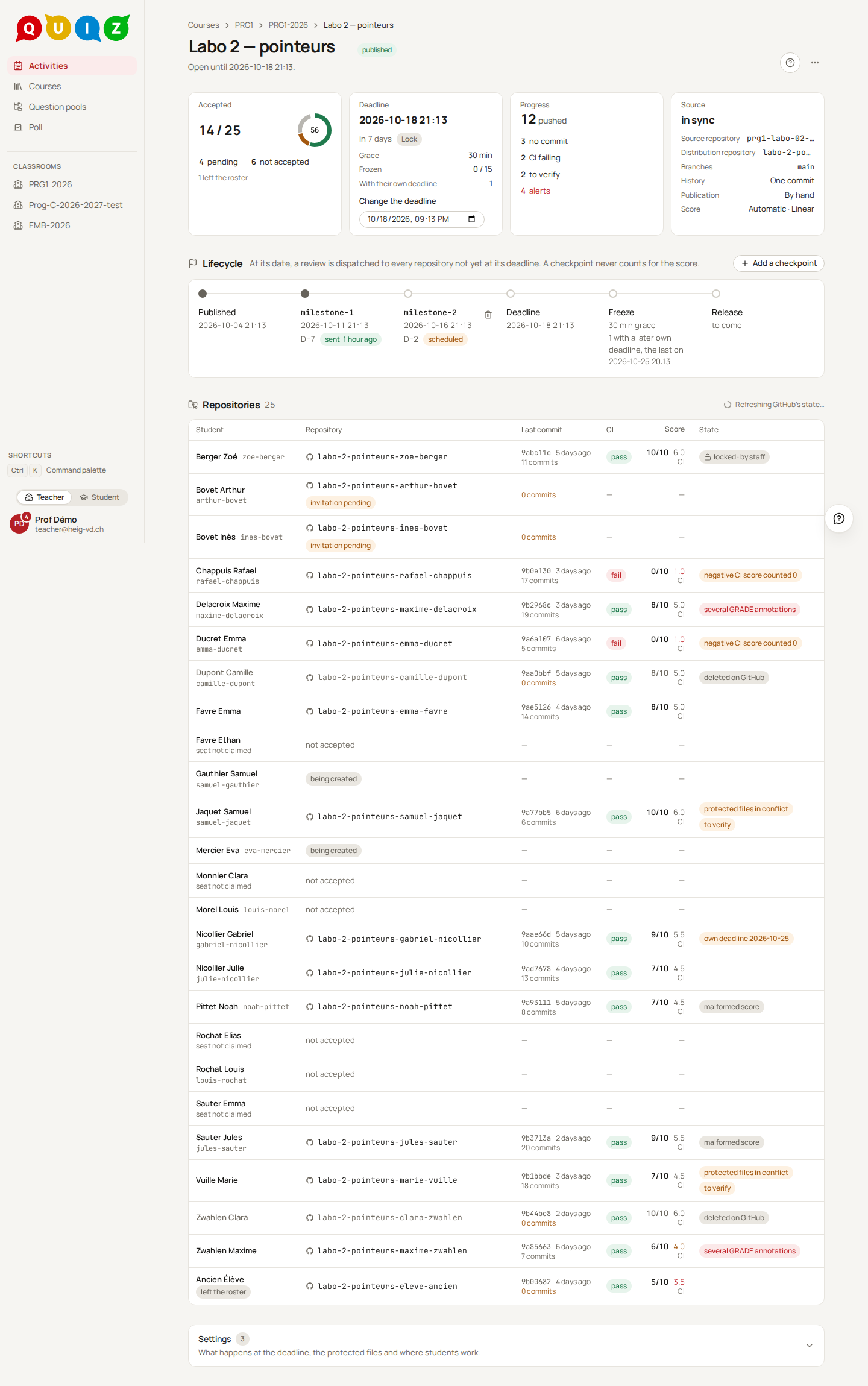
The single primary action follows the state: Publish for a draft, Sync when the source is ahead, Grade for a project graded by criteria while a repository is still to validate, Release scores once everything is final.
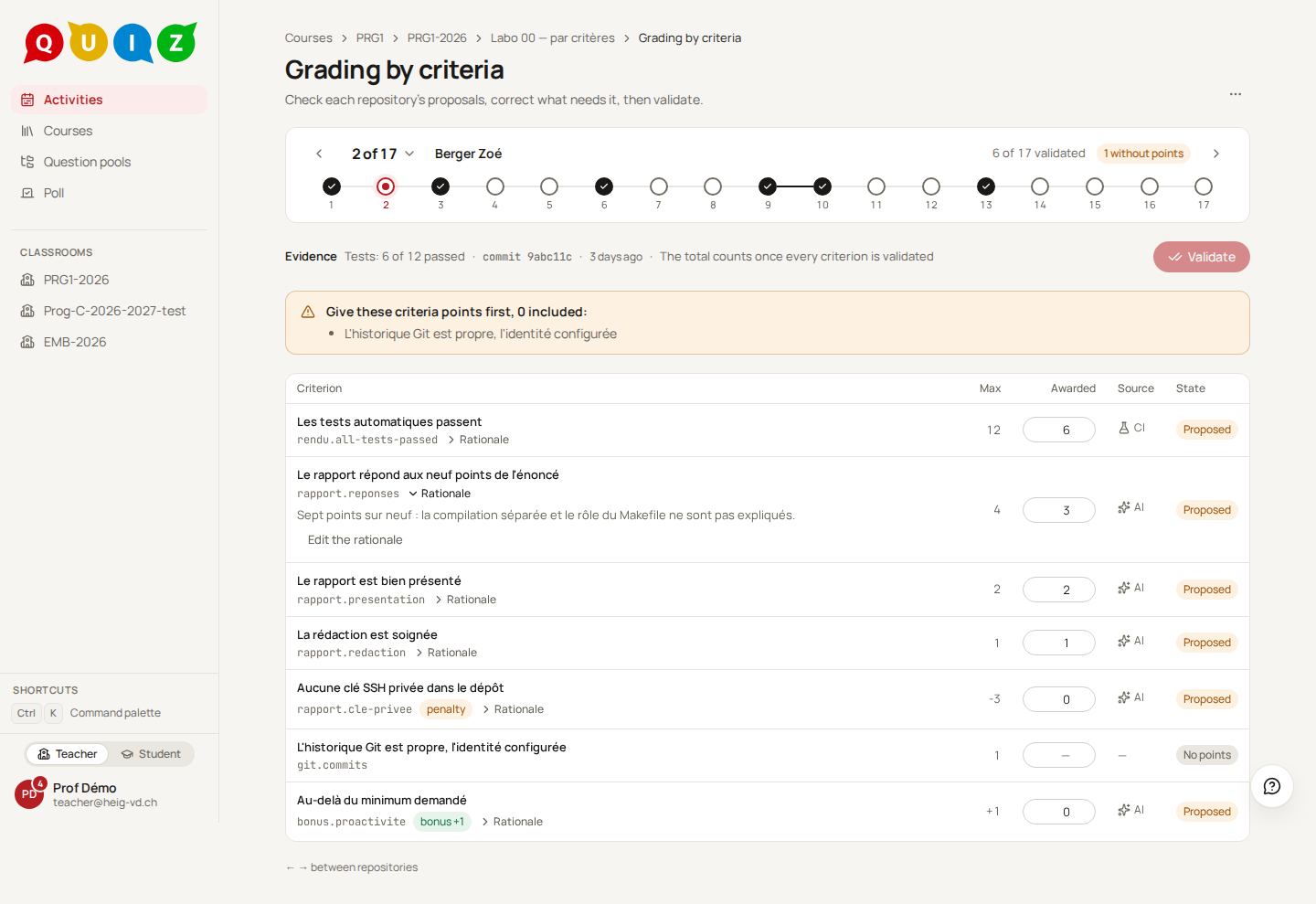
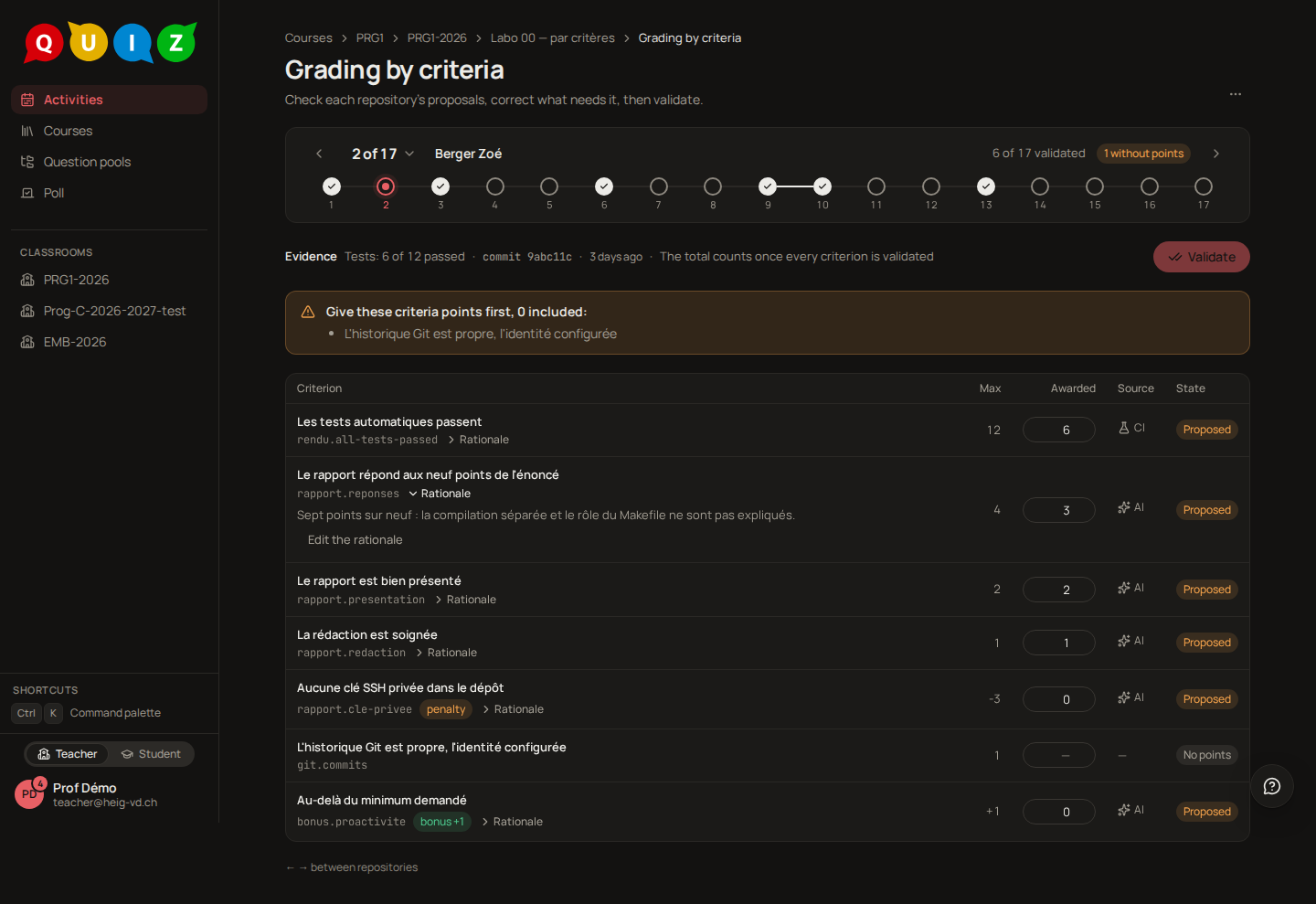
A project graded by criteria has a grading screen (Grade, or Grading screen above the repositories): one repository at a time, each criterion with its proposed points, their source (CI, AI, teacher) and the rationale. Correct the points in place, give the teacher-only criteria theirs (0 included), then Validate and go on to the next; Validate the rest as proposed is in the menu. The release waits until every repository is validated.
Test a project as a student
To test a project before your students do, open the classroom and press Join as student: you hold a staff seat, kept out of every count. Switch to the student view, link a GitHub account that is not a member or owner of the organization (a test with an organization owner's GitHub account does not reproduce the rulesets and the protected files: an owner's admin rights bypass them; a Quiz account holds one GitHub link, so linking a test account replaces your own), then Accept and push. Your test repository is badged on the project page and counts nowhere: not in the counts, the release, the gradebook or the CSV. Group projects cannot be tested this way, staff seats are not placed in groups. (ADR-077.)
The deadline
At the deadline, on the server's clock, Quiz applies the strategy within a minute, for every repository. The time that counts for a push is the time Quiz received it, never the commit's date.
- A repository's own deadline. In a repository's sheet, give it an individual deadline (a date ahead of now), or Follow the project's again. That effective deadline is what every rule reads for the repository. It replaces extra time for projects.
- Lock now and Unlock act on a single repository by hand.
- Moving the deadline later after it passed reopens the project: locks lifted, freeze and final review undone, runs requalified. Teacher scores and a release already made are kept. Quiz asks you to confirm.
On a plan without rulesets, the lock archives the repository instead; the row shows locked by archiving.
Scores
Each repository's .github/workflows/grading.yml reports its score as one annotation ::notice title=GRADE::<points>/<max>; Quiz reads it from the run. A score is points out of a maximum, never a grade, until the project is released.
| Slot | What it is |
|---|---|
| Current | The latest counted run received before the deadline. Marked indicative for the student. |
| Frozen | The current score at the deadline, provisional, then definitive after the grace. |
| Review | The LLM final review, dispatched once per repository when its freeze is definitive; its score fills this slot when the run succeeds. Review checkpoints (a name and a date, absolute or D−n) dispatch earlier reviews that never count. |
| Teacher's score | Set by hand in the sheet, with a comment, once the repository is frozen for good. |
| Final | The teacher's score, else the review's, else the frozen score. |
Only runs on a handed-out branch count, on a head commit that no bot pushed. A run with several GRADE annotations has no score and alerts you, because a student's code could print one. A repository without grading.yml gets a pass/fail CI status instead.
A score resting on a run to verify (protected files in conflict) blocks the release: set the teacher's score to settle it.
Release
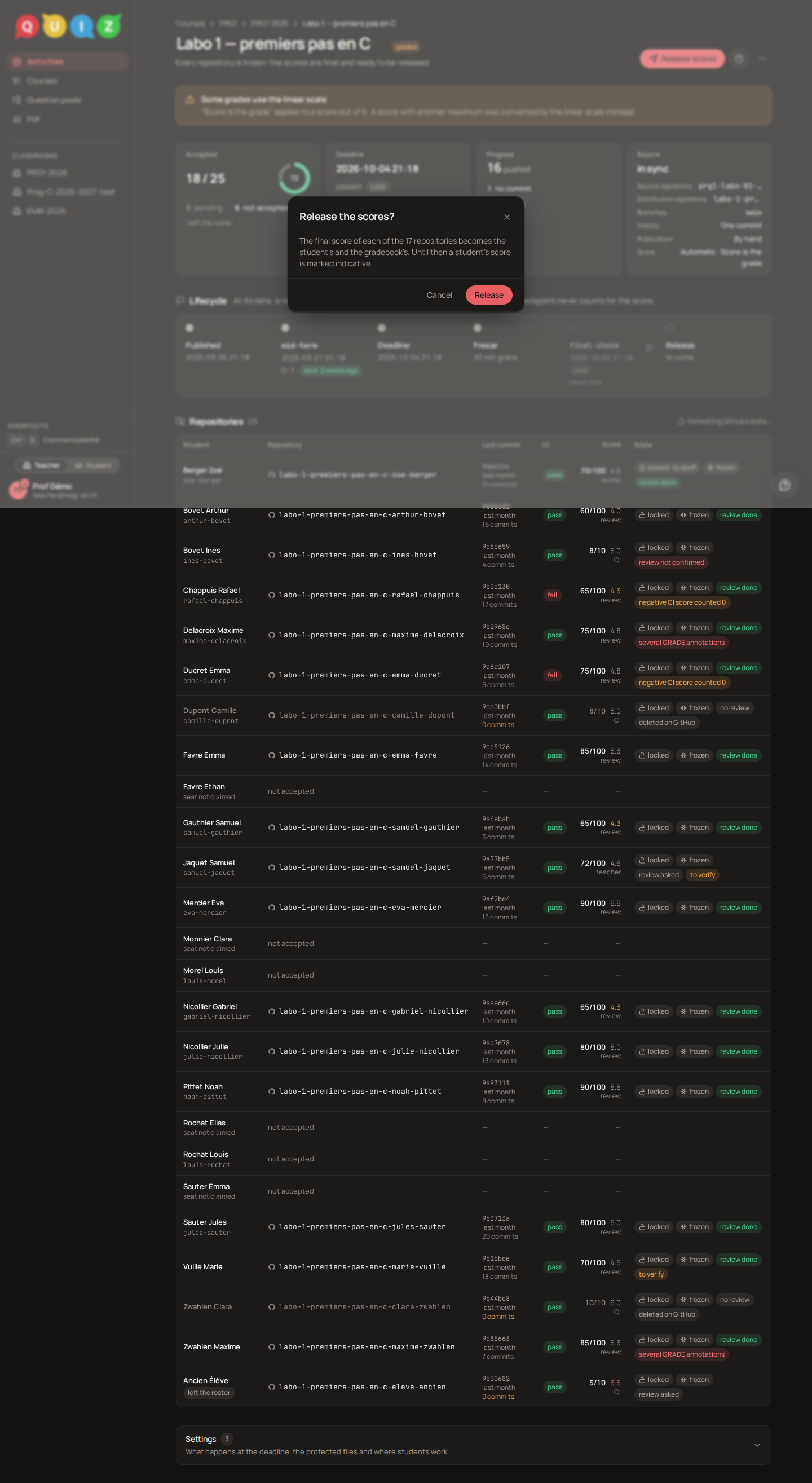
Release scores makes the final scores the students' and the gradebook's, converted to grades by the project's scale. It needs every live repository frozen for good, and tells you what is missing otherwise. Before the release a student's score is indicative. A score changed after the release shows changed after release, and Release again updates the grades.
Keep the source up to date
When the source repository gets new commits, the page says it is ahead and offers Sync. Nothing reaches students until you click. Sync updates the distribution repository, then, for every unlocked repository, pushes the update to a sync/<branch> branch and opens one pull request per handed-out branch (or updates the one already open). The student merges it and resolves conflicts; Quiz never merges. Repositories already identical get none, and repositories past their deadline are skipped. A summary tells how many were opened, updated, up to date, failed or skipped.
The online workspace
Where the platform has the online workspace, the project page has a Workspace section. Where students work is Own tools by default: students clone their repository and push from their machine. Online gives each student a workspace in the browser, set up with their repository; they open it with Open workspace on their project page, and only the workspace writes to their repository (they are invited on GitHub to read it). Online, in Safe Exam Browser keeps students away from their repository until grading: each student downloads a file from their project page that opens Safe Exam Browser on that page, without signing in again, and the workspace opens from there only. The workspace checks the Safe Exam Browser configuration of each student's file.
Only an owner of the course whose account the administrator enabled for the workspace (an administrator always is) can choose a mode other than Own tools, and a group project stays in the students' own tools. Once a student has opened a workspace, the mode no longer changes. The section says when the workspace last received the project, with Resync if it failed, and lists the workspaces open now. How many may run at once is the administrator's setting for the course's owner who created the project (or its oldest owner).
Archive and delete
Archive takes a project out of the lists, reversibly. Delete project removes its rows in Quiz (repositories, runs, scores, groups) after a confirmation, and never a repository on GitHub: the students' repositories, the distribution repository and the source stay where they are.
Notifications
You are told when a deadline was applied (with the number of repositories locked), when a student's repository could not be made, and when the organization or the App is lost. Students are told when a project is published, a day before the deadline, when an invitation awaits them, and when scores are released. On the project page, short notices summarise what changed between two refreshes: acceptances, pushes, scores captured.