AI assistants (MCP)
You can connect an AI assistant (Claude, ChatGPT, Codex or any other client of the Model Context Protocol) to your account, then ask it in plain language for what you would otherwise build by hand:
Make me a ten-question general-culture quiz in French, vocabulary and definitions, university level, and vary the question types. If there is no French pool, create one, and make it an exercise for the class "Français 2026".
The assistant reads your courses and pools, writes the questions, publishes them in a pool, and prepares the evaluation. It hands you links to what it made, and you review everything in the portal as usual.
What an assistant can and cannot do
It works as you, with your rights and nothing more: it reaches the courses you are on the staff of and the pools you can open.
| It can | It cannot |
|---|---|
| Read your courses, classrooms, pools, questions and evaluations | Delete anything |
| Create a course, a classroom, a pool, a category | Open, start, pause or close an evaluation |
| Write, publish and update questions of every type | Grade, or release results |
| Link a pool to a course | Read students' answers or grades |
| Create an exam or an exercise as a draft, and fill it with questions | Manage your API tokens |
| Launch a live poll, when you ask for one | |
| Read your questions' statistics, as the pool shows them (anonymous figures over ten answers or more) |
This holds for an assistant connected through the MCP address: an assistant you allowed from claude.ai or ChatGPT, or one holding an API token with an AI assistant (MCP) access. A token with Full API access is not limited to this table: whoever holds it can call every route of the API with all your rights, grades and deletions included (see API tokens).
An evaluation made by an assistant is always a draft: you check it, set its schedule, and open it yourself. Everything an assistant writes is recorded in the audit log as done through an API token or a connected assistant.
Connecting an assistant
The portal's MCP address is:
You find it, with a copy button, in Settings › Connected assistants. You give the assistant this address and nothing else: it sends you to the portal to sign in and to allow it.
claude.ai (and Claude Desktop, Claude mobile). Open Settings › Connectors, choose Add custom connector, paste the address, and click Connect. A tab opens on the portal.
ChatGPT. Custom connectors need developer mode, which is available on the plans that allow it: Settings › Apps & Connectors › Advanced settings, turn on Developer mode, then create a connector with the address above and OAuth as authentication.
Claude Code.
then type /mcp in Claude Code and choose Authenticate: your browser opens on the portal.
Allowing the assistant
The portal asks you to sign in with Switch edu-ID if you are not signed in yet, then shows what the assistant is asking for.
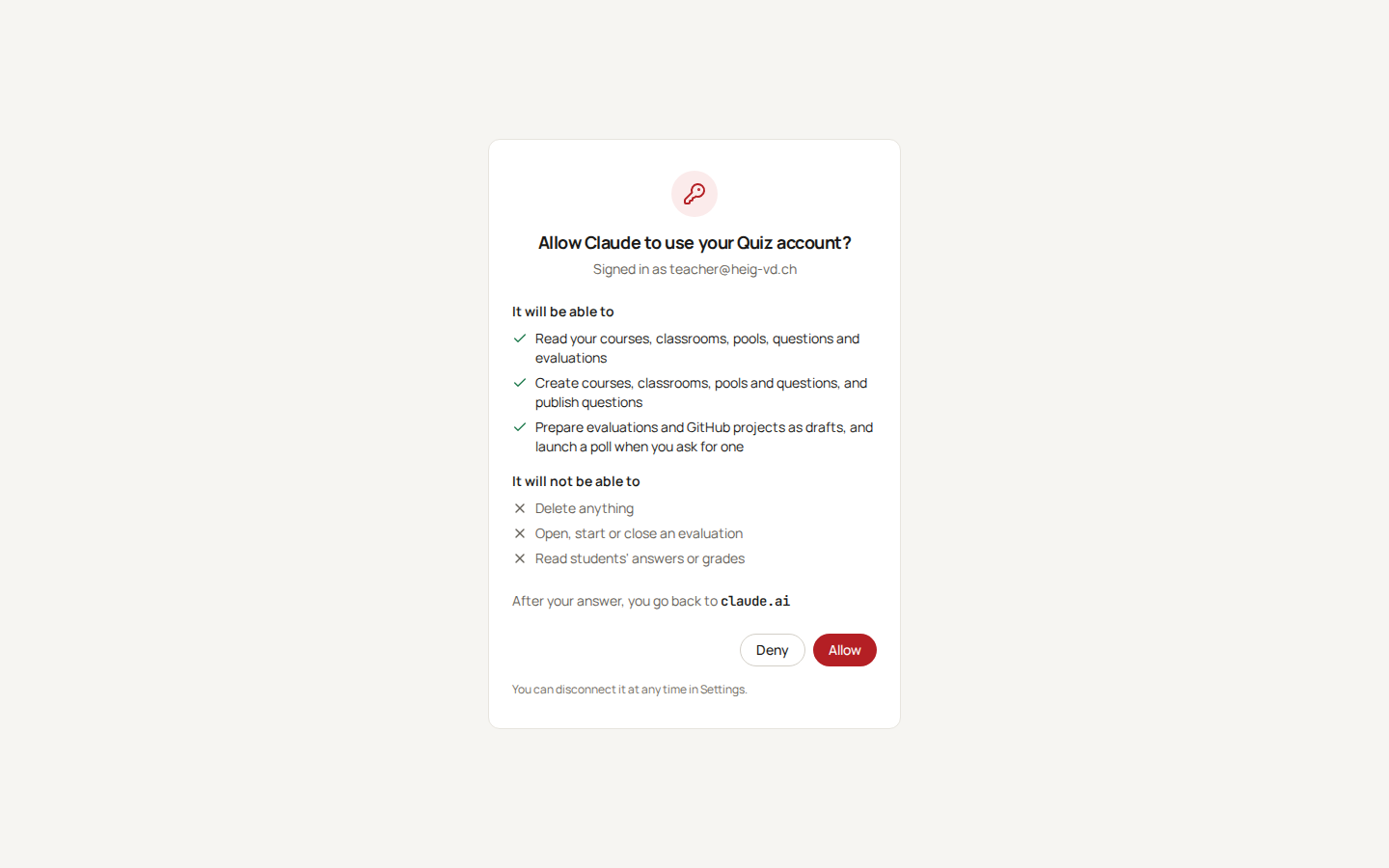
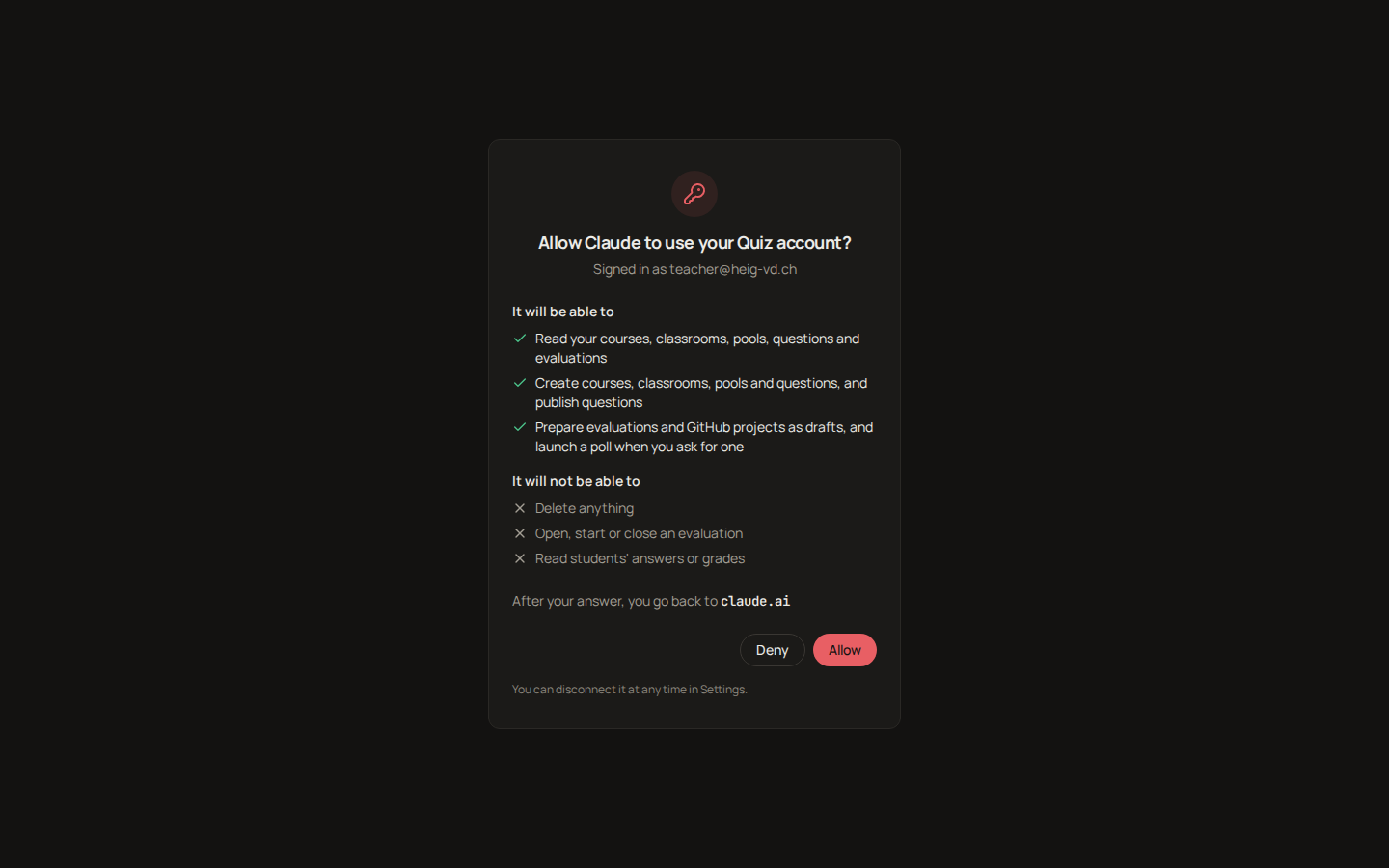
Read the last line before you click Allow: it names the site your answer goes back to, claude.ai or chatgpt.com. If it names something you do not recognise, click Deny. When the assistant runs on your own computer (Claude Code), the page says so and asks you to allow it only if you just started the connection yourself.
After Allow, you are back in the assistant, connected. It stays connected: it renews its access by itself, for as long as you use it at least once every three months.
Disconnecting
Settings › Connected assistants lists every assistant you allowed, with the date it last worked for you. Disconnect ends its access at once.
API tokens, for scripts and other clients
Some clients cannot sign in by themselves: a script of your own, Claude Desktop configured by hand, the OpenAI API. They use a personal API token instead. Open Settings › API tokens and click New token. Give it a name you will recognise later, an access and a lifetime.
| Access | What the token reaches | Lifetime |
|---|---|---|
| AI assistant (MCP), read and write (the default) | The MCP address only: every tool of the table above, nothing else | 30, 90 or 365 days, or never |
| AI assistant (MCP), read only | The MCP address only, and its reading tools: it reads your courses, pools, questions and evaluations, and writes nothing | 30, 90 or 365 days, or never |
| Full API | Every route of the API, with all your rights: students' answers, grades, the roster and deletions included. For a script of your own | 30, 90 or 365 days, never "never" |
Choose the narrowest access that does the job: an assistant needs an AI assistant (MCP) access, never Full API. A token's access is chosen once; to change it, create another token and revoke the first. A token created before accesses existed (October 2026) is listed as Full API and keeps that reach until it expires or you revoke it. An administrator's token always expires, whatever its access.
A call outside the token's access is refused with 403 insufficient_scope.
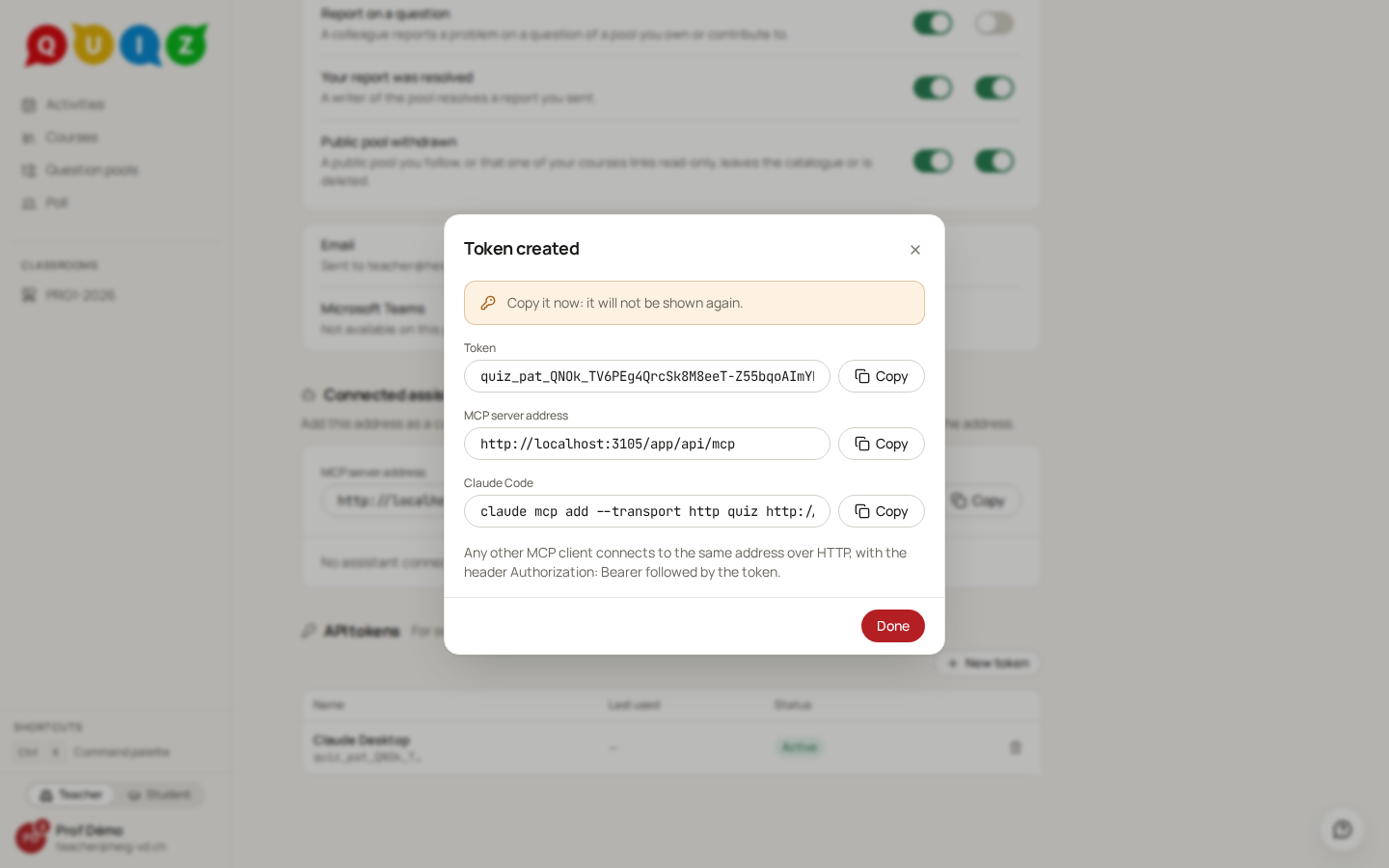
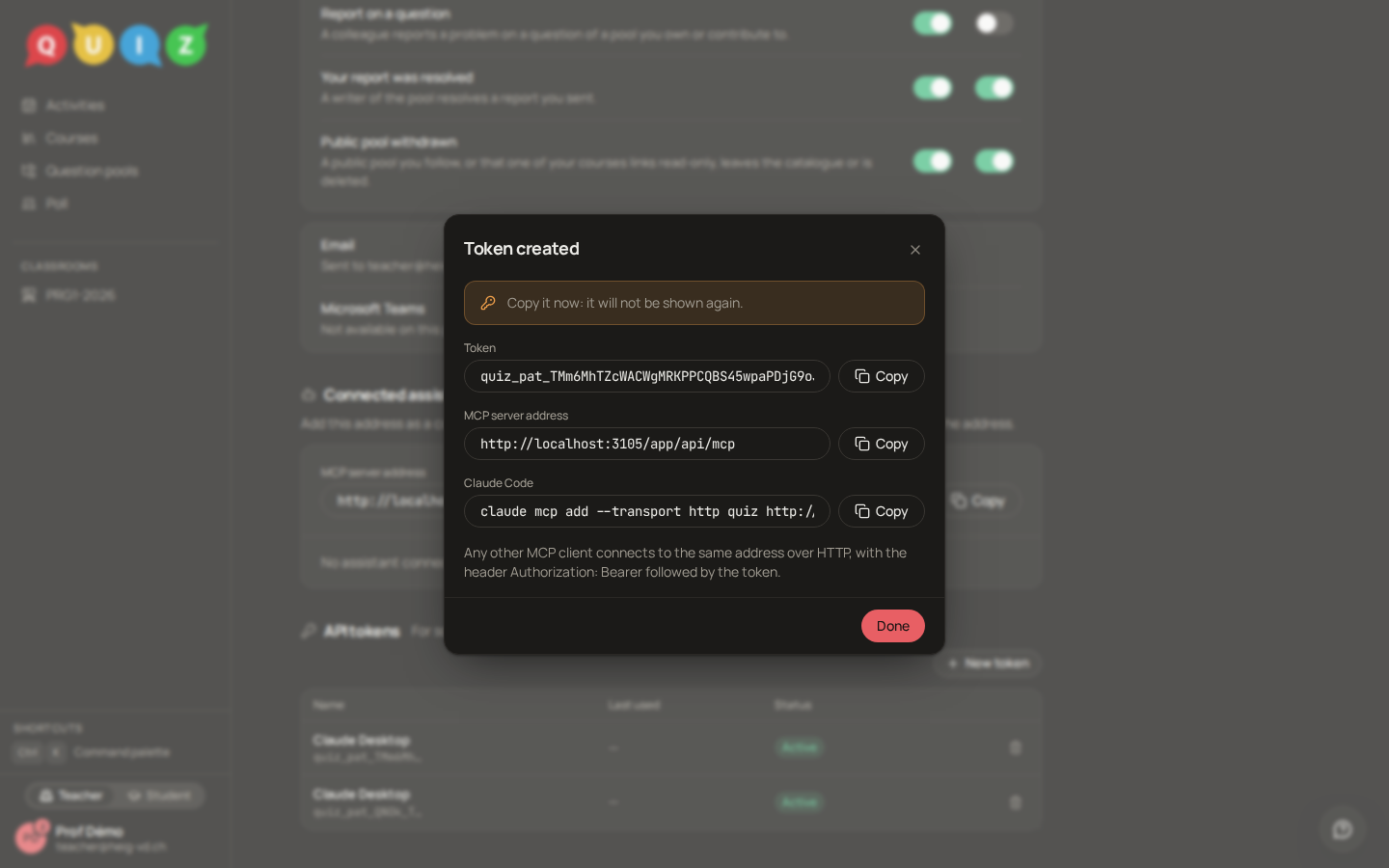
Copy the token now. It is shown only once. Treat it like a password: anyone who holds it can act as you, within its access. Revoke it with the bin icon of its row when you stop using it.
The client sends it in the header Authorization: Bearer <token>. With Full API access, the dialog shows a curl line instead of the MCP address; a script calls the routes under /app/api the web app uses. For the OpenAI API (Responses), declare the server as a remote MCP tool:
{
  "type": "mcp",
  "server_label": "quiz",
  "server_url": "https://quiz.chevallier.io/app/api/mcp",
  "headers": { "Authorization": "Bearer quiz_pat_…" },
  "require_approval": "never"
}
For Claude Desktop configured by hand, use the mcp-remote bridge (it needs Node.js):
{
  "mcpServers": {
    "quiz": {
      "command": "npx",
      "args": ["-y", "mcp-remote", "https://quiz.chevallier.io/app/api/mcp",
               "--header", "Authorization: Bearer quiz_pat_…"]
    }
  }
}
Tips
- Name the classroom and the pool you want in your request. The assistant looks for them before creating anything, so asking twice does not create them twice.
- Say the language, the level and the mix of question types you want. The assistant reads how each type works (a fill-in-the-blanks text, a short answer with its accepted spellings) before writing one.
- A question must come from a pool linked to the course to go into one of its evaluations. The assistant links the pool itself; you see the link on the course afterwards.
- Review the questions before you open the evaluation: check the accepted answers of short-answer questions in particular (
question-types.md).