Projects, groups and the journal
This page is for you if your teacher gives graded work in a GitHub repository: a lab, a mini-project, a semester project. If you used GitHub Classroom before, this is the same idea, inside the platform you already use for quizzes. The path is always the same: link your GitHub account once, accept the project, work and push, then read your score.
Before you start
You need a GitHub account. If you do not have one, create it on github.com first. It does not have to use your school address.
A project appears under Open now or Coming up on your home and on your classroom's page, next to the quizzes. If you see none, your teacher has not published one yet, or your classroom is not connected to GitHub.
1. Link your GitHub account (once)
The first button of a project reads Link GitHub. Press it, sign in to GitHub if it asks, and allow the platform to read your account name. GitHub sends you back to the same page.
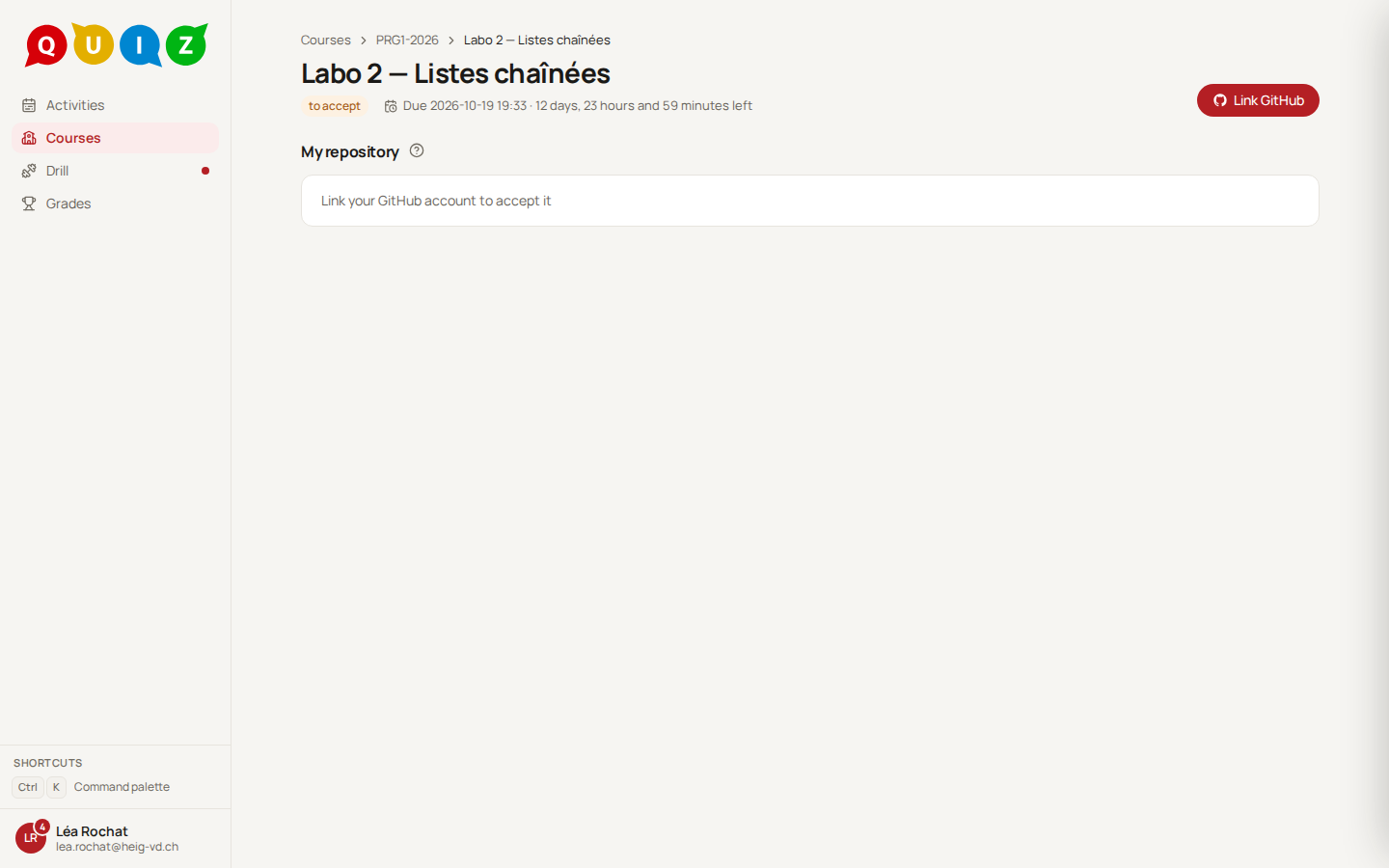
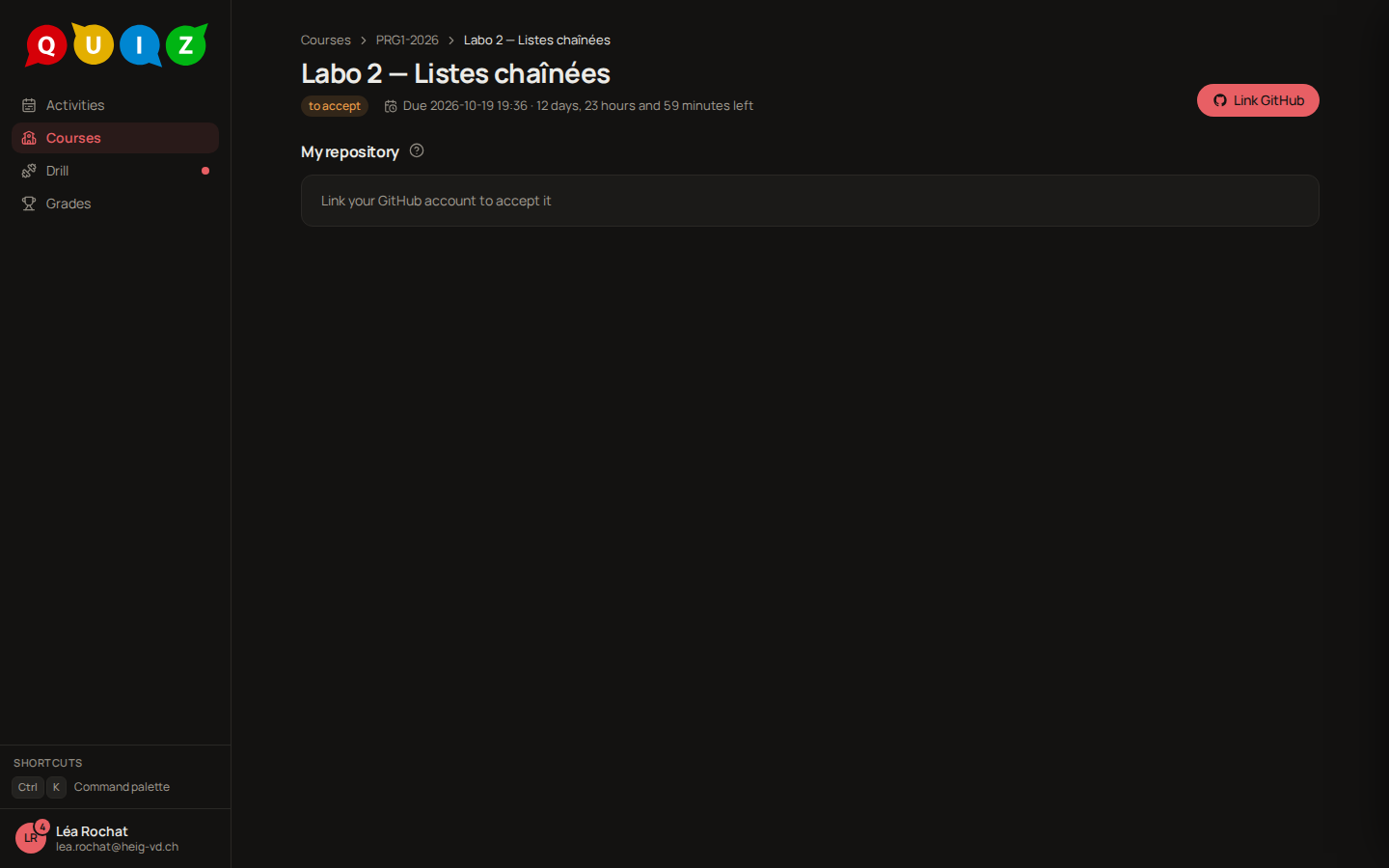
The platform reads the name of your account, once. It keeps no password and no token of yours. You do this once for all your projects. You can see the link, and remove it with Unlink, in Settings, under GitHub.
Note
If you renamed or deleted your GitHub account since, the button says Relink GitHub: press it and link the account you use now.
2. Accept the project
Once the project has started and you are linked, the button reads Accept. Press it once and wait: the platform creates your private repository, with everything you need to start inside. It takes up to a minute, and the button says so. Do not press it again.
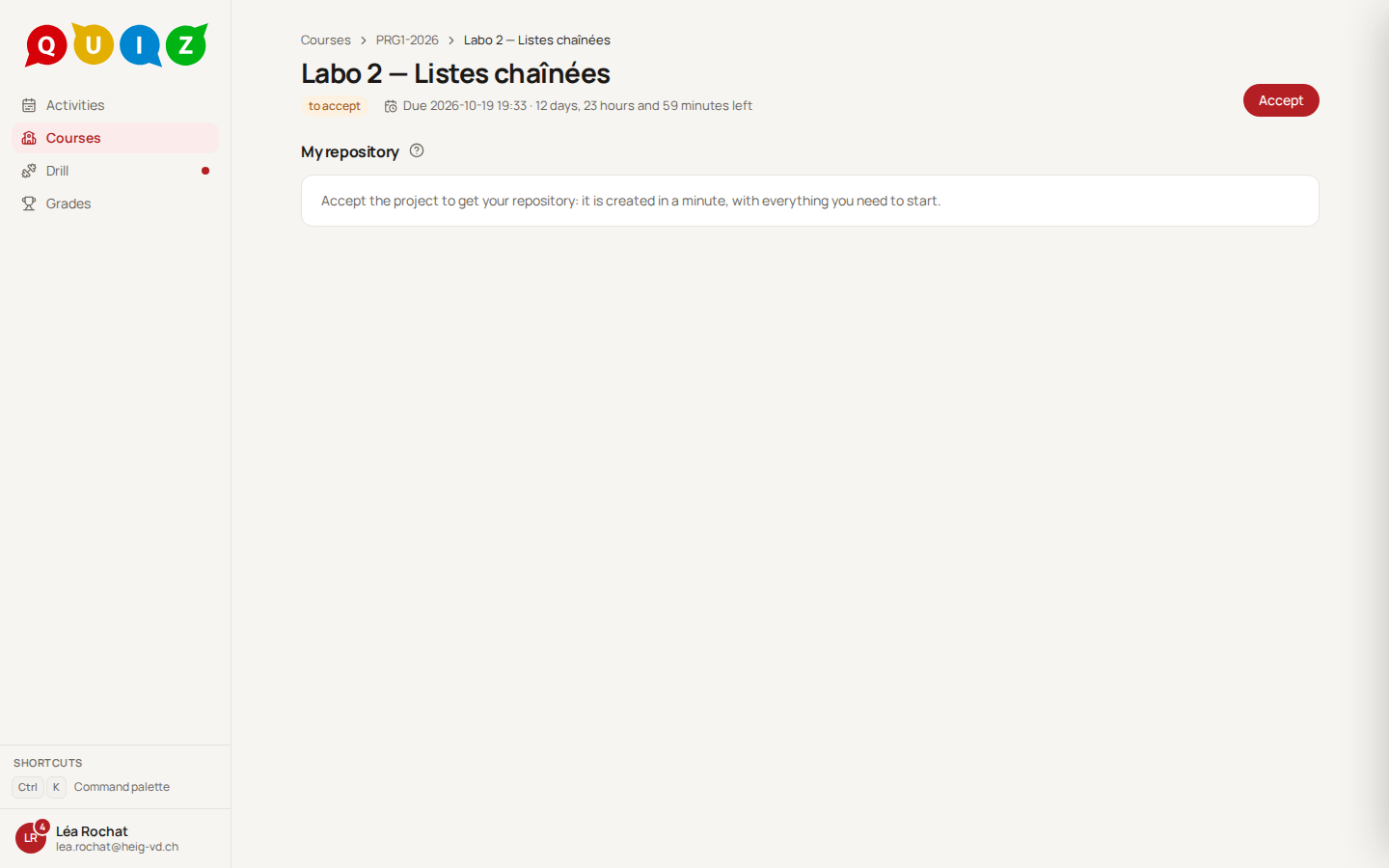
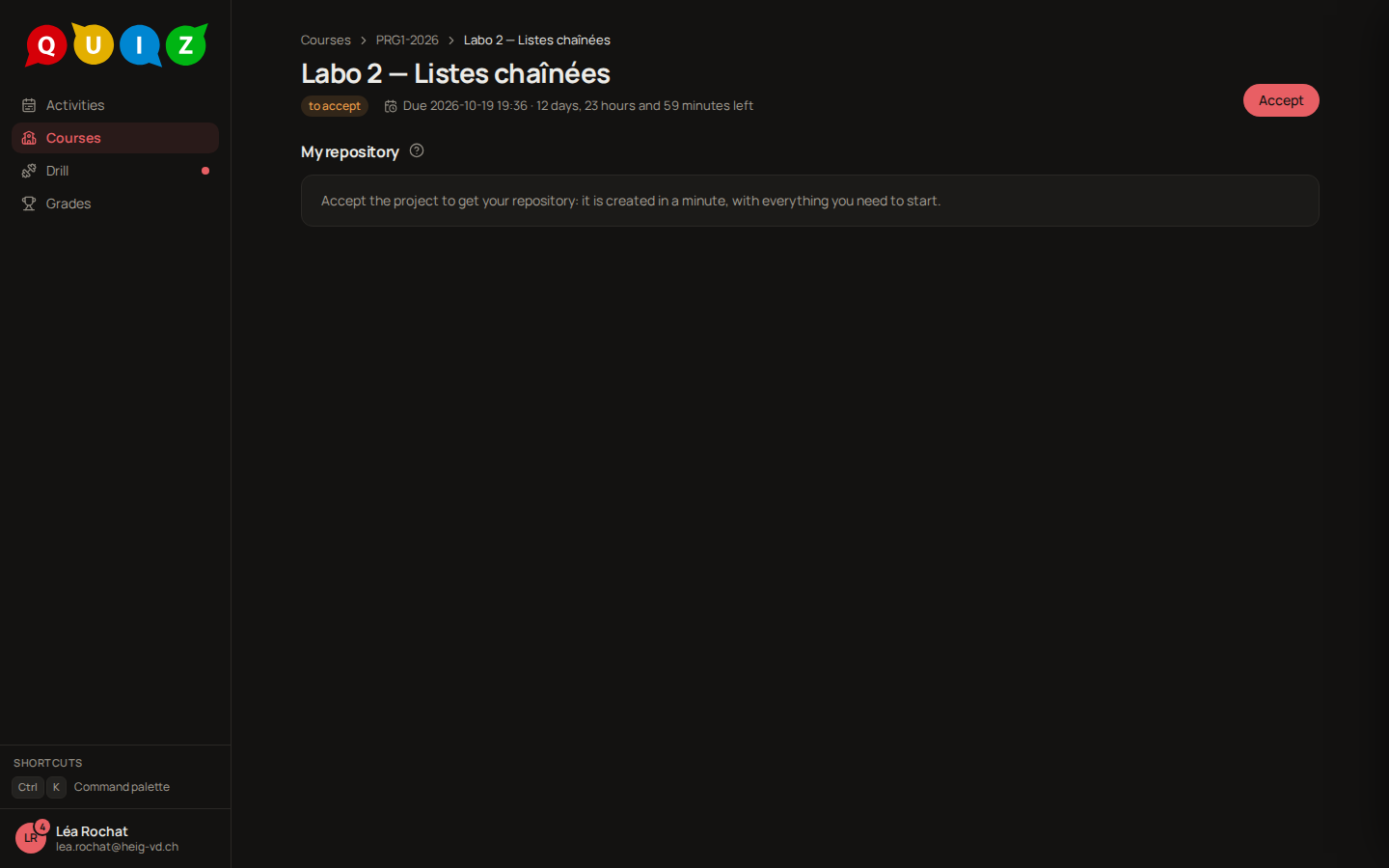
You can accept from the start date until the deadline. A project you did not accept before the deadline cannot be accepted afterwards: talk to your teacher.
If something goes wrong, the page tells you what to do: try again in a moment, or ask your teacher (for instance when the classroom is not fully set up). Nothing is lost.
Teachers
A teacher with a staff seat (Join as student) can Accept too, to test a project: the repository is theirs, counts nowhere, and group projects are not covered. Link a GitHub account that is not a member of the organization: a test with an organization owner's account does not reproduce the rulesets and the protected files. (ADR-077.)
3. Open the invitation on GitHub
Your repository is yours, but GitHub wants you to accept its invitation once. The button becomes Open the invitation: it opens GitHub in a new tab, where you press Accept invitation. You also get a notification and an e-mail.
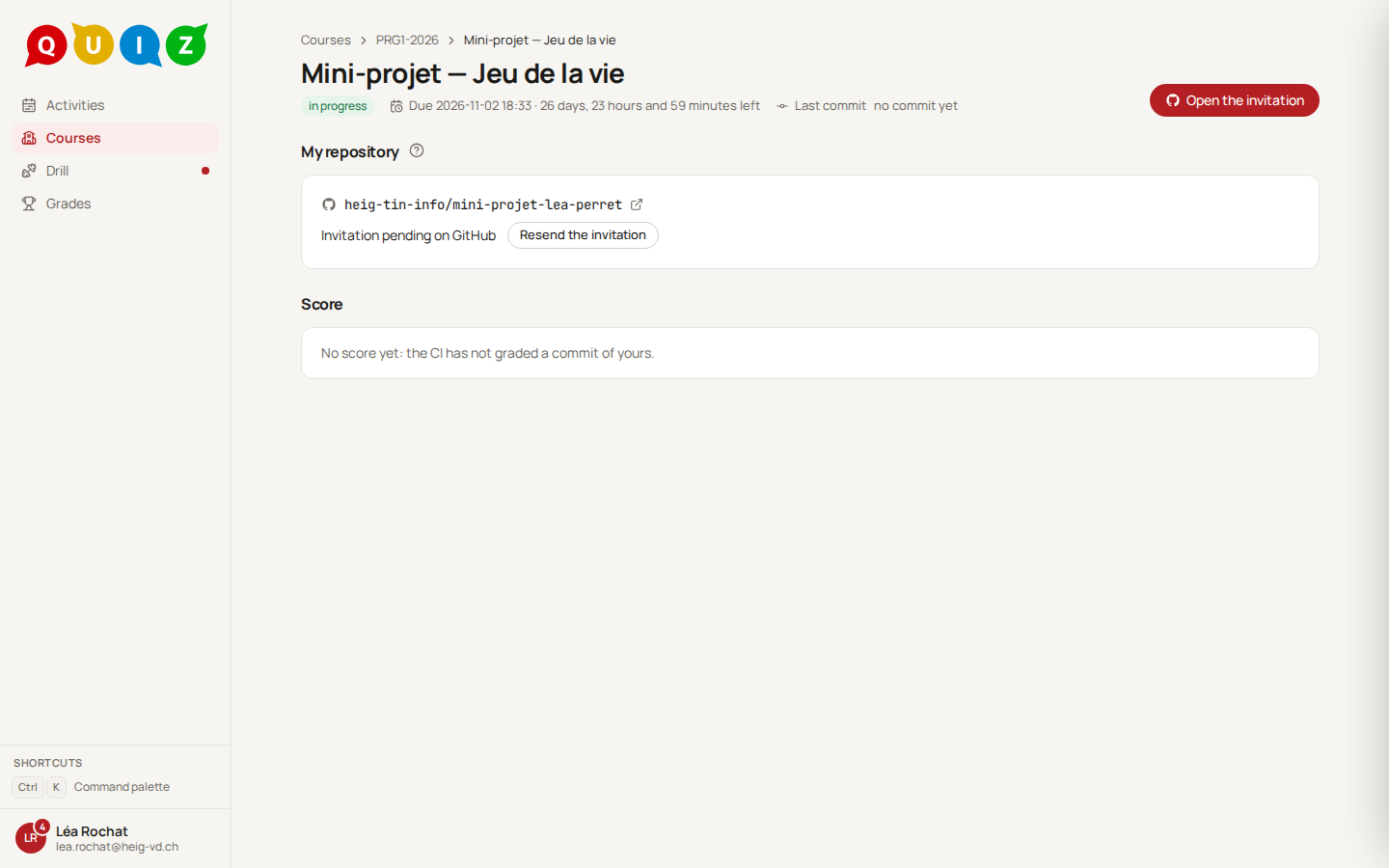
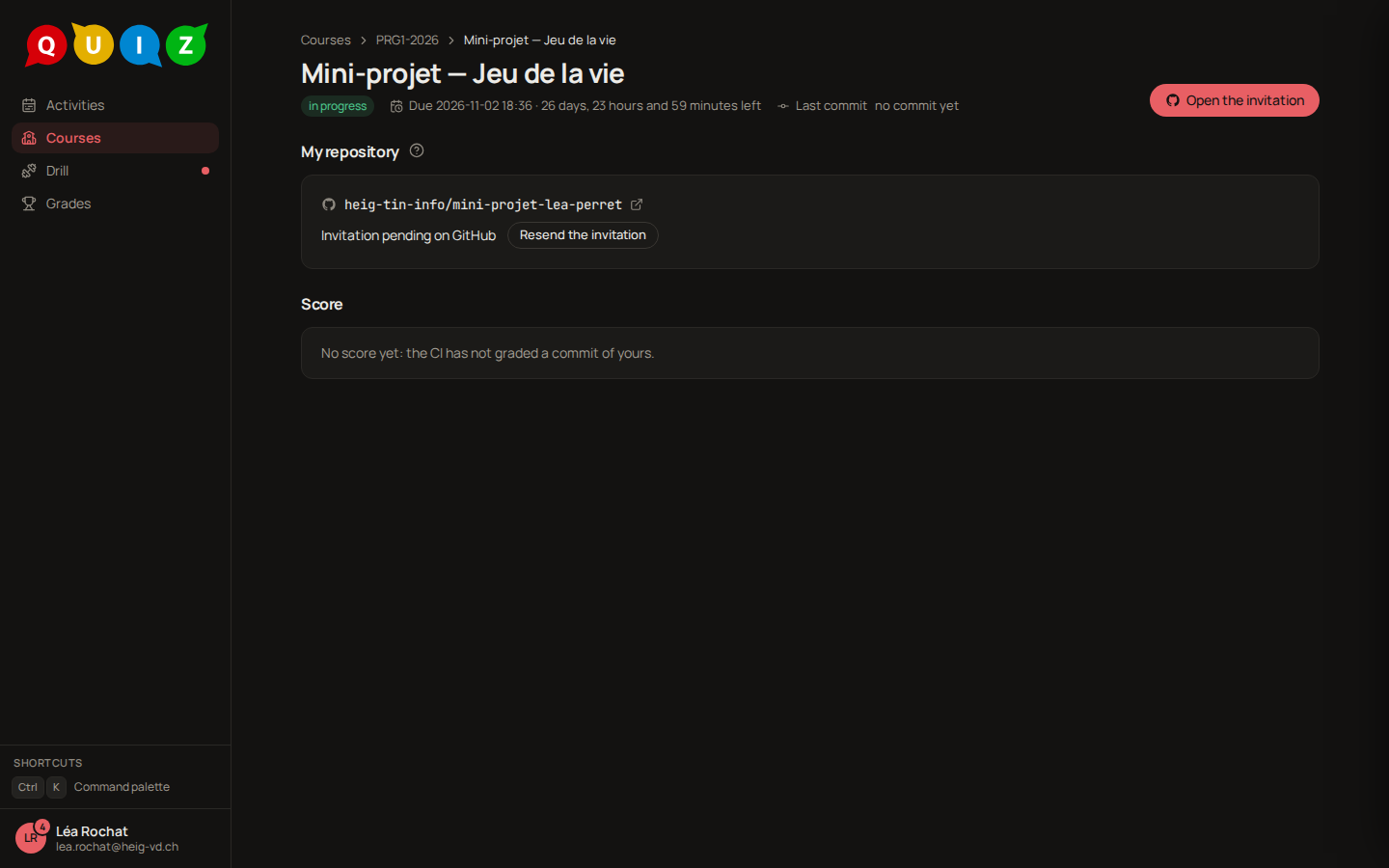
No invitation in your inbox? Press Resend the invitation on the project page; you can do it once a minute. Once you have accepted, the page reads Invitation accepted and the button becomes Open repository.
4. Work and push
Clone your repository on your computer as you would any GitHub repository (git clone, with the address behind Open repository), then work, commit and push. The platform follows your pushes, and the page tells you when one has been received.
- Your repository starts from your teacher's files. Read its
README.mdfirst: it says what to do. - Some files are protected, usually the grading workflow and the instructions. If a push changes one, the platform adds a commit that puts your teacher's version back. Your own work is never erased, but your change to the protected file does not count. Leave those files alone.
- Your teacher may send an update of the project while you work. It arrives in your repository as a pull request (its branch is named
sync/...). Open it on GitHub, resolve the conflicts if there are any, and merge it. The platform never merges it for you. - Push to the branches you were given. Work on another branch is not graded.
Some projects run in the online workspace: once you accepted, Open workspace on the project page opens an editor in your browser, set up with your repository. You work and push there, not from your own machine. If it does not open, the page says why (the deadline has passed, or the project was not accepted yet). A project in Safe Exam Browser has Open in Safe Exam Browser instead: download the file (it works once, for 5 minutes) and open it; Safe Exam Browser shows the project page, where Open workspace opens your editor.
5. Read your score
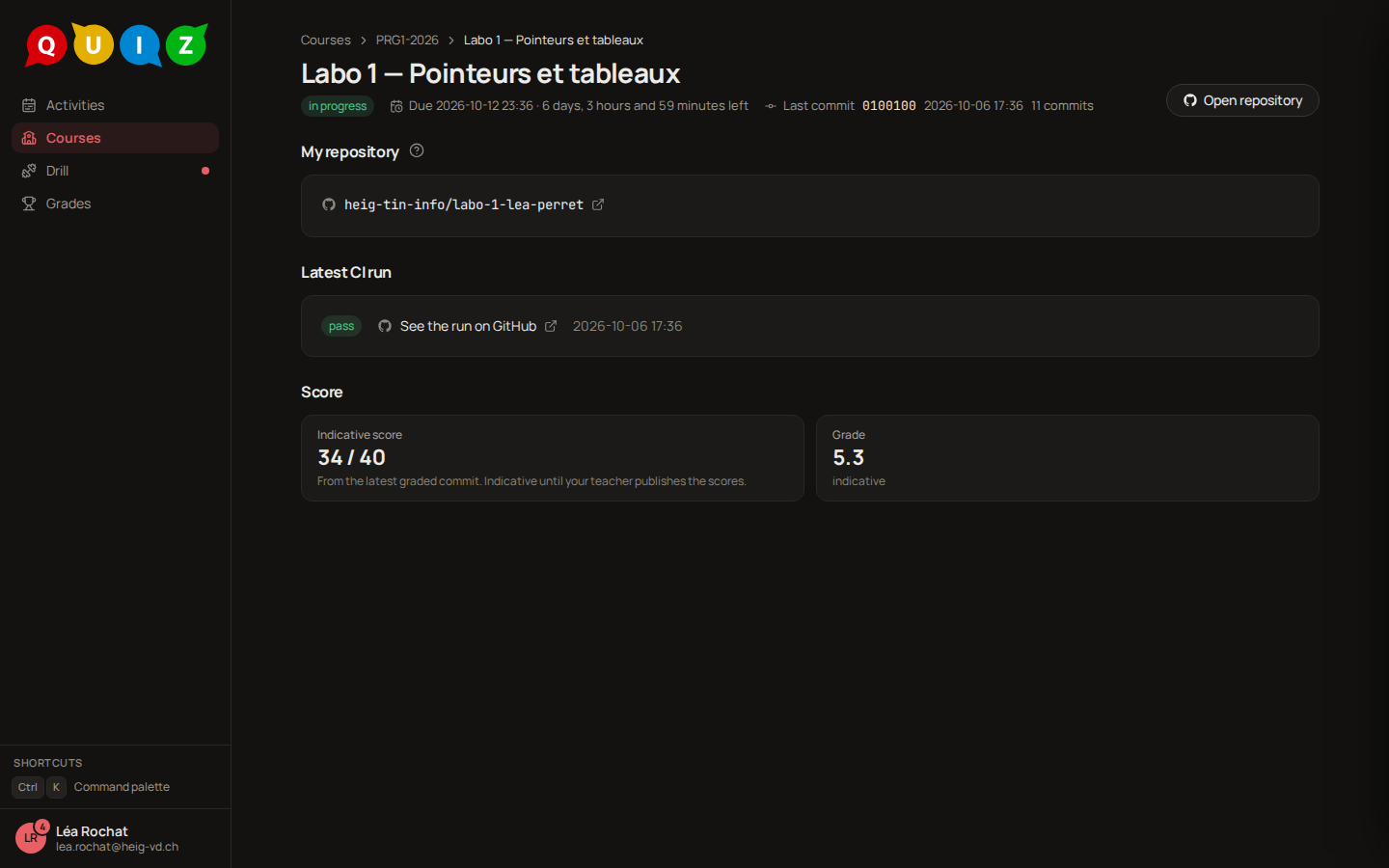
Under Score, the page shows the score of the latest commit that was graded: points out of a maximum, with the run it comes from (See the run on GitHub). It is marked indicative. It moves with every push, and it is not your grade.
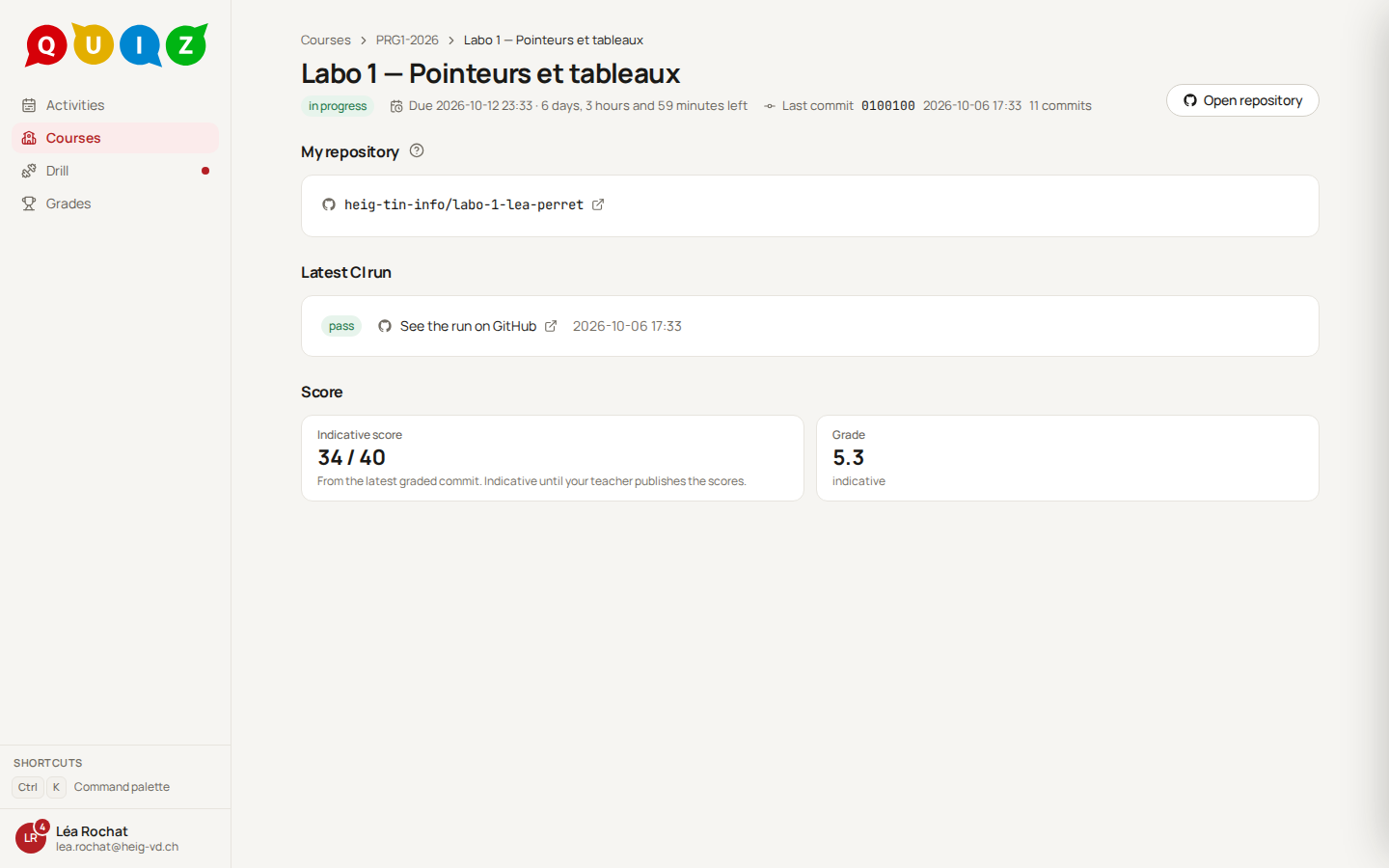
- No score yet means the automatic grading has not graded a commit of yours. Push, then wait a moment.
- Some projects are not graded: there is no score and no release.
- Your teacher may also review your work after the deadline. That review is not shown until the release.
If your project is graded by criteria, a Criteria table follows the score: each criterion, its maximum and the points obtained so far, marked indicative until your teacher validates and publishes them. A dash means the criterion is not graded yet; a lock, that a checkpoint graded it and the final grading leaves it as it is. After the deadline, a Rationale under a criterion explains its points, provisional until the release; once the scores are published, the table says Final.
6. The deadline
The deadline is the server's, like for an evaluation, and the page shows a countdown. If your teacher locked the project, your repository becomes read-only at the deadline: pushes are refused and the page reads Read-only since the deadline. Otherwise it stays open, but pushes made after the deadline do not count. Either way, what you pushed before the deadline counts, whatever the date written in your commit, and a grading run started in time may still finish a few minutes later. The score is then frozen, and the page shows Evaluated commit: the one that counts.
A day before, you get a reminder. Your teacher can give one repository more time; if that is you, you hear it from them.
7. The release
When your teacher publishes the scores, a Result block replaces the indicative score: your final score, your grade, and your teacher's comment if there is one. You get a notification.
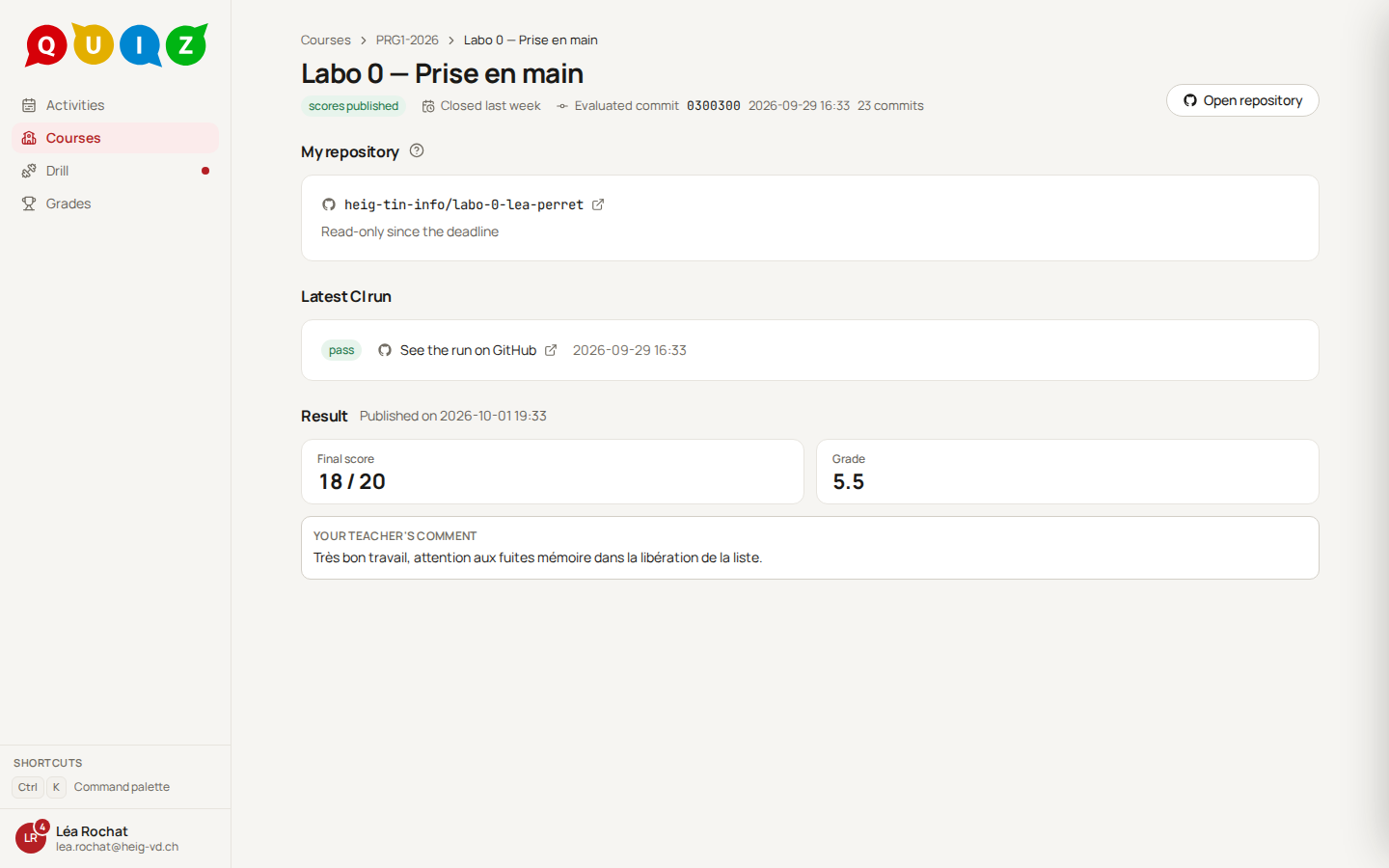
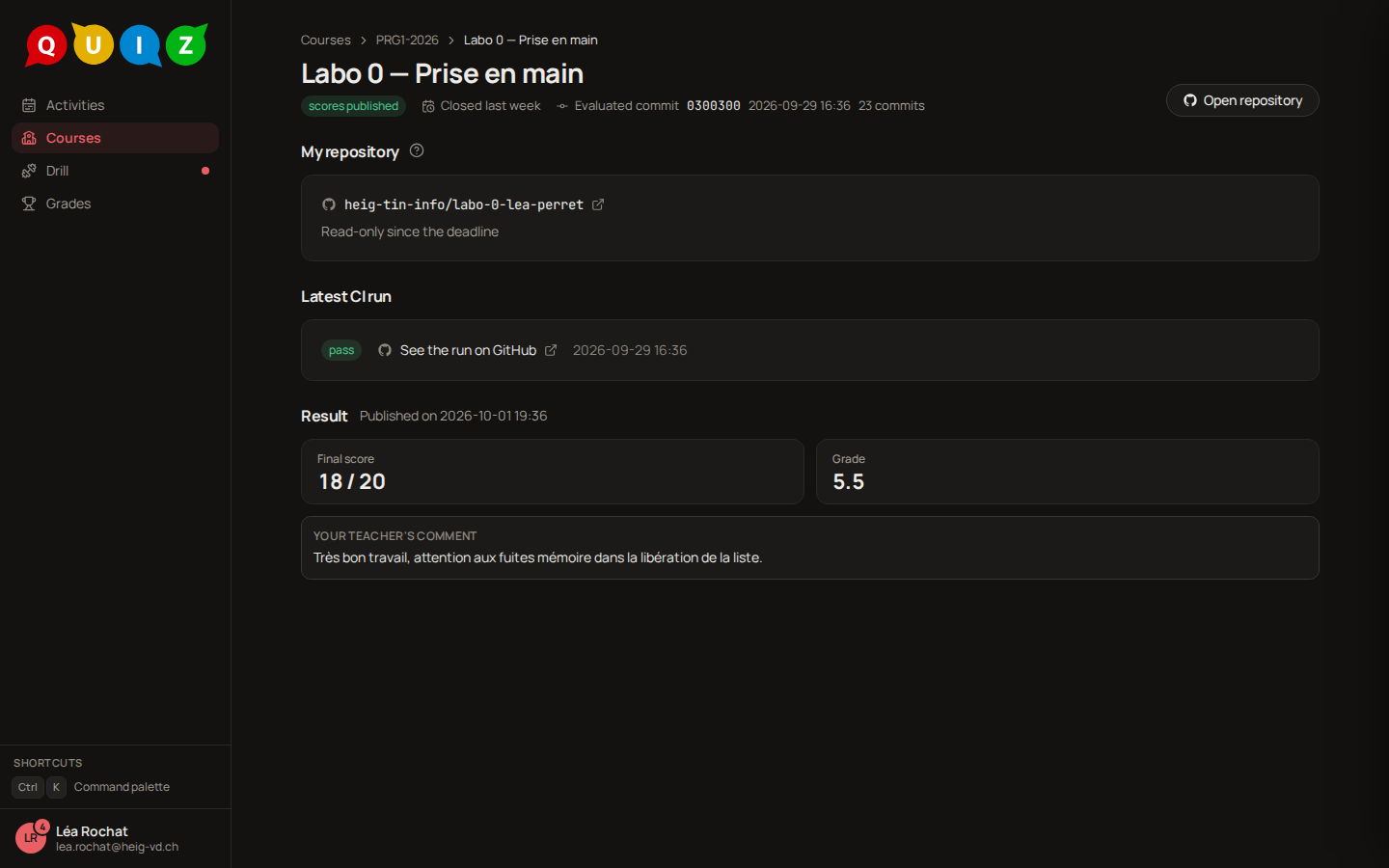
The final score can differ from the indicative one: your teacher may have adjusted it after reading your work.
Notifications
You receive a notification, and an e-mail for the ones you must not miss, when:
- a project of your classroom is published (notification only; if you have not linked your GitHub account yet, it reminds you to link it before accepting);
- your repository is ready and its invitation waits for you;
- your deadline is within 24 hours;
- the scores are released.
Each one opens the project's page. You choose the channels (bell, e-mail, Teams) for each kind in Settings. Meanwhile, the page updates without a reload, and a short message tells you, for instance, that your push was received or that a new score is in.
Forming a group
Some projects are done in groups. Your teacher either places you, or opens the groups to the students until a date. In the second case your Activities show a row Form your group until …, and your classroom page gets a Groups tab.
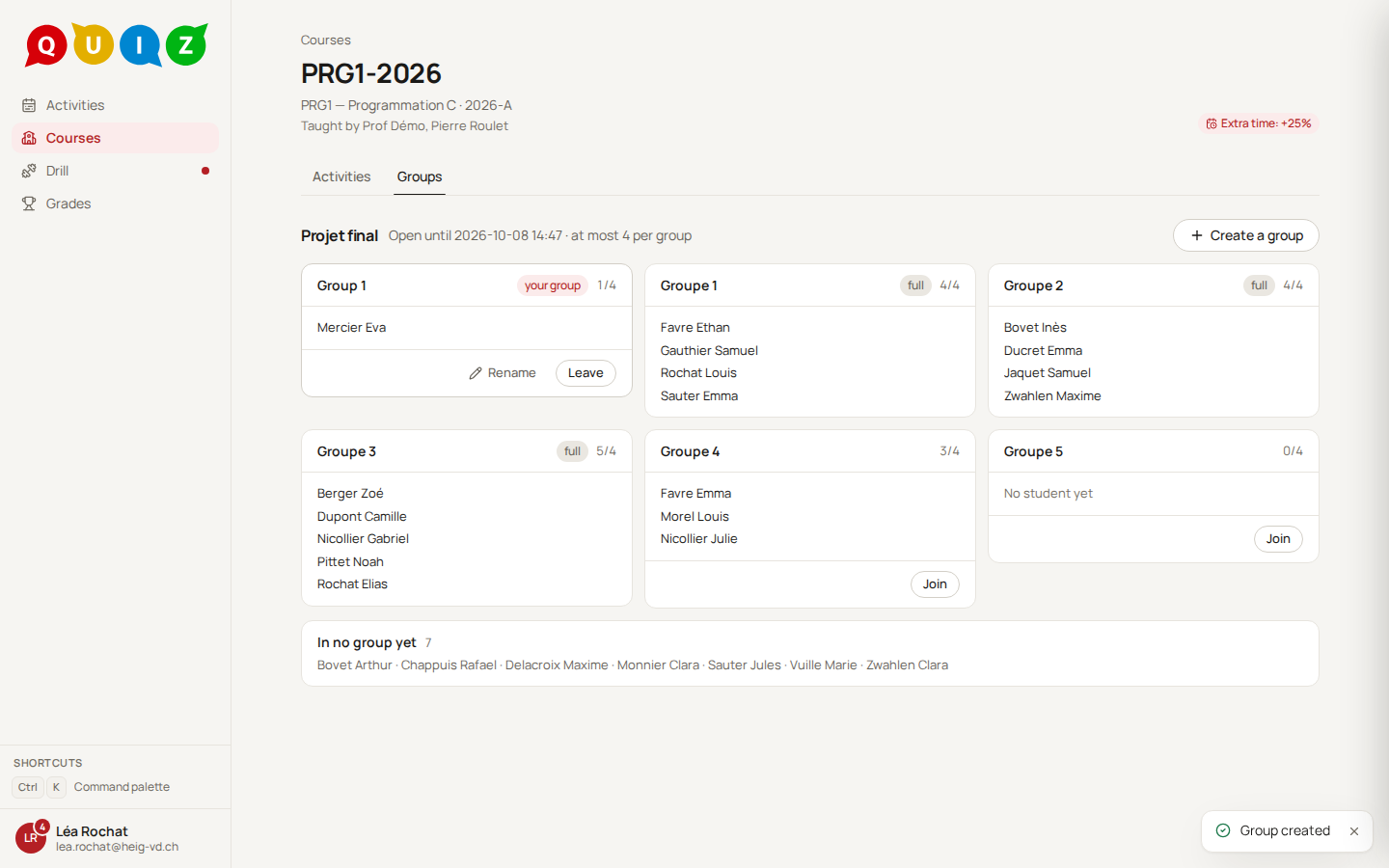
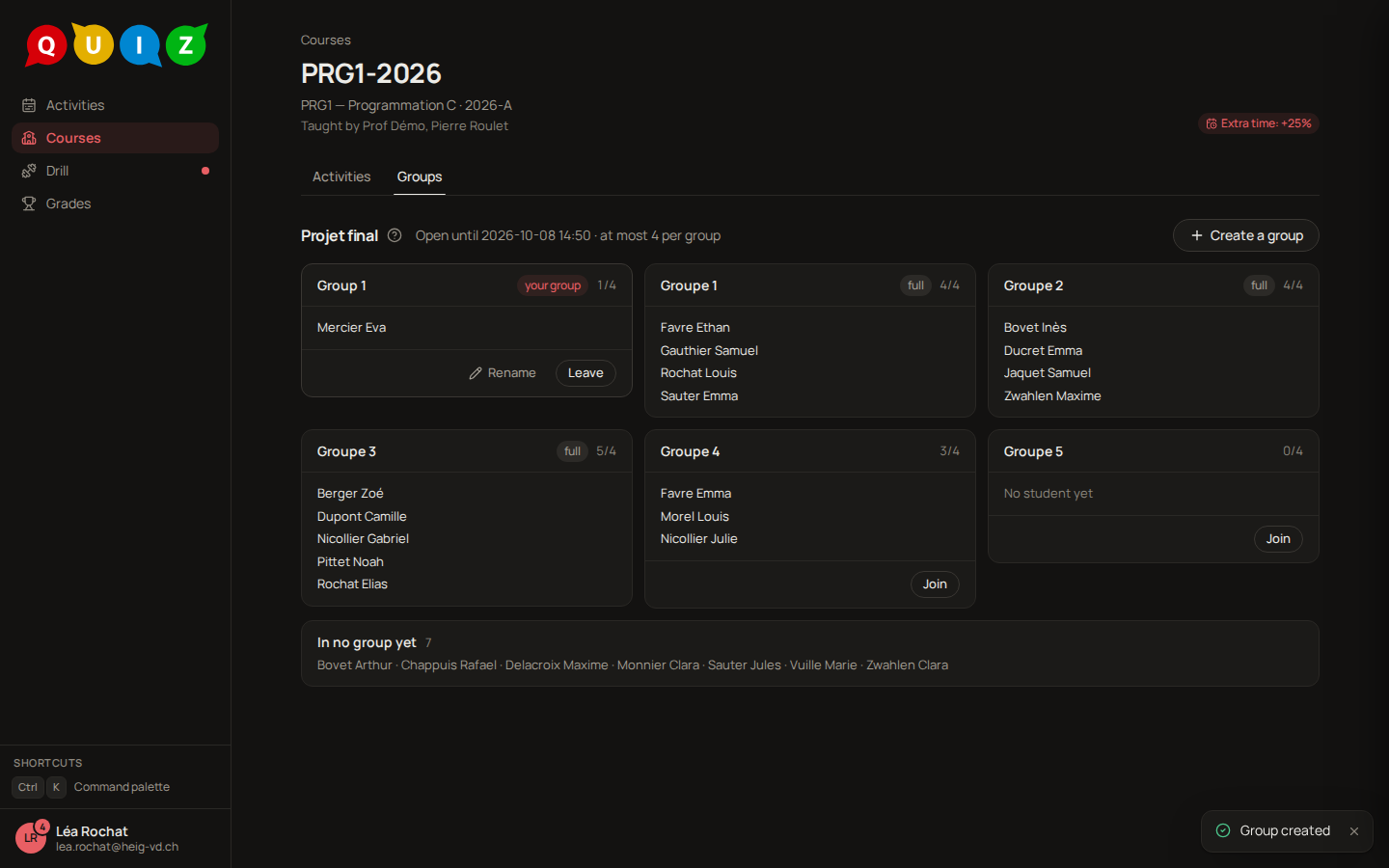
In the Groups tab you can:
- Create a group: you join it at once. The name is optional.
- Join a group that is not full. Your teacher sets the size limit.
- Leave your group, or Rename it.
While the set is open you see the names of the others and of the students who have no group yet, nothing more. When the date has passed, the groups close: you then see only your own group, and your teacher places whoever has no group. As soon as one group of the set gets its repository, the groups can no longer change, so be sure before you accept.
For a group project, one member accepts and the repository belongs to the group. Every member is invited on GitHub; a member who has not linked their GitHub account is invited only once they do. The score is the group's.
The journal
If your teacher keeps a journal for the course, your classroom page has a Journal tab. It is the course's notebook: what was seen each week, exercises, links.
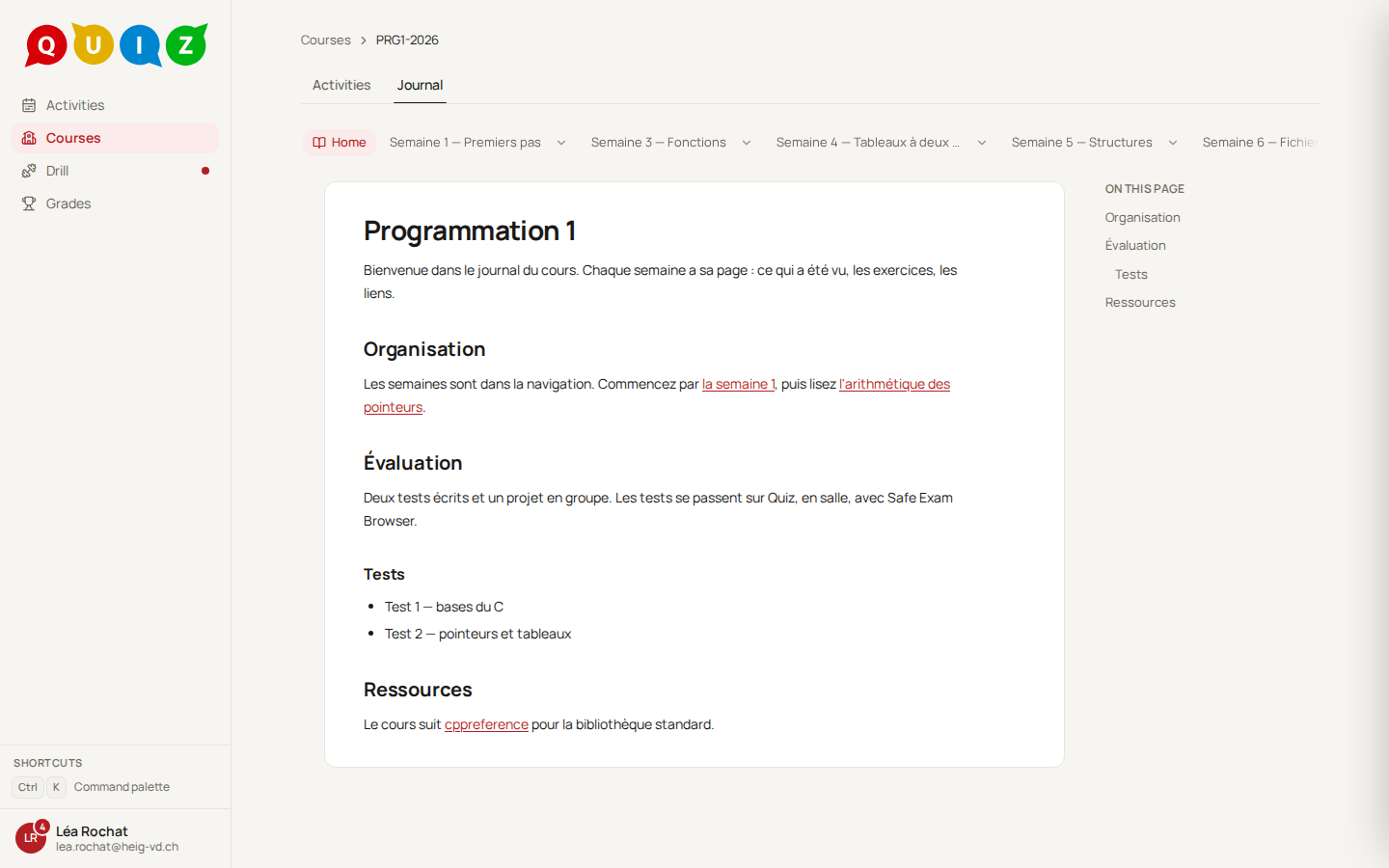
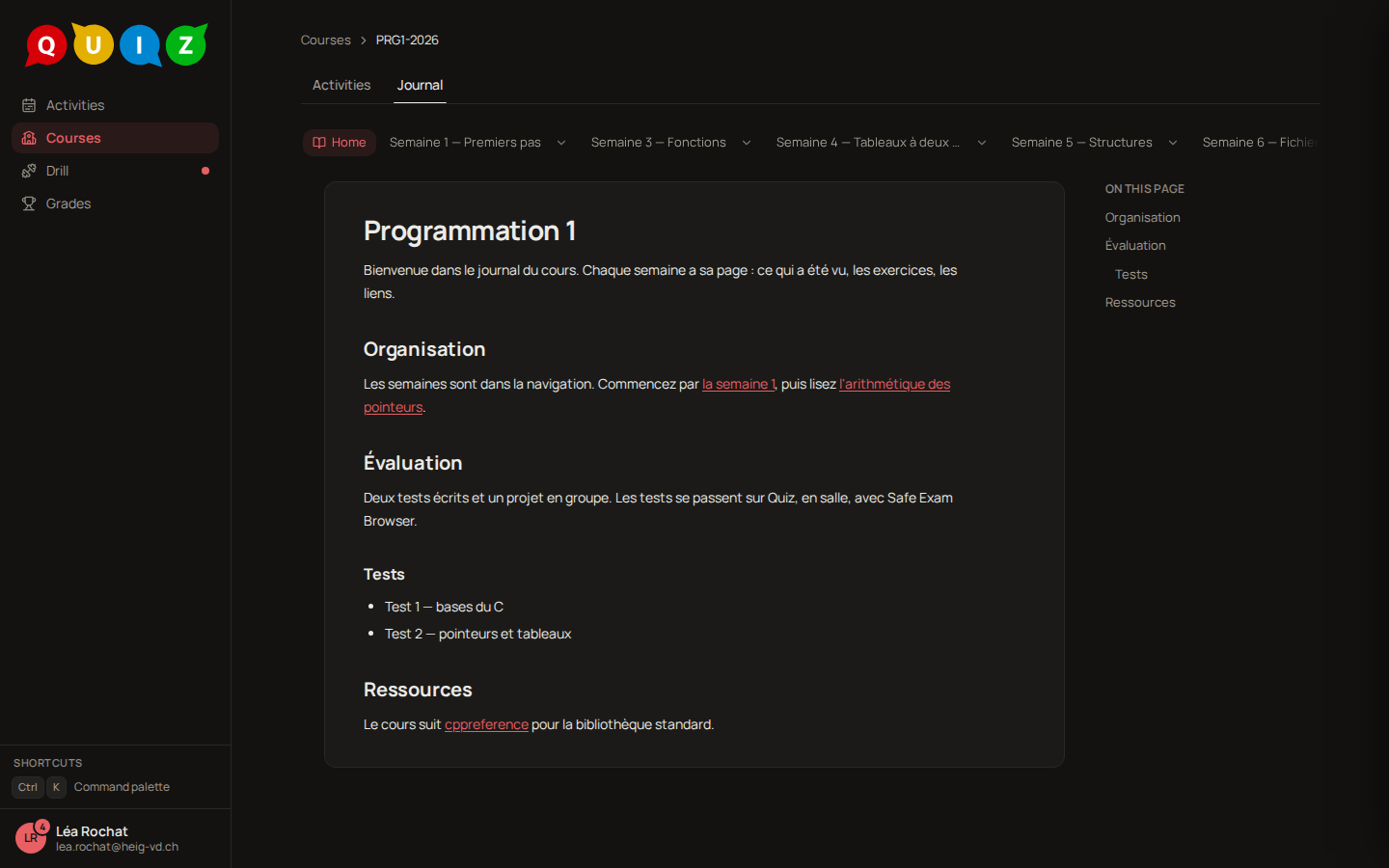
- The strip at the top lists the pages; a folder opens a menu of its pages.
- On this page jumps to a heading.
- There is nothing to do in the journal: it is for reading. A page your teacher planned for a later date does not show until then, and appears by itself.
- Links between pages stay in the journal. Links to the outside open in a new tab.