Administration
The administration screen has one main job: deciding who reaches the teacher interface. Everything else, courses, pools and evaluations, is managed by the teachers themselves.
Who reaches it
The platform has one administrator: the e-mail address named in the server configuration. Signing in with that address, on any of its edu-ID addresses, gives the Administrator role, and the Administration entry appears in the sidebar. There is no way to name a second administrator from the interface.
Teacher grants
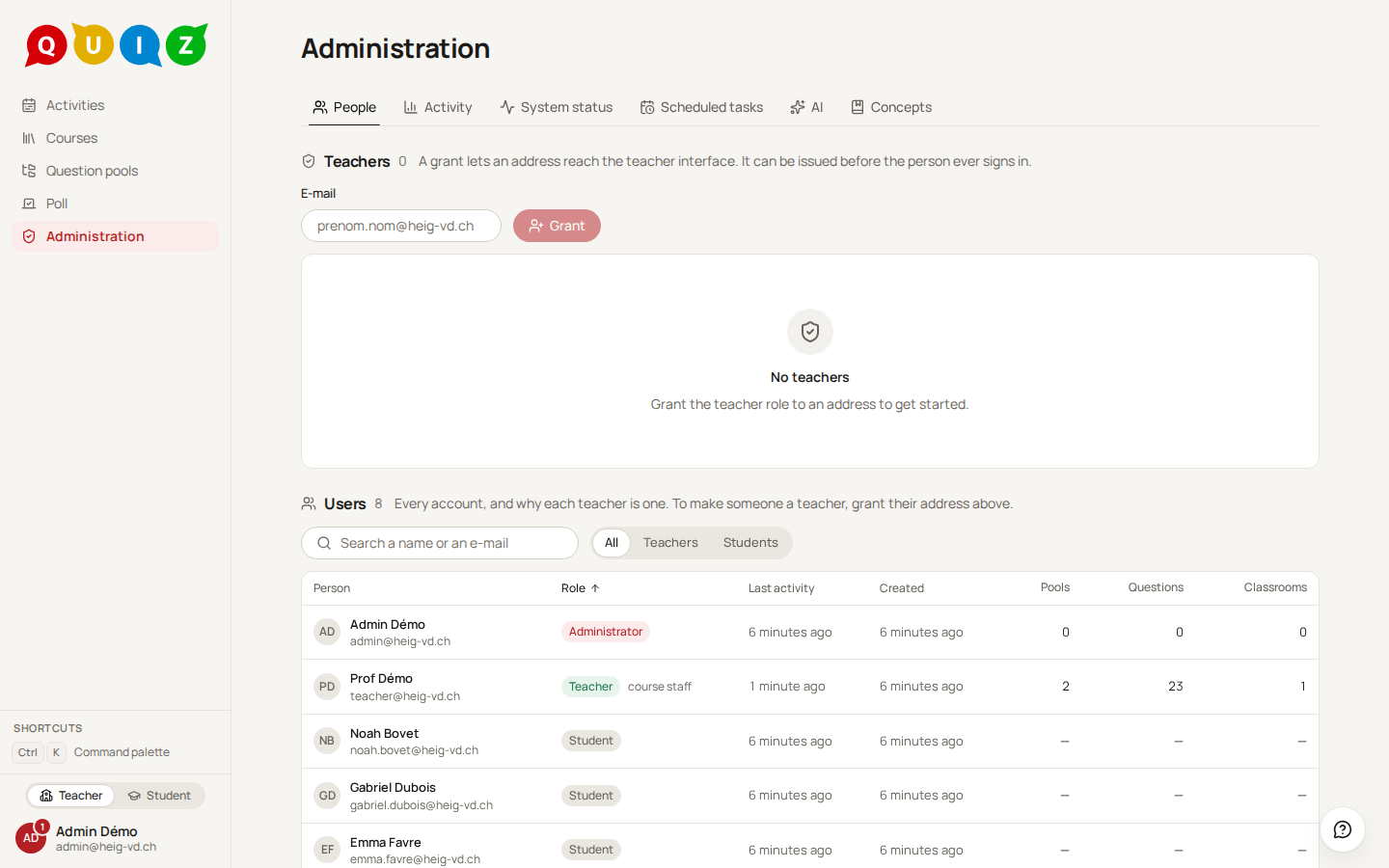
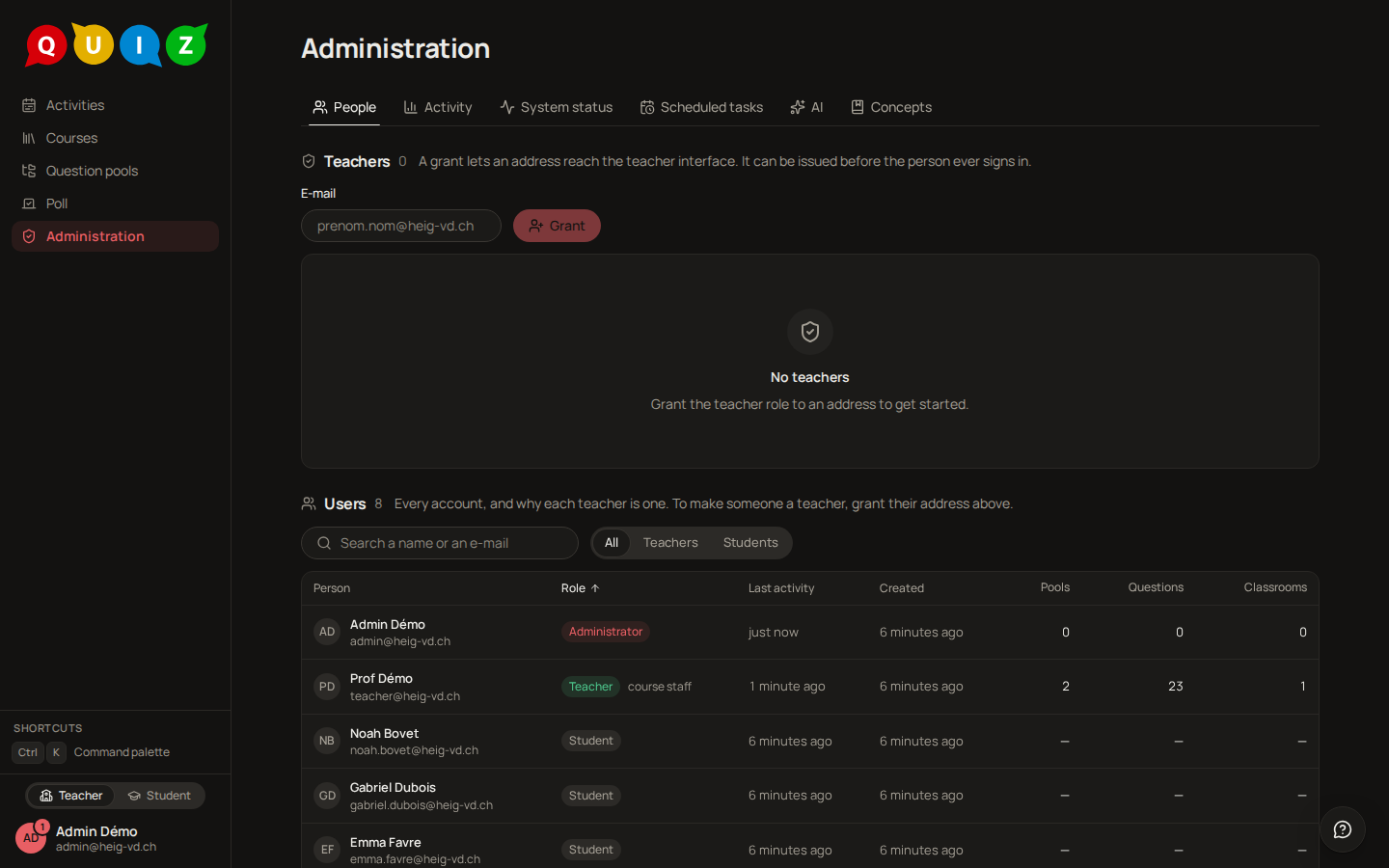
A grant is an e-mail address. Type it in the E-mail field and click Grant. The address may belong to someone who has never signed in: the row shows "has not signed in yet" until they do, and the role is applied at their first sign-in. If the account already exists, the grant takes effect immediately. The role is recomputed at every sign-in, from every address edu-ID reveals for the account, so a grant issued on the institutional address applies to someone signing in under a private one.
The table lists each grant with the person's name once known, their address, the number of courses they are on, their last sign-in and when the grant was issued. Click a header to sort.
A grant is not the only way to be a teacher. A colleague added to the staff of a course is a teacher for as long as they hold that seat, and edu-ID reports employees as staff, which is enough on its own. Grants are for the cases those two rules miss: an assistant without a staff affiliation, or a teacher who should create their first course before anyone has added them anywhere.
Where the platform has the online workspace, each grant also has a Workspace column: its switch lets that teacher put the projects of the courses they own in the workspace, and the number beside it is how many of their students' workspaces may run at once (2 by default). An administrator needs no grant: they may always use the workspace, with the default number.
Removing a grant
The bin at the end of a row revokes the grant, after a confirmation naming the address. The role is recomputed, not forced: someone who still sits on the staff of a course, or whom edu-ID reports as staff, stays a teacher. Someone with neither goes back to student at once.
The administrator's own address cannot be granted; it is already above the teacher role.
Kiosk stations
Where the platform has kiosk stations, the People tab also lists the school's Chromebooks that attested themselves. A new one appears as Unnamed, with its serial number: Name it after the sticker on the machine and it becomes Active, ready to be paired by students. Rename changes that name, Retire takes a station out of service (it can no longer be paired, and shows "Station not recognised"), Reactivate puts it back. Each row also shows the station's Last check (Attested, Google unreachable or Refused) and when it was Last attested. Setting the stations up in the Google Admin console is described in Kiosk stations.
Concepts
Questions are classified by concepts (Notions in the French interface): one vocabulary for the whole platform, each concept with a label in French and in English. Teachers pick concepts in the question editor and may create a new one, which stays Proposed (see Question pools).
The Concepts tab of the administration is the curation queue of that vocabulary. It lists every concept, those teachers proposed first, with the number of questions of the whole platform that use it (a number only: the pools and statements stay out of reach without Super Powers), who proposed it and when. Filter by To validate or Validated, or search a label in either language. Unplaced lists the concepts with no broader and no narrower concept, whatever their status: give them a place from their sheet. On All, To validate and Validated, the switch at the list's top right reads it as a tree instead, each concept indented under its broader one (the first by name, the others said as "Also under"); under a filter or a search, the ancestors of a shown concept stay, dimmed and without actions, as its path.
- Validate accepts a proposed concept. It is disabled while the concept has no label in French or in English: the row says which one is missing. Open the concept with Edit to add it.
- Edit opens the concept: label, qualifier (what tells Address (memory) from Address (network)) and description, in both languages. A label another concept already holds is refused.
- Aliases are other names the concept answers to ("Overflow" for Dépassement). Type one and choose Add alias; a chip's cross removes it. A teacher who types an alias in the concept picker, the pool filter or through an AI client gets this concept, and only the labels are ever shown. Aliases have no language and only you manage them. An alias equal to one of the concept's labels is refused. One that is already a label or an alias of another concept makes that word ambiguous for every teacher: the sheet names the other concept and asks you to confirm with Add anyway. Aliases are saved at once, apart from Save.
- Relations link a concept to others, in the same sheet. Broader concepts build the hierarchy (Pointer arithmetic is under Pointer): a concept may have several, and a concept can never end up broader than itself. Search a concept and choose it to add it; a chip's cross removes the link. If an addition would close a loop, the sheet names the loop (A › B › A) and nothing changes: remove one of the links first. Related concepts are connected but distinct (Pointer and Memory address); they are refused between two concepts of one hierarchy, which already says more. Only you manage relations, and each is saved at once. Teachers see the broader path under a concept in the concept picker (Memory › Pointer). The same path shows under each concept's name in the queue and at the top of its sheet, where +1 other broader concept counts the broader concepts the path does not follow. Under the broader concepts, Narrower concepts lists, read-only, the concepts placed directly under this one (a narrower concept is placed from its own sheet), each concept a search offers shows its path, and each one the broader search offers says what it currently holds, so you see its other narrower concepts before placing this one beside them. When you merge a concept, its relations move to the target; links between the two are dropped and listed in the audit, and a merge that would make a concept broader than itself is refused, naming the loop, until you remove one of its links.
- Delete concept or Merge into…, in the same sheet, retire a concept: one or the other, never both. Delete is offered while nothing refers to the concept. Once a question uses it, or a deleted question or a merged concept still points to it, Merge into… takes its place: search the validated concept that stays (it keeps its labels), read how many questions use each and what will happen, and confirm. The questions that used the merged concept now use the one you picked, a question that had both keeps one, and the merged concept leaves the list. Its labels are dropped, unless you tick Keep … as an alias, which keeps them as aliases of the target; its own aliases move to the target either way; no word of the merged concept ever designates it again. Only a validated concept can be a target, so validate a proposed one first. Save or cancel your edits before merging. A merge cannot be undone from the application: choose the target with care.
The Duplicates filter lists the pairs of concepts that look alike, found from their labels, qualifiers and aliases alone (no AI, nothing stored, recomputed each time you open the tab): Alias clash (a label of one is an alias of the other), Translation (the French label of one is the English label of the other), Close labels (a few characters apart, the rule of the picker's "did you mean") and Same label (one label under different qualifiers, such as Address (memory) and Address (network)). Merge on a pair opens the merge dialog with the other concept already chosen; it is offered when one of the two is validated (the less used goes into the other if both are). Same label pairs are often two real concepts: check their qualifiers, no merge is offered. A pair can instead be settled by adding an alias, from the concept's sheet.
Ask the AI, under the pairs, looks for further ones that a comparison of spellings cannot see (a synonym, an abbreviation and its spelling out). It is on demand only, counts against the day's AI cap and sends the AI provider the labels and qualifiers of the concepts in both languages, and nothing else: no description, no alias, no question, pool, course or person. Its pairs appear below the others, marked AI suggestion, filed as Close labels, Translation, Same label or Related (distinct but connected concepts) with a short reason in your language; a merge is offered for the first two only, and Add as related for Related ones (one click, the same as adding the relation on the sheet); they are only suggestions, kept on the page until you leave it, and nothing changes until you merge or edit. If the AI is not configured or the day's cap is reached, the page says so.
The Relations filter proposes relations you have not drawn yet, found without AI: Label inside another puts a concept under the one whose whole label its own contains, in the same language (Pointer arithmetic under Pointer), and Used together pairs two concepts that classify many of the same questions (at least three, and at least half of the less used one's) as related. Nothing is ticked: tick the rows you agree with, then Accept the n selected; each relation is added as if from the concept's sheet, and one that is refused (it would make a concept broader than itself, for instance) says why on its row without stopping the others. Dismiss hides a row until you reload the page. A broader concept covers its narrower ones in the filters and the mastery, so check the hierarchy you accept.
Propose relations with AI, below these (when an AI is configured), asks the AI for a place for the unplaced concepts, about forty at a time: a broader concept, a related one with its reason, or a missing top concept that would gather several of them. It counts against the day's AI cap and sends the AI provider the labels and qualifiers in both languages of the live concepts (at most 1000), with the ones to place marked, and nothing else. Its rows appear under their own headings and are ticked and accepted like the others; a row that would contradict one you ticked is greyed out. Accepting a row under a new concept creates that concept, Proposed, in your language: complete its other language from its sheet, and delete it if none of its relations was added. Ask again goes on with the unplaced concepts the AI has not been asked about yet on this page. On a concept's sheet, Suggest a broader concept, under its broader concepts, asks the same of the AI for that one concept (same data sent, same daily cap): add a suggestion with Add as broader, or, for a concept the vocabulary lacks, Create and add, which creates it Proposed first; the suggestions go when you close the sheet.
The free tags that questions carried before concepts existed are gone, and so is the administration's former Concepts tab where they were sorted. A label the administrator dropped during that sorting (a chapter, a week, a kind of task, noise) still cannot be created again as a concept, by a teacher or by an assistant connected to the platform.
What an administrator sees elsewhere
By default, nothing more than a teacher: the administrator works on the courses whose staff they are on, and on their pools with the role they hold there. A colleague's course or private pool is out of sight, as for any teacher, so that one's own teaching never touches somebody else's by accident.
Super Powers
To help a colleague or look into a problem, switch on Super Powers in Settings. For one hour, every course, classroom, evaluation and pool of the platform opens to you, with the owner role on every pool, and the roster rows offer the link to act as a student. A red banner at the top of every page says so, with the time left and Switch off; in the last five minutes it counts down by the second. The hour is fixed and cannot be extended: when it ends, the pages that belong to someone else answer as missing, and a change started on one of them is refused. Switching on and off, and the end of the hour, are recorded in the audit log.
With Super Powers, connecting a classroom to any organization where Quiz's GitHub App is installed opens that organization to the classroom's course; DELETE /app/api/courses/<course id>/github/grants/<organization id> closes it again, refused while a classroom of the course is still connected to it (ADR-100; there is no page for it yet).
Super Powers belong to the browser session that switched them on: signing out ends them, another browser does not have them, and neither an API token nor a connected assistant ever gets them. The administration screen itself, and the server's metrics endpoint, which answers an administrator's session as well as the monitoring token, need none.