For students
This page is for you if a teacher sends you here. It walks through everything you do on the platform: signing in, finding your classroom, taking an evaluation and reading your results.
Signing in
Open the platform and press Sign in with Switch edu-ID. You sign in with the account of your school; there is no separate password for the platform.
Your teacher adds your school e-mail address to the class list. The seat is attached to your account when you open the platform with a matching address — when you sign in, or on the next page you load if you are already signed in: there is no code to enter and nothing to accept, and nothing is attached before you come. If a classroom you expect is missing from your home, reload the page, then check that you signed in with the address your teacher used, and that this address is registered on your Switch edu-ID account.
Your home
Your home shows what your classrooms have opened for you, in two sections, and your classrooms under them. What you already handed in is on the Grades page (below).
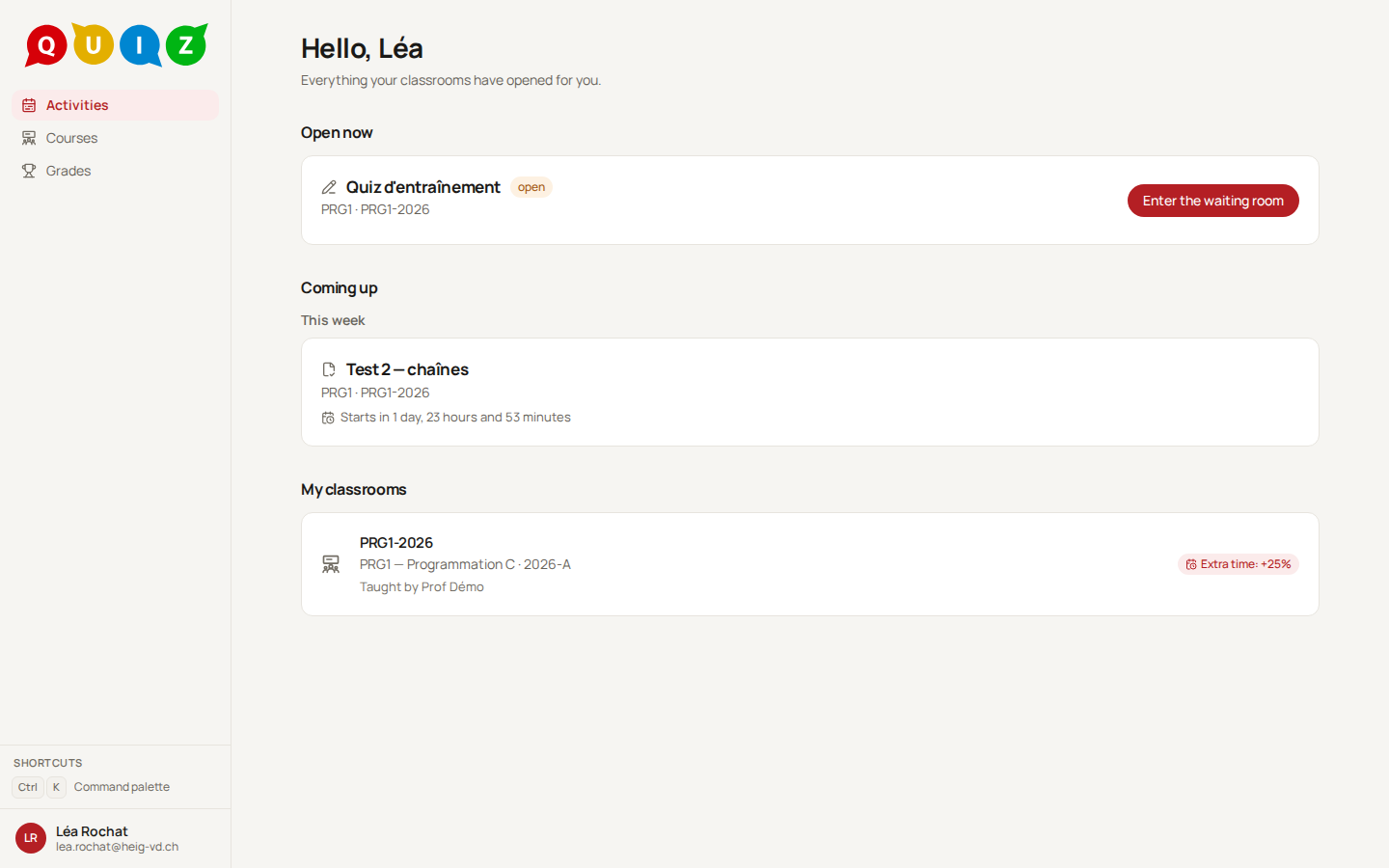
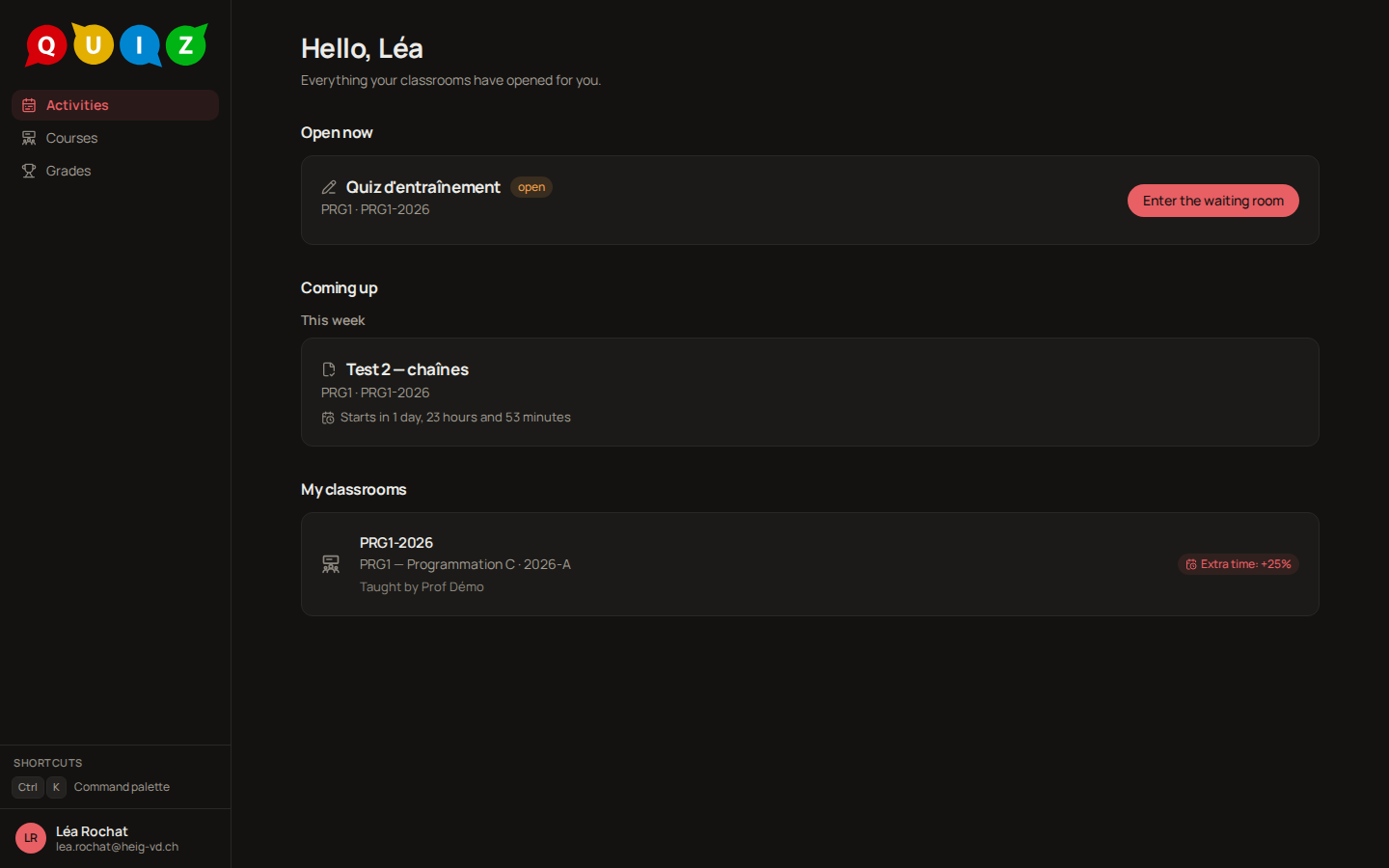
Open now lists what you can still do, each with one button: Start, Resume if you already began, or Enter the waiting room when the teacher has opened one. The badge says whether it is a Graded quiz or an Exercise, and the card shows how long you have or when it is due.
Coming up shows what is scheduled and when it starts, grouped by the day it opens: Today, Tomorrow, This week (until Sunday) and Later. A day with nothing in it is left out; your classroom's page groups its own the same way. A quiz you handed in leaves the home at once, even while the others are still writing, for the Grades page.
My classrooms lists your classrooms with their teachers. If you were granted extra time, the card shows it, for instance Extra time: +25%. It applies automatically to every timed evaluation of that classroom; there is nothing to ask for at the start.
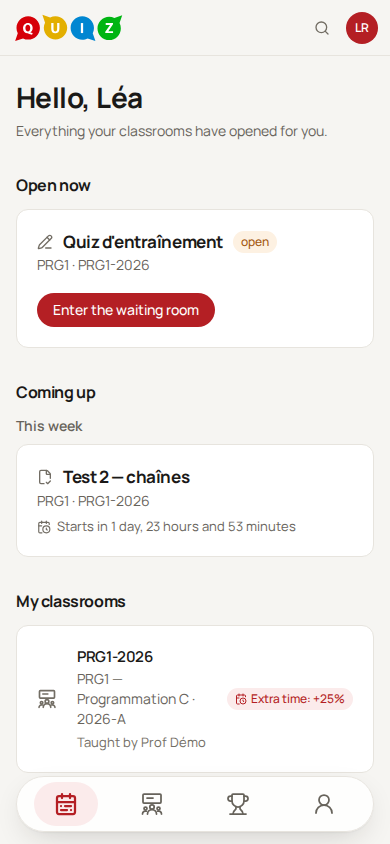
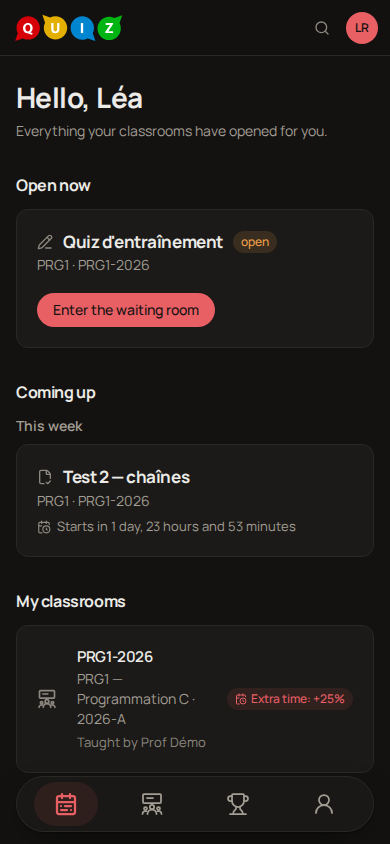
On a computer, the sidebar on the left takes you to Activities (this home), Courses (your classrooms, each with a page of its own), Drill once a teacher of yours has turned it on, and Grades (everything you finished, with its grade once you may read it). On a phone, the same entries sit in the bar at the bottom of the screen, with Profile beside them; on a computer your profile is in the menu under your name.
Your grades
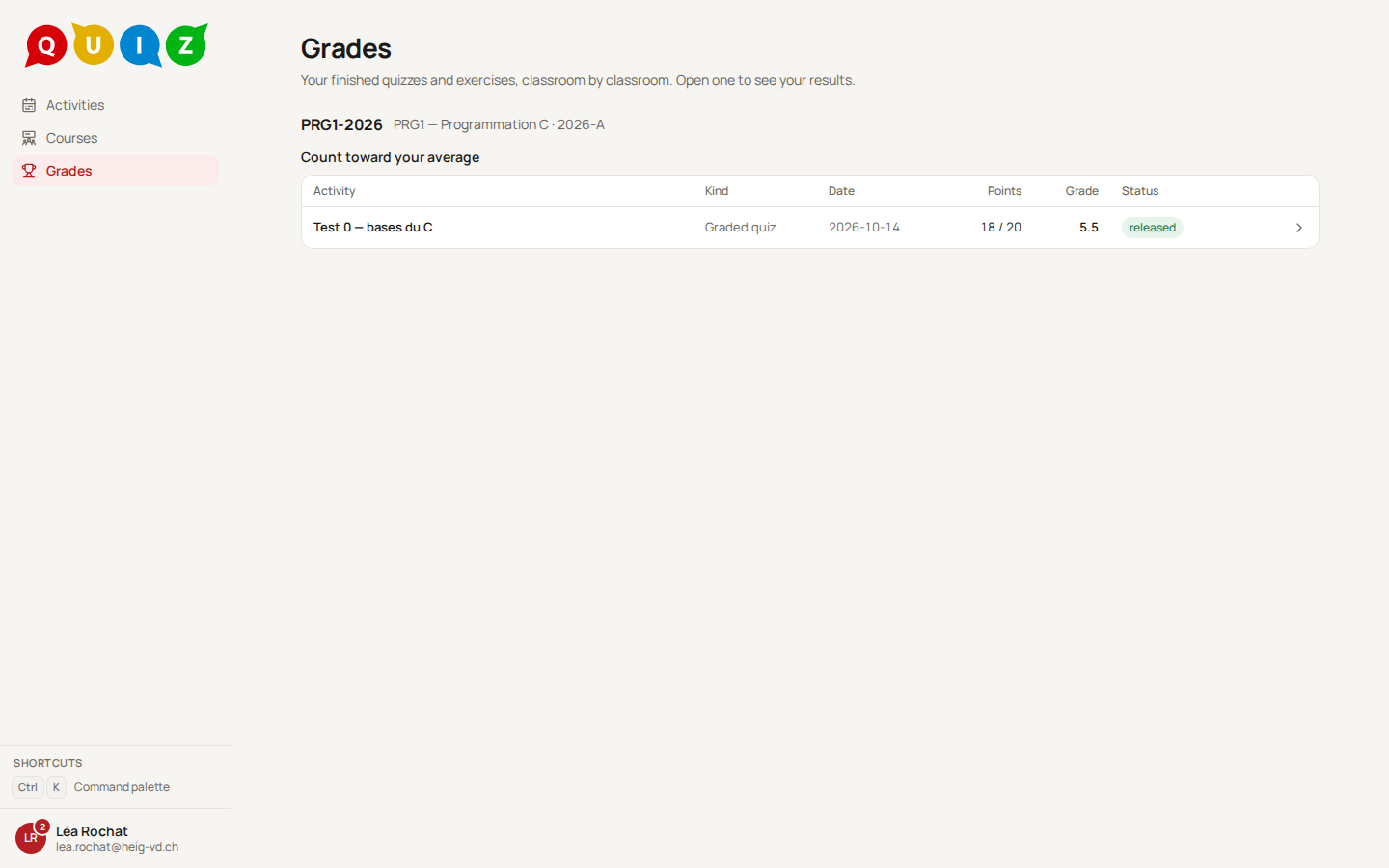
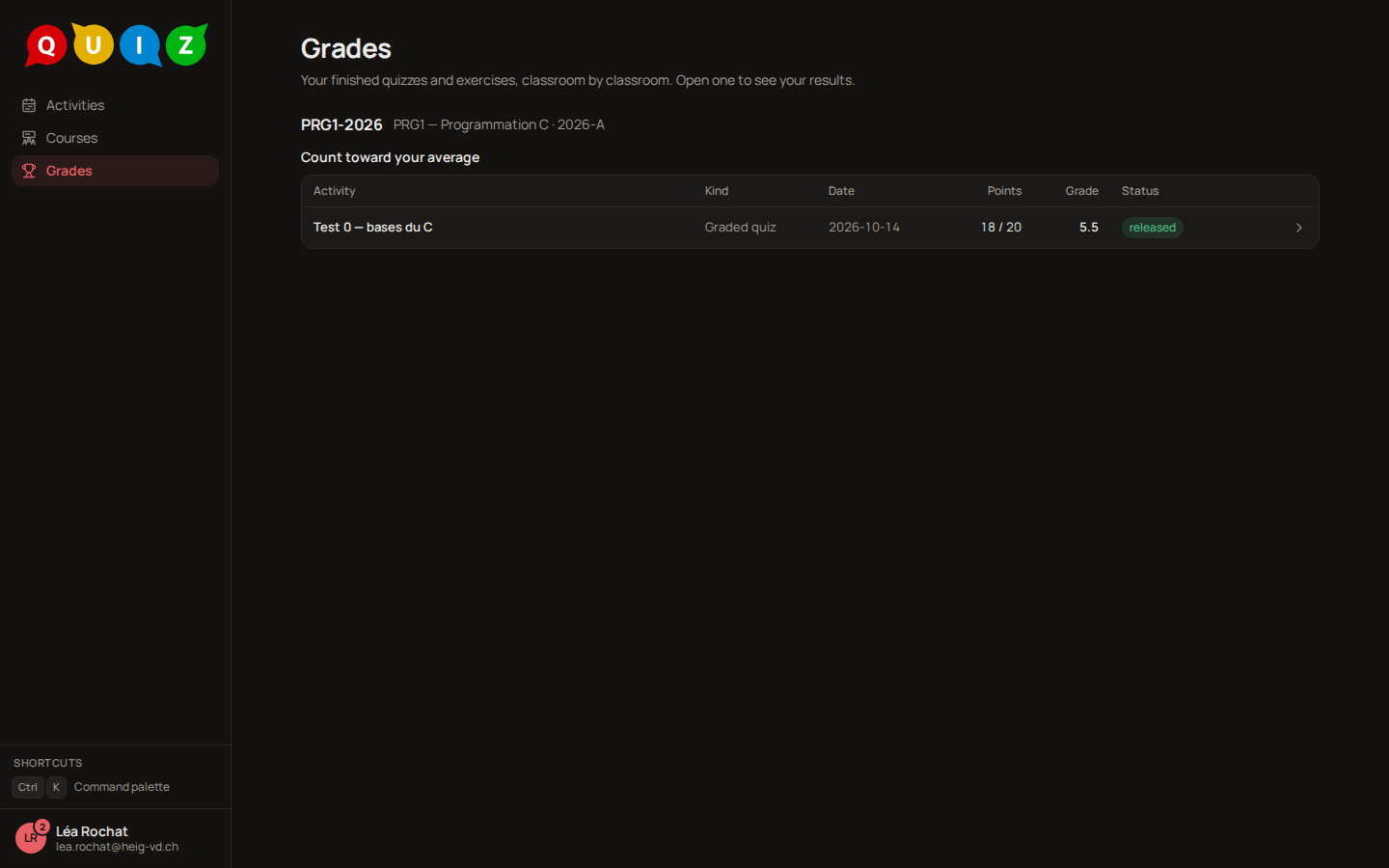
Grades lists everything you finished, one table per classroom, the most recent first; the classrooms of past years are there too, marked archived. Each row gives the activity, whether it is a graded quiz or an exercise, its date, and a status:
- released: your teacher published the results. The row shows your points and your grade.
- grade not shared: the results are published, but this evaluation shows no feedback at all: no points, no grade.
- results available: an exercise whose results you may already read, before any publication. The row shows your points, marked indicative, and no grade: the grade comes with the publication.
- results pending: you handed in; the results are not published yet.
- handed in: you handed in, and this evaluation publishes nothing.
- not taken: you did not take it. Once the results are published it carries the lowest grade, as on your teacher's list.
A row you can open has an arrow: it leads to your results page. On a phone, the rows become small cards, the grade on the right.
Your concepts in the drill
On the Drill page, a Concepts section appears for each classroom whose course lists concepts. Each row names a concept, your level on it and the number of cards it is based on:
- To work on, Getting there or Solid: how well you are likely to remember that concept today, from the drill cards you reviewed on it.
- No data yet: you have reviewed fewer than 5 cards on that concept, so no level is shown.
The levels are as of today and fade when a concept is not reviewed for a while, so a level can drop without any new mistake. Only questions whose answer you may already read count. Only you see these levels: there is no ranking and no comparison with your class.
Revising a concept before a test
The day's session is how you practise every day. Before a test, you can also revise one concept on purpose: Revise a concept, beside the Concepts heading of a classroom, opens a page that lists the concepts of the course. Pick one and press Start: a round of up to ten questions follows, taken among the questions you already met in that classroom's exercises and quizzes and whose answer you may already read. A question you answer wrong comes back once, a few questions later in the same round. At the end, Another round starts a new one on the same concept, with the questions you have not practised today first.
A round is practice only: it changes neither your daily schedule nor your levels, and a question you revised today leaves today's session. You may say how sure you are, as in the daily session; that stays in your browser. If none of your questions covers the concept yet, the page says so. Your teacher sees how many rounds you did and when the last one was, the concepts you revised, and how many questions you answered and got right; never a question nor your answers. The page also lists your own recent rounds: the concept, the date and how many you got right at the first try.
The waiting room
An in-class evaluation usually opens on a waiting room. You enter it from your home and wait; your teacher starts the evaluation for everybody at once, and your screen switches to the first question by itself.
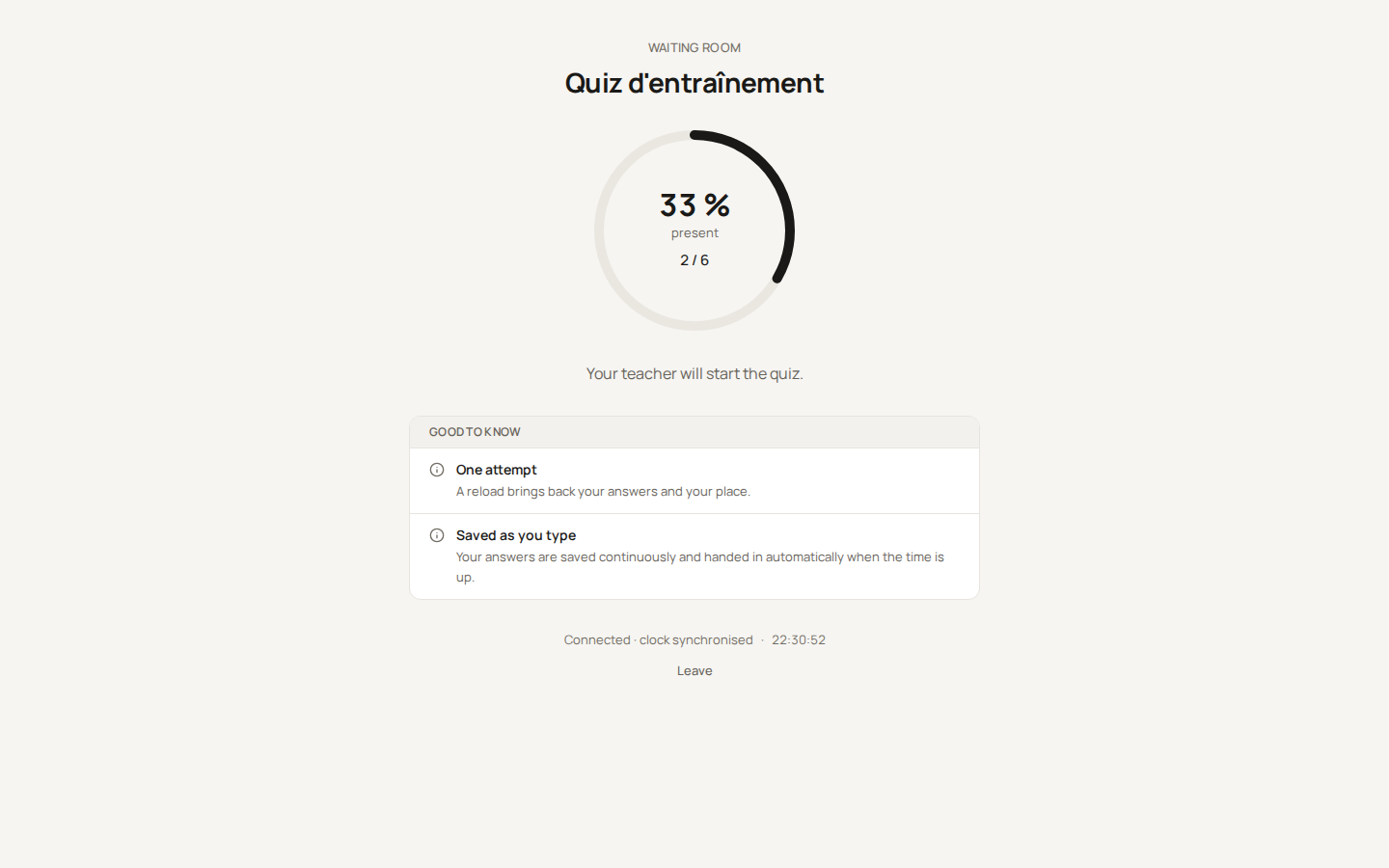
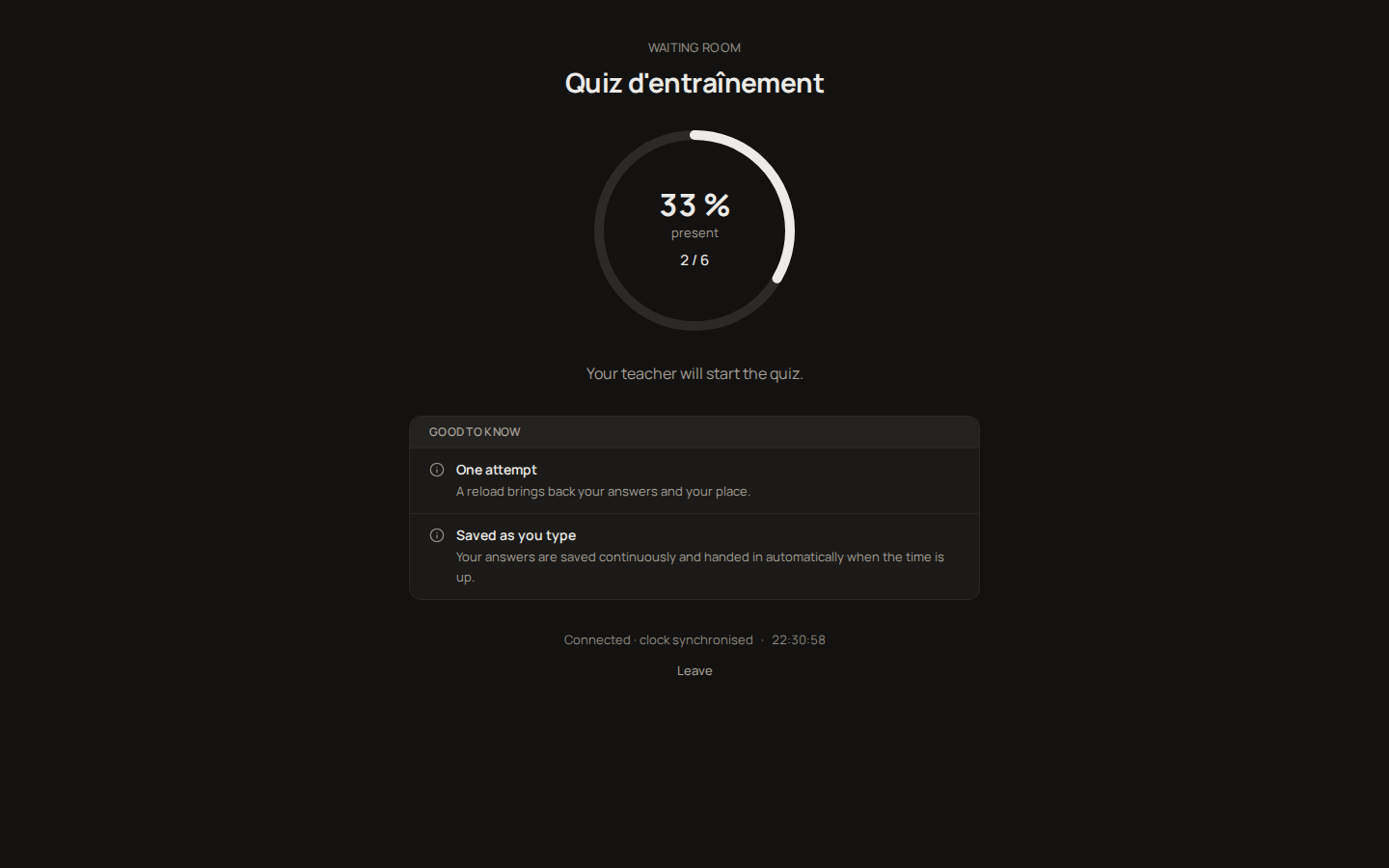
The ring shows how many students of the class are already here. Under it, three notes tell you what to expect: the clock is the server's, your answers are saved as you type, and you take the evaluation once. If you have extra time, the room says how many minutes that gives you. The line at the bottom reads Connected · clock synchronised once your browser has caught the server's time. Leave takes you back home; you can come back as long as the room is open.
Exams in Safe Exam Browser
Some exams are sat in Safe Exam Browser (SEB) only. Their card on your home says Open in Safe Exam Browser; press it and follow the three steps:
- Install Safe Exam Browser, once, from safeexambrowser.org (Windows or macOS). Skip this if it is already on the computer.
- Download the exam file. It is yours alone, works once, and expires after 5 minutes.
- Open the file. SEB starts and takes you straight to the exam without asking you to sign in again: to its waiting room, if it has one, until your teacher starts the exam, then to the questions.
The button appears once the exam is open; until then the card is under Coming up.
If SEB says the file is invalid or has expired, quit SEB and download a new file from your home. Once you have handed in, press Quit Safe Exam Browser on the screen that says so: SEB closes at once. The keyboard works too, Ctrl+Q on Windows and ⌘Q on Mac, though SEB may ask you to confirm. Your results are read later from your Grades, in an ordinary browser.
Sitting an exam on a kiosk station
Some exams can be sat on one of the school's Chromebooks locked on the exam, a kiosk station. You need your phone, signed in to the portal.
- Sit at a station. It shows its name, a code such as
BCDF-GHJKand a QR code. - Scan the QR code with your phone. If you are not signed in, sign in first; the phone then comes back to the code. You can also open the address shown on the station and type the code, or press Enter a station's code on the exam's card on your home.
- Check the station's name on your phone: it must be the one on the screen in front of you. Pick your exam and press Start on this station.
- The exam opens on the station within a few seconds: its waiting room, if it has one, then the questions. You can put your phone away.
A code works once and the station shows a new one every 5 minutes. If your phone says This code does not work, type the code the station shows now. If the station says Station not recognised or The station cannot start, call the supervisor. No phone? Read the code to the supervisor, who can start the exam on the station for you.
If the station covers the exam with This station is suspended, your answers are saved: call the supervisor. The exam comes back by itself once the station has been checked again.
When you hand in, the station goes back to its start screen by itself. Your results are read later from your Grades.
Taking an evaluation
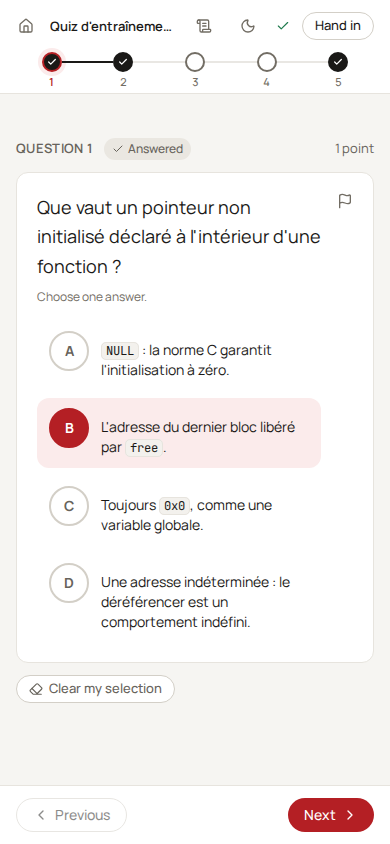
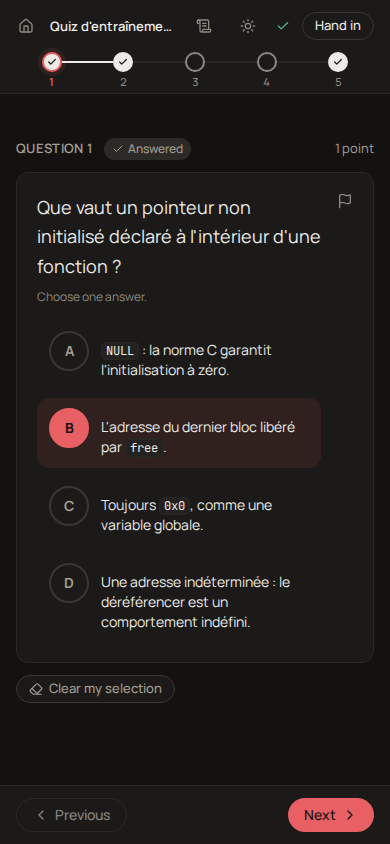
The player shows one question per screen. The strip at the top is the list of the questions, one segment per question, and clicking a segment moves to that question when the navigation allows it. Each segment says where you stand, by its shape as well as its colour: a solid bar with a check for a question that holds an answer, a dashed bar with a dash for one you left unanswered, a hollow bar for one with nothing yet, and a small flag beside the number of a question you flagged for review. The current question is outlined in red. The header carries the countdown when the evaluation is timed, the saving indicator, a theme toggle and Hand in. On a wide screen the list stands in a column at the left edge instead of the strip, and stays in the same place from one question to the next.
The question types
- A multiple-choice question lists its choices; the line under the statement says whether to choose one answer or several.
- A short-answer question has one field under Your answer. Spelling counts as far as the teacher decided.
- A fill-in-the-blanks question shows a text or a piece of code with fields inside it; fill every blank.
- A code question shows the template with the parts you cannot change greyed out and an editor for the part you write. On a screen wide enough (a laptop of 1366 px or more) the statement stands on the left and the editor on the right, so the statement stays in sight while you write; on a smaller screen they follow each other. It is described below.
How each type is graded is explained from the teacher's side in question-types.md.
The clock
The countdown in the header is the server's clock, the same for everybody whatever your device says. It counts your own duration from your own start, extra time included. The teacher can pause the evaluation or extend it for the class, and your countdown follows without a reload.
Navigation
Your teacher chooses one of three rules, and the waiting room names the one in force.
- Free navigation: you move between questions as you like and change an answer until the time is up.
- One way through: a question you validate cannot be opened again.
- Checkpoints: the list has milestones. Passing one closes every question before it, and you do not come back. The player asks for confirmation before you cross a milestone.
Your teacher may put a text before a question: instructions, a transition, something to read. It shows as a page of its own, Before question 3, with a Continue button. Under free navigation, Read the text again above the question brings it back; otherwise the page tells you that once you continue, you will not be able to read it again.
A question counts as answered as soon as it holds an answer: there is nothing to click, and the header of the question reads Answered. The rest is quiet:
- The flag in the top-right corner of the question marks a question you want to come back to (Flag for review). Click it again to take it off. It changes nothing to your grade. Your teacher sees the flags on the live grid, which tells them when a question is unclear to many; the other students never see them.
- Leave unanswered, under a question with nothing in it, tells your teacher you left it blank on purpose; the question then reads Left unanswered. Writing an answer takes it back, and so does pressing it again. A question left blank scores 0 either way.
- Clear my selection, on a multiple-choice question, withdraws what you ticked. It matters when a wrong choice costs points.
Under One way through, each question ends with Validate and continue, or Leave blank and continue when it holds no answer: it asks for a confirmation, closes the question for good and moves to the next one (Ctrl+Enter does the same). Under Checkpoints, the checkpoint question carries the same button, and validating it closes everything up to it.
How answers are saved
Your answers are saved as you type, a fraction of a second after each change. The indicator in the header reads Saving… then Saved. There is no save button anywhere, and nothing to do before moving on.
If the connection drops, the indicator turns to Offline and a banner says You are offline: your answers are kept on this device and sent again as soon as the connection comes back. You can keep writing meanwhile. A reload, a closed tab or a crashed browser costs you nothing either: reopening the evaluation brings back your answers and your place. Only what was still unsaved at the very moment of the deadline is lost, and the deadline is what the next section is about.
Note
You take an evaluation once. Opening it in a second tab or on a second device shows the same attempt, not a new one, and two tabs writing the same question overwrite each other. Keep to one.
Running a code question
A code question has a Run button under the editor, next to Visible cases. It compiles your program and runs it against the cases the teacher chose to show, and lists what was expected, what your program printed and a verdict per case. The hidden cases only run when the question is graded.
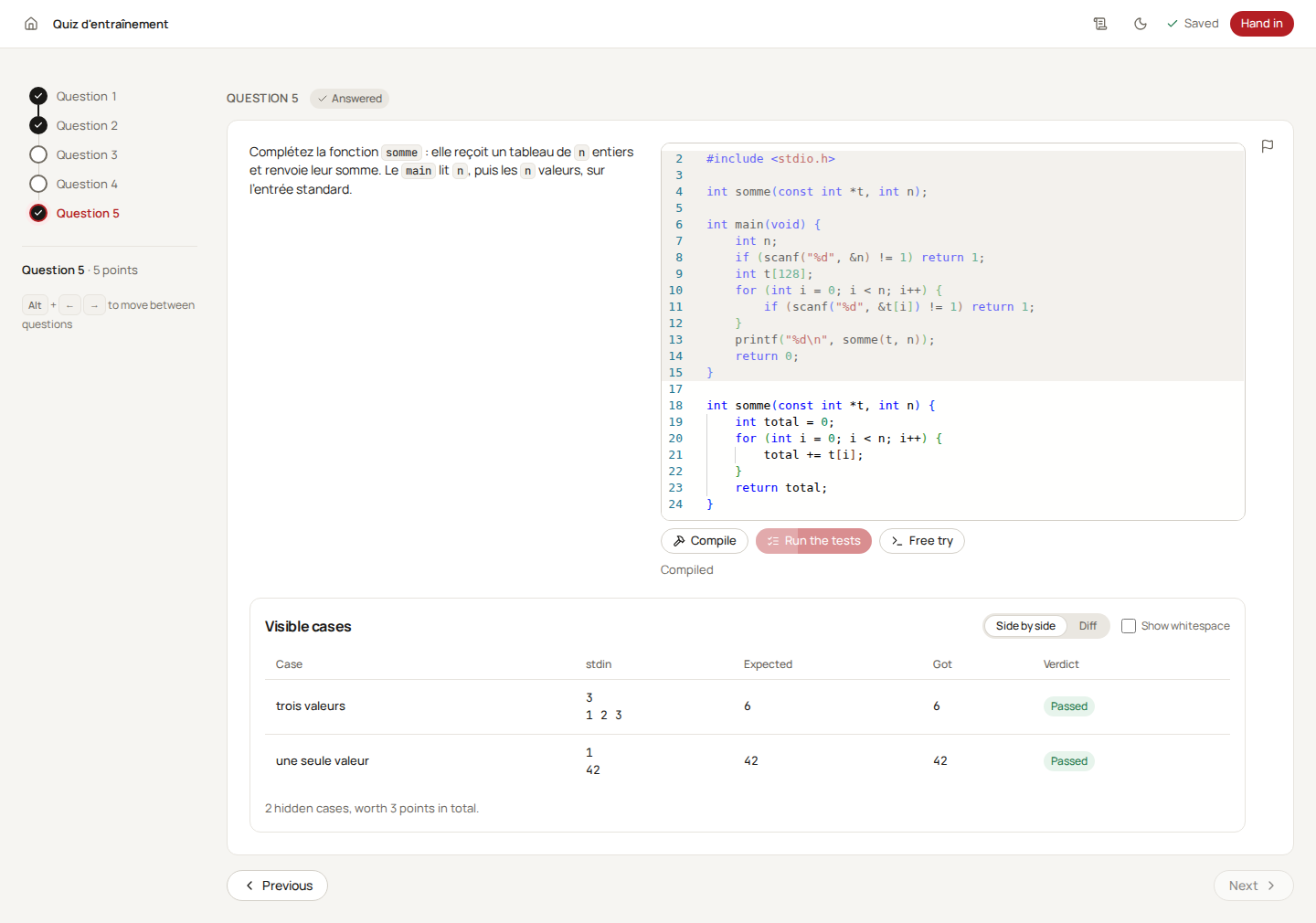
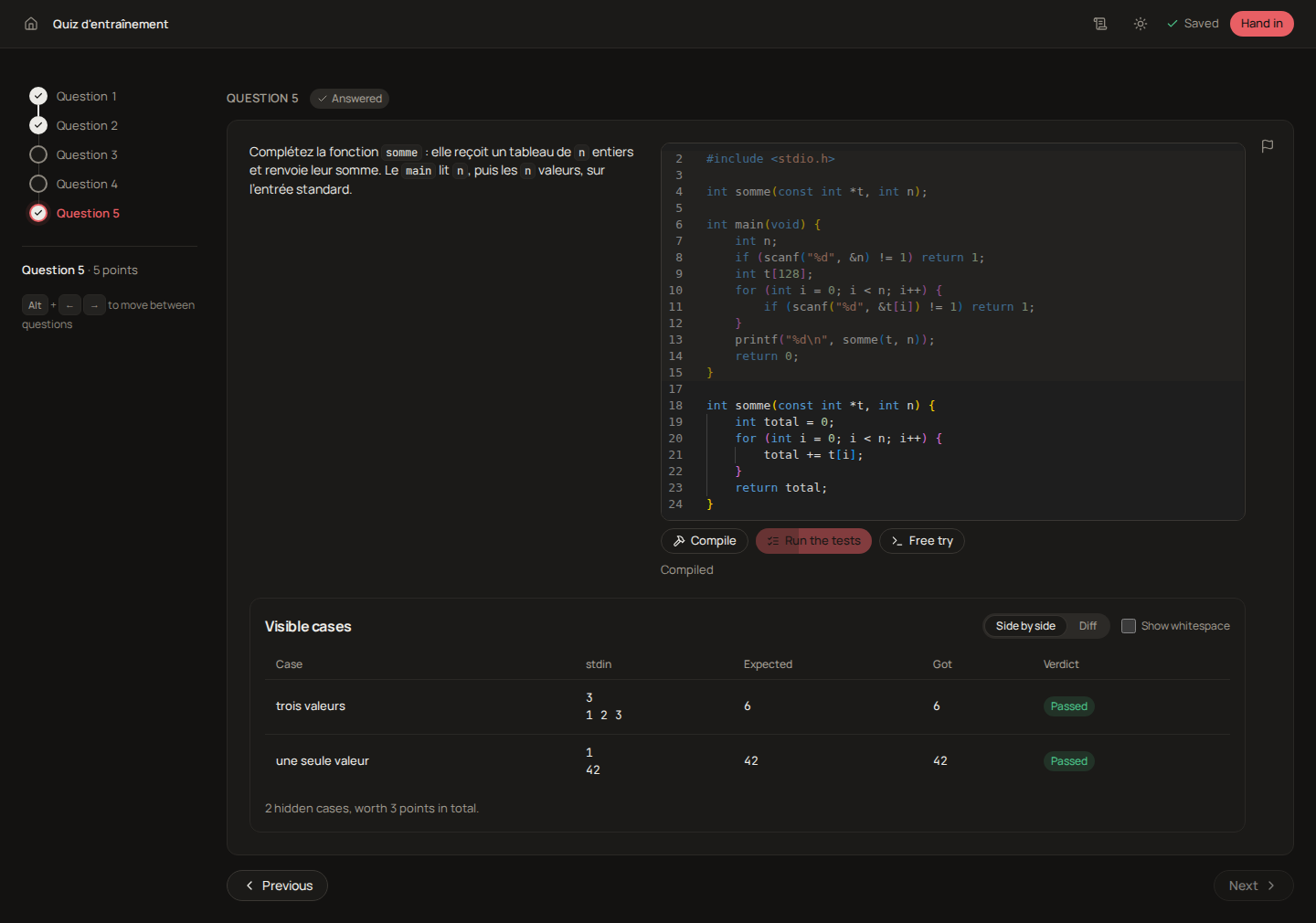
Depending on the question, the run happens in your browser: the page says Runs in your browser — the server grades. The first run downloads the language runtime and shows Loading the language runtime… this happens once., so run once early rather than at the last minute. Try it yourself lets you run the program on an input of your own with Run once; nothing there is graded.
Whatever Run says, the grade is computed later by the server, from the source it rebuilds out of the template and what you wrote. Run is a trial, not the grading. If running is unavailable, your answer is still saved and graded normally.
The calculator
When the evaluation provides one, a round calculator button sits at the bottom right of the player, and the waiting room says so. It opens a standard or a scientific calculator, as your teacher chose, beside the question: you can keep reading and typing your answer while it is open. It respects the order of operations (2 + 3 × 4 gives 14), and the scientific one reads angles in degrees until you switch DEG to RAD. While it has the focus, the keyboard types into it (Enter for =, Backspace to erase); Escape or the button closes it, and it keeps its number until you open it again. If you prefer reverse Polish notation, turn on RPN calculator in your Settings: you type a number, press Enter to put it on the stack, then an operator takes the top two values (3 Enter 4 + gives 7), with no = and no parentheses. Nothing you compute is sent to anyone. Copy a result by selecting it; the answer is still yours to type.
When the teacher pauses
If your teacher pauses the evaluation, an overlay says The quiz is paused. The clock is stopped and what you write is kept until it resumes; the page comes back by itself when it does.
Handing in
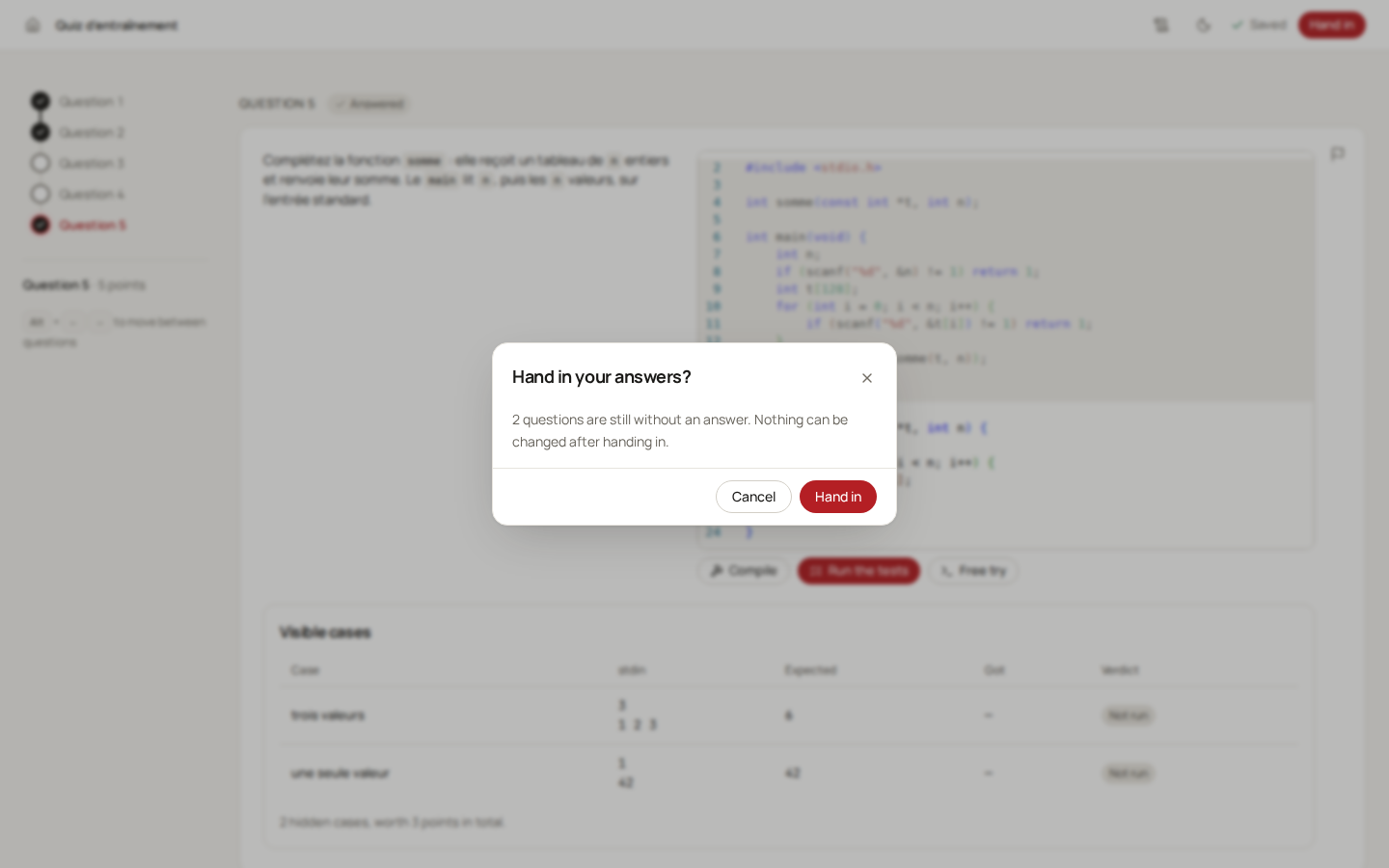
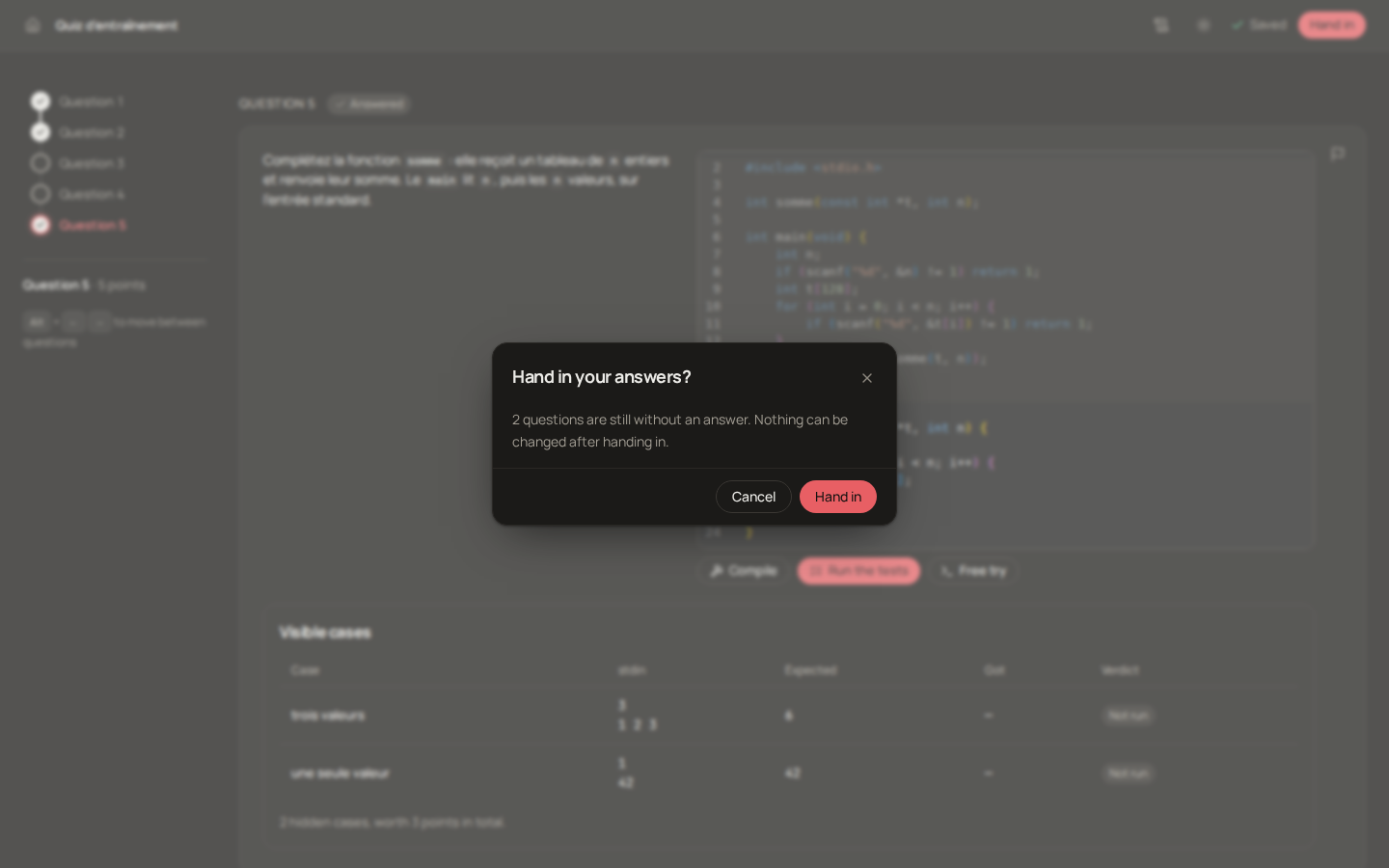
Press Hand in in the header when you are done. The confirmation names how many questions are still without an answer, and reminds you that nothing can be changed afterwards. Cancel takes you back to the questions.
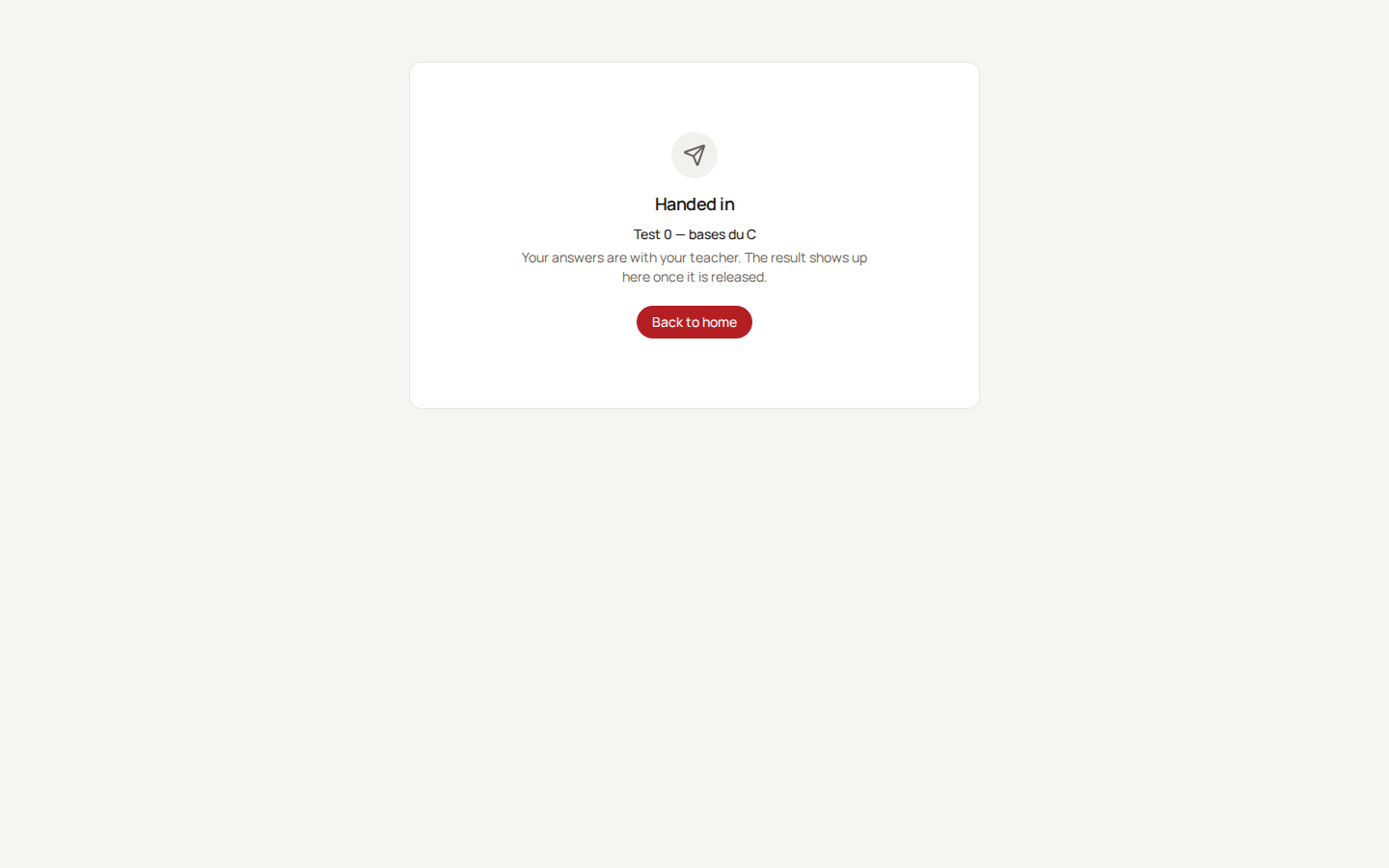
Once handed in, the player is replaced by a card that says Handed in, with Back to home. When your teacher shows the results right after hand-in, the card also offers See my results.
At the deadline
You do not have to hand in. When your time is up, the attempt closes by itself and the screen says Time is up: your answers were saved and handed in automatically. The server accepts a save that was still travelling for three seconds after the deadline; after that, nothing more is accepted, whatever the browser shows. If your teacher closes the evaluation early, the same happens with the message The quiz is closed.
Your results
See my results, on the Handed in card, or a row of your Grades, opens your results page. What it shows depends on what your teacher decided.
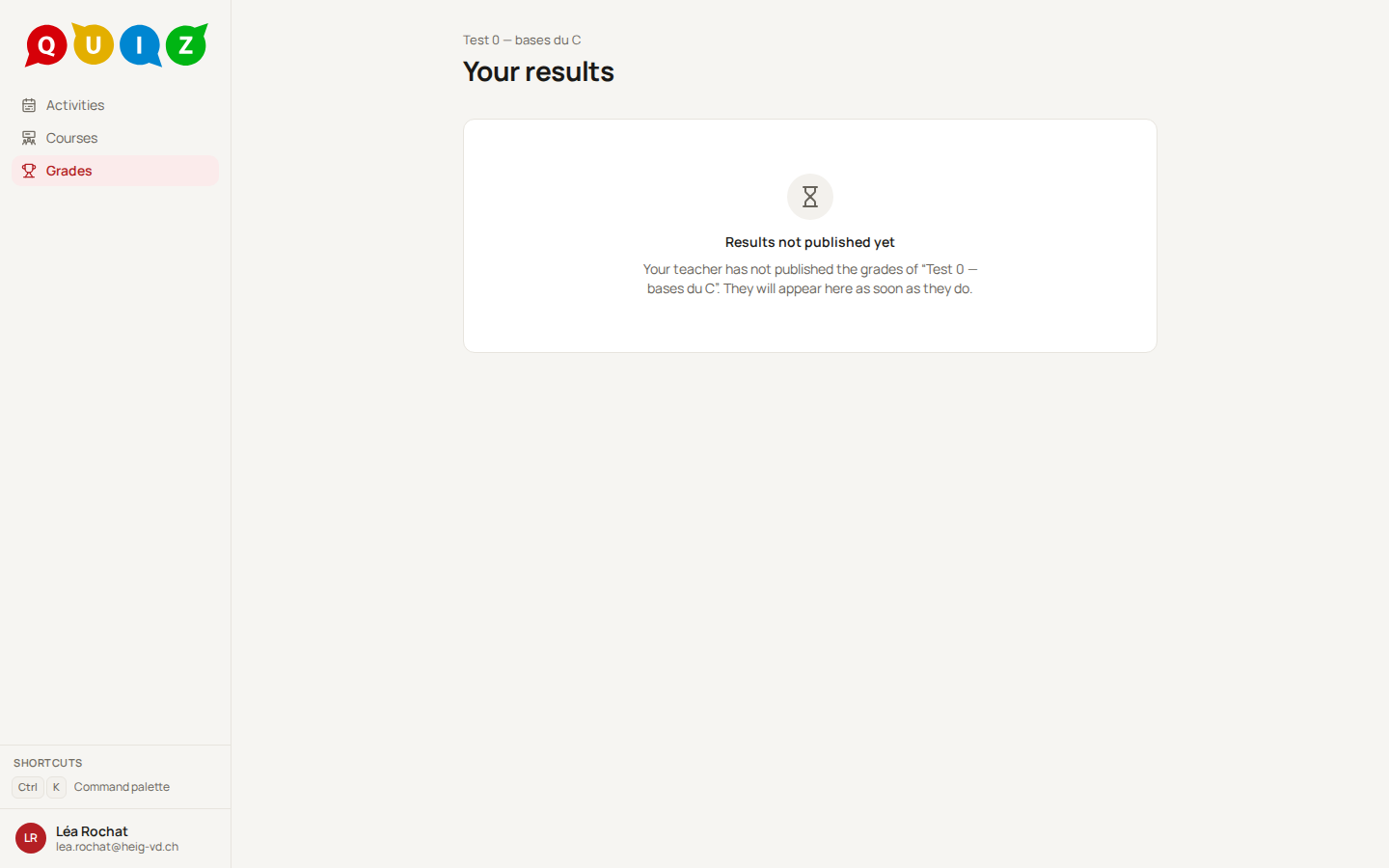
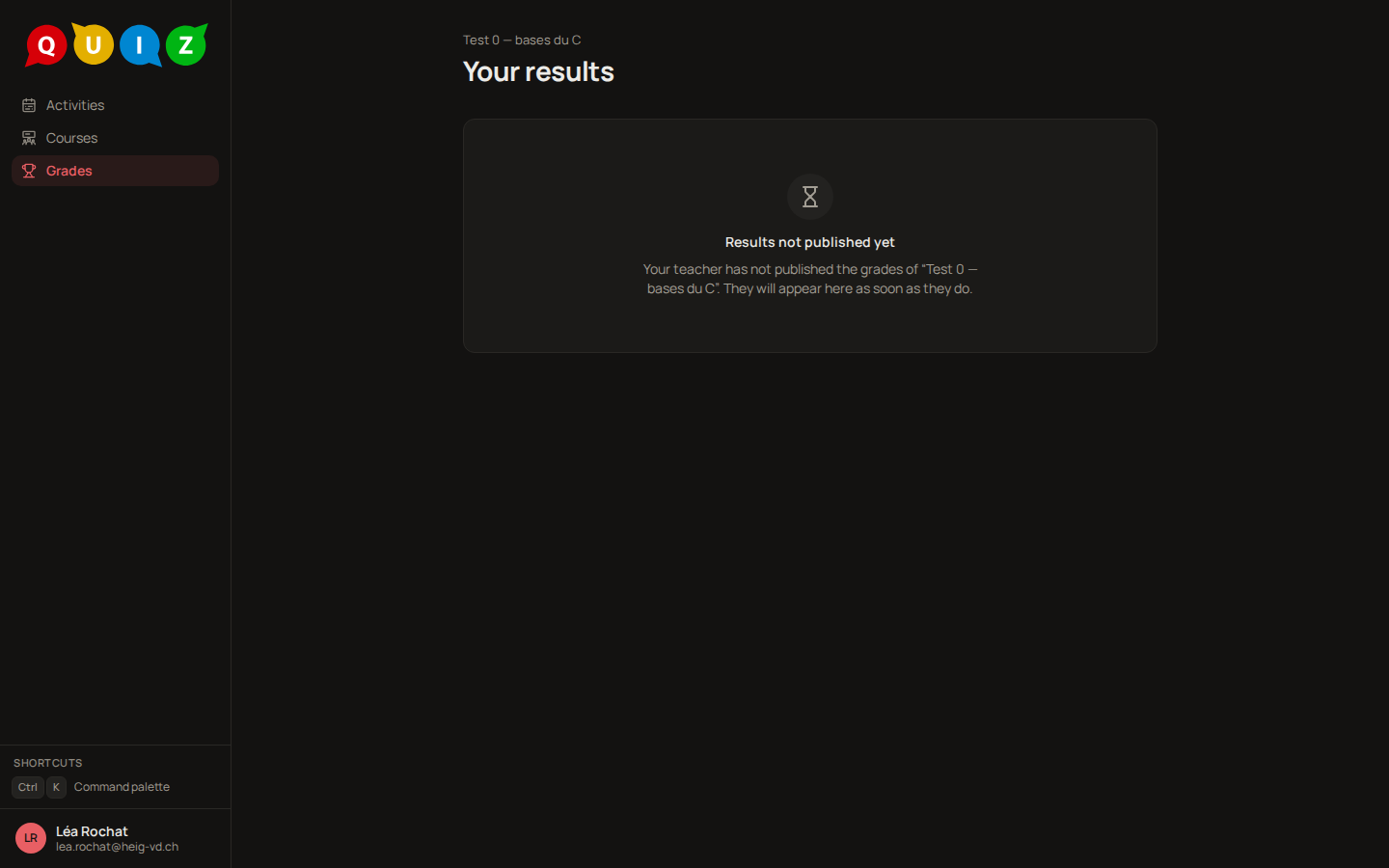
For a graded quiz, nothing shows until your teacher publishes the results: the page reads Results not published yet. For an exercise, the feedback may be immediate, and your teacher may also publish the correction while the exercise is still open: your results page then shows it, and Try again stays there if you may retake. An evaluation can also be set to show no feedback at all, in which case the page says so and your teacher tells you your grade otherwise.


Once published, the page shows your Grade and your Points, then one card per question with your answer and its score. According to the feedback policy of the evaluation, a card may also show the expected answer, an Explanation written by the teacher, and Your teacher's comment on your answer. If your teacher adjusts a grading afterwards and publishes again, the page updates.
Projects
A project is graded work in your own GitHub repository. It shows on your home and on your classroom's page like a quiz, and its one button follows where you are: Link GitHub (once), Accept, Open the invitation, then Open repository. The page of the project shows your repository, the indicative score while you work, and the final score and grade once your teacher releases them. The whole path, step by step, is in Projects, groups and the journal.
Groups
For a group project your teacher may let the students form the groups. Your classroom page then has a Groups tab where you create, join, leave or rename a group until the date shown. See Forming a group.
The journal
If your teacher keeps a journal for the course, your classroom page has a Journal tab: the pages of the course to read, with a table of contents. See The journal.
Settings
Settings, in the menu under your name, holds your profile as the platform knows it and your preferences: Language (English or French, saved on your account so it follows you across devices), Appearance (Light, Dark or System) and the date format. Your linked GitHub account, if any, and the channels of your notifications are there too.
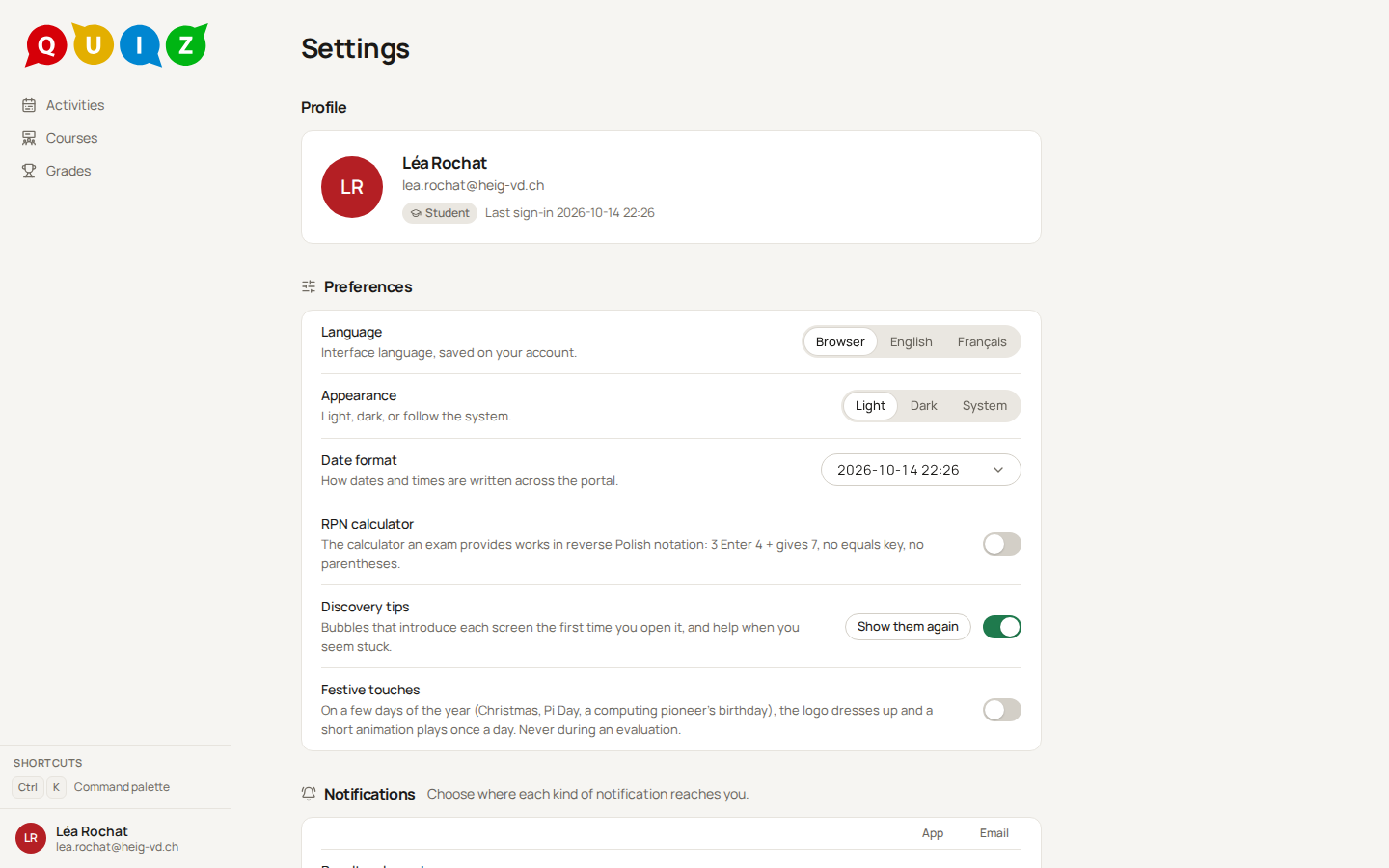
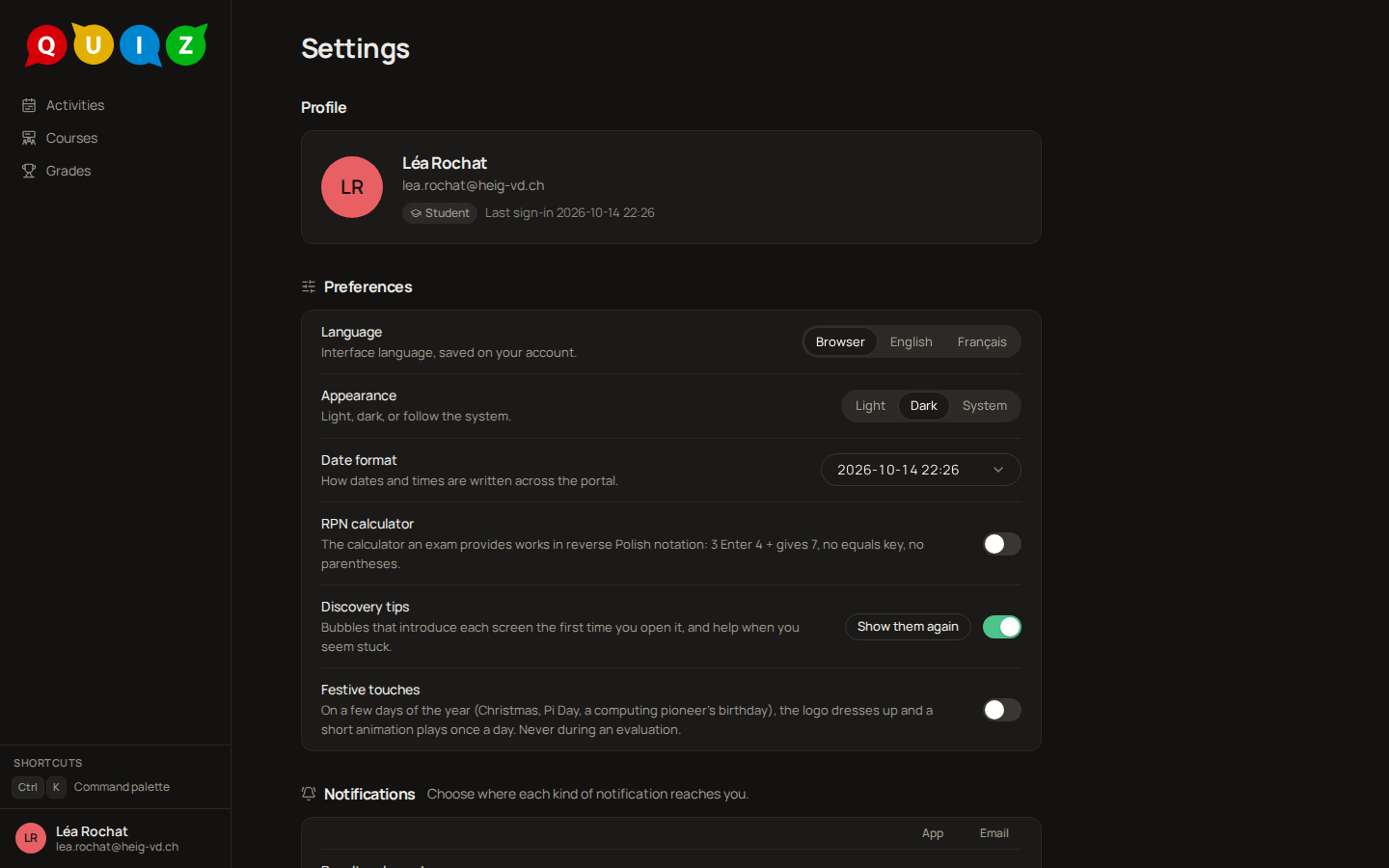
The theme can also be flipped from the player's header during an evaluation, and Ctrl+K opens a command palette from any page.
Before an exam
- Charge the laptop, or bring the charger: a dead battery is not a reason to reopen an attempt.
- Sign in the day before and check that the classroom shows on your home, with the right e-mail address.
- Open the evaluation from your home as soon as the waiting room is announced, so the ring counts you present.
- On a code question, press Run once early: the first run loads the language runtime.
- Keep to one tab. A second tab shows the same attempt and does not give you a second one.
- Watch the countdown, not your watch: the clock is the server's, and nothing is accepted more than three seconds after it reaches zero.