Courses and classrooms
A course is the lasting unit you teach; a classroom is one group following it for one period. This chapter creates both, fills the roster, and explains what students see on their side.
Creating a course
On Courses, click New course. A course has a Name, for example "Programmation C", and a short Code, the course's acronym or institutional name, for example PRG1; the code is shown beside every classroom of the course in the sidebar. Create course adds the card.
A course card is a summary of four things:
- its classrooms, listed with their period and their headcount;
- its Staff, the colleagues who share it;
- the Pools of this course, the pools its evaluations may draw from;
- how many evaluation templates it keeps; the count opens the course page.
The course's name opens its page. Under the title, five tabs, and the primary action at the right of the title changes with the tab: Classrooms (the default, with New classroom), Templates (New template), Linked pools (Link a pool), Members (Add a staff member) and Settings, which has none. An assistant of the course sees only New template there: the other three are an owner's (see below), and their Settings tab holds only whether the course shows in their own navigation.
A course outlives a class. The same "Programmation C" carries the classroom of 2026, then the one of 2027, and its staff and pools stay in place from one year to the next.
To rename a course or change its code, open its Settings tab and click Edit on the Name and code row. The code is unique across the platform: a code another course already uses is refused. The same tab hides the course from your own navigation (Hide for me) and deletes it.
The Concepts section of the Settings tab lists the concepts the course teaches. An owner adds one by typing in the Add a concept field, as in the question editor: pick one of the vocabulary, or create a new one, which stays proposed until the administrator validates it. Remove a concept with the cross on its chip. The list is sorted by name and is kept as you leave it: there is no order to maintain. An assistant reads it without being able to change it. Students never see it. A concept the course lists cannot be deleted by the administrator, and when the administrator merges it into another, your list shows the surviving concept instead.
Adding a colleague to the staff
On the course page's Members tab, click Add a staff member (the card's menu, the three dots, offers it too). The field asks for the E-mail of an existing account: the colleague must have signed in once, otherwise the form answers "No account has signed in with this address yet." The form also asks for the Role: Assistant (the default) or Owner. Every member of the staff reaches the course and all its classrooms; an owner also runs it — adds and removes members and changes their roles, renames or deletes the course, links and unlinks its pools, creates and deletes its classrooms, and publishes or withdraws results and publishes the correction of an exercise; once results are published, only an owner changes a grade, and only an owner deletes an evaluation that students took or whose results or correction are published (a poll, once its results are published). An assistant does everything else: evaluations, grading until the results are published, rosters, a classroom's settings. Each member's row on the Members tab shows their role; an owner finds Make owner or Make assistant and Remove from the staff there, and every member finds Leave the course on their own row. A course keeps at least one owner: its last owner can be neither removed nor made an assistant. Adding someone already on the staff is refused; change their role instead.
Being on the staff of a course is enough to be a teacher: a colleague you add does not need a grant from the administrator.
Linking a pool
The evaluations of a course draw their questions from the pools linked to it, and only from those. Link a pool, on the course page's Linked pools tab, offers your pools; a linked pool appears with its question count. From the pool's own menu there, Unlink from this course removes the link and nothing else: the pool and its questions stay where they are, and the evaluations that already use its questions keep them. One pool can feed several courses. See Question pools for the pools themselves.
Creating a classroom
On the course page's Classrooms tab, click New classroom. A classroom has a Name, such as PRG1-2026, and an optional Period, such as 2026-A. It appears in the card and in the Classrooms section of the sidebar.
The classroom screen
The eyebrow above the title names the course and goes back to it. The title is the classroom's name, followed by the page's help ?, by the period and, when the classroom is connected to GitHub, by its organization. Under the title, four tabs, and the primary action at the right of the title changes with the tab, always in the same place: Add students on the roster, New evaluation on the activities; the Drill tab is a read view and Settings a page of settings, and neither has one.
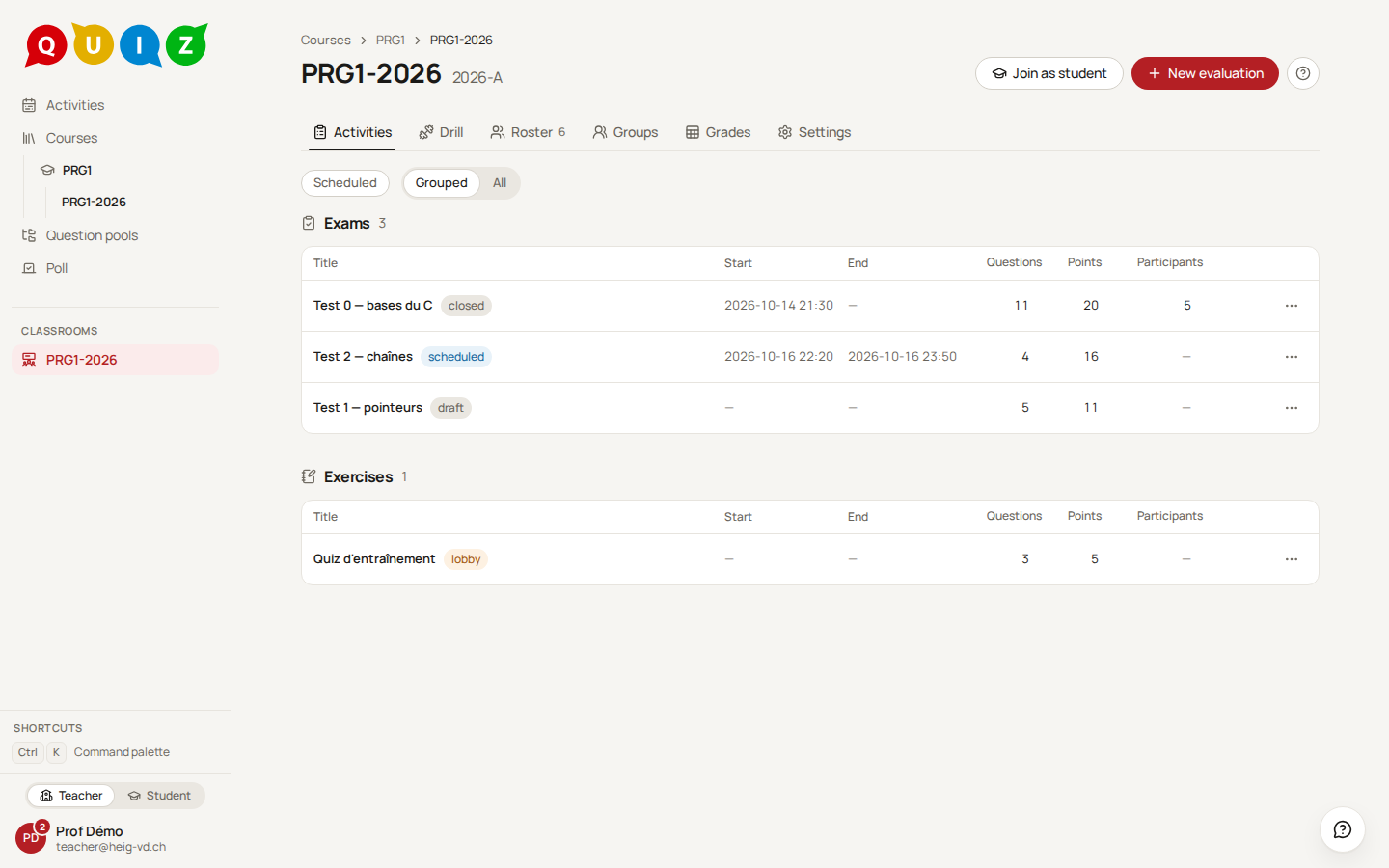
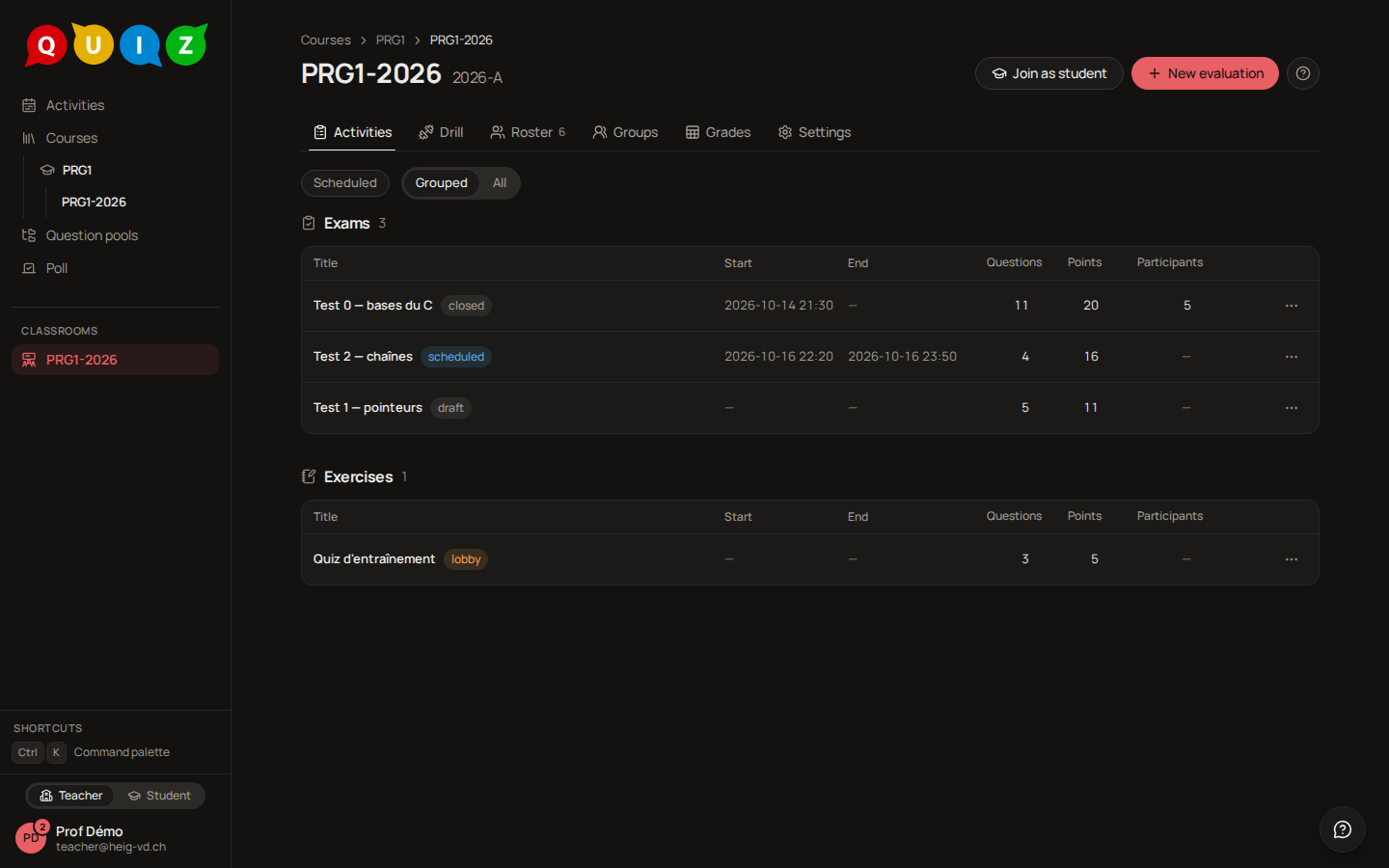
The Activities tab opens on an Evaluations section, which lists the evaluations you run with this group, each with its state: draft, scheduled, waiting room (shown as lobby), running, paused, closed, grading, released. The row's menu leads to what the state allows: the setup, the live dashboard, the grading panel or the results. The chapters Evaluations, Running an evaluation and Grading and results take it from there.
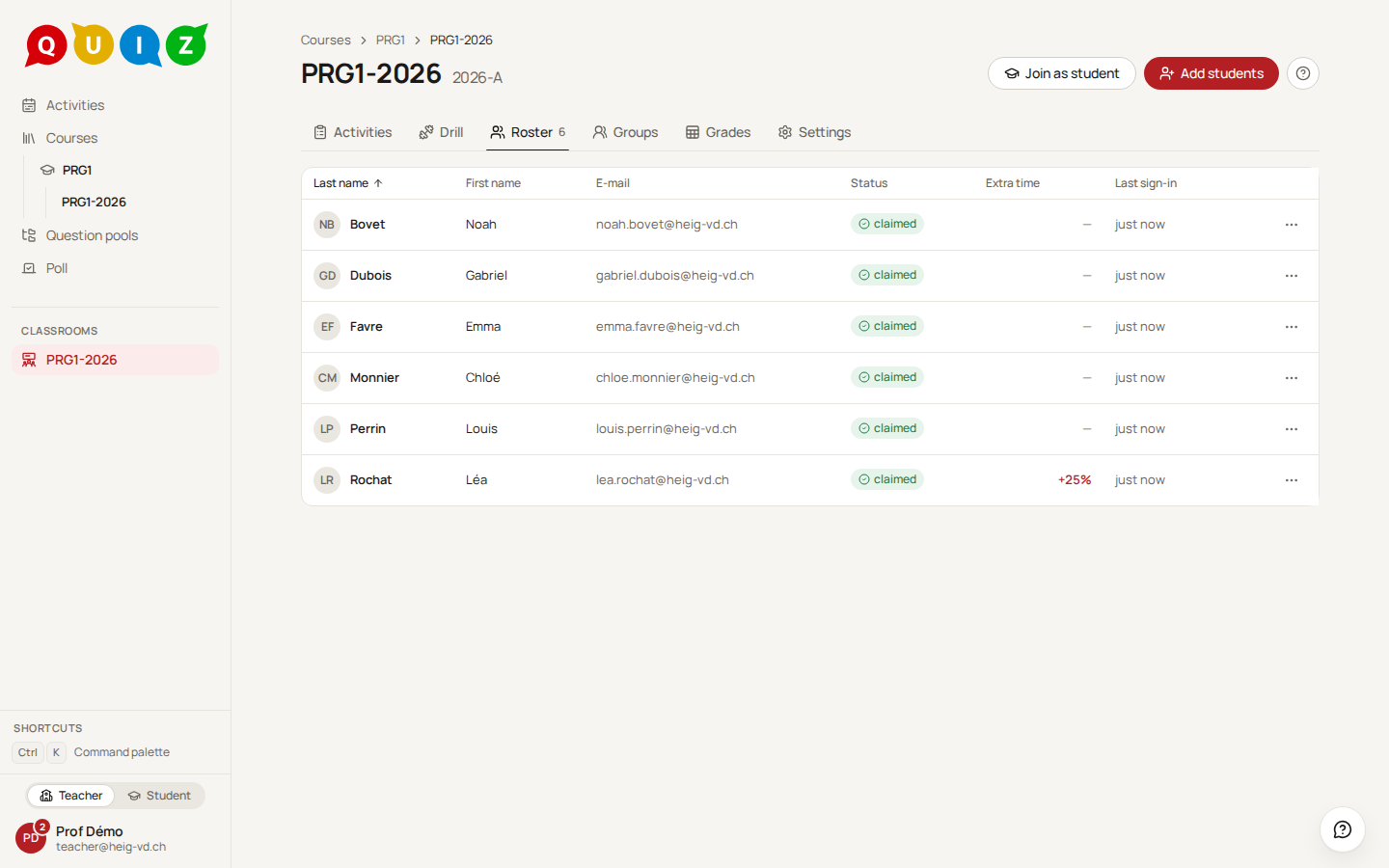
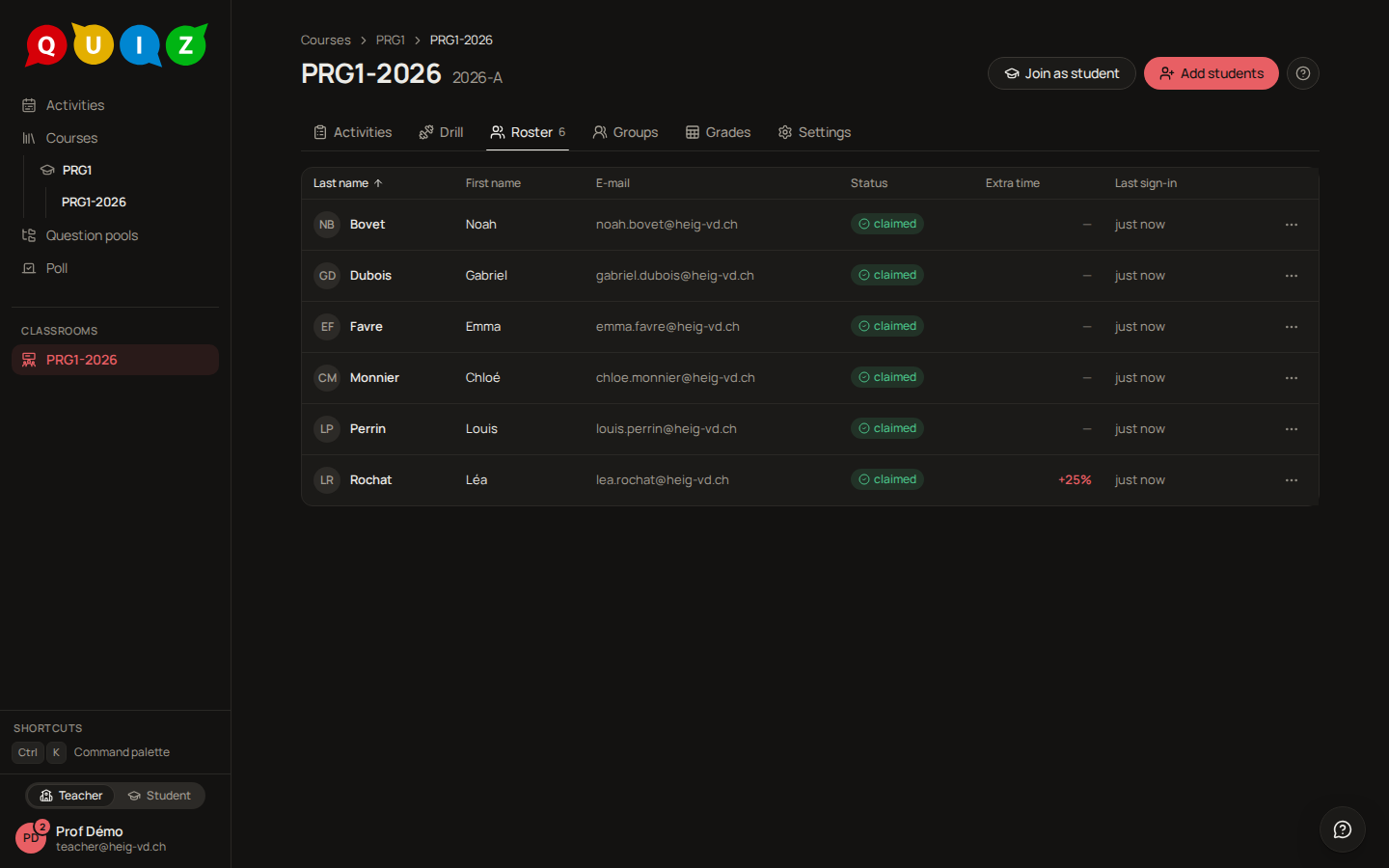
Roster is the class list: Last name, First name, E-mail, Status, Extra time and Last sign-in. The count on the tab is the headcount. Click a column header to sort.
Drill is the classroom's spaced practice. With the drill off, the tab says so, and Open Settings leads to the Drill switch that turns it on. With it on, one row per student: the Recall, 30 days — the share of reviews of questions the student had already practised that were not failed, a question's first review left out — with an arrow when it rose or fell against the 30 days before, the Sessions (days with a review), the Questions seen, the Reviews, 30 days and the Last activity. A student who opted out carries an Opted out on badge with the date: nothing after it is counted, what came before stays. Click a row for that student's weeks: reviews per week, and the recall rate per week against the scheduler's 90 % target. Below the table, Mastery on the course's concepts: for each concept the course lists (its Settings, section Concepts), labelled in your interface language, the chance today that the students still recall the questions they practised, weakest first, with the number of cards and students behind it. A question counts under every listed concept that covers one of its own. A listed concept that no practised question carries reads No evidence yet: that is not a low mastery, nothing has been exercised. What the list does not cover is gathered in the folded card Outside the course's list. A course that lists no concept shows Mastery per concept instead, over every concept of the practised questions, with a hint to declare them. Questions whose key students may not see (a withdrawn release) are left out. A question counts under the concepts it is classified by today, so a concept added to a question later also gathers that question's past reviews. Only the questions a student first met in this classroom count here. Students are told in their drill tab that you see this activity, which is kept five years.
Students may also revise one concept of the course on purpose before a test, in rounds of their own questions (targeted revision): practice that feeds neither their schedule nor the mastery above. The Targeted column of the table counts each student's rounds, and the section Targeted revision, between the hours and the mastery, lists for each concept how many students revised it, in how many rounds, and when last. A student's sheet adds their rounds, how many questions they got right at the first try, the last day and the concepts. You never see a question or an answer of a round. A student who left the drill has no targeted revision.
Importing the roster
On the Roster tab, click Add students. The drawer offers three ways in, and you can mix them:
- From a file: drop an Excel or CSV export (
.xlsx,.xls,.ods,.csv) or click to browse. - One student: a last name, a first name, an e-mail and an optional extra time, then Add.
- Pasted CSV: paste lines with a header, then Import CSV.
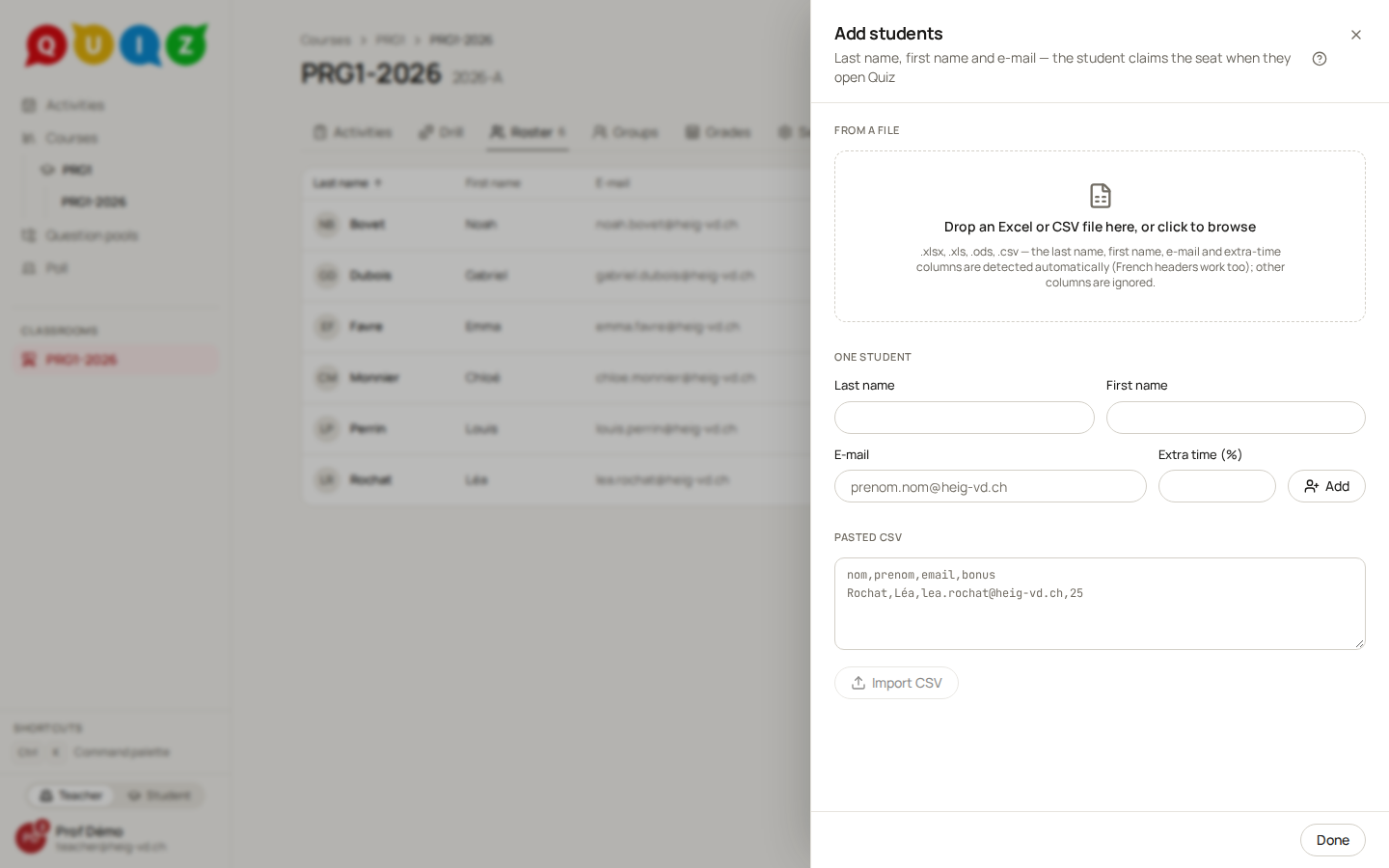
The columns are detected permissively. Last name, first name, e-mail and extra time are recognised whatever the case and the accents, under French or English headers; the header does not have to be on the first line, and extra columns are ignored. The only required column is the e-mail: it is what a student is matched on. Export the list straight from the school's tools and drop it as it is.
The extra-time column is optional. It is recognised under names like bonus, temps supplémentaire or extra time, and accepts 25, 25 % or 0.25.
The import is atomic: a single bad line rejects the whole file, the drawer lists each rejected line with its reason, and nothing is written. Fix the file and drop it again.
Re-importing is safe. Existing seats keep their claim, names are refreshed, nothing is deleted implicitly, and a sheet without an extra-time column never clears an accommodation you set by hand. Import the new export of the class list whenever it changes; only the newcomers are added.
How students claim their seat
There is no invitation code. A seat is pending until the student opens Quiz themselves with an address that matches it: at their sign-in, or on the next page they load if they are already signed in. At that moment it becomes claimed and the classroom appears on their home. Importing a list or editing an address never attaches anyone on its own, even a student who already has an account: until they come, the row shows no last sign-in, no picture and no GitHub account. A student you add from the waiting room on exam day gets in by reloading the page. Matching runs against every address the identity provider reveals for the account, not only the one they typed, so a student registered under a private address at edu-ID still claims a seat listed with the school address. The classroom's card on their side names the course, the period, the staff and their extra time, if any: see For students.
When the matching is ambiguous, because the same student sits on two seats or an address belongs to two accounts, the seat is flagged conflict when that student opens Quiz, and nothing is attached on a guess. The course's teachers are told by a notification, counted per classroom; edit or remove one of the rows to resolve it.
Editing a row
The menu at the end of a row offers Edit, Revoke claim and Remove from roster.
Edit opens the name, the address and the extra time in place. Changing the address revokes the claim: the seat goes back to pending, and the holder of the new address claims it the next time they open Quiz. The form warns you before you save.
Extra time is a percentage of the nominal duration of every timed evaluation of this classroom, applied automatically when the attempt starts. A student at +25% on a 45-minute exam gets 56 minutes. On an exercise with a common deadline, the extension is the same percentage of the announced window, and that student's attempt closes that much later than the class. It comes from the import file when the sheet carries the column, and can be edited row by row.
Revoke claim puts a seat back to pending without touching the name or the address: the student it matches claims it again the next time they open Quiz, so change the address to give the seat to someone else. Remove from roster takes the student off the list; their past attempts and results are kept.
Join as student
Join as student, the button beside the primary action, gives you a seat in your own classroom, flagged staff, which stays out of the headcount and the results. With it, Switch to student view in the account menu shows you this classroom the way a student gets it, and you can take an evaluation from start to finish as one. It is the right way to check an evaluation before opening it to the class.
Settings: rename, drill, GitHub, archive, delete
The period is changed where it is written: click it beside the name, or Set period when there is none; the dialog sets its months and its label. Everything else of the classroom's life is in its Settings tab.
- Name: Rename opens a dialog with the name; Save changes it everywhere it is shown.
- Drill: the switch that turns the classroom's spaced practice on or off (see the Drill tab above).
- GitHub: see Connecting a classroom to GitHub below, and Connecting GitHub for the whole setup.
- Journal: the course documentation, in Quiz or in a repository (see The journal).
- Archive puts a finished classroom aside without deleting anything: it leaves the sidebar and the course card, and its roster, evaluations and results stay readable on its own page, marked archived. Restore, in the same row, brings it back. Today no list shows the archived classrooms, so keep the page's address (or a bookmark) if you expect to come back to one.
- Delete classroom is the other thing entirely. The roster, the evaluations, the attempts, the answers and their gradings go, after a confirmation that names the classroom. The questions of the pools are never touched.
Warning
Archive when the semester is over; delete only a classroom created by mistake. Deletion cannot be undone, and the students lose the results they had been shown.
Connecting a classroom to GitHub
GitHub is optional: a classroom that is never connected is a plain Quiz classroom. Connected to an organization of GitHub, it can later hold projects and a journal. The GitHub section of the Settings tab shows only on a platform where Quiz's GitHub App is set up.
- Connect to GitHub opens a panel listing the organizations where Quiz's App is installed, the organization of the course's other classrooms first and already chosen. Pick one and Connect.
- An organization missing from the list needs the App: Install the App on GitHub opens GitHub in a new tab. You must be an owner of the organization, and give the App access to all repositories. Back in Quiz, the list updates by itself and the new organization is chosen.
- Once connected, the section shows the organization and two checks: the App installed with access to every repository (the only one that blocks), and the organization's plan (on the free plan, no rulesets and no organization secrets for private repositories).
- Disconnect deletes nothing on GitHub. It is refused while the classroom has a journal: remove the journal first.
Once connected, the classroom can hold projects (New, then Project, on the Activities tab) and its Groups tab keeps the group sets they follow. Installing the App, the checks and what students must do to link their account are in Connecting GitHub.
Your own GitHub account is linked from your Settings page, in its GitHub card, which shows once you are on the staff of a connected classroom, or hold a seat as a student in one. Link GitHub goes through GitHub's authorisation and comes back to the page you started from, with a message saying it is linked, already linked to another Quiz account, or failed. Unlink undoes it.
Deleting a course
Delete course, in the course card's menu, takes the course and everything under it: its classrooms, their rosters and their results, after a confirmation that names the course. Its pools are not deleted, since they belong to you and not to the course; they are simply no longer linked.
Common questions
A student does not see the classroom. Their seat is still pending: the address they signed in with, or the addresses known to edu-ID for their account, do not match the one in the roster. Compare the two, correct the row, and ask them to sign in again.
The same student appears twice. Two seats for one person are flagged conflict and neither is claimed. Remove the duplicate; the remaining seat is claimed the next time the student opens Quiz.
I changed an address and the student lost the classroom. Changing the address revokes the claim on purpose, so that a seat never stays attached to the wrong account. The student claims it again the next time they open Quiz with the new address.
A colleague cannot open my classroom. Access follows the staff of the course, not the classroom. Add them with Add a staff member on the course page's Members tab.
A colleague cannot publish the results, create a classroom, correct a published grade or delete a taken evaluation. They are an assistant of the course: those are an owner's. An owner makes them one with Make owner on the Members tab.