Question pools
A pool is where your questions live: a tree of categories, the concepts each question exercises, and one history of published versions per question. It belongs to you, not to a course: one pool can feed several courses, and a course can draw on several pools. You get a private pool the first time you sign in, and nobody else sees it until you share it.
The pools page
Question pools in the sidebar lists every pool you can reach: yours, and those a colleague shared with you. Each card shows the pool's icon, its name, the number of questions it holds and a visibility badge (private, shared with 1, public). The toggle at the top right switches between Cards and List.
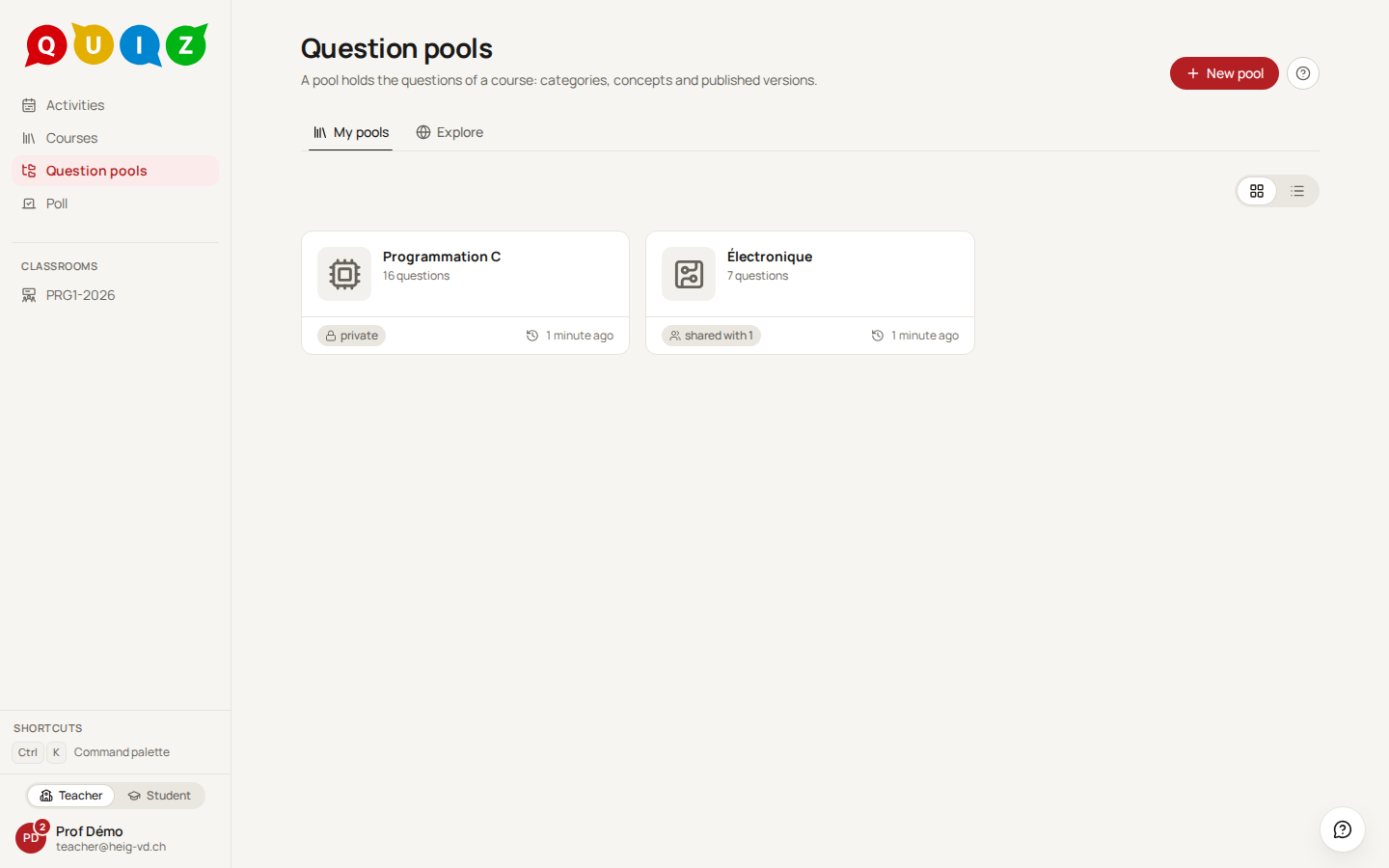
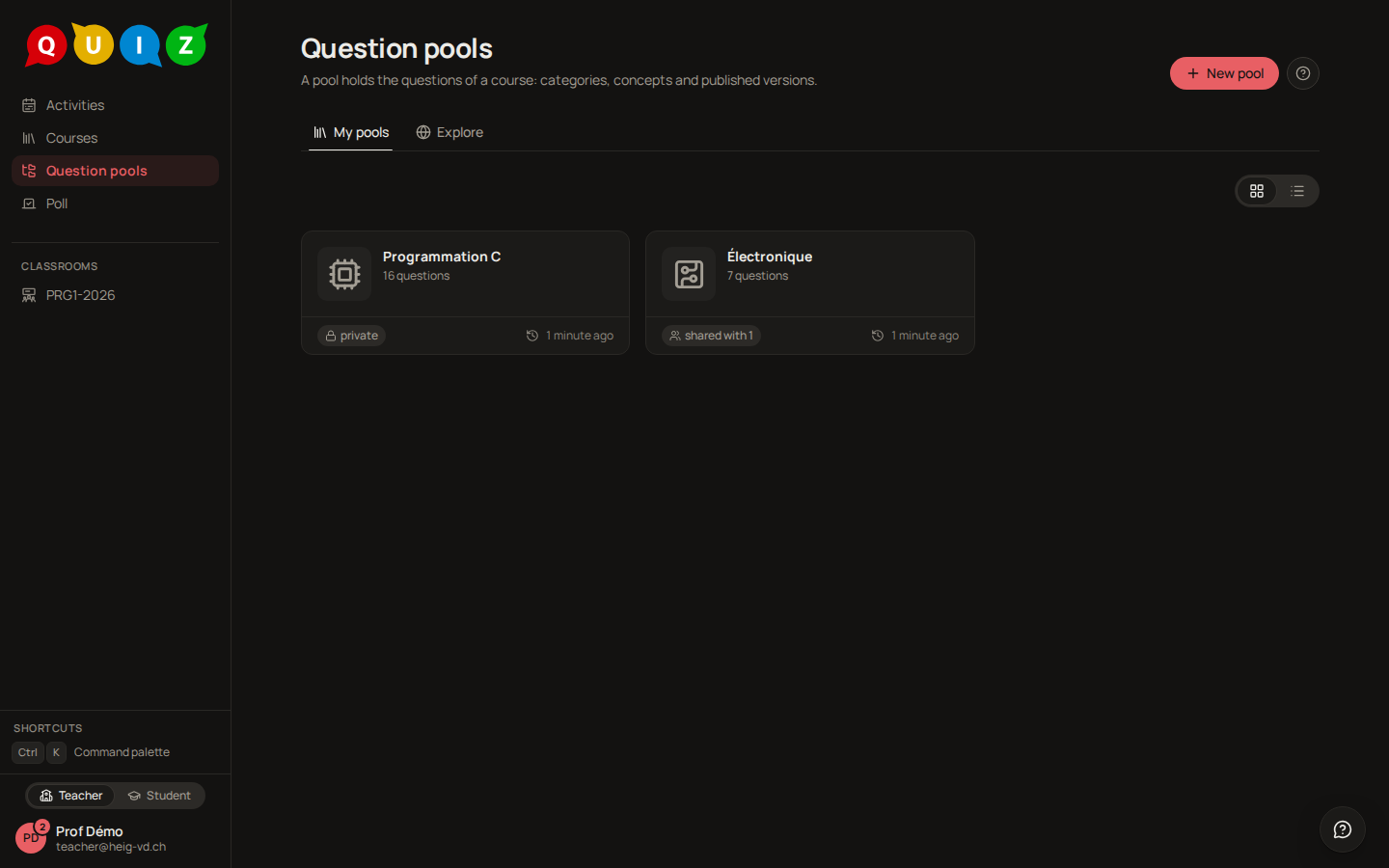
New pool creates one from a name and an icon. Everything else about a pool is in its Settings tab, inside the pool: Rename, the icon tile, the sharing, and Delete pool (or Leave for a pool shared with you). Renaming touches the name only. Deleting takes the questions and the categories with it, after a confirmation that names the pool.
Note
The question count includes drafts never published. A deleted question disappears from the pool and from the count, but an evaluation that already uses it keeps resolving it: results are never lost to a deletion.
A pool is offered when you fill an evaluation only once it is linked to the course, from the course card on Courses. Unlinking removes that offer and nothing else. See Evaluations.
Explore the public pools
The Explore tab of the pools page is the catalogue of the pools your colleagues published. Search by a name, a domain or a concept: each word must be found in the pool's name, its description, its domain or the concepts of its published questions, in French or in English, without minding accents or plurals. The most followed pools come first. The domain on a card is a short label the platform infers from the pool's concepts when it is published, and again at night when the concepts changed; only the concept labels are sent to the model.
My pools is a shelf, not the whole reach: it lists the pools you own, sit on, reach through a linked course or subscribed to. Every teacher can still read any public pool. Subscribe on a card adds a public pool to your shelf and nothing else: you are not a member, so the pool's owner and members see you by name only and cannot remove you (unsubscribe from the pool's Settings tab). The small counter with two people on a public card is the number of subscribers plus members.
To draw a public pool's questions in a course without making the course staff contributors, link it read-only (Linked read-only on the course's pools page); a course owner may do so without subscribing. Unpublishing a pool first tells you how many subscribers, read-only courses and templates depend on it; once you confirm, the read-only links and subscriptions end and those teachers are told. Links that let a course edit the pool stay.
Opening a pool
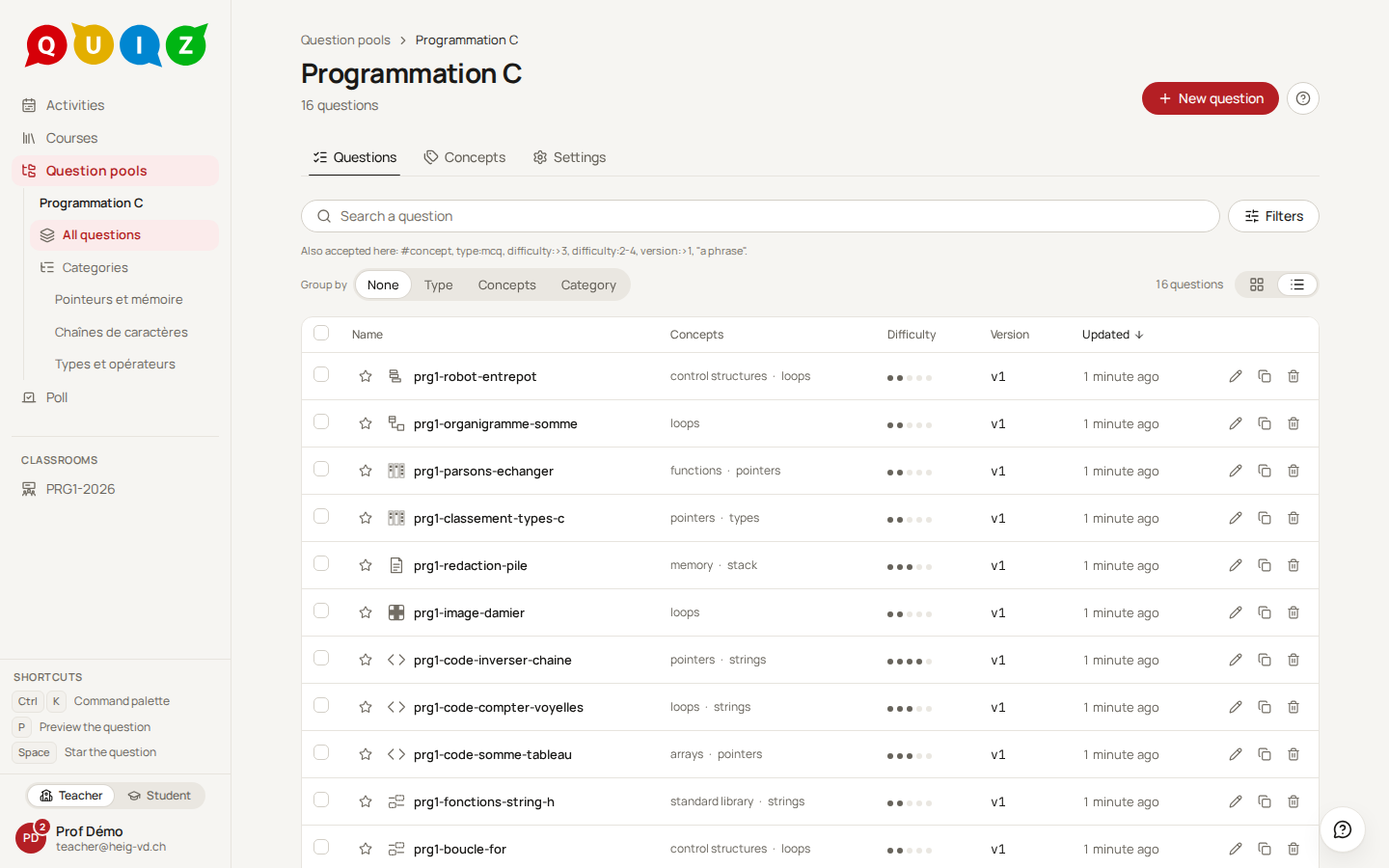
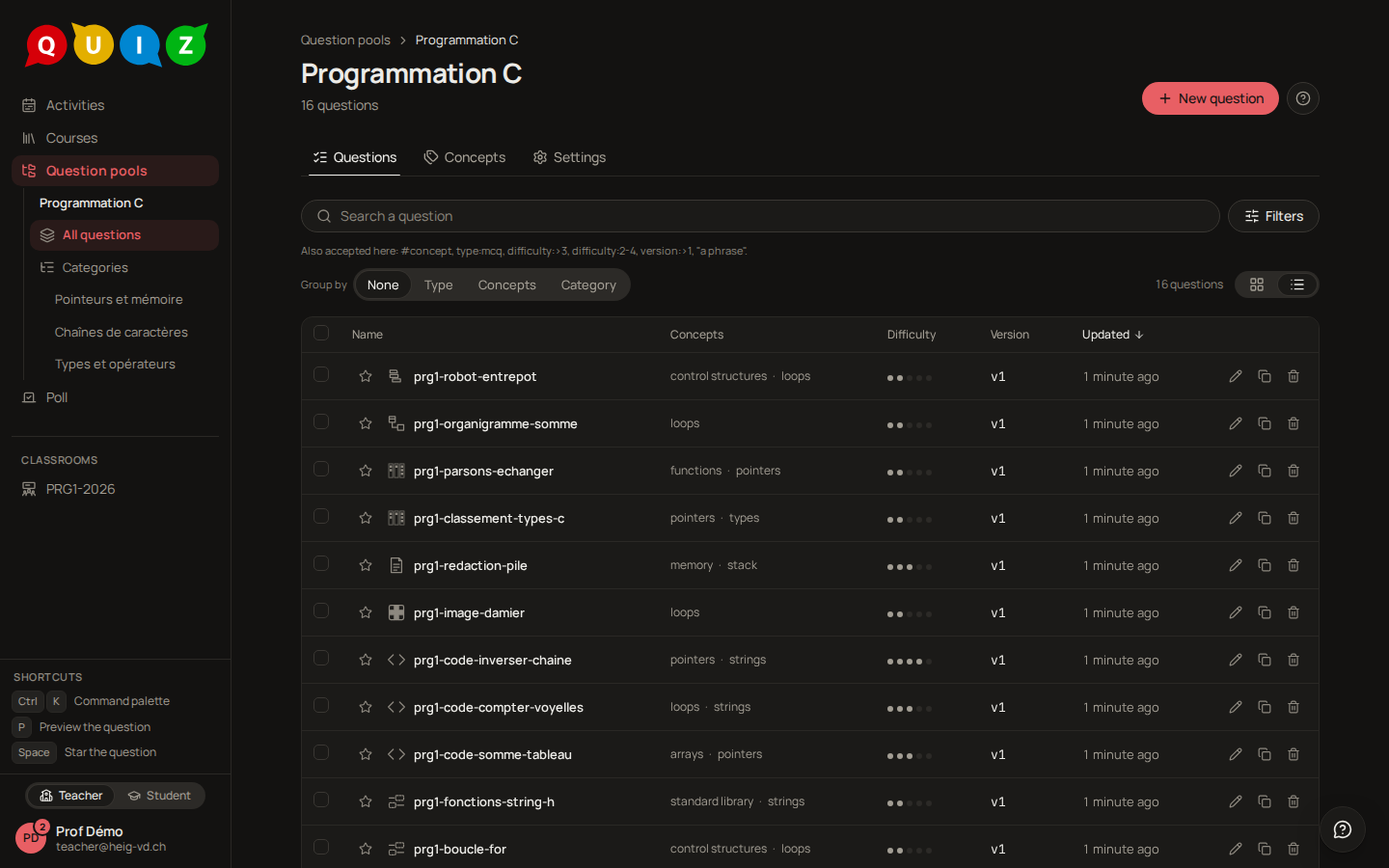
A click on a card opens the pool: its categories in the sidebar, its questions in the table.
Categories
The sidebar shows All questions, then the tree of categories. Picking a category narrows the table to it. The menu beside each category offers Rename category, New subcategory, Move up, Move down and Delete category. New category at the bottom of the tree adds one at the root.
Deleting a category never deletes a question: its questions move back to the root of the pool.
Search and filters
The search field matches the internal name and the statement. Filters opens a sheet with the type, the difficulty, the concepts and Show deleted questions.
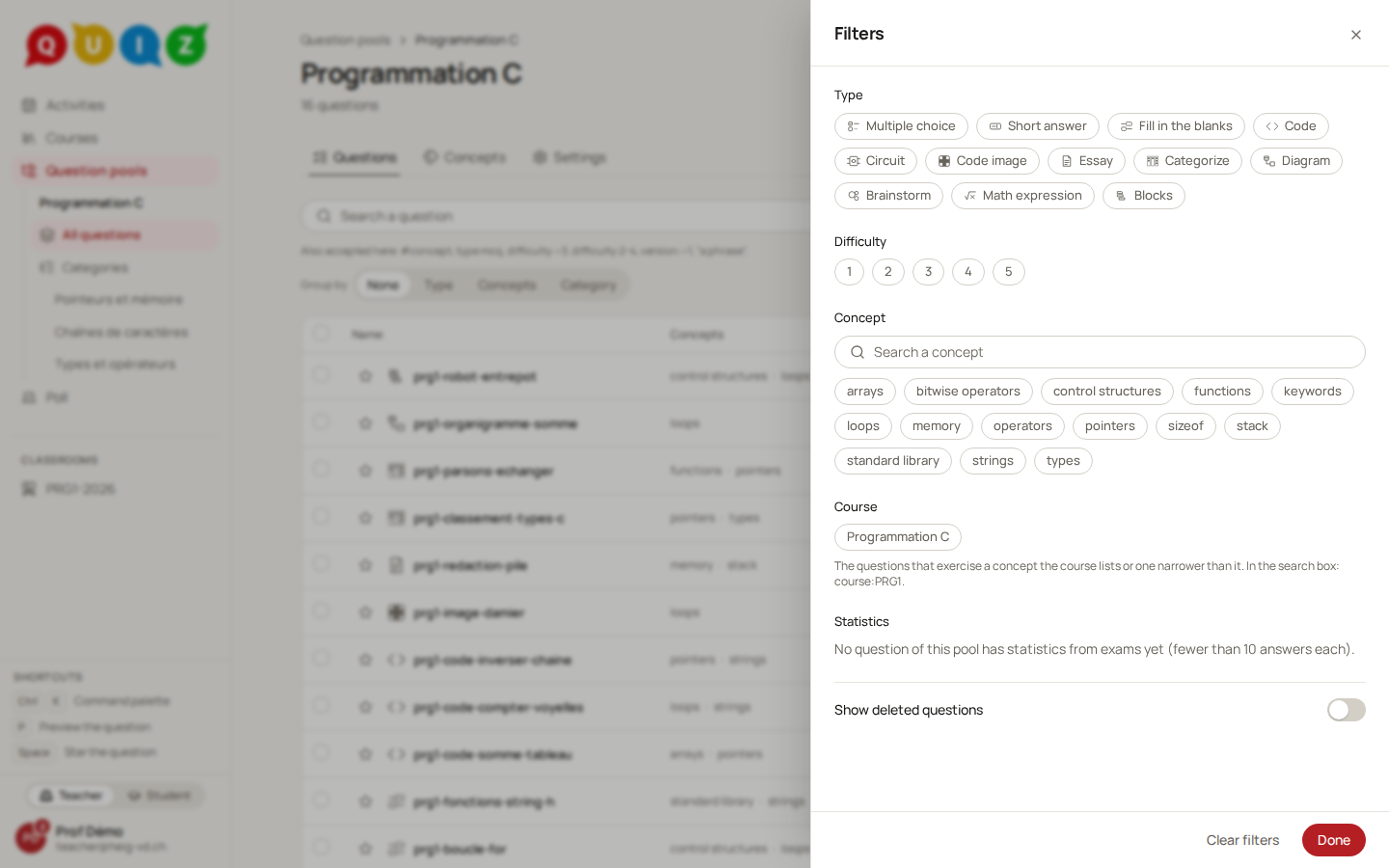
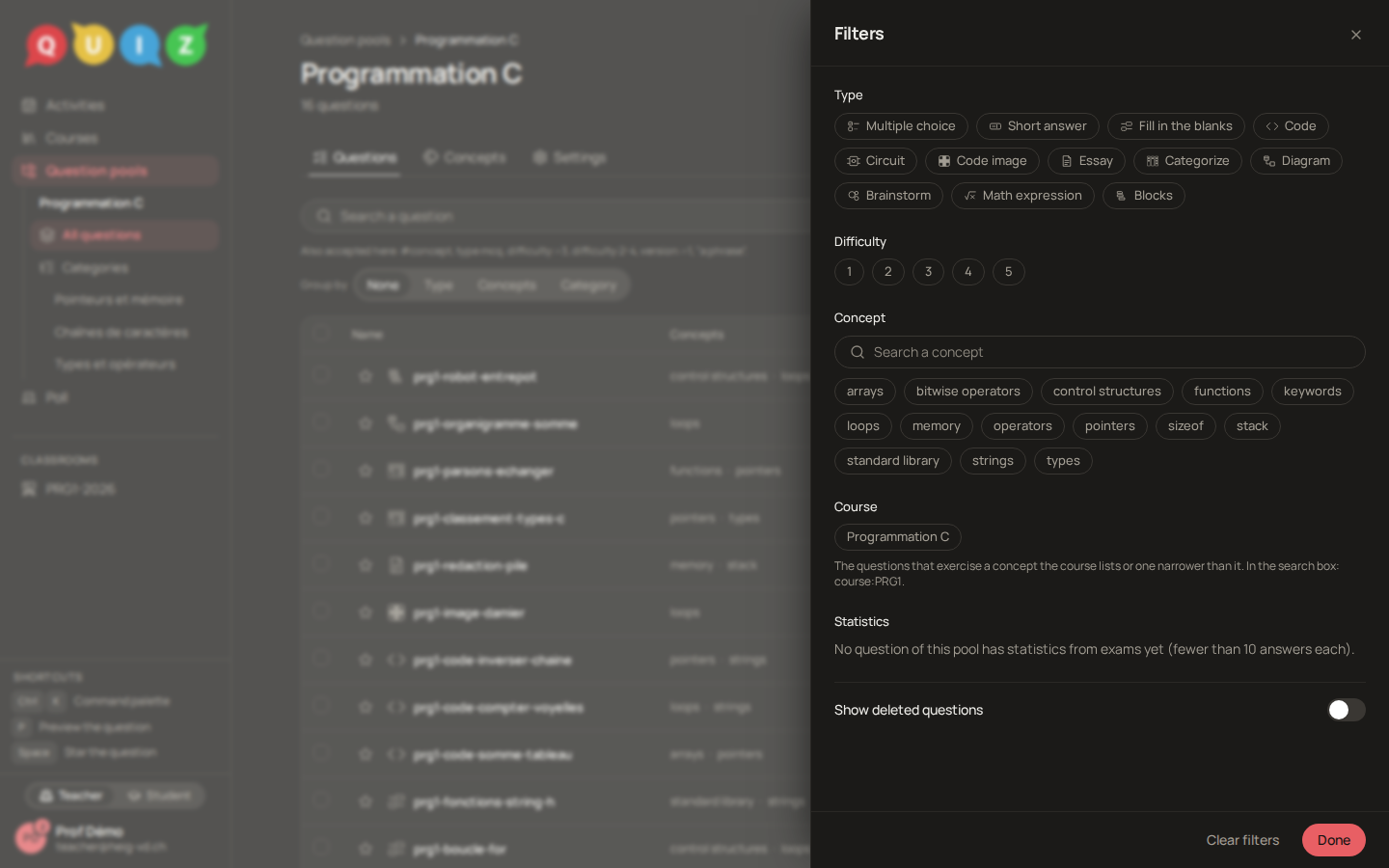
When the pool is linked to one of your courses, Filters also offers a Course block (Cours): pick one to keep the questions that exercise a concept the course lists in its Settings, or one narrower than it. Only your own courses linked to the pool are offered, and a course that lists no concept matches nothing. course: in the search field does the same, by the course's code or name.
Everything you tick comes back as removable chips under the search bar, with the number of questions left. The search field accepts the same filters as words, which is faster once you know the vocabulary:
| Typed | Meaning |
|---|---|
#pointers (also tag:pointers) |
the questions classified under a concept that word names, or under a concept narrower than it |
type:mcq, type:short, type:cloze, type:code |
that question type |
difficulty:3 |
exactly 3 |
difficulty:>3, difficulty:>=2, difficulty:<3, difficulty:<=4 |
a bound |
difficulty:2-4 |
a range |
version:v2 or version:2 |
published version 2 |
version:>1, version:>=2, version:<3, version:1-3 |
a bound, a range |
course:PRG1 (a course's code or name) |
the questions on the concepts that course lists, and their narrower ones |
"a whole phrase" |
those words together |
A concept word matches every concept it may name: its label in French or in English, or the label with its qualifier (#"address (memory)"), so #pointeur and #pointers find the same questions; a word that names no concept is shown with a dashed chip and filters nothing. Anything else is free text. A concept covers its narrower concepts: filtering on Memory also lists the questions classified under Pointer when an administrator made Pointer narrower than Memory. Several concept words add up (a question matching any of them is listed), and two version: bounds narrow each other. Words and ticks are the same filter: both appear as chips, and removing a chip removes the word from the field. Right after #, tag: or type:, a short list opens under the field; arrows move through it, Enter inserts, Escape closes.
Cards, table, grouping and sort
Group by splits the list by Type, Concepts or Category; a question with three concepts appears in each of its three sections. Click a column header to sort the whole pool by that column, and click it again to reverse the order; the cards follow the same order, newest change first until you pick another. Beside the toggle that switches between Cards and List, the count says how many questions your search, filters and category match — all of them, not only those already loaded. The grouping and the view are remembered for your next visit.
Row actions and bulk actions
Each row shows the type as an icon, the internal name, its concepts, the difficulty as five dots, the published version and the last change. The three icons at the end of the row are Edit, Duplicate and Delete.
A click on a row shows the question as a student will read it, in a panel beside the list; on a narrower window the panel takes the list's place, and Back to the list returns to the row you left. The version shown is the latest published one, the one an evaluation would take, or the draft of a question never published; a line says so when the draft has changes not yet published. From the keyboard, P shows the focused row and Space stars it (below); on a wide window ↑ and ↓ move from row to row and show each one, opening the panel if it was closed. Escape or the × closes it. With the panel open, the table drops the columns it has no room for (version, last change, concepts), and gets them back when it closes. To edit, press Enter on the row, double-click it, click its pencil or Open in the editor in the panel.
Tick several rows and a bar appears at the bottom: Star, Add a concept, Move to a category, Move to another pool, Delete. Deleting hides the questions from the lists; the results already recorded are kept. Add a concept adds the concept you pick to every ticked question.
The Concepts tab
Beside Questions, the Concepts tab (Notions in the French interface) lists the concepts the pool's questions exercise, each with its number of questions: those classified under it and under its narrower concepts, counted once, which are exactly the questions its click shows. It is read-only: a click on a concept opens the questions under it, filtered as with #. A concept's label and description belong to the platform's shared vocabulary, which the administrator maintains; to change what a question exercises, edit the question or use Add a concept in the bulk bar.
The switch at the top right shows the same concepts as a Map (Carte): one level of the hierarchy at a time, each concept an area proportional to its number of questions. The first level shows the broadest concepts, including a broader concept no question carries directly when it groups others. A concept with narrower concepts has a chevron: click it to see them, and Show its n questions above the map opens all of its questions. A concept with none opens its questions at once.
When some of a concept's questions are classified under none of its narrower concepts, an Itself area counts them. A question with two concepts counts in both areas, so the areas of a level may add up to more than the concept above. A concept narrower than two others appears under each. The path above the map takes you back up, and the address keeps it, so a reload or a shared link opens the same level. The search field keeps the concepts whose name contains your text, with the broader concepts that lead to them and their narrower ones.
Favourites
Before a test, browse the pool and star the questions you want: the star in front of a question's name, Space on the focused row, or Star in the bottom bar for the ticked rows (it reads Unstar when they are all starred already). A star is yours alone: a colleague who shares the pool never sees it and cannot clear it, and a reader may star as well, since a star changes nothing in the pool.
Then, in the evaluation or the template, Add questions shows the favourites of the pool on display first, above the whole list (they step aside while you search or filter). Add favourites adds every one that can be added and says what it left out: a question never published, one kept after a poll without a correct answer, or one already in the list. The notice then offers Unstar these, to start the next test from a clean slate; nothing is unstarred unless you ask.
Clear favourites, the crossed-out star beside the question count above the list, removes all your stars in that pool after a confirmation that counts them. A question moved to another pool keeps its star; a copy starts without one; a deleted question's star comes back only if the question does.
Question statistics
A question answered at least ten times in exams shows a chart icon after its name. It opens its Statistics: the Success rate, the mean share of the points students earned on it, and the number of Answers counted. Only exams count, never exercises: an exercise is done at home, with notes, classmates or an AI at hand, so its success rate says more about the help than about the question. Every version of the question counts; a teacher's own test attempt does not, and a blank answer counts 0. A question the student never opened (the time ran out before they got to it) is left out rather than counted 0. Under negative marking the rate can fall below zero.
Below, Time spent says how long students keep the question on screen in exams: the Median time, with the middle half of the students between two durations, the Mean time and the number of Timed answers. The server measures it, not the browser, and a stretch without activity counts ten minutes at most, so a forgotten tab does not inflate it. It shows from ten timed exam answers; until then the panel says so.
Last, Discrimination says whether the question separates the students: do those who did well on the rest of the exam also do well on it? The Discrimination index runs from −1 to 1, with its reading: Good from 0.3, Fair from 0.2, Weak below. A question marked Inverse (below zero) is answered better by the weaker students than by the stronger ones: check its answer key and its wording first. The line under the value says how many exams and attempts it rests on. Only exams count, and in each exam only the attempts graded in full (no proposal left to validate); an exam counts once it has at least five other questions and ten such attempts. Until one does, the panel says so.
On a multiple-choice question, Choices picked lists its choices with the share of students who ticked each, a bar per choice, and the correct ones marked Correct; No answer is the share who ticked nothing. A wrong choice nobody picks is not doing its job as a distractor: rewrite it or drop it. A wrong choice picked more often than the right one points to a misconception, or to a wrong answer key. The shares count the same exam answers as the success rate, but only those given to versions whose choices (their text and which are correct) are the current version's: change a choice, or the key, and the answers given before no longer count — until the change is undone. They show from ten such answers. When several choices may be ticked, the shares add up to more than 100 %.
At the bottom, Time in targeted revision is a separate figure: how long students took on their first try at the question when they revised a concept on purpose (Revise a concept on their Drill page), one try per student, with the median, its middle half and the number of Students (no mean). These students had already met the question and could see its key, so it is not an exam time and is never added to one: size a test with Time spent. It shows from ten students; until then the panel says "Not enough students yet". A question revised by ten students but answered fewer than ten times in exams also gets the chart icon: its panel says it has no exam statistics yet and shows this figure alone.
Reset statistics (contributors and owners) starts the count again: only attempts started afterwards count, and only the first tries in targeted revision made afterwards. Nothing is deleted; grades, results and revision rounds stay as they are.
The statistics also filter the list. At the bottom of Filters, Statistics takes a range of Success rate in percent (a bound below zero finds the questions that take points away under negative marking) and, once some question has a time, a range of Median time in seconds. Leave a box empty for no bound on that side. Each range becomes a chip under the search, like the other filters. While a bound is set, a question without the figure it reads (fewer than ten exam answers, or no time yet) is hidden; switch on Include questions without statistics to keep them. The list then loads the whole pool at once, and the count says how many questions pass.
Creating a question
New question asks for the Question type and the Internal name, then Create question opens the editor. The name is yours alone, a student never sees it; a stable convention such as prg1-boucle-for is what you will search for later.
The question editor
The draft saves itself
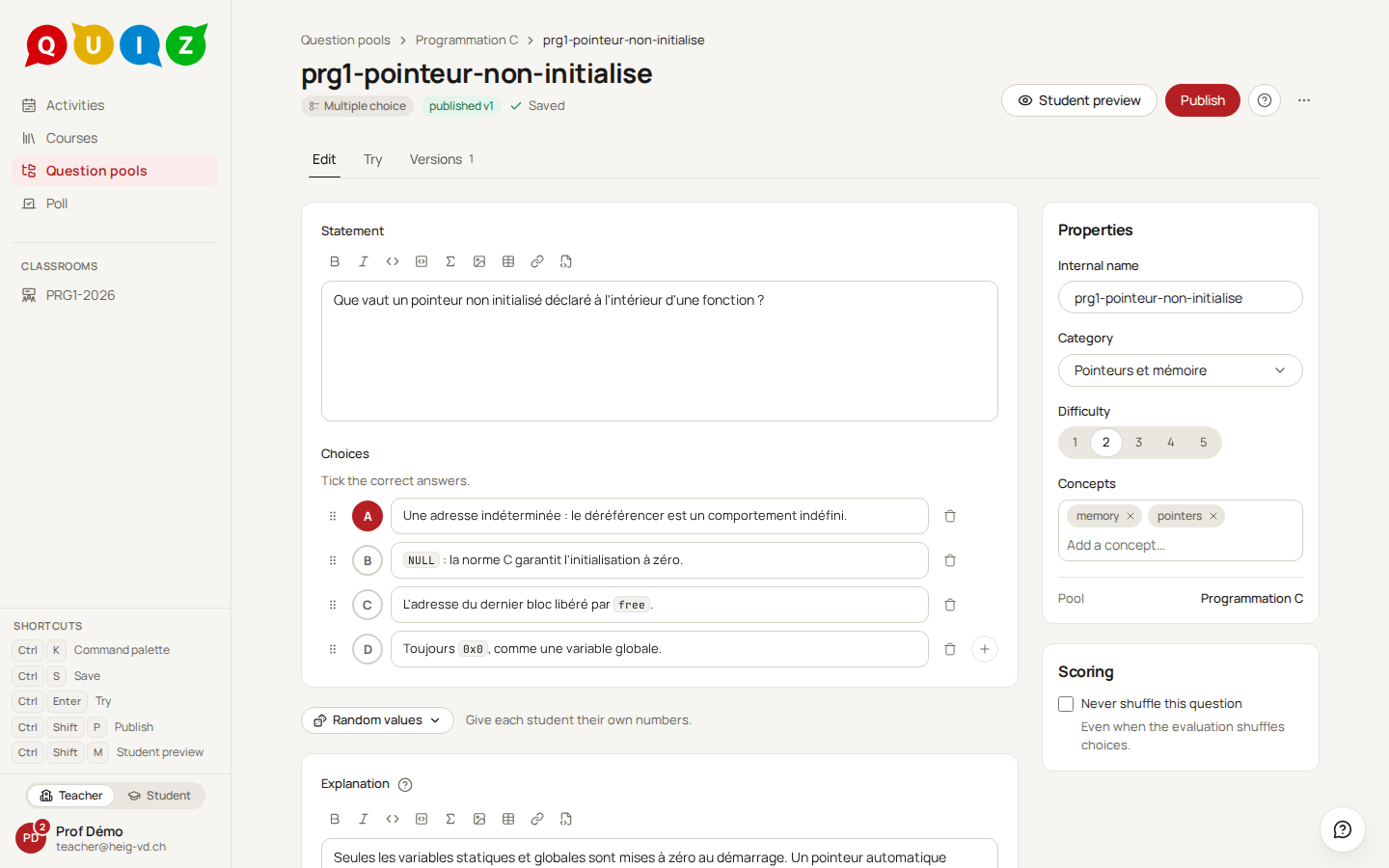
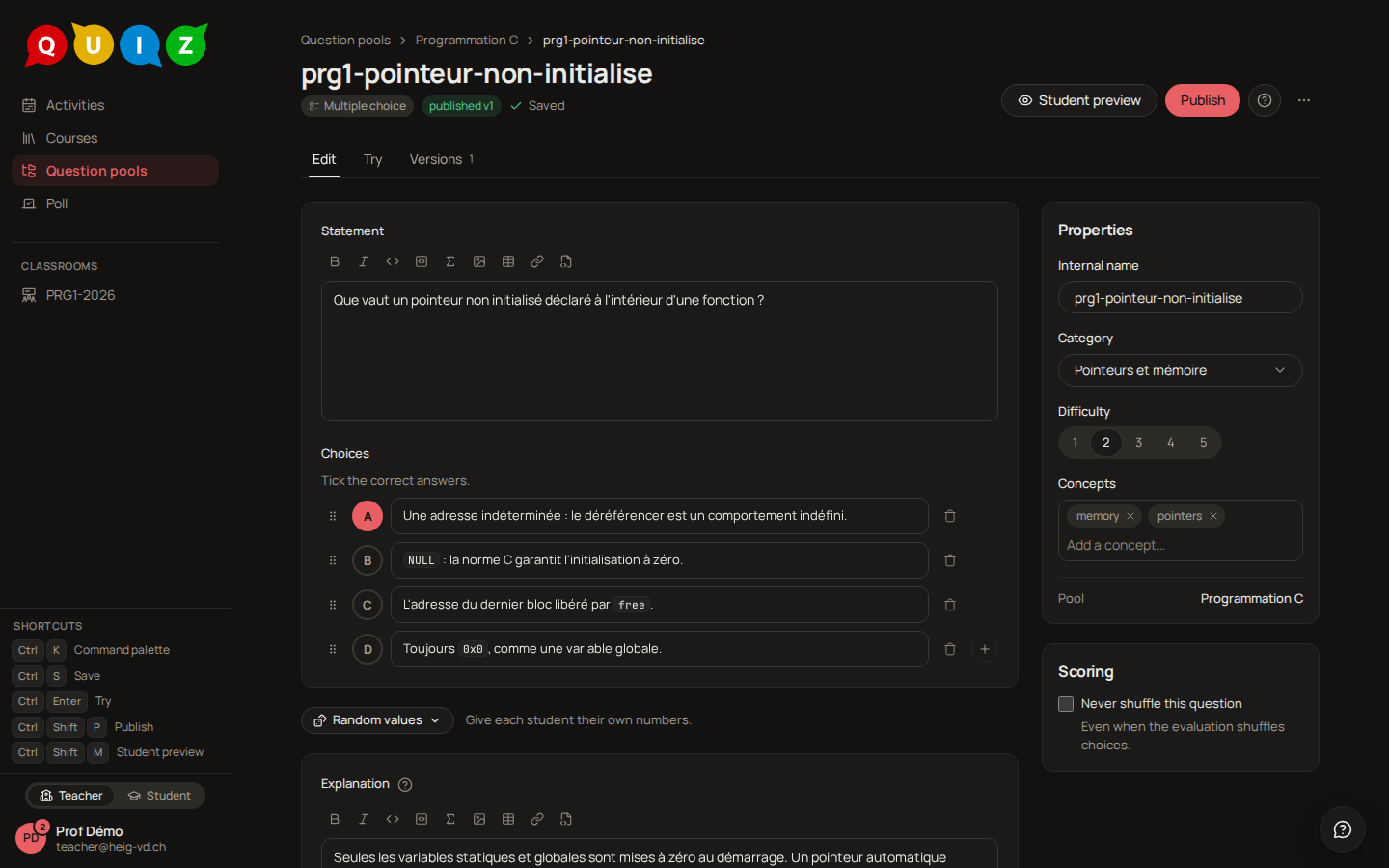
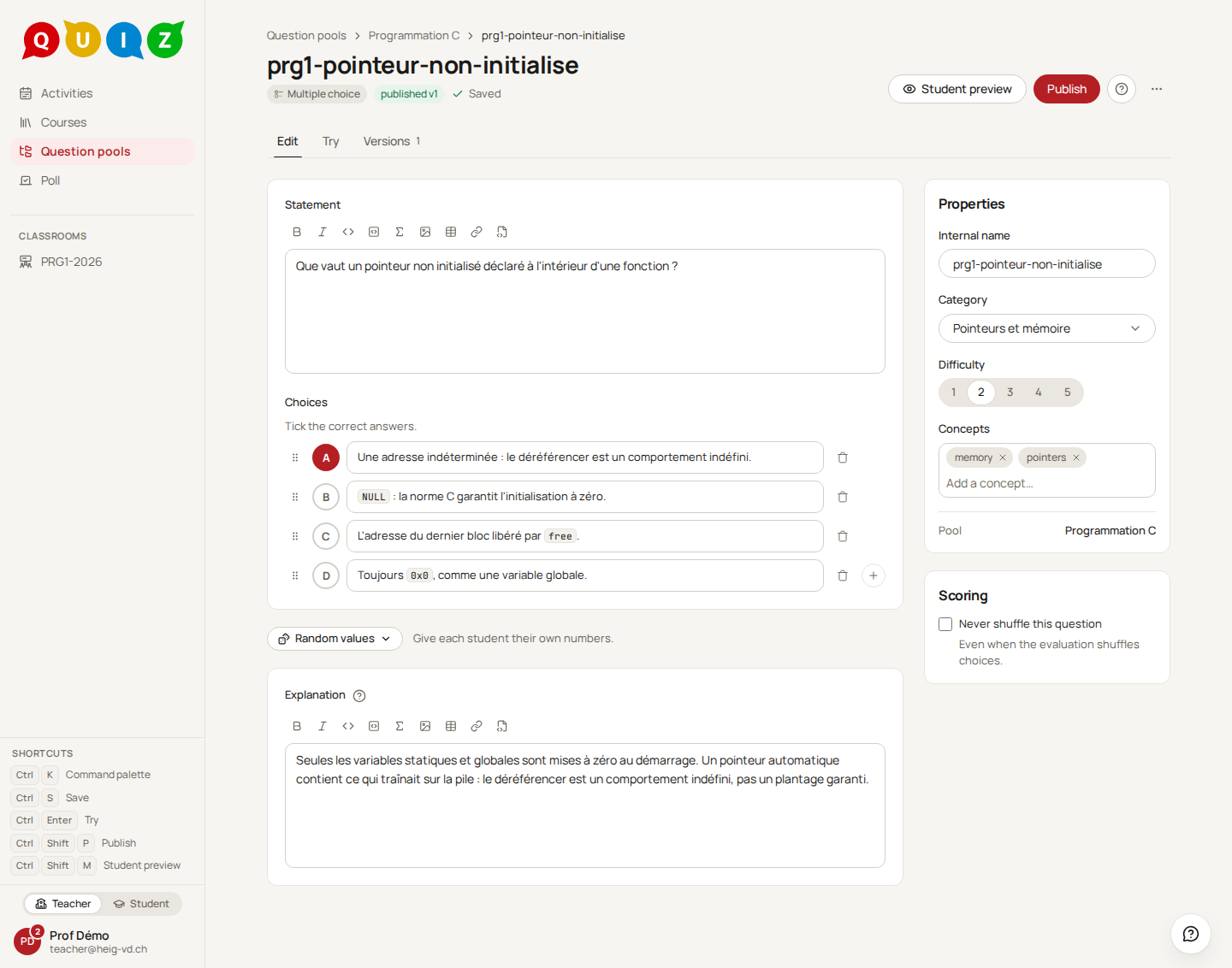
You always edit the draft. It is saved shortly after you stop typing, and the badge beside the title tells you where you stand: Saving… then Saved. Next to it, draft or published v1 says whether a version exists. An incomplete draft is stored as it is; publishing is what asks for the missing pieces.
Three tabs
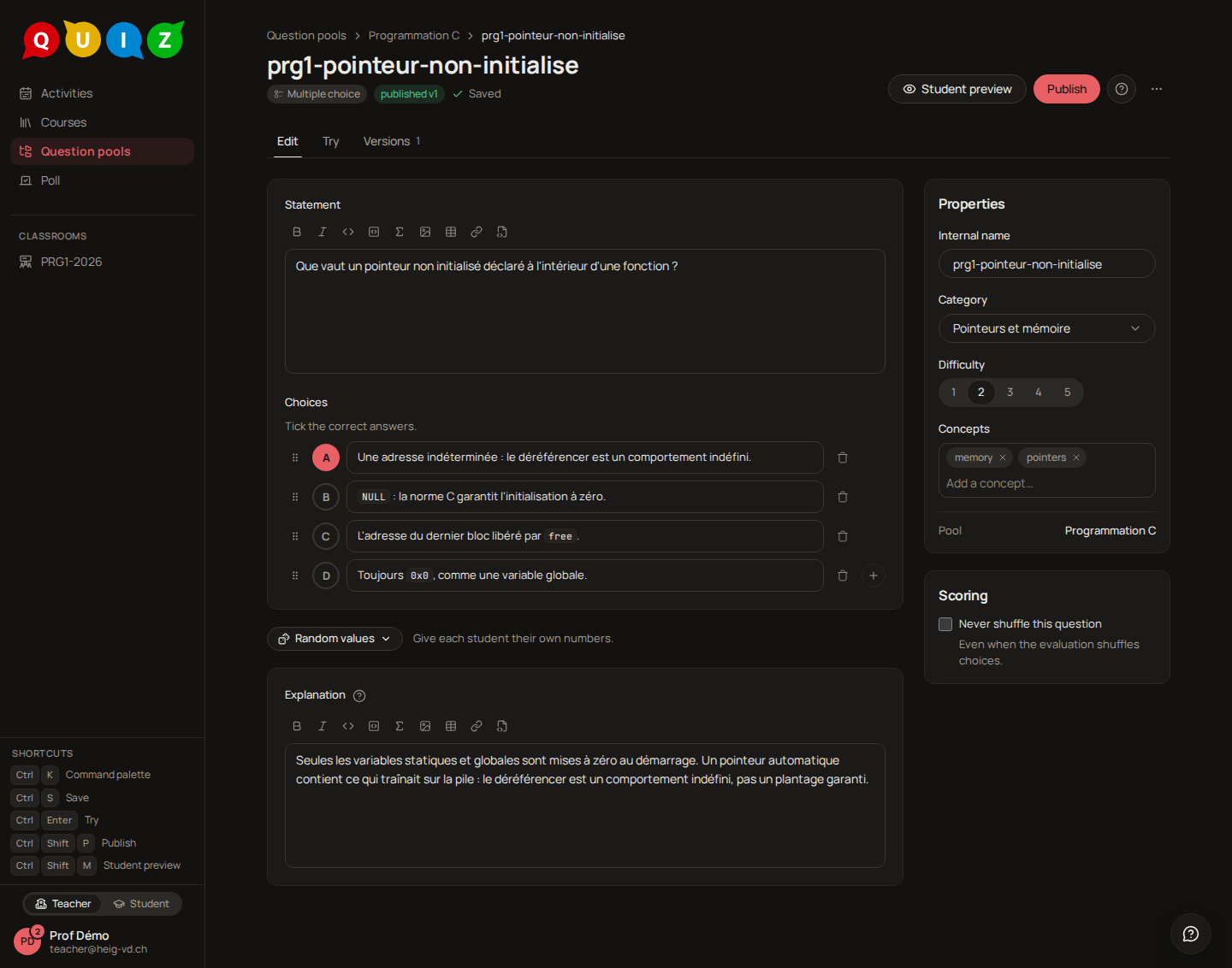
- Edit holds the statement, the form of the type, the explanation and the properties.
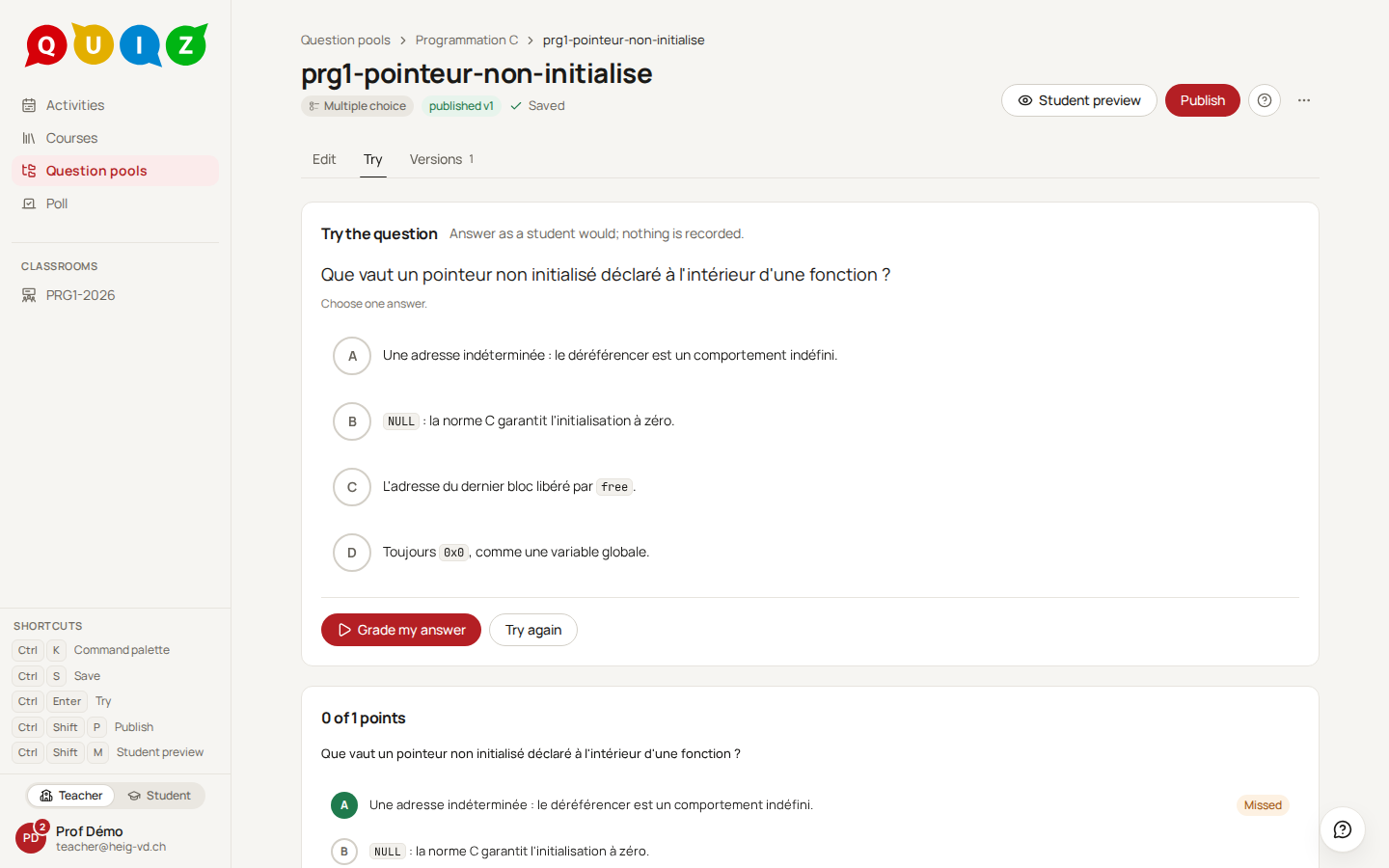
- Try lets you answer your own question and grade it on the spot. Nothing is recorded.
- Versions lists every publication with its change note.
The properties panel
On the right: the Internal name, the Category, the Difficulty from 1 to 5, and the Concepts the question exercises (Notions in the French interface).
A concept is not a free word. It comes from one vocabulary shared by every pool of the platform, with a label in French and in English, so that pointeur in your pool and pointers in a colleague's are one and the same concept, and each reader sees it in the language of their interface. Type in Add a concept… to search: the concepts already used in this pool come first, marked in this pool, and each suggestion shows its description. A word with two meanings is told apart by a qualifier, shown in parentheses wherever a concept has one: address (memory) is not address (postal). A concept marked proposed has not been reviewed by the administrator yet; you may use it all the same. Backspace in the empty field removes the last concept.
When nothing fits, the last row offers Create "…". It opens New concept: the Label, in your interface language, and an optional Qualifier, only for a homonym. The concept is created as proposed and added to the question at once; the administrator reviews it later, and may rename it or merge it into an existing one, which your questions follow. If the label turns out to exist already, that concept is added instead and a line says so.
Suggest concepts, in the AI card above Properties and shown only when the platform has an AI model, asks the model which concepts fit the question as you have written it so far, saved or not. It lists up to five existing concepts, each with a short reason, unticked: tick the ones you want and press Add selected. It may also name up to two labels the vocabulary lacks; Create… opens the same New concept form as above, filled in, and nothing is created until you press Create there. A suggested label that only resembles an existing concept is offered as that concept, with a line saying what the model typed. Only the question's statement and choices, as a student reads them, and the labels of the concepts leave the platform, never the answer key, a description, a name or a person; nothing is stored, and the call counts on the platform's daily AI budget. Contributors and owners of the pool can use it, readers cannot.
A concept is what the question teaches. A week, an exam, a chapter or the kind of task (reading code, writing code, vocabulary) is not one: the category, the difficulty and the course's templates already hold those. A label the administrator dropped for that reason cannot be created again; the field says so and asks you to pick an existing concept.
A multiple-choice question also shows a Scoring card with Never shuffle this question, for a choice list whose order matters, such as "all of the above".
Writing the statement
The statement is written as in a word processor. Markdown is stored underneath, so **bold**, $x^2$ for a formula and a fenced code block work if you prefer typing them. The toolbar offers the three heading levels, bold, italic, inline code, a code block, a formula, an image, a table, a link and the Markdown source. The heading button of the line the caret is on stays pressed: that is how a line typed as # Title shows it became a heading, once the # is gone from the surface. A pasted or dragged image is uploaded and referenced by a stable id. The table button inserts a 3 by 3 table; with the caret inside one, the Table menu adds and removes rows and columns.
The explanation
The explanation is why the answer is the answer, in your own words. A student answering never receives it: they read it only when the evaluation's feedback policy carries Show the explanation, and only once feedback is open, never while the attempt runs (see Grading and results). Write the reasoning a student who got it wrong needs, not the answer key, which travels on its own.
Trying a question
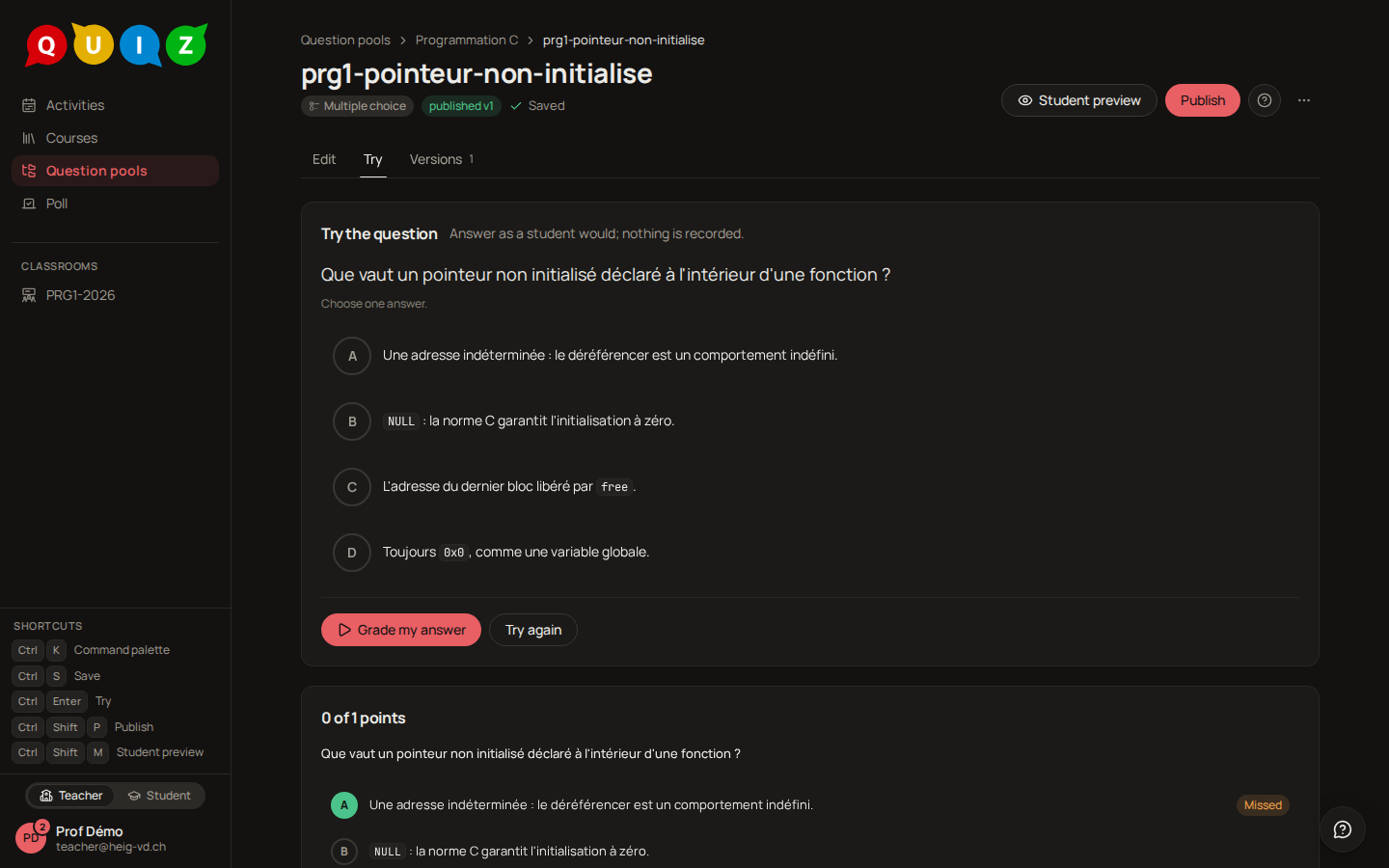
The Try tab shows the question as a student sees it. Answer it, then click Grade my answer: the score and the correction appear below, exactly as the grader will compute them. Try again clears the answer.
Tip
Try a question before you publish it. A wrong answer key found here costs one click; found after a test, it costs a regrade.
The student preview
Student preview (Ctrl+Shift+M) opens a panel under the properties that shows the draft exactly as a student receives it: no internal name, no concepts, no key, no explanation.
Publishing
Only a published version can be used in an evaluation; the draft never is. Publish (Ctrl+Shift+P) validates the draft against the rules of its type. If something is missing, the dialog lists it under The draft cannot be published yet and nothing happens. Otherwise it asks What changed, one optional line for the version history, and creates the next version number. A toast confirms Version n published.
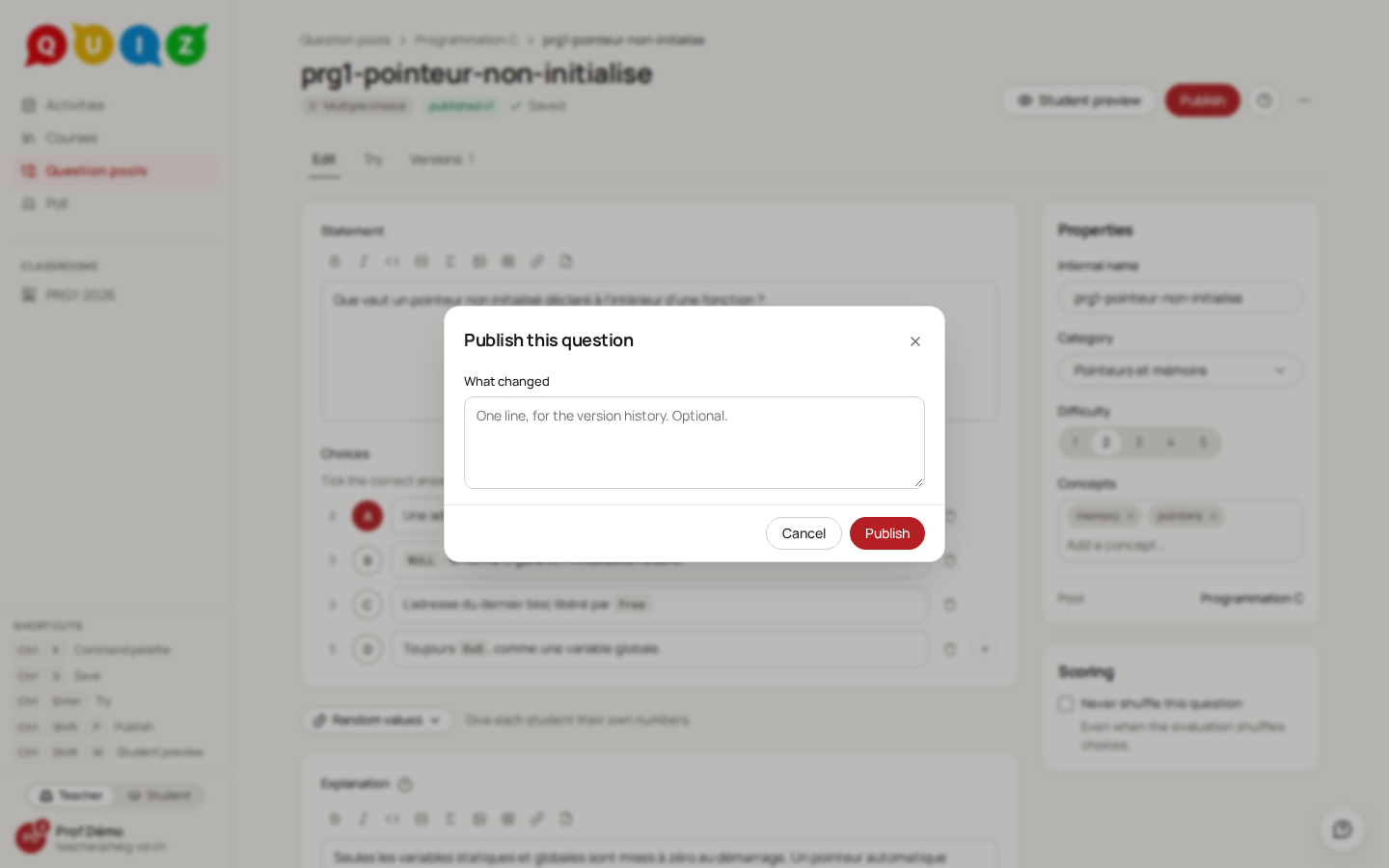
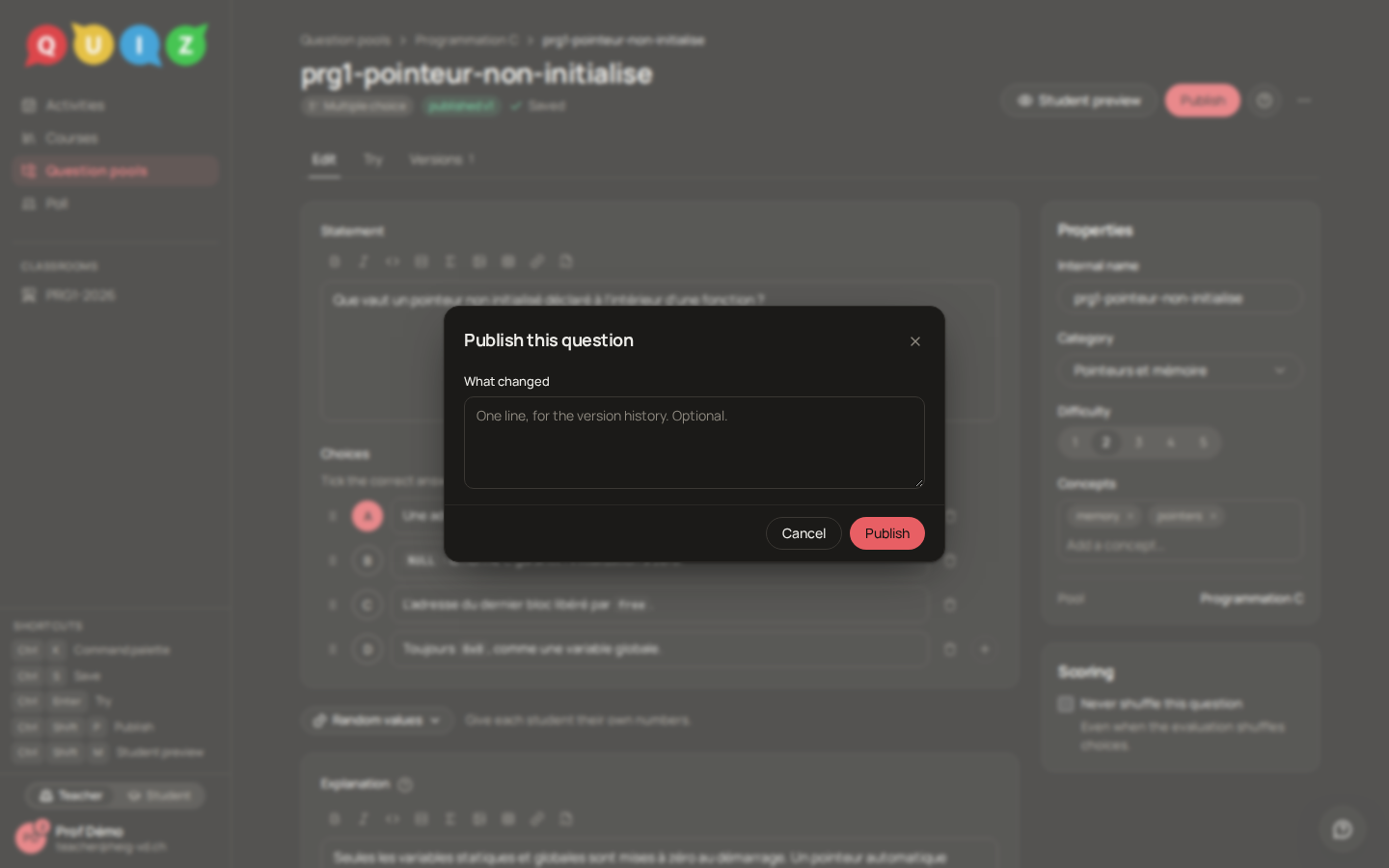
A published version never changes. Fixing an answer key means publishing again, which creates v2 and leaves v1 as it was.
Versions
The Versions tab lists every publication: its number, its date, its note, and a current badge on the latest one.
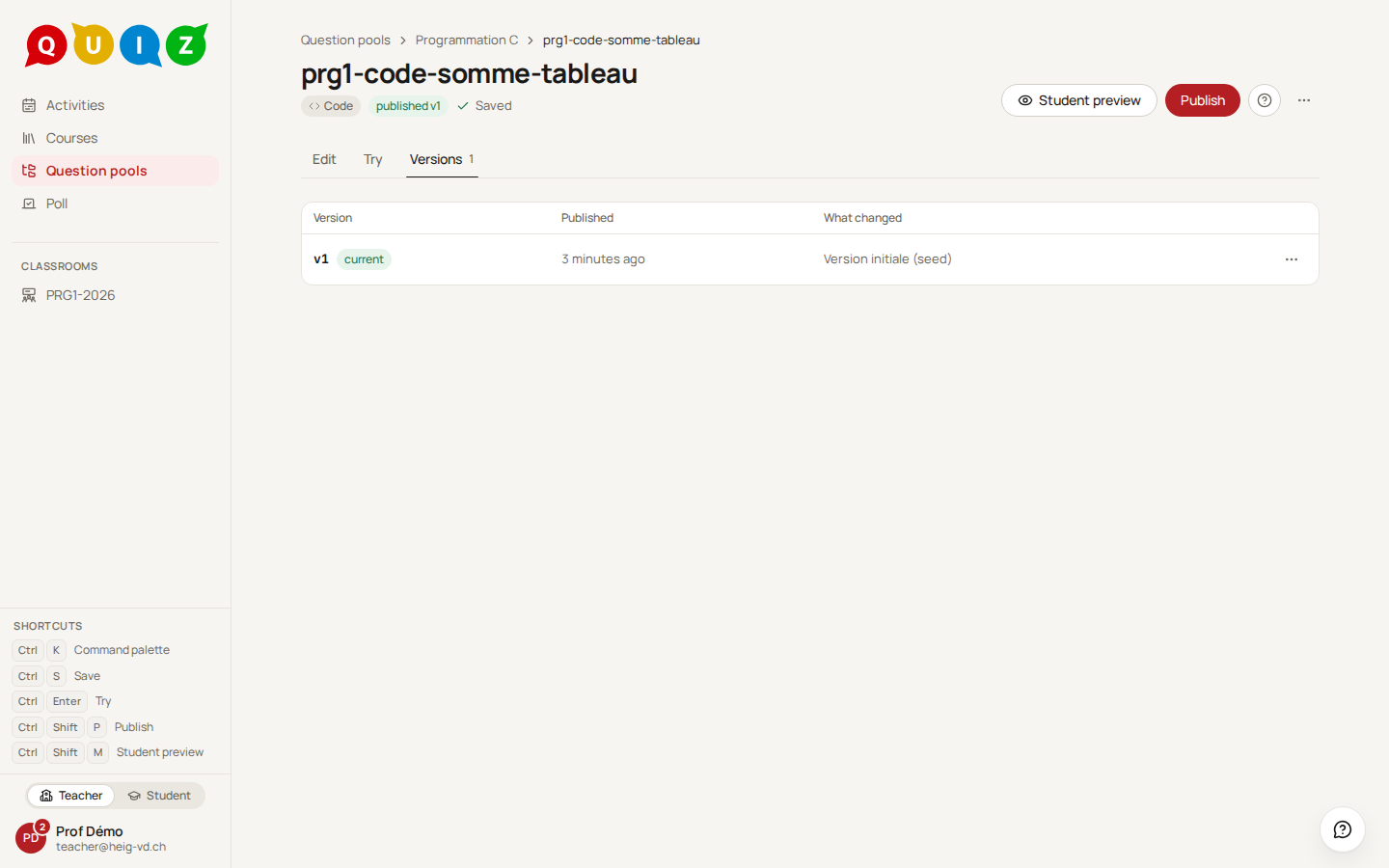
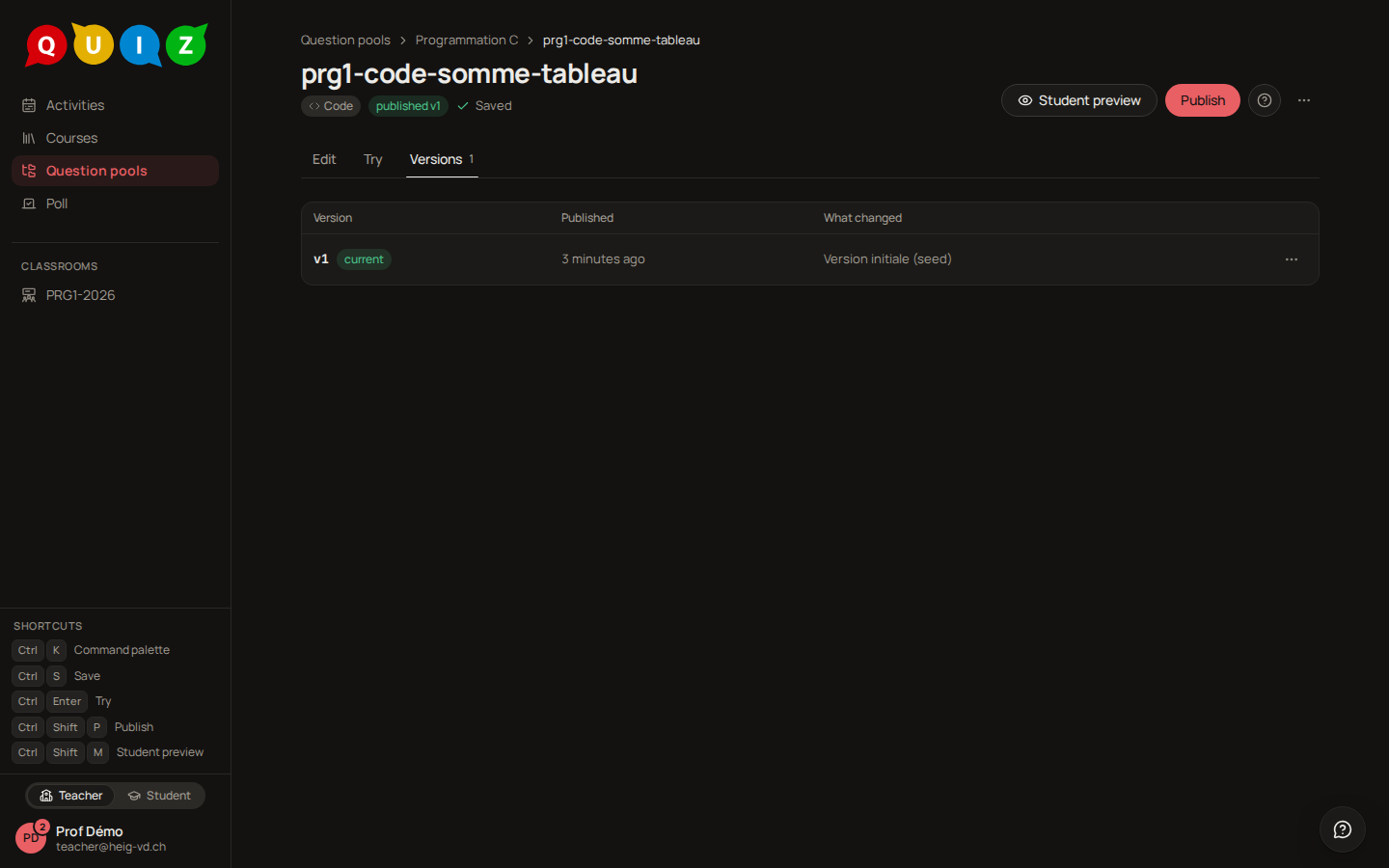
The menu at the end of a row offers three actions. View this version shows it read-only. Restore into the draft replaces the current draft with that version, after a confirmation, since what is not published is lost. Deprecate marks the version with a reason (Why); an evaluation that still uses it shows a deprecated badge to its teacher so they can swap it for a newer version.
How a version reaches an evaluation
When you add a question to an evaluation, the evaluation freezes the published version of that moment. Publishing v2 afterwards changes nothing in a test already built: its items show version 2 available and you decide whether to update them. See Evaluations.
Sharing a pool
The Sharing section of a pool's Settings tab says who may read and write it. Only an owner sees it.
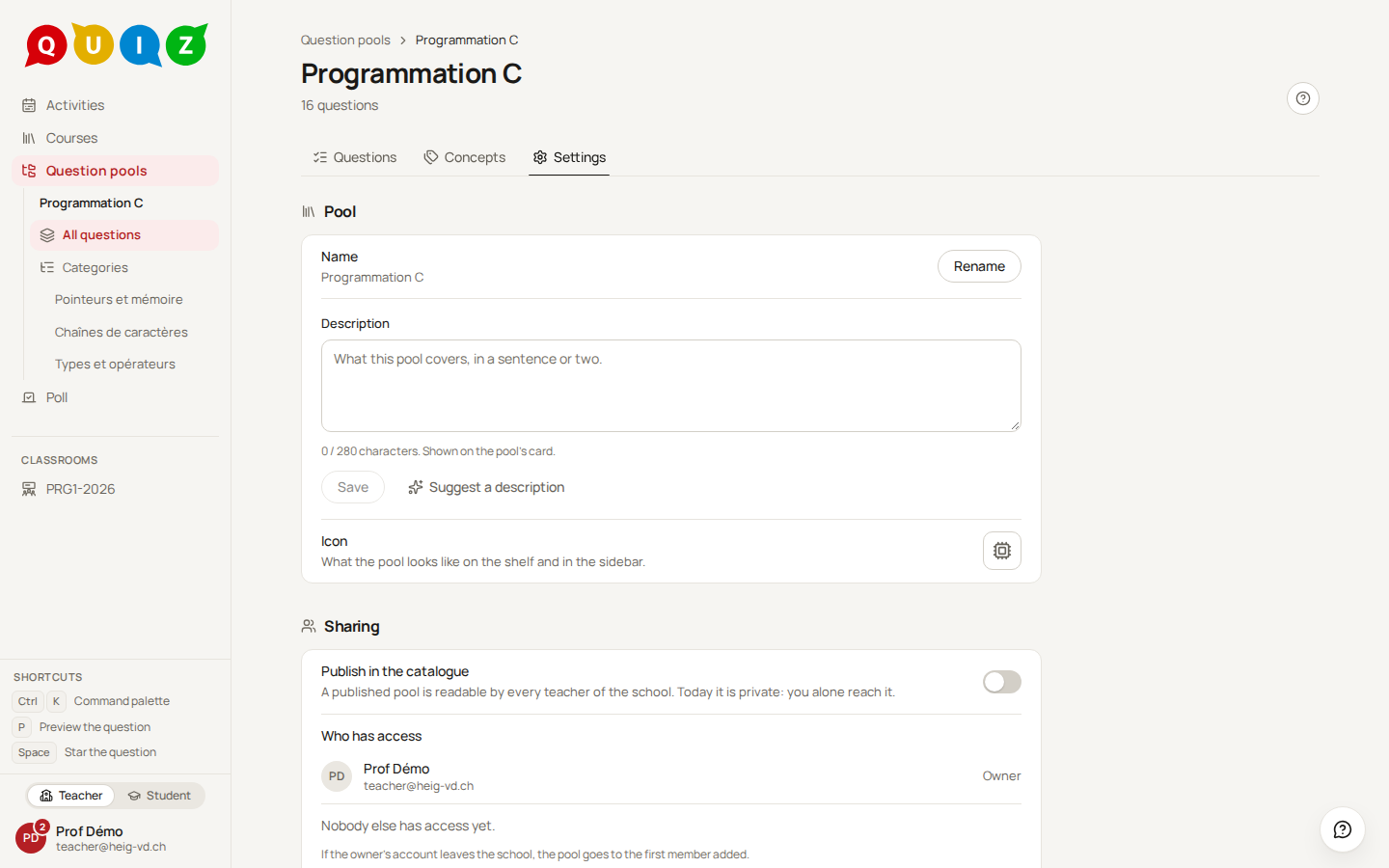
The one choice is the Publish in the catalogue switch: a published pool is public and every teacher of the school may read it, while writing stays with you and your members (your personal pool cannot be published). The other two visibilities follow from who has access, so there is nothing to set: a pool is shared as soon as it has a member, or a linked course whose staff includes someone other than you, and private otherwise. To make a pool private again, remove its people. The Linked courses list shows the courses whose staff can edit the pool.
On a public pool the invitation offers Contributor and Owner only, since every teacher already reads it; the Reader seats that exist stay, marked "covered by public".
The Description field of the pool's Settings (280 characters, owners only) shows on the card. Suggest a description asks the AI for a proposal, built from the pool's name, its concepts and two excerpts of its questions; nothing is saved until you press Use this description, and a text you wrote yourself is never replaced.
Invite a teacher takes an e-mail address and a Role:
| Role | May |
|---|---|
| Reader | open the pool and read its questions |
| Contributor | also write: questions, categories, the questions' concepts, images |
| Owner | also manage the members, the name, the icon, the visibility and the deletion |
A reader sees the questions and none of the actions: no New question, no edit, no duplicate, no delete, no tick boxes. Opening a question still works, since reading one means opening it.
The invited teacher gets a notification under the bell of the sidebar, "… shared the pool … with you as reader", and the pool appears on their pools page. Remove beside a member takes their access away; a member can also Leave pool from their own list.
Note
A named seat wins over the course rule. The staff of a course linked to a pool can write in it; a colleague you explicitly name Reader stays a reader even when they teach that course.
If the owner leaves
When a teacher leaves the school, each pool they own passes to its first member, the one added earliest, who is notified: "You are now the owner of …". A pool with no member keeps its owner and stays reachable through its courses. The person who inherits is always someone already working in the pool.
Keyboard shortcuts of the editor
| Keys | Action |
|---|---|
Ctrl+S |
Save the draft now |
Ctrl+Enter |
Open the Try tab |
Ctrl+Shift+P |
Publish |
Ctrl+Shift+M |
Toggle the Student preview |
Ctrl+K |
Open the command palette, which carries the same actions |
The Shortcuts strip at the bottom of the sidebar lists them while the editor is open.